

Connect AR Automation to ERP Without Custom Integration Work

The Short Version
Most ERPs are good at holding financial data and weak at the work that actually gets you paid: collections workflows, automated invoice creation, and payment reminders. For mid-size teams with real invoice volume, that gap is where time and cash leak out.
A few specifics from Blixo’s reviewed documentation, which you should confirm in a live demo:
- NetSuite: data is described as pulling into Blixo every 15 minutes. Payments made in Blixo are described as syncing back to the ERP instantly.
- QuickBooks Online: included on every Blixo plan.
- NetSuite access: requires a paid plan, with setup handled by Blixo Customer Support.
Integration worries, tool-selection doubts, and cost concerns usually trace back to one fear. Software that won’t sync cleanly turns into an expensive custom integration project.
Why ERP‑connected AR automation is usually the right call
My advice is simple. Don’t replace your ERP to fix collections. Connect AR automation to it.
Your ERP probably isn’t the weak link. The weak spot is the space between the ERP and the daily grind of chasing invoices. Connected AR automation fills that space, so you can automate accounts receivable without ripping out the system your books already run on.
Leadership often assumes the ERP “handles AR.” It holds the receivables ledger, sure. But most ERPs don’t run collections workflows, generate invoices on a schedule, or send reminders. For an agency billing forty retainers a month, or a SaaS company with usage-based invoices, that assumption is often wrong.
What stops finance teams from automating accounts receivable?
Three barriers come up most: integration, tool selection, and cost. Industry material frames AR tools and ERPs as complementary. The AR tool handles invoicing, payment matching, and reconciliation. The ERP centralizes the data. Plenty of finance leaders still hesitate because they’re not sure the two will actually talk to each other.
These worries feed each other. You fear picking the wrong product because it might not sync reliably with your ERP. Then the cost fear follows: a weak sync can turn a cheap-looking subscription into a custom integration project with a consultant’s invoice attached.
Is ERP integration really as hard as it looks?
Possibly not. But verify that yourself.
Vendor materials describe file-based integrations, API connectors, tokenized transactions, and webhooks as setup paths that need little IT effort, even for ERPs without native connectors. Treat that as a claim to test, not a promise.
Blixo’s public materials give one concrete example, covered in the summary above for QuickBooks Online and NetSuite. Blixo also lists custom ERP integrations for systems such as Oracle, SAP, and Microsoft Dynamics. These are vendor claims. Weigh them accordingly.
In the demo, ask to see your own ERP syncing real invoices and payments. Two things cut both ways here. A connector missing from the documentation doesn’t prove there’s no integration path, since absence of evidence isn’t absence of feature. And a logo on a partner page doesn’t prove a clean two-way sync. If you want to compare integration types, this ranking of AR automation integrations shows which approaches still leave your team exporting CSVs.
Some teams should wait. If your current process handles a light invoice load without strain, the setup effort may not pay back yet. Revisit it when invoice volume starts outpacing the people chasing payments.
Pre‑built connectors: what they replace and what to check
A pre-built connector stands in for the integration project you’d otherwise scope, fund, and babysit forever. It lets you automate accounts receivable on top of the ERP you already run. That only works if you review mappings, versions, and security before go-live.
Mechanically, the connector sits between your AR system and your ERP. It moves records through APIs, middleware, or event-based triggers. An invoice posts or a payment clears, and the change flows across without anyone retyping it. For SMB and mid-market finance teams, that’s the difference between automated AR workflows and a dev shop building you something custom.
What records move when you connect AR automation to an ERP?
The objects below are illustrative, not a confirmed feature list for any product. Public materials rarely list every field. Check actual coverage in a live demo, and remember that a field missing from the docs doesn’t mean the feature is missing.
- Tax codes: Map each AR tax code to its exact ERP equivalent. Don’t let the system guess at rates or jurisdictions.
- Currencies: Decide which system owns exchange rates. Two sources of truth means reconciliation fights at month-end.
- Customer identifiers: Pick one master ID. Duplicate customer records break payment matching faster than anything else.
- Payment references: Carry the remittance reference through untouched so cash application can find the open invoice.
For a side-by-side of how connector approaches differ, see this breakdown of AR automation integrations ranked by how much manual CSV work they leave behind.
What should finance and IT check before switching it on?
Start with versioning. APIs change, and legacy ERP interfaces sometimes expose only limited endpoints. Ask how the connector handles a deprecated API version before you sign, not after your sync stops at 2 a.m. on the last day of the quarter.
Then the security checklist:
- Authentication: token-based, with defined rotation
- Authorization: least-privilege scopes only
- Encryption: in transit and at rest
- Access controls: named owners and audit logs
- Network restrictions: IP allowlisting where your ERP supports it
Give the mappings one owner. Test them against real invoice samples in a sandbox, train the people who’ll see the exceptions, and build an exception queue before launch.
There’s a limit worth stating plainly. If your ERP runs heavily customized objects, a standard connector may not reach them. Budget for some configuration work instead of expecting everything to work out of the box.
Data sync and automated cash application
Cash application is where an ERP connection proves itself or quietly fails. If payments land in your AR tool but never match back to the open invoice in your ERP, you haven’t automated accounts receivable. You’ve moved the spreadsheet.
Here’s the setup most teams live with. Invoices start in one place, payments arrive through another, and the ledger lives in the ERP. Automated AR only holds up when all three agree on the same record without someone reconciling by hand at month-end.
How does an invoice-to-cash loop move between AR and ERP?
The model below is conceptual, not a documented workflow for any specific product. Use each step as a question for your vendor.
- Invoice creation. The invoice originates in your AR tool or your ERP, then syncs to the other side with customer, amount, terms, and due date. Decide which system owns the record before go-live. Two systems editing the same invoice is how duplicates start.
- ERP posting. The invoice posts to your receivables ledger, and the posted status flows back to the AR side. That return trip matters. Without it, reminders can fire on invoices your team already voided or credited, which is a fun email to explain to a client.
- Payment capture. Your customer pays by card, ACH, or check, and the payment record arrives with remittance details such as invoice number, amount, and payer. Thin remittance data makes every later step harder. Ask what happens when that field is blank.
- Cash application. The payment matches to one or more open invoices, applies, and writes back to the ERP. Your ledger and your AR aging should show the same balance. If they don’t, something upstream is broken.
Where does automated matching break down?
Exceptions. Partial payments, short-pays, and one payment covering six invoices all stress matching rules far more than a clean one-to-one payment. Multi-entity setups add another layer, covered in this multi-entity reconciliation comparison.
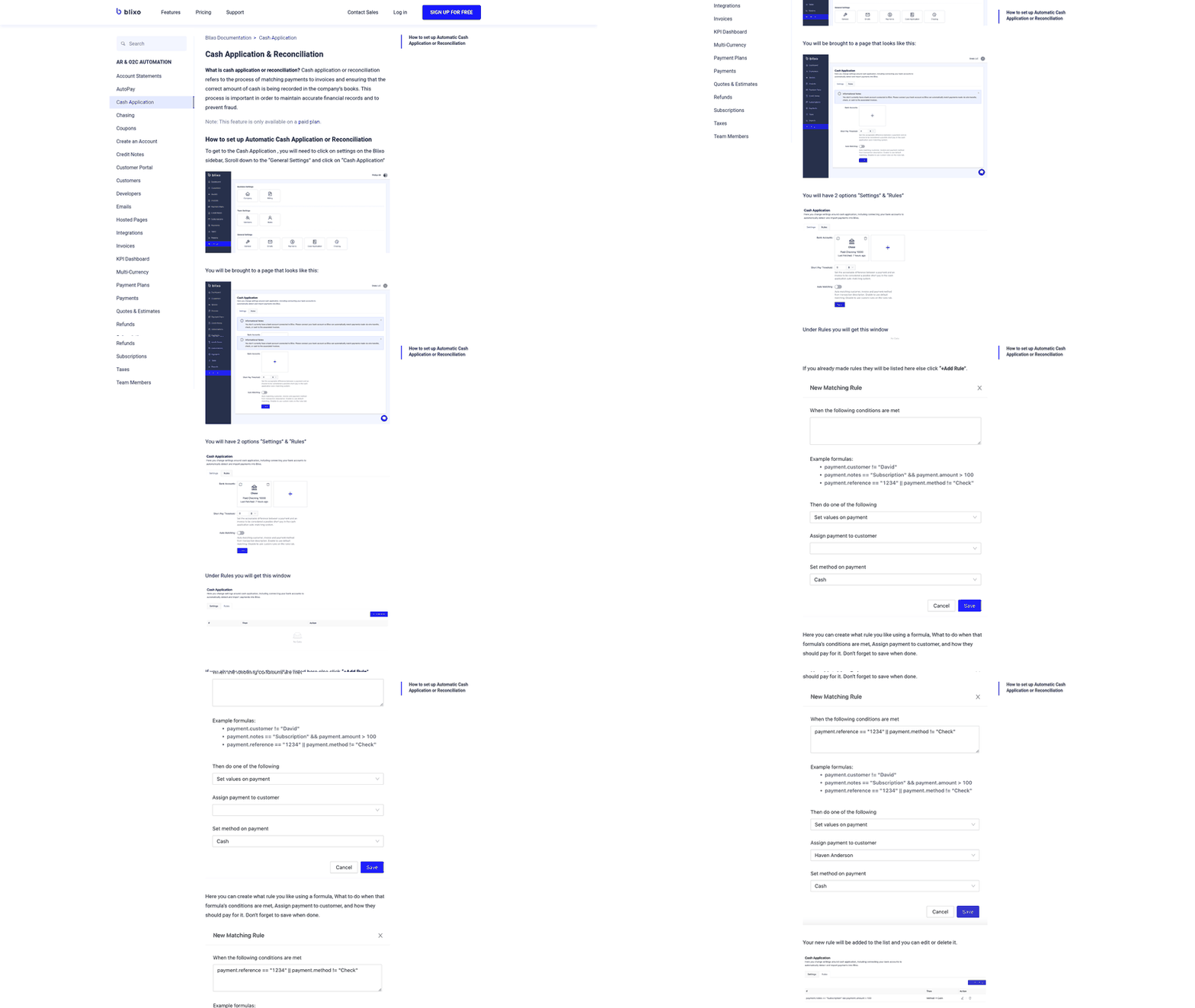
Public materials describe connectors that move invoice and payment records automatically. Sync timing and matching logic still need to be verified in a live demo, because marketing pages can leave out the details that matter. Bring your ugliest remittances. Ask how the system routes them when an automatic match fails.
For a small, uncomplicated operation, manual matching may still be the more practical choice. The math changes when payment formats, entities, or exception types make that work hard to keep under control.
Rolling out ERP-connected AR without breaking month-end close
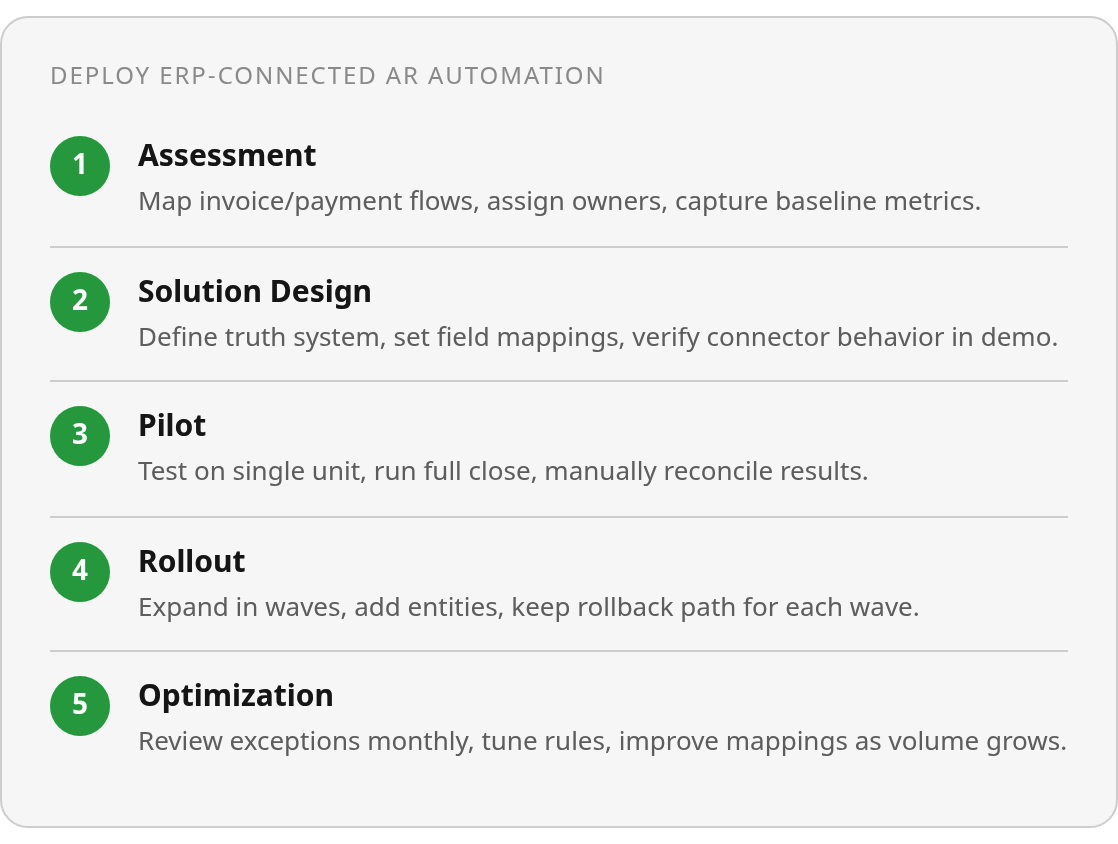
Run the rollout in five phases with named owners. Measure your baseline before anything changes, and pilot on one slice of the business first. Roll out everywhere at once and integration problems can stay hidden until close, which is the worst possible time to find them.
The software is rarely the hard part. The real test is proving the sync works with your customers, your credit memos, and your exceptions before the whole ledger depends on it.
What does each phase of the rollout involve?
- Assessment. Map where invoices originate, how payments arrive, and which ERP records your AR tool needs to read or write. Name one owner in finance and one in operations or IT. Capture baseline metrics now, not after launch.
- Solution design. Decide which system is the record of truth for customers, invoices, and payments. Write down field mappings and exception rules. Confirm connector behavior in a live demo, since reviewed documentation rarely covers every edge case, and ask directly about anything the vendor hasn’t documented.
- Pilot. Pick one business unit, one region, or one transaction type, such as recurring invoices only. Run it through at least one full close cycle. Reconcile the pilot against the ERP by hand so you know the automation’s output matches your books.
- Rollout. Expand in waves. Add entities or transaction types one at a time, and keep a rollback path for each wave.
- Optimization. Review exceptions monthly. Tune matching rules, reminder cadence, and mappings as invoice volume grows.
You can shorten the pilot if your AR runs through a single entity with simple, uniform invoices. Multi-entity or usage-based billing needs the slower path. Usage invoices change every cycle, and that’s exactly where mappings tend to drift.
Which KPIs show that automated AR is working?
Track the same five numbers before and after go-live:
- DSO, to see whether cash arrives faster.
- Invoice-processing volume per person, to test whether you absorb growth without adding headcount.
- Exception rate, the share of records that fail to sync or match.
- Cash-application accuracy, checked against ERP balances.
- Manual allocation effort, in hours per week.
No baseline, no proof. If you need to turn hours saved into a business case your CFO will sign, this guide on calculating AR automation ROI walks through the math. Your next step is to pull last quarter’s exception count and DSO, then book a demo with your own data in hand.
Frequently Asked Questions
Do I need to replace my ERP to automate accounts receivable?
No. The relevant decision is usually whether the AR layer can work with the ERP’s existing records, permissions, and workflows. Keep the ERP as the financial system of record if it remains suitable for that role, and evaluate the automation layer on how well it handles work the ERP does not.
What if my ERP doesn’t appear on a vendor’s integration list?
Ask what connection methods the vendor supports beyond a named native connector. Request a walkthrough using your own environment, including the records your team needs to read, create, and update. The quality of the demonstration matters more than the length of an integration-list logo wall.
Does Blixo’s NetSuite connection work differently from its QuickBooks Online connection?
The practical differences are commercial access and implementation ownership. Ask the vendor to confirm the plan required for your account, who performs the setup, which records travel in each direction, and how sync failures are surfaced to your team. Those answers should be documented before purchase rather than inferred from a generic product page.
Will a pre-built connector handle a heavily customized ERP?
Not necessarily. Custom objects, restricted endpoints, and unusual fields can fall outside a standard mapping. Have the vendor test representative records in a sandbox, identify any configuration work, and explain how future interface changes will be managed before you commit to the connector.