

Fixing AR CSV Integration Errors: 7 Mismatch Checks Before Cash Application Breaks

The Short Version
- Cash-receipt document reference numbers are case sensitive. One capitalization mismatch with your org, and the whole import fails.
- Import lookups treat “00412” and “412” as two different customers. Spreadsheet saves strip leading zeros, and copy-paste drags in invisible trailing spaces.
- An invoice paid in installments can land unmatched, or hit an already-closed invoice, when your file and your ledger apply payments at different levels.
- Re-importing a corrected cash-receipt file creates a separate new transaction. The original record stays behind for you to clean up.
Why AR CSV Integration Errors Break Cash Application
In short: catch the mismatch before you click Import. Most preventable AR CSV integration failures start as a gap between your file and the import template, and untangling a half-failed batch afterward costs far more than checking the file first. My advice is simple. Treat every upload like a payment run that can’t be recalled.
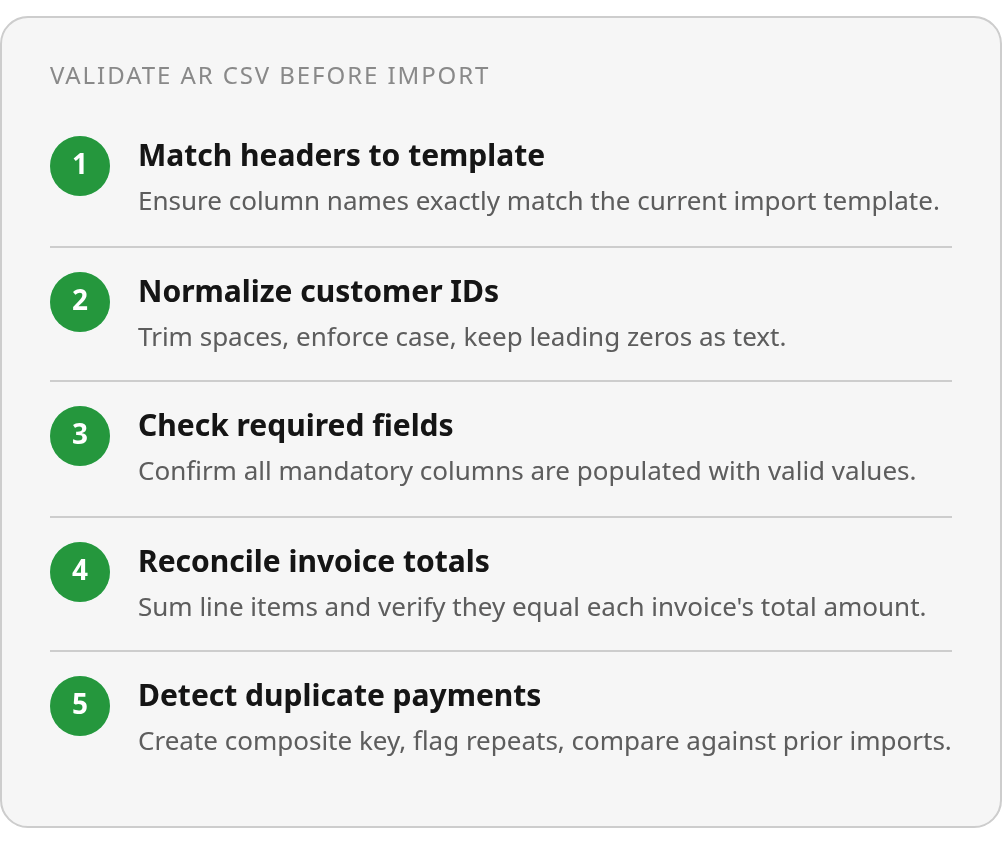
CSV integration error: a mismatch between a file’s structure or values and the receiving import template, such as an unsupported date representation or an invalid required-field value.
A note on scope. The vendor documentation reviewed here names these mismatches as practical validation targets. It doesn’t survey why cash application fails in general. It also covers cash-receipt CSV imports without documenting any legacy-system matching outage. That silence isn’t proof either way. It just marks where the evidence stops.
Small Mismatches Kill Whole Imports
Small formatting differences get rejected outright, not flagged with a warning. One cash-receipt import guide puts it plainly: “The document reference numbers are case sensitive. Ensure the capitalization in the CSV file matches your org, otherwise the import will fail.”
That’s one vendor. Other ERPs publish their own AR CSV import docs, and their rules for IDs and predefined values may differ. Check each field against your own system’s template rather than assuming one guide applies everywhere.
The same documentation says a corrected, re-imported file comes in as a brand-new transaction, and it advises deleting the original. A pre-import check skips that cleanup entirely.
Dates are the quieter risk. Some import tools may accept several date formats, or try to interpret one that doesn’t match your setting. Confirm how your system behaves in its own documentation. A silent guess on 03/04 is worse than a clean rejection, because nobody notices it until the aging report looks wrong.
The routine: check headers against a freshly downloaded template, normalize case, standardize dates, fill required fields, then re-export. Keep the file open in Excel until the import succeeds, since closing and reopening it can reformat your data. For the upstream side of the problem, see why cash application fails without clean data.
A Planning Grid for Pre-Import Checks
Fix times and impact ratings below are internal estimates, not sourced benchmarks.
| Check | Typical Fix Time | Difficulty (1-5) | Expected Impact |
|---|---|---|---|
| Header matches the current template | 5 min | 1 | High |
| Required fields are populated | 10-20 min | 2 | High |
| ID and reference case match | 15 min | 3 | High |
| Allowed values exact (e.g., 1 or 2) | 10 min | 2 | Medium |
| One unambiguous date format | 10 min | 2 | High |
| Field length limits respected | 10 min | 2 | Medium |
| Saved as .csv, untouched until import | 2 min | 1 | Medium |
Checks 4‑5: Customer ID Matching and Line‑Item vs. Invoice Totals
Check 4: does every customer ID in your file exist, character for character, in your master customer table? Check 5: do your line items add up to the invoice totals they’re supposed to support? Fail either one and your AR CSV integration posts cash to the wrong account, posts it twice, or never posts it.
The reason is mechanical. An import template runs a lookup. It doesn’t interpret. To that lookup, “00412” and “412” are different customers, and “acme-01” and “ACME-01” may be too, depending on the target system’s rules.
Customer IDs Break Quietly in Spreadsheets
Someone opens an export, saves it, and the leading zeros are gone. Someone else pastes in a batch of IDs, and trailing spaces ride along. Neither shows up on screen. Both fail the match.
Line-Item Totals Must Match the Invoice-Level Ledger
Take the installment case from the top. One invoice, three lines, $4,500 total. The customer pays in installments. If your file applies payments by line while your ledger matches by invoice, or the reverse, the first payment can land unmatched and the second can hit an invoice that’s already closed. This is an illustrative scenario, not a documented incident, but anyone who has reconciled partial payments has seen similar cases.
Roll line items up to the invoice level before matching, unless your template clearly supports line-level application. Public materials don’t confirm which approach every system expects. A missing mention isn’t a missing option, so test it with a live sample import.
Run this audit before every import:
- Pull master IDs as text. Export your customer table with the ID column formatted as text so the zeros survive. Keep it as your reference copy, and never edit it in a spreadsheet that reformats numbers.
- Normalize both sides. Trim spaces and apply one case rule to both the CSV IDs and the master IDs. Touch only your working copy. Leave the source data alone.
- Cross-reference every ID. List each CSV customer ID with no match in the master table. Any orphan blocks the batch. Fix it at the source. Don’t create a new customer record just to make the error disappear.
- Reconcile the totals. Sum the line items for each invoice and compare against the invoice total in the file. Any difference, even a few cents, gets resolved before import.
If the same orphan IDs keep coming back, the problem lives upstream in whatever system produces the file.
Checks 6‑7: Duplicate Payments and Required‑Field Completeness
These two fail in opposite directions. A duplicate row slips through and inflates your payment totals. A blank required field stops the line cold. You need a check for each before you click Import.
Partial failure is what makes duplicates painful. Some lines may post while others don’t, even though the batch shows an error status. Decide how you’ll identify already-posted lines before the first upload. Reconstructing that history afterward, with a customer on the phone asking why they show a balance, is a bad afternoon.
Duplicate Rows Hide Inside Retries
A lightweight de-duplication pass:
- Build a composite key. Join payment ID, amount, payment date, and invoice reference into one helper column. A single field rarely proves a duplicate on its own.
- Count repeats. A COUNTIFS-style formula against that helper column flags any key that appears more than once.
- Review, don’t auto-delete. Two identical-looking rows can be legitimate, like a customer paying two equal invoices on the same day. Delete only rows a human confirms as true repeats.
- Check prior batches. Compare your keys against what already posted, so a retry doesn’t double what’s already in the ledger.
Required Fields Decide Whether a Line Survives
Templates tell you what’s mandatory, if you actually read them. Reviewed invoice-import documentation describes a description row under each column header that states format, length, and whether the field is required. Wrong header titles alone trigger an upload error.
Before upload, check every row against your own template for:
- Every field the template’s header description marks as required
- Invoice or document reference, which reviewed lockbox documentation treats as mandatory in document-matching mode, where the referenced invoice must already exist
- The reference value in the form your target mapping requires
- Any other columns your mapping definition depends on, such as payment method
Public materials don’t list one universal required set. If a field isn’t on this list, that doesn’t prove your system ignores it. Your template is the authority.
Building the Checks Into Your Import Workflow
Turn the seven checks into a gate every file passes before anyone clicks Import. Build the rules from the template itself, test them against files you know are broken, and roll out one file type at a time. A spreadsheet handles this fine. So does a short validation script.
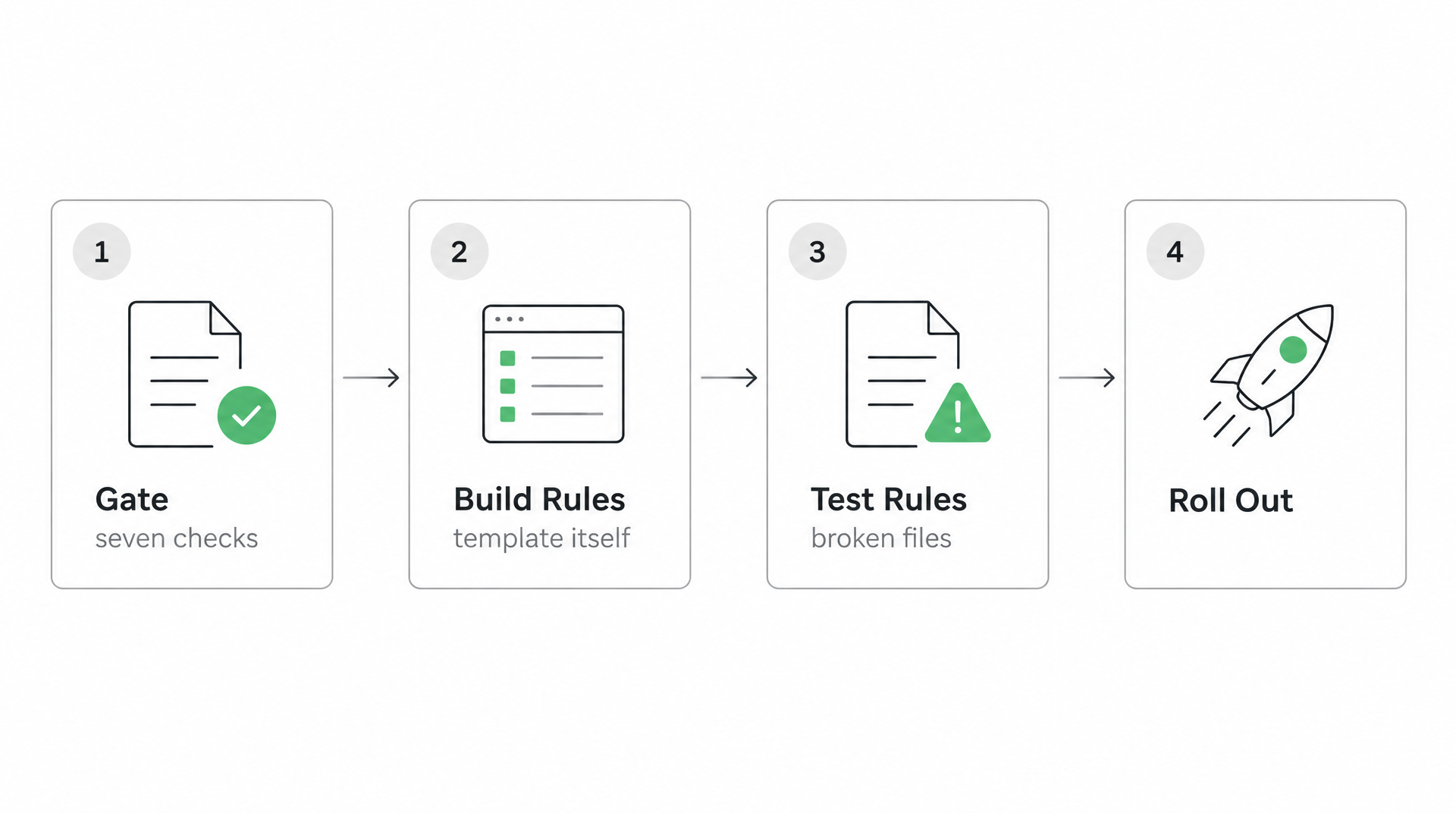
Your Template Already Contains the Rules
Start from a fresh template download, not last quarter’s saved copy. Templates and import mappings can change, so a current copy is the safer baseline. Then:
- Map columns. Compare your headers to the template’s, character for character. Any mismatch is a failure, not a cosmetic issue.
- Check formats and values. Read the description row under each header. Every stated limit, format, and accepted value becomes one rule in your sheet.
- Flag failures. Give each check its own pass/fail column, with a total failure count at the top.
- Approve or reject. Zero failures and the file ships. Anything else goes back to whoever produced it.
Keep a copy of the exact file you uploaded. The same docs note that the importer stores the CSV as an attachment on the cash transaction record, which gives you something to compare against if lines error out.
Test Rules Against Files Built to Fail
A rule you’ve never watched fail is a rule you can’t trust. Keep a small regression set and rerun it after every template update:
- one clean file that should pass every check
- one file with a wrong date format
- one file with a blank required field
- one file with a value outside the template’s allowed list
The date test carries the most weight. Reviewed documentation suggests that when one importer’s deposit-date validation is switched off, the deposit date on imported records is replaced by the date you entered. So a bad date might import instead of erroring. A clean import proves nothing on its own, which is why your gate needs to be stricter than the importer.
Roll out in stages. Run the gate on one file type, such as cash receipts, for a few cycles before adding invoices. Log rejections by sender, because repeat offenders point to a fix in the source system rather than the spreadsheet. And if you only import once a month, skip the script. A checklist spreadsheet does the job.
Quick Questions, Straight Answers
Should I create a new customer record when a CSV customer ID doesn’t match my master table?
Creating a new record is the wrong fix for an orphan ID. First compare the submitted value with the authoritative customer record and correct the source file. If the same orphan continues to appear, investigate the system that produces the export rather than expanding the customer master to accommodate bad data.
Can I re-import only the failed lines after a partially successful cash-receipt import?
Do not assume that a partial batch can be repaired line by line. Check the transaction history, isolate anything already posted, and confirm the retry behavior in your own system before preparing a replacement file. That review prevents a second upload from including records that no longer need processing.
Does a successful import mean my AR CSV data is correct?
A clean import proves only that the file passed the importer’s structural and validation rules. It does not confirm that the customer, invoice, amount, or application level was correct. Reconcile the resulting transactions against the source payment and ledger after posting.
Do I need a validation script to automate AR CSV pre-import checks?
A script is optional. For teams importing once a month, a checklist spreadsheet with one pass/fail column per check and a failure total at the top works fine. Either approach should be tested with deliberately flawed files and revisited whenever the template or mapping changes.