

Sync AR Automation CSVs to Dynamics 365: Speed Up Cash Application

The Short Version
A controlled CSV sync into Dynamics 365 beats keying payments by hand, as long as someone owns reconciliation after the file posts. Here are the key points:
- Reconciling bank statements against the AR ledger after each import is recurring work that often gets skipped. When it does, errors stay hidden until month-end.
- If the record count or the control total (the sum of the Amount column) doesn’t match, stop the import before any payments post.
- A date written as 03/04 means March or April depending on locale, and it can land in the wrong period without anyone noticing.
- Spreadsheets strip leading zeros from customer IDs like 00412. A decimal-separator mismatch between 1.250,00 and 1,250.00 changes the imported amount.
- One transfer covering three subscription invoices, with only a contract number on the remittance, leaves your team tracing three separate Dynamics 365 invoice IDs.
When a CSV sync is worth it, and when to keep typing
Use a structured file workflow if payment volume makes retyping costly. Don’t expect it to clean up bad source data. The weak point comes after import, when the file posts and nobody owns reconciliation.
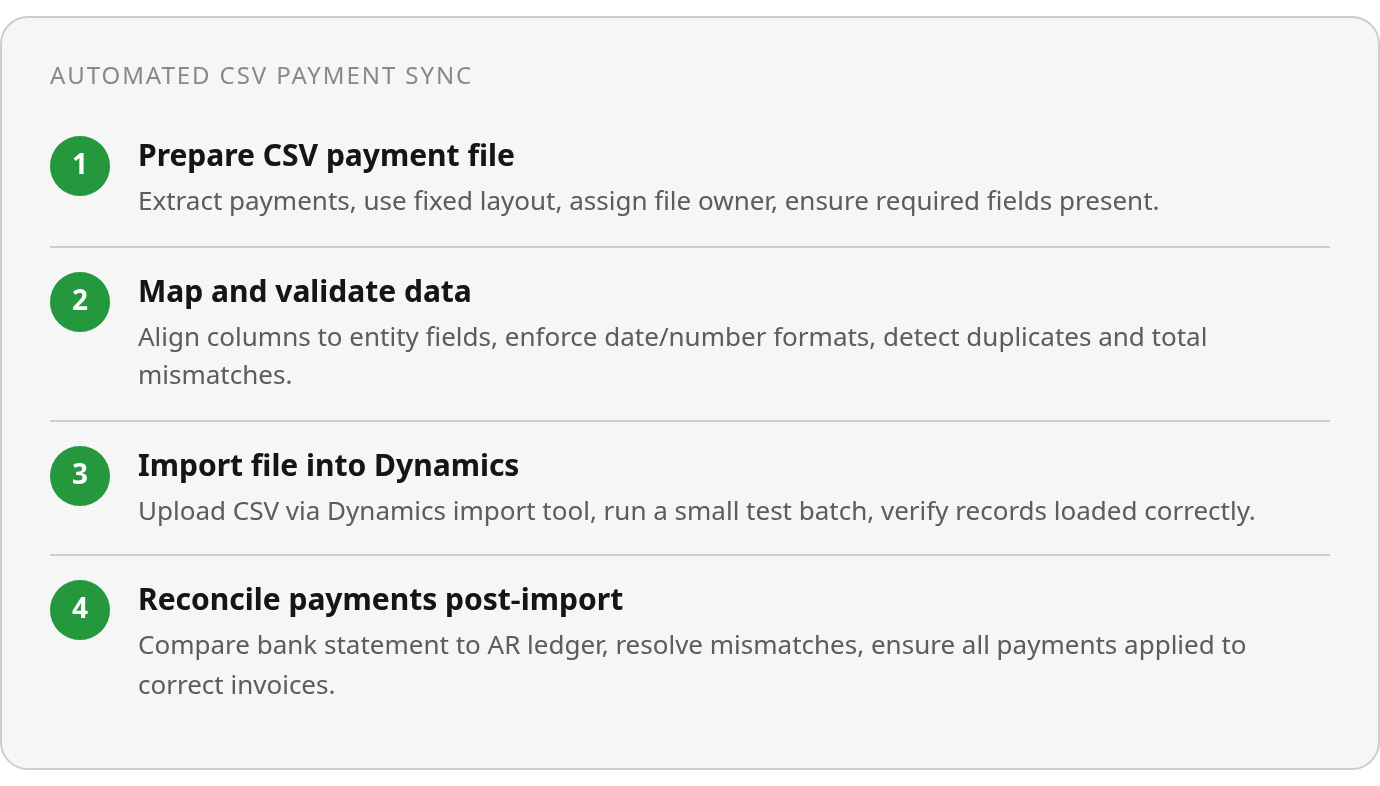
Manual entry looks like this: someone reads each remittance, finds the matching invoice, and keys the payment. An AR automation CSV sync uses a file your team prepares, maps to Dynamics 365 fields, and validates before import. You do less repetitive work. Time savings depend on payment volume, remittance quality, and customer data quality.
The CSV can come from an AR system export, an ERP extract, or a custom script. The source matters less than two things: the file needs a named owner and a fixed column layout.
The steps below are illustrative. Adjust them to your own controls.
| Step | Relative effort | Possible tools | Key risk |
|---|---|---|---|
| Prepare | Medium | AR export, ERP extract, custom script | Missing invoice references in remittances |
| Map | High at setup, low after | Dynamics 365 import templates | Columns drift when the source format changes |
| Validate | Medium | Spreadsheet checks, script rules | Duplicates and amount mismatches slip through |
| Import | Low | Dynamics 365 import tools | Partial loads leave payments half-applied |
| Post | Low | Payment journal | Cash lands on the wrong customer or invoice |
| Reconcile | Medium, every cycle | Bank statement vs. AR ledger review | Gets skipped, so errors surface at month-end |
The Reconcile row is the one teams drop first. It’s also the only row that tells you whether the other five worked.
If you only receive a handful of payments a month, skip all of this. At that volume, manual entry is easier to control.
What unmatched cash costs you between billing and Dynamics 365
An unmatched payment is cash you’ve collected but can’t fully rely on yet. It sits in unapplied cash, the customer’s aging still shows the invoice as open, and your collections team may chase someone who already paid. A CSV sync gives the step between invoice and applied payment a defined process you can check. Without one, the work falls to whoever has time that week.
Two systems of record means two versions of the customer
If your billing platform and Dynamics 365 keep separate records, every payment has to be reconciled across both. The friction shows up in predictable places. Someone matches remittances to invoices by hand. Customer names drift between systems. The same payment gets keyed twice. Any ERP can have these problems, because they come from having two sources of truth rather than from Dynamics 365 itself.
The subscription case from the summary shows how this plays out. Your billing platform might know the customer as “Acme Studio” under a contract number, while Dynamics 365 has “Acme Studio LLC” under account C-00412. The payment amount is clear. Your team still has to settle which customer this is before deciding where the money goes.
A controlled CSV is a bridge, not the destination
If you don’t have a direct API integration, a controlled CSV transfer gives you a structured handoff. You define the columns, validate the file before import, and keep it as an audit record. That’s a practitioner’s judgement, not an official Microsoft recommendation.
Whatever your volume, test your import template against your own Dynamics 365 configuration before you depend on it. Reviewed documentation won’t tell you how your setup handles edge cases.
Getting the CSV right before Dynamics 365 touches it
Most failed imports trace back to the file. Locale-sensitive fields deserve extra attention, because a value can be syntactically valid and still be read wrong. Treat file preparation as your first reconciliation control.
Start with a mapping checklist. Likely fields include customer identifier, invoice reference, payment date, currency, and amount. The fields you actually need depend on the Dynamics 365 data entity you choose and how your environment is configured. Confirm them in your own setup before you build the file.
CustomerAccount,InvoiceId,PaymentDate,Currency,Amount
C-00412,INV-10388,2026-10-14,USD,1250.00
C-00087,INV-10391,2026-10-15,EUR,480.50
These values are fictional and shown for illustration only.
Which formatting errors break an AR CSV sync?
- Ambiguous dates. Pick one unambiguous format, such as YYYY-MM-DD, and use it everywhere.
- Decimal separators. Set the export and the import to the same numeric convention.
- Leading zeros. Store account identifiers as text so spreadsheet software can’t reinterpret them.
- Mixed delimiters. A single semicolon-delimited file in a comma pipeline shifts every column.
- Encoding. Save consistently, for example as UTF-8, so accented customer names survive.
Every item on that list can pass a quick visual scan and still put money in the wrong place.
What should you check before every import?
- Review the source extract for unexpected changes before it reaches mapping.
- Confirm required fields are populated and that the selected data entity accepts them.
- Compare the file structure against the approved template.
- Review duplicate-detection results before you submit the batch.
- Keep the validation output with the import record, so someone else can reproduce the check.
Whoever runs these checks should record the result and clear exceptions before the file reaches Dynamics 365.
Importing the CSV into Dynamics 365, step by step
A clean import log proves the rows loaded. It doesn’t prove each payment landed on the right invoice. Treat the steps below as a sequence to adapt, because menus, entity names, and screens differ by Dynamics 365 version and configuration.
The import isn’t done until you’ve verified it
First, confirm which workspace and data entity handle customer payments in your environment. Map each CSV column to an entity field. Then upload a small test file that reflects your real payment mix: partial payments, more than one currency, and a few awkward references. Preview or validate the records before you run the import.
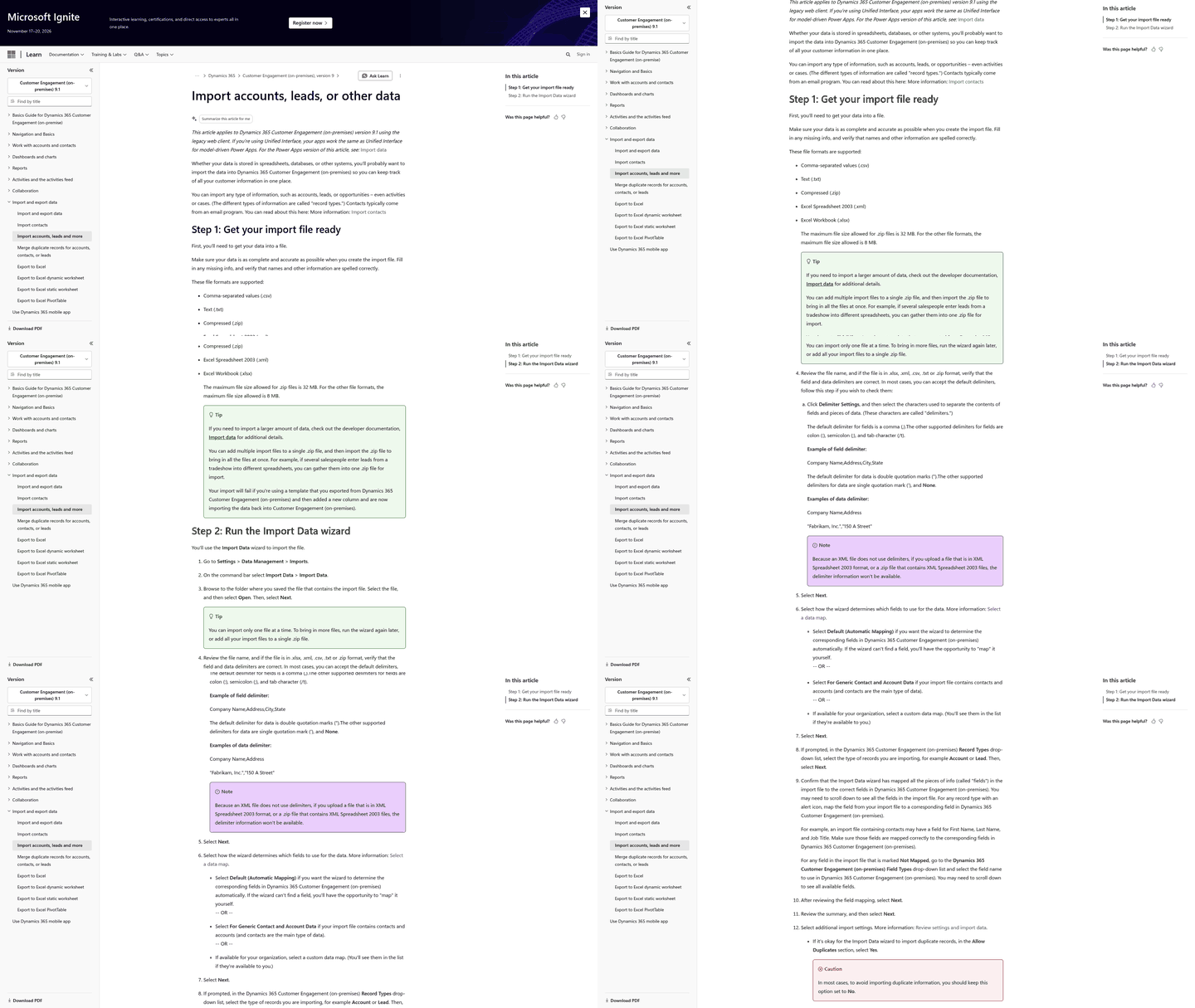
After the load finishes, open a sample of payment records. Check that customer, currency, date, and application status match the source. Do this before posting, and spend most of your time on exceptions and partial applications, since that’s where mistakes hide.
Validation errors fall into a few broad groups. Invalid references are the obvious one, such as a customer account that doesn’t exist. The exact error messages depend on your setup.
When something fails, fix the source file instead of editing records by hand. Hand edits solve today’s batch and can repeat the same error next run.
Scale up only after small runs stay clean
Increase file size gradually. Track failure counts and processing time at each step, and stop growing the batch when either one rises. I won’t prescribe a batch size, because your environment sets that limit.
A recurring import has five parts: scheduled file delivery, validation, import execution, exception handling, and reconciliation. An automation tool may cover some of these. Confirm which ones in a live test, and name an owner for exceptions and reconciliation either way. If your exceptions cluster around contract terms, compare generic CSV imports and contract-aware sync.
Testing AI cash-application matching on your own payments
Treat automated matching as a claim to test against your own payments. The public materials I reviewed don’t show how any specific matching engine performs inside Dynamics 365. Accuracy, integration, and review controls should be verified in a live demo using your data. If the documentation doesn’t mention a feature, that isn’t proof the feature is missing. Ask about it directly.
In an AR automation CSV sync, matching happens after import. The software compares each payment’s attributes (amount, invoice reference, customer identifier, date, currency) against open invoices. It applies confident matches and sends uncertain ones to a person.
What does an illustrative matching flow look like?
This is an example, not a verified workflow. A payment record from your CSV import starts the matching run. The matcher compares it with that customer’s open invoices and proposes an application when the evidence is strong. Partial payments, missing references, and amounts that could fit several invoices go to a review queue with a stated reason.
The reviewer confirms or corrects each proposed match, and every correction gets logged. That correction log tells you more about matching quality than any demo will.
Which metrics tell you automation is working?
Record a manual baseline first. Then track:
- Straight-through match rate: the share of payments applied with no human touch.
- Exception rate: the share routed to review.
- Average time to application: time from receiving a payment to applying it.
- Unapplied-cash value: money collected but not yet matched to an invoice.
- Payments processed per hour: reviewer throughput on exceptions.
- Correction rate: the share of automated matches someone later reversed.
Read the first and last metrics together. A high match rate with a rising correction rate means errors are reaching your ledger faster.
If you post a few dozen payments a month with clean references, skip automation entirely. Careful manual review will cost you less than evaluating a matching tool.
What I’d put in place before your first live CSV import
A payment CSV is a financial record. Each file that moves cash data into Dynamics 365 needs an owner, a check before import, and a trail afterward.
Start with access. Give each person the narrowest role their job requires. Split duties so whoever prepares the sync file doesn’t also approve and post it. Log every import with the operator, file version, and row counts, and keep those logs where an auditor can find them. Move and store files over encrypted channels, and delete copies you no longer need.
Compliance depends on your facts. SOC 2 matters if customers audit your controls. GDPR matters if files carry personal data about people in the EU. Neither applies automatically to every transfer. Your contracts, data, and jurisdiction decide, so get a written answer from your compliance owner before launch.
Reject bad files before Dynamics 365 sees them
A script or data-integration tool can turn a bad file away at the door. At a minimum, check the items covered above before import: the record count and control total, required fields, date and number formats, and duplicates. A mismatch on count or total stops the batch.
Version your schema. When a column changes, update the validator in the same change, or the validator will start approving files it no longer understands.
Roll out in phases, with the old process still running
Write the scope, owners, controls, and exception path into a procedure, then train the people who’ll follow it. Test with representative data. Pilot one segment while the old process runs in parallel, and compare outcomes line by line. Watch exceptions, get sign-off, expand gradually, and hold a review a month after launch. That review is where you’ll find out whether reconciliation is actually happening or has quietly become nobody’s job.
Frequently Asked Questions
Does a clean import log mean my payments were applied correctly?
No. A successful load confirms only that Dynamics 365 accepted the rows. Application status, customer assignment, and invoice references still require a separate review before posting. Build that review into the procedure rather than treating the import result as final approval.
How should I handle one payment that covers several invoices but cites only a contract number?
Route it to a person instead of forcing an automatic match. The reviewer should identify the customer, confirm the invoices covered by the remittance, document the allocation, and retain the supporting correspondence.
Is a high match rate enough to judge AI matching?
Match rate alone can mislead you. Pair it with the correction rate and review the reasons behind exceptions. A live test using your own payment history should show whether the proposed applications are explainable and whether reviewers can amend them efficiently.
What happens if my AR system changes its export format?
A changed export can invalidate the mapping even when the file still opens normally. Use a controlled change process: identify the affected fields, test representative records, obtain approval, and retain the previous mapping for rollback. A small test file should pass before full-volume processing resumes.