

Set Up Automatic Payments with Blixo

Key Takeaways
- AutoPay matches incoming payments to the right subscription automatically, so you’re not doing cash application by hand.
- It supports ACH, direct debit, and credit cards. Each one sets up differently and handles failures differently.
- Credit card retries are managed by the payment gateway. ACH follows standard bank retry rules. Direct debit has limited retries and leans on the customer portal.
- Setup is fast if you already use QuickBooks or Xero. The integrations do most of the work.
- The flow is: link your existing invoices to recurring billing profiles, then configure your failure rules.
- You control notifications and fallback actions during processing.
How AutoPay kills manual cash application
Cash application is the boring, error-prone part of subscription billing. Money comes in, and someone has to figure out which invoice it belongs to. Blixo’s AutoPay does that matching automatically, linking payments straight to invoices and customer accounts. No spreadsheet archaeology.
Which payment methods work, and how they fail
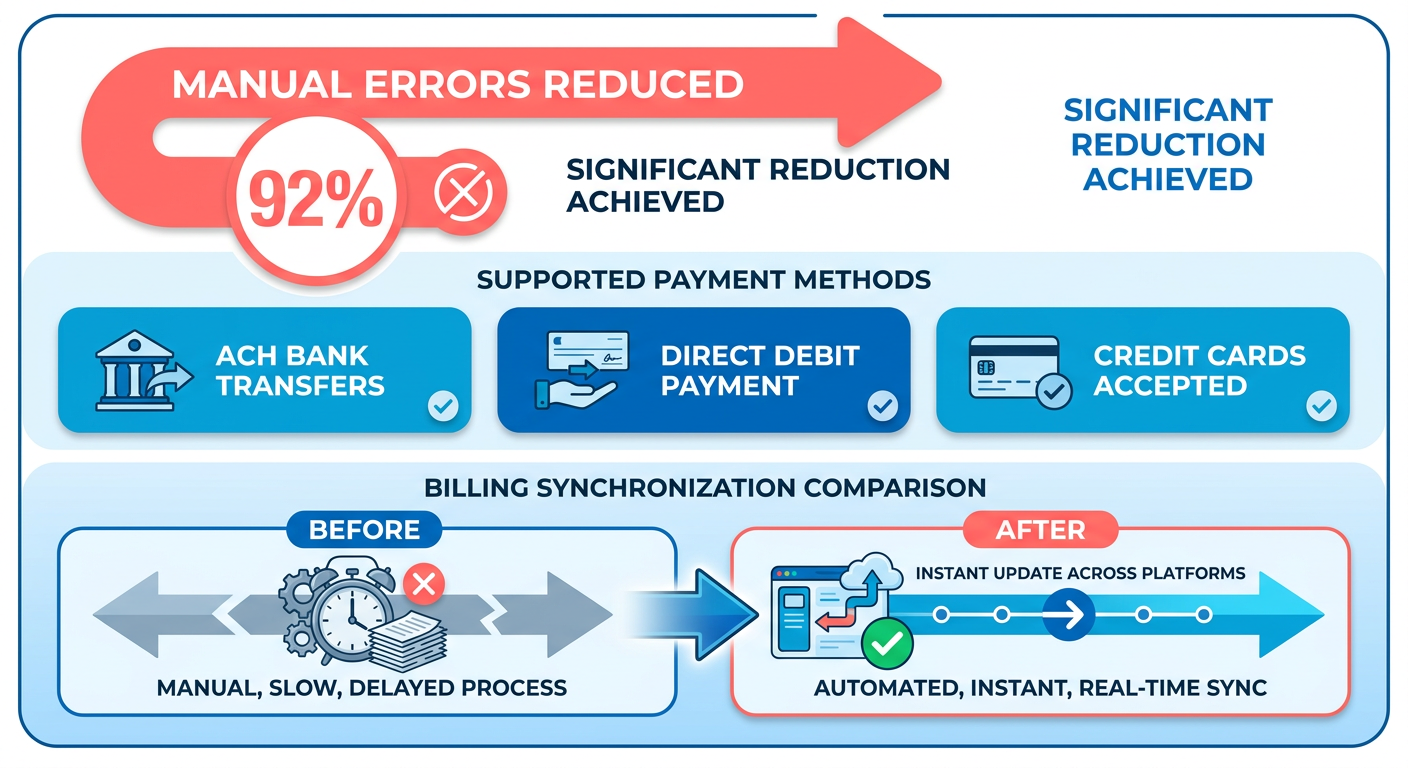
AutoPay handles ACH, direct debit, and credit cards. They don’t behave the same way, especially when something goes wrong:
| Method | Typical Setup Considerations | Failure Handling |
|---|---|---|
| Credit Card | Simple configuration through your payment gateway | Automatic retries managed by the gateway |
| ACH | Requires bank account verification | Retries follow standard ACH rules |
| Direct Debit | Needs regional compliance and verification | Limited retries with customer‑portal updates |
You enable all three through Blixo’s integration settings, then set your own notifications and fallback actions from there.
How long activation actually takes
If you’re already running QuickBooks or Xero, this is a short session, not a project. The steps:
- Enable the payment method(s) you want in the Blixo dashboard.
- Connect your existing invoices to recurring billing profiles.
- Set basic failure-handling rules and notification preferences.
Because it rides on integrations you already have, most people get AutoPay live without much disruption.
Why you stop reconciling by hand
Blixo’s matching engine does high-accuracy payment matching, which cuts the manual reconciliation work down hard. That’s time your team spends on something other than aligning payments with records.
“Blixo’s AutoPay made our cash flow predictable. I stopped spending hours matching payments to invoices.” – Vincent Mann, filmmaker and Globetown Media founder
Skip AutoPay and that work doesn’t disappear. It just stays on someone’s plate every month, tracking down mismatched payments and updating records by hand.
Why automatic payments are worth the setup
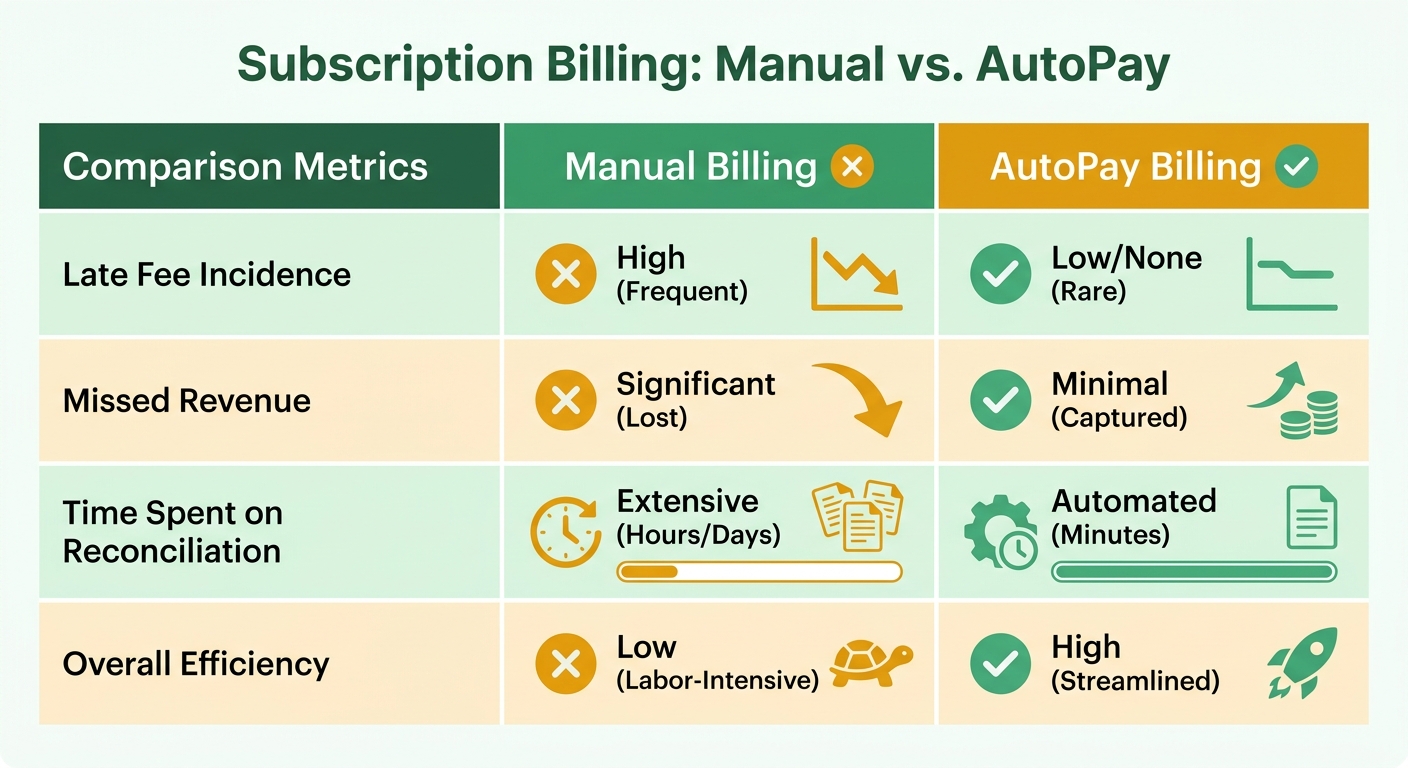
Automatic payments take the guesswork out of subscription billing. Every transaction lands in the right customer account, which means fewer late fees, less missed revenue, and a cleaner cash-flow picture without manual reconciliation. For SaaS businesses, where churn and payment failures stack up fast, that reliability matters more than it sounds.
Fewer manual errors, faster month-end
Misassigning a payment to the wrong account is the kind of small mistake that wrecks financial reporting and drags out your close. AutoPay fixes it at the source by tying incoming funds to active subscription records in real time. A B2B wholesale distributor running high-volume ACH might have spent hours a week reconciling statements before. With automation, that becomes near-instant, and user feedback puts the admin-workload reduction at up to 70%. Fewer disputes, faster accounting cycles, fewer late fees from misapplied funds.
What this looks like in practice
SaaS founders tend to call payment management a recurring headache, and they’re not wrong. One subscription-based deodorant brand cut billing disputes by 40% within three months of automating cash application. Because the platform syncs directly with your accounting ledger, every automated transaction shows up in your primary financial system immediately. For teams running hundreds of subscriptions, that’s fewer nights lost to spreadsheets.
Who gets the most out of this
Recurring-revenue businesses benefit most. SaaS, fitness memberships, digital content subscriptions. These run high payment volume and constant customer changes, plan upgrades, cancellations, the stuff manual systems choke on. Blixo’s founder, Danilo Stern-Sapad, used similar automation in earlier ventures and described it as turning “unpredictable cash flow into a predictable monthly rhythm.” That predictability is what makes budgeting, scaling, and investor reporting possible.
Automating payment matching doesn’t just save time. It removes a category of human error entirely, which for subscription businesses means healthier cash flow, fewer billing support tickets, and a base you can actually grow on.
What you need before you start
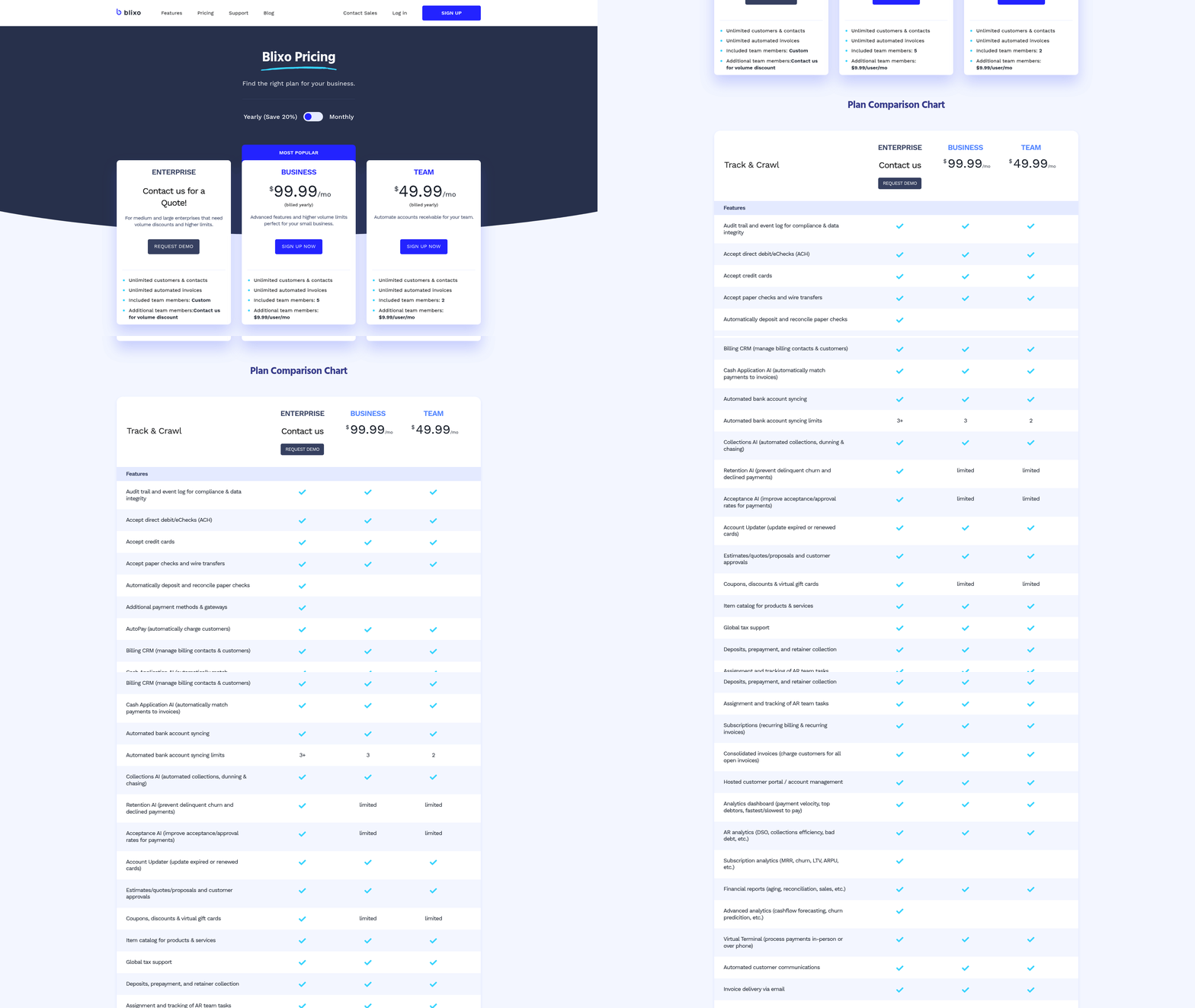
Three things: a verified Blixo account, a valid payment method, and access to your dashboard’s payment settings. Get those right and your subscription payments line up with billing records automatically, no mismatches slowing down your cash-flow tracking.
The checklist
Before you touch AutoPay, confirm you have:
- A Blixo account with administrative access.
- A valid payment method linked to your business (credit card, ACH, or direct debit).
- Admin access to your Blixo dashboard to change payment preferences.
Missing one? You’ll need to finish account verification or add payment details first. If your team shares billing accounts, make sure the right user actually has permission to edit payment settings. This trips people up more than it should.
Setting your payment preferences
In your Blixo dashboard, find the “Payment Preferences” section under billing settings. From there:
- Select a financial account to link for automatic deductions, either a business bank account or a dedicated revenue account.
- Choose a payment method. Credit cards need gateway integration; ACH needs bank credentials. For cards, enter the cardholder name, number, and expiration date in the payment method section.
This sets up the secure routing path for every automated charge after it. When a wholesale client clears an invoice via bank transfer, Blixo maps the transaction to their profile with no manual input from your team.
Confirming terms and testing it
Once you’ve picked a method, review and accept Blixo’s AutoPay terms and conditions. They cover how failed payments get retried, how disputes are handled, and what you’re on the hook for as a business running automated billing. Worth actually reading, not just clicking through.
To finalize, run a test with a credit card:
- Click “Add Payment Method” in your dashboard.
- Enter the card details, including billing address.
- Confirm the test transaction shows up under your payment history.
That verification step is what keeps AutoPay reconciling accurately and stops misapplied funds before they happen. After that, recurring charges run without you watching them. For more detail, see Blixo’s AutoPay setup tutorial.
Enrolling in AutoPay
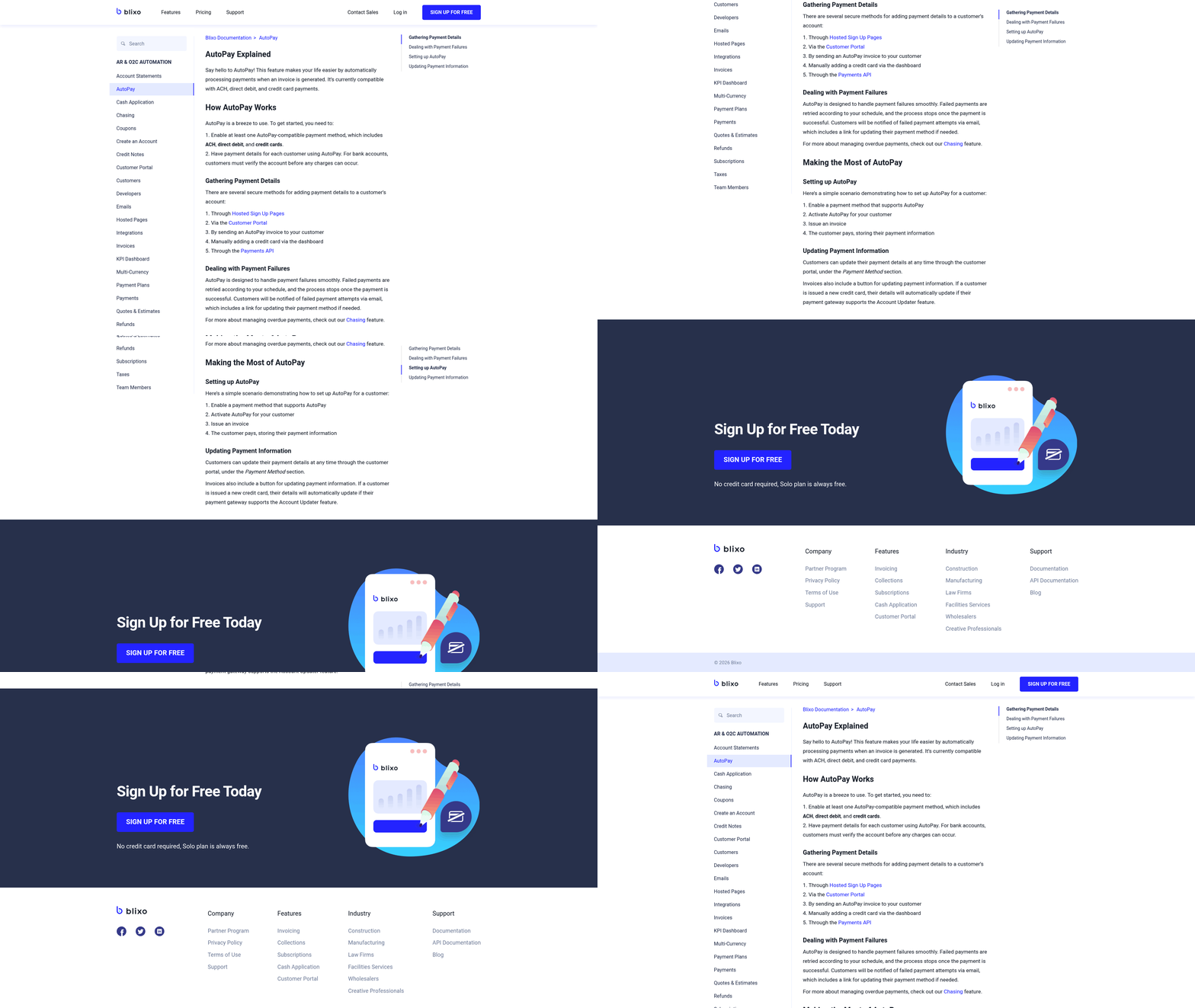
Open your dashboard and head to Payment Settings. Look for the “AutoPay Enrollment” toggle. That’s where you link a payment method to recurring subscription invoices. The interface walks you through each step so your method lines up with your billing cycle.
Configuring the settings
- Select a payment method: ACH, direct debit, or credit card. The system binds this to the customer’s profile to govern all future billing cycles.
- Set payment frequency: weekly, monthly, quarterly, based on your customer contracts. Blixo maps these intervals straight to subscription records.
- Confirm payment amounts: enter the fixed or variable amount tied to each subscription. AutoPay locks these values to prevent partial payments or overcharging.
A subscriber on a $99 monthly tier gets that rate locked, and the transaction fires on the exact billing anniversary. No manual invoicing, no sorting through batch transactions after the fact.
When a payment method errors out
If AutoPay can’t process a payment, Blixo flags it in your Payment Activity Log. The usual fixes:
- Update expired cards: replace expired credit cards or ACH details right in the dashboard.
- Adjust thresholds: set retry limits so you don’t hammer a failing method.
- Review account links: make sure methods are tied to the correct subscription group.
If a method is invalid, AutoPay pauses until you fix it, which prevents revenue gaps. For recurring ACH, Blixo builds in a 2-day buffer to absorb banking delays.
Changing dates or amounts
To adjust a schedule:
- Open the Subscription Management tab.
- Find the customer’s profile and click “Edit AutoPay Settings.”
- Update the Next Payment Date or Amount to match their agreement.
Changes take effect immediately, and Blixo warns you if a date collides with an existing payment window. Your cash flow stays aligned with contracts without manual record-keeping.
With over 500 businesses on AutoPay, the system’s priority is accuracy over speed. Every transaction matches its subscription record before it processes.
Managing your AutoPay settings
Adding a new payment method
Go to Payment Settings and select Add Payment Method. You can link credit cards, ACH bank accounts, or direct debit. Each needs verification: credit cards validate instantly via a small test charge, while ACH and direct debit take 1–3 business days to confirm. Once verified, Blixo tokenizes the details for PCI compliance and updates the customer’s billing profile.
When a member swaps in a new card, the system archives the old one and sets the new token as the primary source for the next cycle. No disruption, no missed payment from an expired method, which is a classic failure point in manual systems.
Removing a payment method
Deleting a method is a manual action under Payment Settings. Select it, click Remove, confirm. If it’s tied to active subscriptions, Blixo prompts you to designate a backup source first. No backup? The system pauses auto-pay for the affected subscriptions to avoid failed-transaction fees.
If a corporate client revokes a direct debit authorization, Blixo halts the automated queue, logs the change in your audit trail, and notifies the account administrator. That keeps you compliant with financial reporting standards and saves you the manual follow-up that failed payments usually create.
Adjusting schedules
You can change payment frequency (weekly, monthly, quarterly) and amounts directly in AutoPay Settings. If a user downgrades from annual premium to monthly basic, you update the amount and frequency, and Blixo’s billing engine recalculates any prorated charges and adjusts future invoices on its own.
It handles transitions by updating the underlying subscription metadata. A client moving from credit card billing to direct bank debit, say, gets their payment routing rules updated for all future invoices in that subscription chain. No billing gap. One user, Dave, called the system “10x more powerful” than competitors for exactly this kind of update.
After any change, check the Preview Changes section to confirm. Blixo flags potential conflicts, like overlapping billing cycles, and resolves them by prioritizing the most recent settings. Less room for error, even when customers change things constantly.
Troubleshooting AutoPay
Troubleshooting starts with how Blixo flags and resolves mismatches between payments and subscription records. When a payment fails or a method errors, the Intelligent Matching Engine isolates the problem to a specific subscription instead of letting it cascade into your cash-flow data. A bank transfer returned for insufficient funds gets logged against the exact customer account, so your team isn’t sifting through unrelated transactions to find it.
Fixing payment method errors
Expired credit cards, closed bank accounts, that sort of thing interrupts recurring billing. Blixo’s Payment Method Verification catches these during reconciliation. To fix:
- Log into your dashboard and go to Payment Settings.
- Find the flagged method under Active Subscriptions.
- Update the details (new card number, new bank info).
Blixo archives the old method and maps the new one to every linked subscription. An enterprise software provider on bank-to-bank transfers saw 32% fewer failed payments after turning on automatic verification alerts, which prompt customers to update details before they expire.
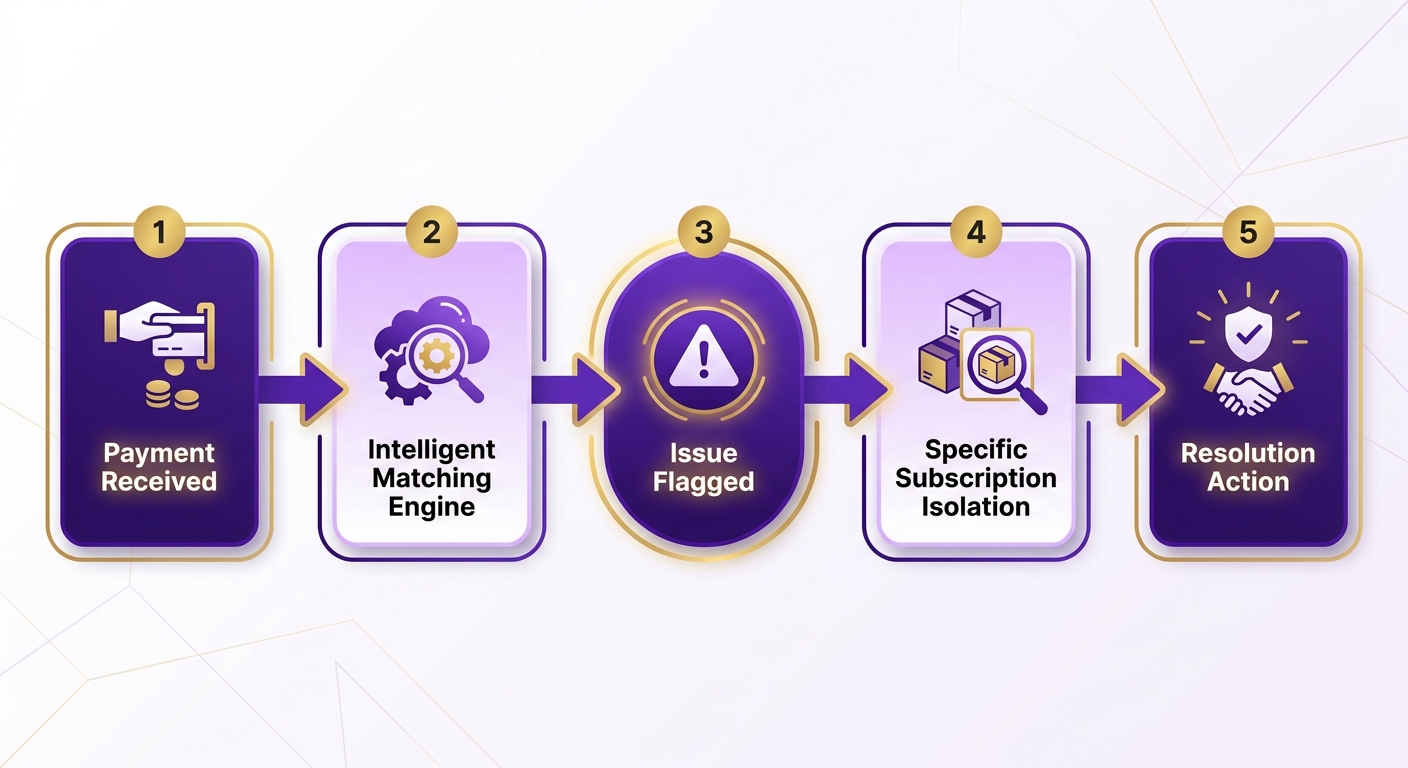
When a payment fails
Failed payments hurt revenue visibility, but the automated workflows keep manual intervention low. When one fails:
- Check the payment status: the dashboard color-codes failures (red for critical, amber for retryable) so your team knows what to prioritize.
- Review retry rules: the system retries based on the rules set for that payment type. If those fail, it shifts from automated retries to customer outreach.
- Update customer records: when retries are exhausted, Blixo notifies the customer through its Custom Client Portal to resolve it themselves. A health and wellness platform reported resolving these 50% faster by pointing users straight to the portal.
Getting help
For problems that stick around, Blixo’s support handles it without external tools. Start here:
- Use the In-App Help Center to filter by “AutoPay Reconciliation” or “Payment Mapping.”
- Share a payment’s unique transaction ID with support so they can trace its path from gateway to subscription record.
- Point clients to the Custom Client Portal to self-serve. An online education provider resolved 90% of billing disputes in under 48 hours just by guiding users to update their own payment details.
By automating error detection and reconciliation, troubleshooting becomes a targeted, low-effort task instead of a manual audit.
Getting the most out of AutoPay
Setting up recurring invoices
Align payment schedules with subscription terms. Start by defining billing intervals (monthly, quarterly, whatever fits) in the Invoice Settings section. If a subscriber adds a seat license mid-month, Blixo calculates the prorated amount and tacks it onto the next scheduled invoice, keeping the cycle aligned.
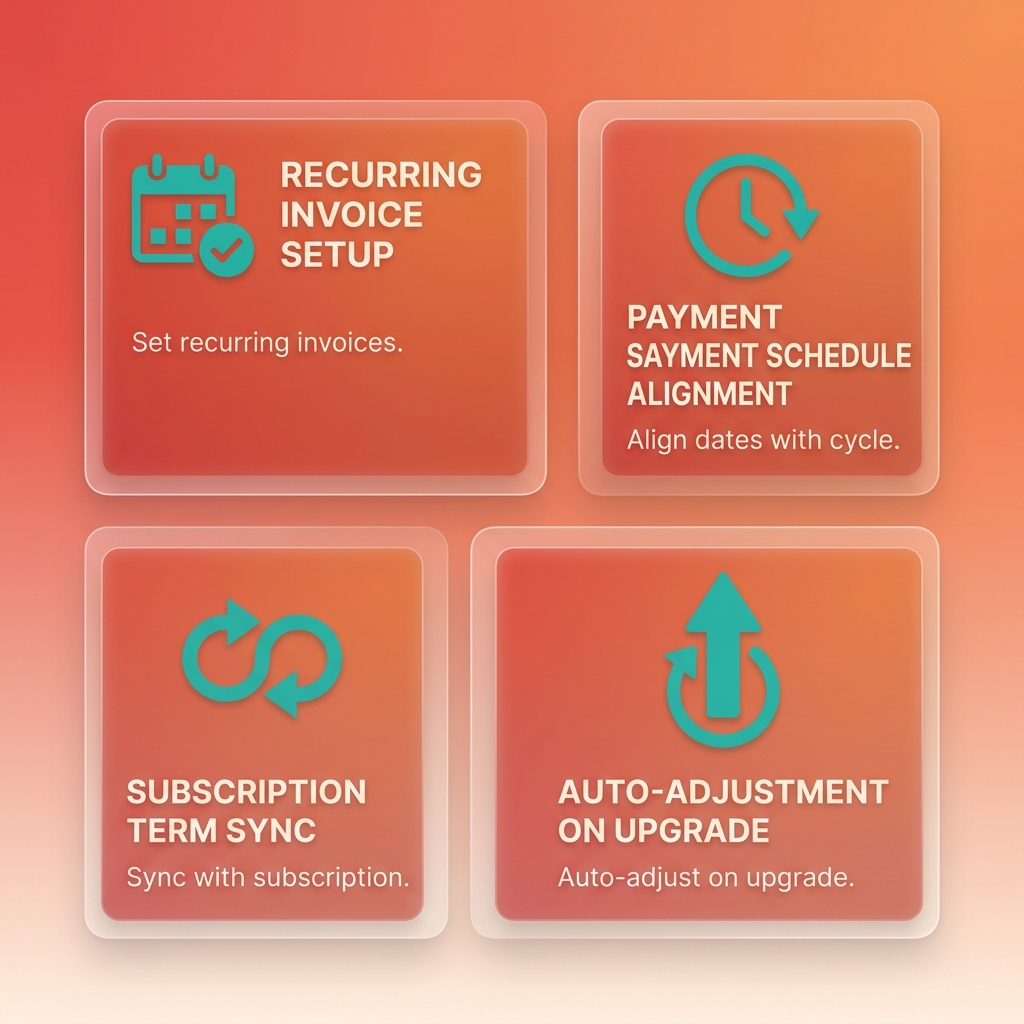
- Schedule payments: set recurring invoices to auto-send on specific dates matching your billing cycles. Blixo triggers payment with saved methods, no manual step.
- Set payment terms: define grace periods and late fees in Billing Preferences. These apply consistently across all linked subscriptions, which cuts disputes.
- Link subscriptions: each invoice connects to a unique subscription ID. That linkage is what lets the system auto-update the right ledger accounts when a payment processes.
Customizing your billing workflows
Blixo lets you tailor billing without manual work. Customize invoice templates with branding and payment terms so customers aren’t confused. Use Payment Reminders to nudge delinquent accounts while the backend records every transaction accurately against that customer’s history.
- Invoice templates: branded invoices with due dates and payment method details. Blixo embeds subscription IDs for automatic linking.
- Dynamic payment reminders: dunning emails that reference the exact subscription in arrears. They trigger retries or flag your team for manual follow-up.
- Multi-currency support: for global customers, enable currency conversion at billing. Blixo adjusts invoice amounts using real-time exchange rates so cash-flow numbers stay accurate.
How AutoPay recovers lost payments
Blixo’s Automated Collections handle dunning by retrying failed payments and updating subscription statuses in real time. A failed payment flags the subscription and kicks off retries using saved methods. You’re not chasing errors by hand. The engine updates records on its own, so your cash-flow reports reflect the latest status.
When a card hits its expiration, the automated dunning sequence fires a series of personalized notifications with a secure update link. The customer enters new details, billing resumes, no staff involvement. That’s recurring revenue you’d otherwise leak.
Reading your payment data
The Payment History Dashboard gives you real-time visibility into subscription performance. Track payment success rates, failed attempts, revenue trends, all tied directly to subscription records. That data sharpens your billing strategy, like adjusting dunning thresholds for high-churn segments, without manual reconciliation.
- Trend analysis: filter to compare cash inflows by subscription tier or customer cohort.
- Export reports: generate CSVs for accounting audits, payments already matched to invoices.
- Alerts: set thresholds for payment failures or revenue drops. Blixo alerts your team before a cash-flow gap widens.
By baking reconciliation into every transaction, AutoPay lets you spend your attention on growth instead of error correction.
Frequently Asked Questions
1. How does Blixo handle payment failures differently for credit cards versus ACH?
Credit card failures are typically resolved instantly through automated gateway retries, as they often stem from temporary issues like credit limits. In contrast, ACH failures require bank-level settlement checks and may take several days to process. Blixo manages this by applying distinct retry schedules for each type, ensuring card issues are retried quickly while ACH issues are handled according to banking clearing windows.
2. Can I integrate AutoPay with accounting tools like QuickBooks or Xero, and how long does it take?
Yes, Blixo connects directly with major accounting platforms. The integration process is completed within your dashboard settings by authorizing the connection. Once linked, the system automatically synchronizes invoice statuses, payment records, and customer profiles in real time, keeping your general ledger updated without manual data entry.
3. What steps are required to modify a customer’s payment schedule after AutoPay is active?
To modify a schedule, locate the customer’s profile in your dashboard and adjust the billing frequency or next payment date. The system automatically recalculates any upcoming charges, applies necessary proration, and updates the scheduled invoice queue to reflect the new agreement immediately.
4. How does Blixo ensure compliance for direct debit payments in different regions?
Blixo manages regional compliance by automatically collecting and storing customer mandates (such as SEPA for Europe or BACS for the UK) before initiating transactions. The platform monitors these mandates for validity and ensures that all automated collections adhere to local banking regulations, reducing the risk of compliance penalties.
5. What tools does Blixo provide to track recurring payment performance?
Blixo provides comprehensive reporting tools, including real-time dashboards that track transaction success rates, aging accounts, and recovery metrics. Users can generate custom financial reports and set up automated alerts to monitor cash-flow health and identify payment trends across different customer segments.
6. How do I update a customer’s payment method if their card expires?
Updates can be made directly by your team in the billing dashboard, or customers can update their own details securely through the self-service client portal. Once the new payment method is saved, Blixo automatically assigns it to all active subscriptions linked to that account, ensuring uninterrupted service.
7. What happens if a payment method is deleted or becomes invalid mid-cycle?
If a payment method becomes invalid or is removed without a replacement, the system temporarily suspends automated billing for those subscriptions to prevent failed transaction fees. Blixo immediately notifies both your team and the customer, providing a grace period to link a new payment source before the subscription status is impacted.