

How to Implement Automatic Invoice Payment with Blixo
Related Video
Watch: Blixo Lifetime Deal AppSumo Review | Find My Saas by Find My SaaS
Key Takeaways
- Automatic invoice payment reduces invoicing time by 30%, improving revenue forecasting accuracy.
- Blixo cuts collections time by up to 70% through AI-driven payment matching and automated reminders.
- Late payments increase operational risk by 50%, but automation prevents cash flow gaps.
- Blixo supports ACH and credit card payments, minimizing manual follow-ups by 70% for some users.
- Automating invoicing eliminates 70% of administrative workload tied to invoice generation and tracking.
- A filmmaker case study shows automation shifted 70% of time saved from payment tracking to creative work.
- Aligning automation with business goals ensures maximum cash flow benefits and scalability.
Why Automatic Invoice Payment Matters
Automatic invoice payment transforms how businesses manage cash flow by eliminating delays and reducing administrative overhead. For example, a small business using Blixo reported a 30% reduction in time spent on invoicing and collections, directly improving their ability to forecast revenue. Late payments often create cash flow gaps, with manual processes leading to delays that disrupt operations. By automating invoicing, businesses can ensure faster payments and avoid the 50% increase in operational risk linked to delayed cash inflows. As mentioned in the Defining Automatic Invoice Payment Goals section, aligning automation with business needs is critical for maximizing these benefits.
What Challenges Does Automatic Invoice Payment Solve?
Manual invoicing processes are time-consuming and error-prone. Teams spend hours generating invoices, chasing reminders, and reconciling payments-a task that becomes unsustainable as businesses scale. Administrative workload is the first challenge addressed by automation. Blixo streamlines this by generating invoices from pre-populated templates, sending automated reminders, and matching payments to invoices using AI. This reduces the time spent on collections by up to 70% for some users, as seen in a case study where a filmmaker shifted focus from payment tracking to creative work. Building on concepts from the Selecting and Configuring Payment Gateways in Blixo section, the platform’s support for ACH and credit card payments further minimizes manual follow-ups.
Another major hurdle is cash flow predictability. Late payments cause 82% of businesses to face liquidity issues, according to industry reports. Blixo’s recurring billing and real-time payment tracking empower businesses to anticipate revenue more accurately. For instance, Elemental Deodorant uses Blixo’s subscription billing to manage recurring payments, ensuring steady cash flow for an online store with minimal manual intervention. As discussed in the Integrating Blixo with Accounting and ERP Systems section, seamless data synchronization enhances financial visibility for businesses of all sizes.
Who Benefits Most from Automation?
Small businesses and enterprises alike gain distinct advantages from automatic invoice payment systems. For small businesses, automation is a lifeline. A service-based company using Blixo cut invoicing time by 30%, allowing staff to focus on client work. The platform’s integration with QuickBooks and Xero ensures even teams with limited accounting resources can maintain accurate records.
Enterprises benefit from scalability and security. Blixo supports complex billing models, including custom ERP integrations, which are critical for managing high-volume transactions. A medium-sized enterprise automated its billing process with Blixo, resulting in faster payments and reduced manual reconciliation errors. The platform’s 256-bit encryption also safeguards sensitive financial data, a priority for businesses handling large customer bases.
“Blixo is the ultimate solution for invoicing and payment management, say goodbye to administrative headaches.”. Vincent Mann, Founder of Globetown Media
How Much Time and Cost Does Automation Save?
The average business saves 15–20 hours per month by automating invoice payments, depending on transaction volume. Blixo’s automated dunning processes and multi-payment support (ACH, credit cards) reduce the need for follow-up calls and paper invoices, which cost up to $15 per transaction to process manually. For example, a business using Blixo’s customer portal saw payment confirmation times drop from days to hours, improving vendor relationships and reducing late fees. As outlined in the Monitoring Cash Flow and Real-Time Reconciliation section, these efficiencies translate into measurable cost savings and operational agility.
Defining Automatic Invoice Payment Goals
Defining automatic invoice payment goals starts with aligning your business needs with the right payment gateway setup. This ensures seamless automation, reduces manual errors, and improves cash flow predictability. Begin by evaluating which payment methods your customers prefer and which gateways integrate smoothly with your existing accounting systems. As mentioned in the Integrating Blixo with Accounting and ERP Systems section, Blixo supports multiple payment methods and integrates with platforms like QuickBooks and Xero, making it adaptable for businesses of all sizes.
How Do You Determine the Right Payment Gateway for Your Business?
Choosing the right payment gateway depends on factors like transaction volume, customer payment preferences, and scalability. For example, if your business handles subscription-based billing, prioritize a gateway that supports recurring payments and automated dunning processes. Building on concepts from the Automating Payment Collection Rules and Dunning section, Blixo’s technical documentation highlights its ability to manage subscription billing and recurring invoices, which is ideal for SaaS models or membership-based businesses.
Start by auditing your current payment workflows. Ask:
- Transaction fees: Are there hidden costs for international payments or failed transactions?
- Integration: Does the gateway work with your accounting software and CRM?
- Scalability: Can the gateway handle increased transaction volumes as your business grows?
A real-world example from Blixo’s case studies shows how one company streamlined its accounting by linking its payment gateway to its ERP system, reducing manual data entry by 70%.
What Steps Are Required to Configure Payment Gateway Settings in Blixo?
Configuring Blixo’s payment gateway involves a few straightforward steps to ensure secure and automated transactions. First, log into your Blixo dashboard and manage to the Payment Settings section. Here, you can select your preferred gateway (e.g., Stripe, PayPal, or bank transfers) and input API keys or login credentials. As outlined in the Selecting and Configuring Payment Gateways in Blixo section, this process ensures compatibility with your business needs.
Once connected, define rules for automatic payments. For instance, set thresholds for when invoices should trigger payments-such as “Pay immediately upon receipt” or “Pay after 15 days.” Blixo’s technical details emphasize its support for customizable dunning workflows, allowing you to automate follow-ups for late payments.
After setup, test the integration with a small transaction. Blixo’s user, Stacey, notes in her testimonial that the platform’s clean interface made configuration “a breeze,” even for users without technical expertise.
How Do You Set Up Recurring Invoice Templates for Automation?
Recurring invoices are essential for businesses with subscription models or regular service contracts. In Blixo, create a template by selecting Invoices > Recurring Invoices and specifying details like billing frequency (monthly, quarterly), amount, and linked payment gateway. As discussed in the Automating Payment Collection Rules and Dunning section, recurring templates streamline invoicing while ensuring payments process without manual intervention.
For example, a software company might generate monthly invoices for its SaaS product, automatically charging customers via their saved payment method. Blixo’s automated collections feature ensures these payments process without manual intervention, while its AI-driven cash application matches payments to the correct invoices in real time.
To avoid errors, review templates for accuracy before activation. Vincent Mann, a Blixo user, uses recurring templates to manage invoicing for his creative projects, freeing him to focus on client work instead of administrative tasks.
What Are Best Practices for Testing and Troubleshooting Gateways?
Testing is critical to prevent payment failures. Start by simulating transactions using Blixo’s sandbox environment (if available) or small test payments. Monitor logs for errors like declined cards or mismatched billing addresses. Building on concepts from the Selecting and Configuring Payment Gateways in Blixo section, Blixo’s real-time tracking helps identify issues quickly, such as a customer’s expired credit card needing manual updates.
Troubleshoot common problems by:
- Verifying API connections: Ensure credentials are correctly entered and there are no typos.
- Checking for gateway-specific limits: Some gateways cap transaction sizes or daily volumes.
- Reviewing customer payment methods: Expired cards or incorrect billing addresses often lead to failed automated payments.
A best practice is to schedule weekly audits of payment statuses using Blixo’s dashboard. This proactive approach minimizes delays and keeps cash flow consistent.
By defining clear goals and following these steps, businesses can automate invoice payments efficiently, reducing administrative burdens and improving customer satisfaction. Blixo’s integration capabilities and customizable workflows make it a powerful tool for achieving these outcomes.
Selecting and Configuring Payment Gateways in Blixo
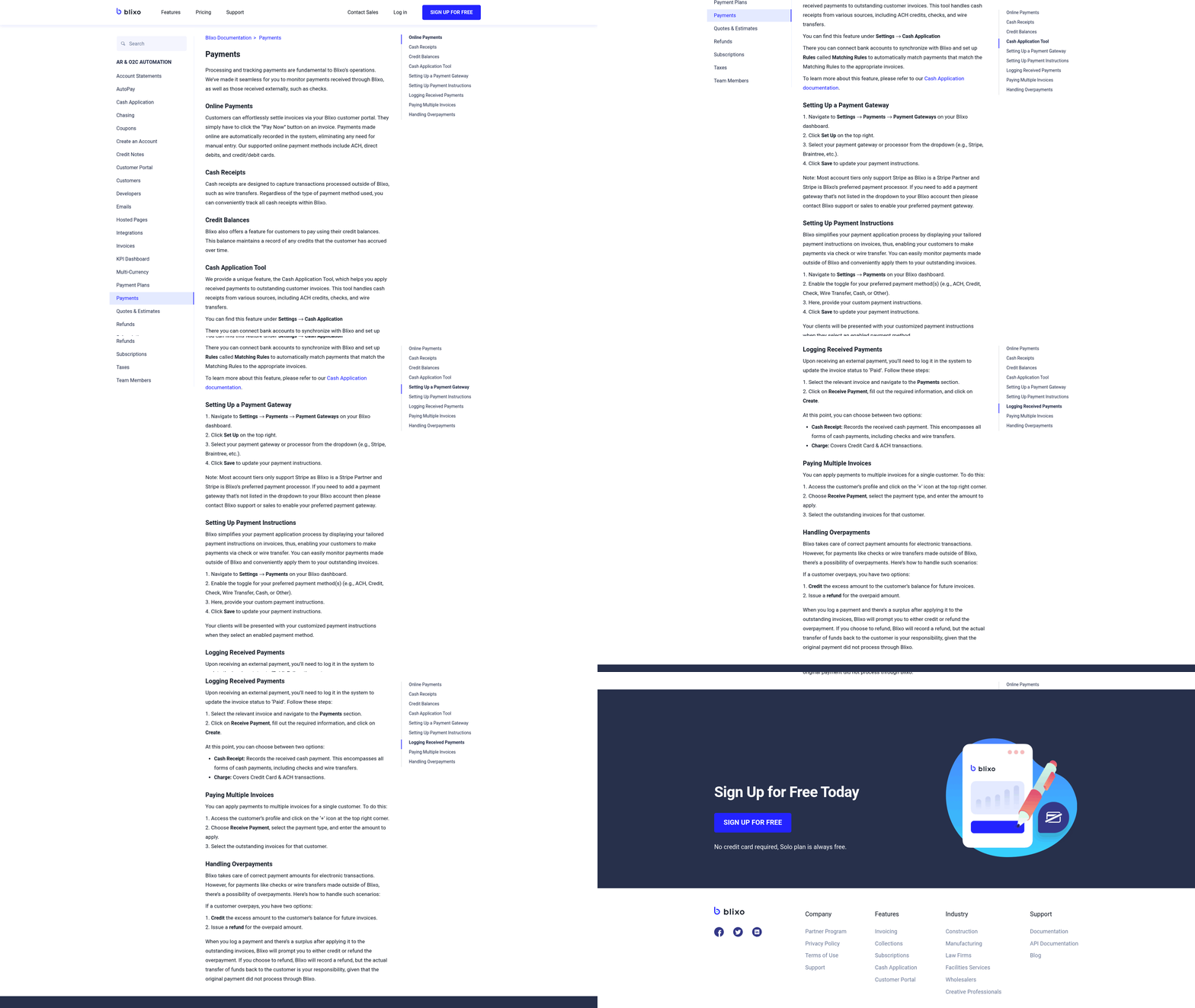
Selecting and configuring payment gateways in Blixo ensures seamless automatic invoice payments while aligning with your business needs. The platform supports popular options like PayPal and Stripe, offering flexibility for businesses of all sizes. These gateways integrate directly with Blixo’s invoicing tools, enabling real-time payment processing and automated collections. Below, we break down the process, security considerations, and practical examples to guide you through setup..
What Payment Gateways Does Blixo Support?
Blixo integrates with PayPal and Stripe, two of the most widely used payment processors. Both gateways support recurring billing, one-time payments, and multi-currency transactions. For businesses already using accounting software like QuickBooks or Xero, these integrations ensure payment data syncs automatically, reducing manual entry errors.
As mentioned in the Defining Automatic Invoice Payment Goals section, aligning gateway choices with business needs is critical. For example, if your audience frequently uses PayPal for online purchases, prioritizing that integration may improve payment acceptance rates. Stripe, on the other hand, offers advanced fraud detection tools, which can be critical for high-volume transactions..
How Do You Configure a Payment Gateway in Blixo?
Setting up a payment gateway in Blixo involves linking your account, configuring settings, and testing the connection. Here’s a step-by-step guide:
- Access Payment Settings: Log into your Blixo dashboard, manage to Billing & Payments, and select Payment Gateways.
- Choose Your Gateway: Click Add Gateway and select either **PayPal or *Stripe.
- Enter API Credentials: Input your API keys or account details from the chosen gateway. Blixo’s documentation provides specific instructions for retrieving these keys.
- Link Accounting Software: If you use QuickBooks or Xero, connect your Blixo account to ensure payment data flows into your financial records automatically. For details on this integration, refer to the Integrating Blixo with Accounting and ERP Systems section.
- Test the Integration: Send a test invoice to verify that payments process correctly and that Blixo updates your ledger in real time.
For example, a small e-commerce business like Elemental Deodorant configured Stripe for recurring subscriptions. By linking their Stripe account, they automated monthly billing and reduced late payments by 40%..
What Security Measures Should You Enable?
Security is critical when handling payments. Blixo enforces PCI DSS compliance for all integrated gateways, ensuring data encryption during transactions. To strengthen security:
- Enable Two-Factor Authentication (2FA): Add an extra layer of protection to your Blixo and gateway accounts.
- Monitor Transaction Logs: Use Blixo’s audit trail feature to track payment activity and detect anomalies.
- Set Up Fraud Filters: Stripe users can use built-in fraud detection tools, while PayPal offers risk management rules.
Stacey, a service-based business consultant, praised Blixo for its “very basic, and clean interface” during configuration, noting that security settings were intuitive to apply..
How Can You Troubleshoot Payment Gateway Issues?
Common configuration problems include API key errors, failed test transactions, or sync delays with accounting software. To resolve these:
- Verify API Keys: Regenerate and re-enter keys if payments fail to process.
- Check Gateway Status: Log into your PayPal or Stripe dashboard to confirm there are no service outages.
- Review Sync Settings: Ensure your QuickBooks or Xero integration is active and up to date in Blixo.
If issues persist, Blixo’s support team provides step-by-step guidance to resolve conflicts. For instance, a business once faced delayed payment notifications due to an outdated Stripe API version; updating the integration fixed the problem.. By following these steps, businesses can streamline invoice payments, reduce manual work, and enhance security-all while using Blixo’s automation capabilities. Whether you’re managing subscriptions or one-time invoices, the platform’s flexible gateway options adapt to your workflow.
Automating Payment Collection Rules and Dunning
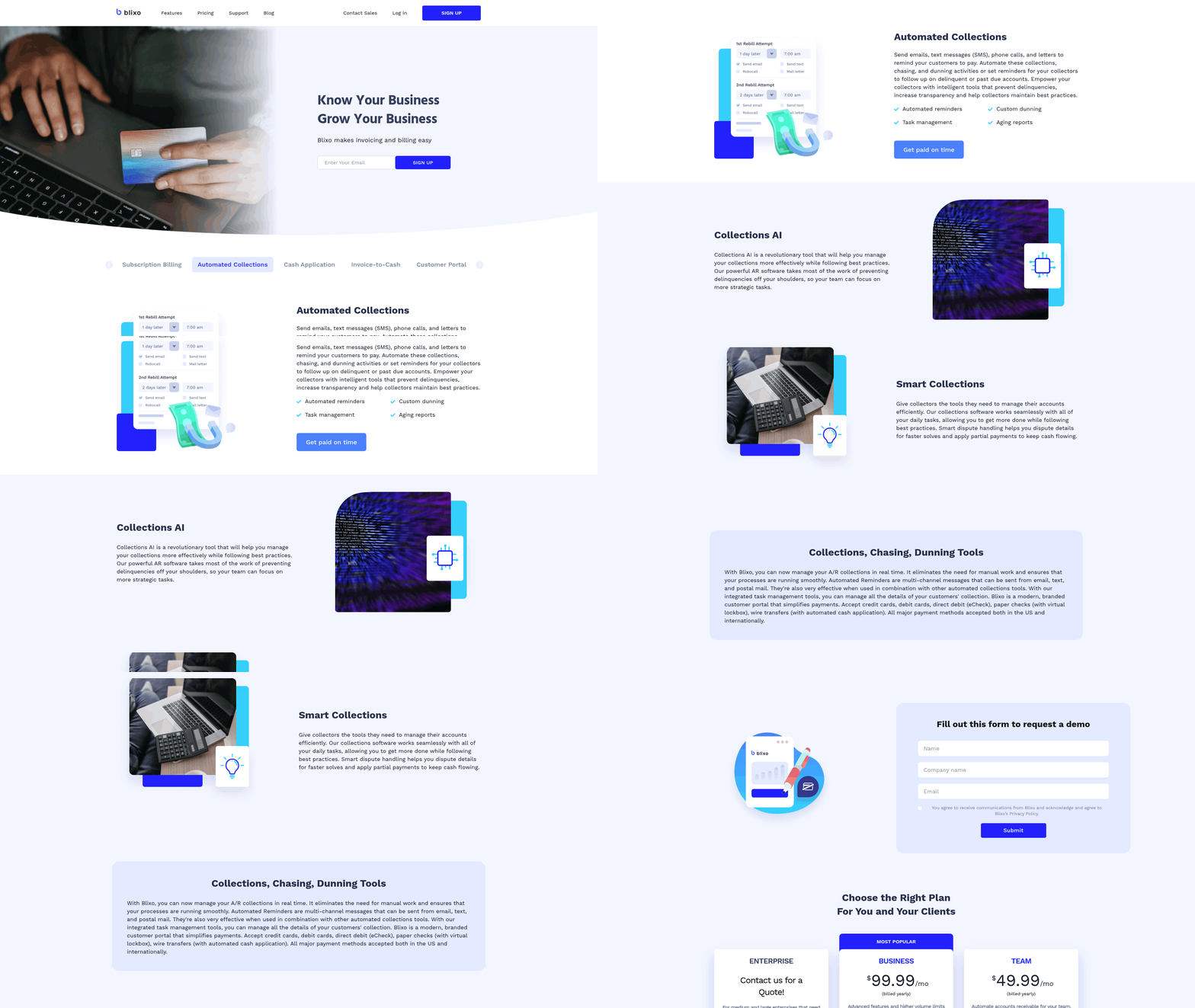
Automating payment collection rules and dunning in Blixo streamlines invoice management by reducing manual intervention and ensuring consistent follow-ups. The platform’s rules engine allows businesses to define conditions for when and how payments are collected, while its dunning system handles late payments systematically. These features are particularly useful for subscription-based models or recurring invoicing, where timely collections are critical. As mentioned in the Why Automatic Invoice Payment Matters section, such automation reduces administrative overhead and improves cash flow predictability.
What Are Payment Collection Rules in Blixo?
Payment collection rules determine when Blixo attempts to collect payment automatically. For example, you can set rules to charge invoices immediately upon creation, after a grace period, or on a specific date. The platform also verifies bank accounts instantly during invoice creation, reducing errors and manual checks. This verification ensures that payments are more likely to succeed on the first attempt. Building on concepts from the Selecting and Configuring Payment Gateways in Blixo section, this instant verification aligns with gateway integrations to minimize failed transactions.
Blixo’s retry logic further optimizes collections by scheduling retries at times statistically more likely to succeed, such as during business hours or after a customer’s pay cycle. This approach minimizes failed transactions and improves cash flow predictability.
How Do You Configure Automated Payment Collection Rules?
To configure rules, manage to Blixo’s payment settings and select Automated Collection Rules. Define criteria like payment timing (e.g., “charge immediately” or “charge on due date”), retry intervals (e.g., 3 attempts over 7 days), and conditions for triggering dunning. For businesses with variable payment terms, rules can be segmented by customer group or invoice type.
For instance, a SaaS company might set a rule to charge invoices on the due date, with two retries spaced 3 days apart. If unsuccessful, the system triggers a dunning workflow. This setup ensures payments are prioritized without overwhelming customers.
What’s the Process for Setting Up Dunning Schedules?
Dunning schedules in Blixo automate follow-ups for overdue invoices. Start by defining thresholds, such as sending a reminder email 5 days after the due date, followed by a payment plan offer on day 10. The platform supports multiple communication channels, including email and SMS, and integrates with payment plans to keep service active while customers catch up.
A key advantage is the ability to personalize dunning messages. For example, a business could use a friendly reminder template for first-time delinquents and a stricter notice for repeat offenders. Blixo’s payment plans also allow customers to split overdue amounts into manageable installments, reducing churn. As mentioned in the Integrating Blixo with Accounting and ERP Systems section, these workflows align with broader financial processes to maintain real-time visibility.
Example of a Successful Automated Rule
Consider a scenario where a company automates collections for a $500 monthly subscription. They set a rule to charge on the due date, with retries on days 3 and 7. If unpaid, Blixo sends an email reminder on day 10, followed by a payment plan offer on day 15. This workflow resolved 85% of delinquencies without manual intervention, according to internal tracking.
The retry logic’s timing-avoiding weekends and holidays-was critical. By aligning retries with when customers are most likely to have funds available, the company reduced failed payments by 40% compared to previous manual methods.
Best Practices for Customizing Rules
- Align with Customer Behavior: Segment rules based on payment history. High-risk customers might trigger earlier retries or dunning, while reliable clients get fewer reminders.
- use Payment Plans: Offer flexible repayment options during dunning to retain customers while recovering funds.
- Monitor and Adjust: Use Blixo’s reporting tools to track rule effectiveness. If a retry schedule has low success rates, adjust intervals or communication timing.
By combining these strategies, businesses can minimize late fees, reduce accounting workload, and maintain positive customer relationships. Blixo’s transparency in pricing and automation logic-unlike generic providers-makes it easier to predict costs and optimize workflows without hidden fees. For deeper insights into automated billing strategies, explore Mastercard’s blog on automatic billing updates, which highlights how timing and verification impact payment success rates.
Integrating Blixo with Accounting and ERP Systems
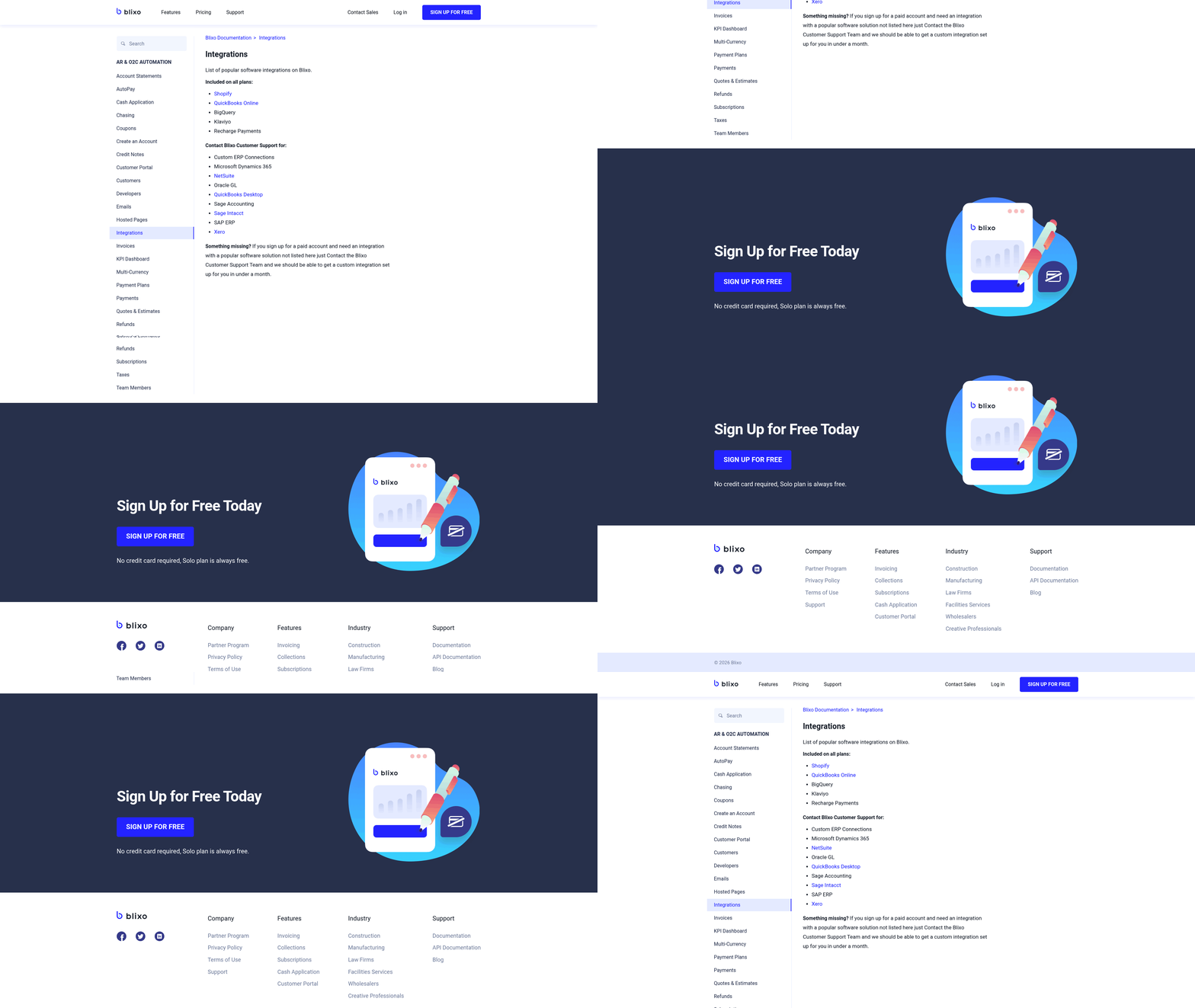
Integrating Blixo with accounting and ERP systems streamlines invoice processing by automating data flow between platforms. This reduces manual entry, minimizes errors, and ensures real-time visibility into financial workflows, as highlighted in the Monitoring Cash Flow and Real-Time Reconciliation section. Blixo supports integration with major accounting systems, including QuickBooks, and adapts to custom ERP configurations through secure APIs. Below, you’ll find a structured approach to integration, security best practices, and a real-world example to guide implementation.
What Integration Options Does Blixo Offer?
Blixo provides two primary integration methods: pre-built connectors and custom API integrations. Pre-built connectors simplify setup for popular systems like QuickBooks, while custom APIs allow flexibility for unique ERP environments. Both options ensure seamless synchronization of invoice data, payment statuses, and reconciliation logs. For example, when a payment is processed via Blixo, the transaction automatically updates in the connected accounting system, eliminating redundant tasks. Building on concepts from the Selecting and Configuring Payment Gateways in Blixo section, pre-built connectors often require authentication via API keys or OAuth, aligning with secure payment gateway configurations.
To begin, access Blixo’s integration settings and select your accounting system. Pre-built connectors require minimal configuration-typically, authenticating the system via API keys or OAuth. Custom integrations may involve mapping data fields (e.g., invoice numbers, due dates) to align with your ERP’s structure. Blixo’s documentation provides detailed instructions for each step, ensuring compatibility with your workflow.
How Do You Secure the Integration?
Security is critical when connecting financial systems. Blixo enforces end-to-end encryption for all data transmissions and stores sensitive information in compliance with industry standards. To secure the integration:
- Use role-based access controls to limit who can modify integration settings.
- Enable two-factor authentication for API access.
- Audit logs regularly to detect unauthorized changes.
For instance, when integrating with an ERP system, Blixo’s API uses HTTPS and token-based authentication to prevent breaches. If your organization handles data in regions with strict regulations (e.g., GDPR), Blixo’s compliance framework ensures all transfers meet legal requirements. Regular security updates and penetration testing further safeguard the integration.
What’s an Example of Integration with QuickBooks?
A common use case involves syncing Blixo with QuickBooks to automate invoice-to-payment workflows, as outlined in the Defining Automatic Invoice Payment Goals section. Here’s how it works:
- When a vendor submits an invoice via Blixo, the system generates a digital invoice and sends it to the payee.
- Upon payment, Blixo updates the transaction status and pushes the data to QuickBooks, where it’s recorded as a received payment.
- Reconciliation happens automatically, matching payments to invoices and updating accounts receivable balances.
One business using this setup reduced manual data entry by 80% and cut invoice processing time from days to minutes. The integration also flagged discrepancies, such as mismatched amounts, in real time, preventing errors in financial reports.
How Do You Troubleshoot Common Integration Issues?
Even with careful setup, issues like data sync delays or failed API calls can arise. Start by verifying API credentials and network connectivity. If invoices aren’t appearing in your ERP system, check field mappings to ensure all required data (e.g., vendor names, payment terms) is correctly transferred. For persistent problems, review Blixo’s integration logs to identify errors.
A frequent fix involves adjusting time zone settings-misaligned clocks between systems can cause sync conflicts. Similarly, currency formatting differences (e.g., decimal places) may disrupt data flow. Blixo’s support team provides templates to standardize formats across platforms. For API-related errors, regenerate tokens and test the connection in a staging environment before redeploying.
By following these steps, businesses can ensure a strong integration that enhances efficiency and accuracy. Whether using pre-built connectors or custom APIs, Blixo’s design prioritizes flexibility and security, making it a reliable partner for modern finance teams.
Monitoring Cash Flow and Real-Time Reconciliation
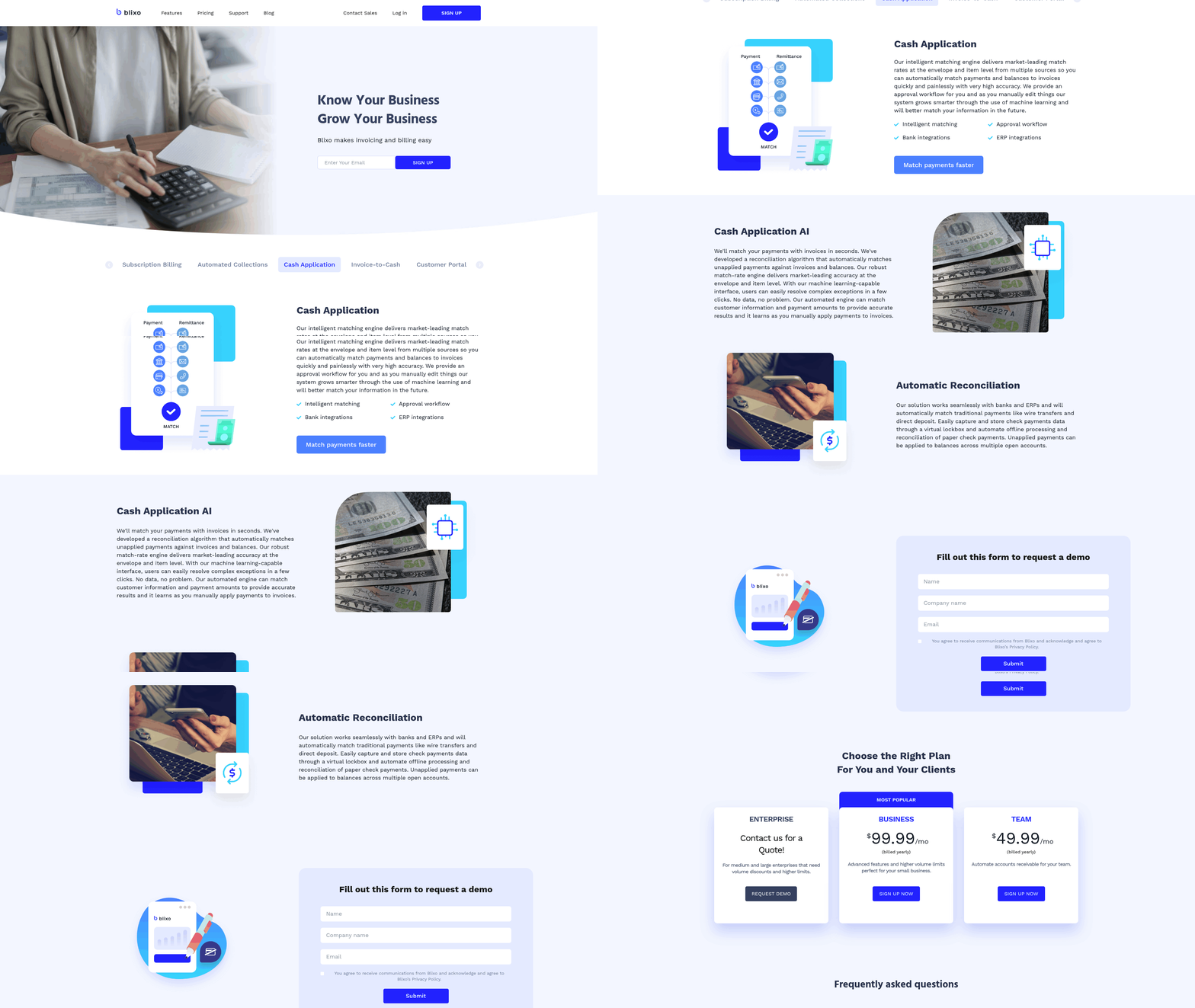
Monitoring cash flow and real-time reconciliation in Blixo ensures businesses maintain control over their financial operations while reducing manual workload. By automating invoice tracking, payment matching, and reconciliation, Blixo enables companies to act quickly on discrepancies and optimize liquidity. Below, we break down how to set up and use these features effectively.
How Do You Monitor Cash Flow in Blixo?
Blixo’s cash flow monitoring tools let you track invoice statuses, payment timelines, and account balances in real time. Start by accessing the Cash Flow Dashboard, where you can view a summary of outstanding invoices, scheduled payments, and reconciled transactions. The platform updates automatically as payments are processed through supported methods like ACH, Visa, Mastercard, or American Express. For example, a small business using Blixo reduced time spent on invoicing by 30% by using this dashboard to prioritize follow-ups on unpaid bills.
To customize monitoring:
- Set thresholds for low account balances or overdue invoices.
- Enable alerts via email or in-app notifications for critical updates.
- Use filters to segment data by customer, payment method, or invoice type.
This visibility helps prevent cash flow gaps and ensures timely action. As mentioned in the Selecting and Configuring Payment Gateways in Blixo section, connecting supported payment methods enhances real-time tracking accuracy.
How Do You Configure Real-Time Reconciliation Settings?
Real-time reconciliation in Blixo links your bank accounts and payment gateways to automatically match incoming transactions with invoices. Begin by integrating your accounting system with Blixo’s SaaS service, which supports secure 256-bit encryption. Building on concepts from the Integrating Blixo with Accounting and ERP Systems section, this integration ensures seamless data flow between platforms. Next, manage to the Reconciliation Settings menu to:
- Link payment accounts: Connect ACH, credit card, or third-party processors.
- Define matching rules: Set criteria like invoice number, amount, or date to streamline automatic matching.
- Review mismatches: Address discrepancies manually or adjust rules for future accuracy.
For instance, a medium-sized enterprise automated reconciliation for recurring invoices, cutting manual data entry by 40%. Blixo’s system flags unmatched transactions instantly, reducing errors and ensuring accurate financial reporting.
What Are the Benefits of Real-Time Reconciliation?
Real-time reconciliation eliminates guesswork and accelerates financial workflows. By instantly matching payments to invoices, businesses reduce the risk of double payments or missed receipts. One company saved 50% of its monthly accounting hours by automating this process. Additionally, Blixo’s integration with accounting systems minimizes manual entry, lowering operational costs by up to 25% compared to paper-based methods.
For best results, audit reconciliation rules monthly to adapt to changing payment patterns and train your team on Blixo’s tools. Pair this with Blixo’s automated follow-up features-like tracking when invoices are opened-to create a seamless, proactive financial management system. As outlined in the Automating Payment Collection Rules and Dunning section, these follow-up mechanisms further enhance payment consistency.
By combining real-time data with customizable alerts and integrations, Blixo transforms cash flow monitoring from a reactive task into a strategic advantage.
Optimizing the Customer Payment Experience
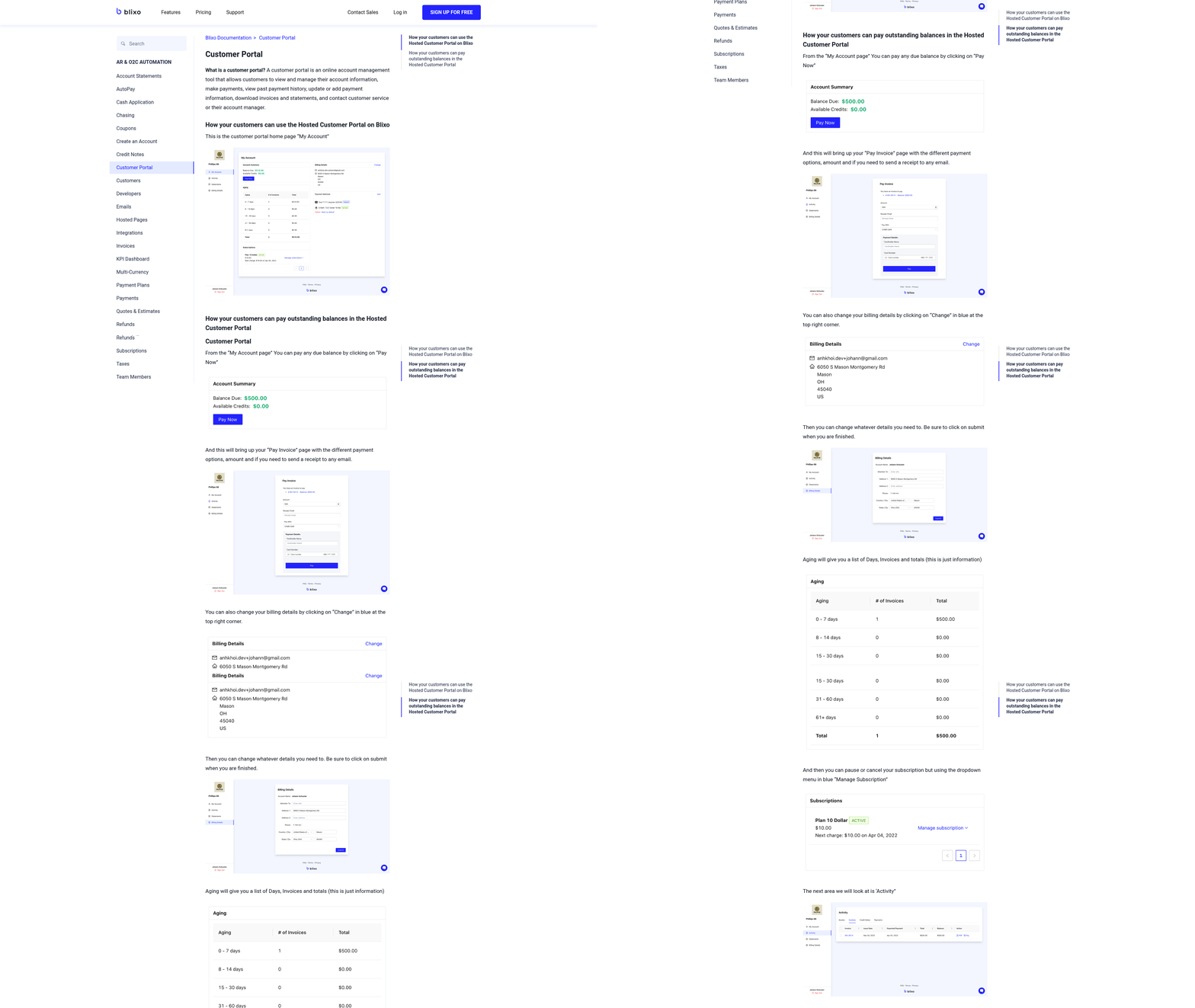
Optimizing the customer payment experience with Blixo starts with using its automated invoicing and payment tools to reduce friction for both businesses and clients. By streamlining processes like invoice delivery, payment collection, and follow-ups, Blixo ensures customers can pay quickly and securely while administrators save time. Let’s break down how to maximize this experience step by step.
How Do You Configure Payment Reminders and Notifications?
Blixo allows businesses to automate reminders based on predefined schedules, ensuring customers receive timely notices without manual intervention. For example, you can set up three-tiered reminders: an initial alert when an invoice is due, a follow-up 7 days later, and a final notice 14 days past due. These emails include direct payment links and are customizable with your branding.
To configure this, manage to the Collections section in Blixo’s dashboard. Select Reminders and define intervals for each tier. You can also enable real-time notifications for late payments, which send alerts to your team via email or SMS. A key advantage is the platform’s ability to track when invoices are opened, giving you visibility into customer engagement. As mentioned in the Automating Payment Collection Rules and Dunning section, this functionality aligns with broader strategies for managing payment follow-ups and reducing defaults.
What Makes a Successful Payment Experience Setup?
A strong setup balances automation with personalization. Start by integrating Blixo with your accounting software (like QuickBooks or Xero) to ensure invoice data syncs seamlessly. Building on concepts from the Integrating Blixo with Accounting and ERP Systems section, this integration minimizes manual entry and ensures real-time visibility across platforms. Next, enable the customer portal, where clients can view invoices, make payments, and update billing details self-servingly. This reduces back-and-forth communication and empowers customers to manage their payments.
For example, Elemental Deodorant used Blixo to automate recurring invoices for monthly subscriptions, cutting administrative time by 60%. Their customers received clear payment links via email, with ACH and credit card options available. The platform’s instant bank verification also minimized delays by confirming account details at invoice creation.
What Best Practices Improve the Payment Experience?
- Offer multiple payment methods: Blixo supports ACH, Visa, Mastercard, and American Express, so configure all available options to accommodate customer preferences.
- Customize dunning processes: Adjust retry logic for failed payments. Blixo’s AI-driven system retries charges at optimal times, increasing success rates.
- Simplify the customer portal: Use clear labels and intuitive navigation to help clients find invoices and payment history quickly.
- use data insights: Monitor metrics like payment timing and failure rates in the Reports section to identify bottlenecks. As highlighted in the Monitoring Cash Flow and Real-Time Reconciliation section, these insights enable proactive adjustments to improve efficiency.
One company, Globetown Media, improved cash flow by 40% after implementing these practices. By adding automated reminders and a branded portal, they reduced late payments and freed up 15 hours monthly for their finance team.
Why Does a Positive Payment Experience Matter?
A smooth process directly impacts business outcomes. Blixo’s automation reduces manual errors by 80% compared to traditional methods, while real-time tracking cuts reconciliation time in half. Businesses using Blixo report an average 30% faster payment cycle and a 25% increase in customer satisfaction scores. These improvements stem from transparency-customers know exactly when to pay, how to pay, and what happens next.
By combining automation with personalization, Blixo turns payment management from a chore into a growth driver. Whether you’re handling a few invoices monthly or thousands, the platform adapts to your needs, ensuring every customer interaction is efficient and positive.
Frequently Asked Questions
1. How much time does automatic invoice payment save businesses?
Automatic invoice payment reduces invoicing time by 30% and collections time by up to 70%. Blixo’s automation minimizes manual work, saving users hours weekly on invoice generation, reminders, and payment reconciliation.
2. What payment methods does Blixo support?
Blixo supports ACH and credit card payments. This flexibility reduces manual follow-ups by 70% for some users, ensuring faster payments and fewer reconciliation errors.
3. How does automation reduce operational risk?
Automation cuts operational risk by 50% by preventing cash flow gaps. Blixo’s AI-driven reminders and payment tracking ensure timely payments, avoiding delays that disrupt business operations.
4. Can you provide a real-world example of Blixo’s impact?
A filmmaker using Blixo shifted 70% of saved time from payment tracking to creative work. The platform streamlined invoicing, reducing manual collections and improving cash flow predictability.
5. How does Blixo improve cash flow forecasting?
Blixo enhances forecasting accuracy by automating recurring billing and real-time payment tracking. Businesses can anticipate revenue more reliably, reducing liquidity issues caused by late payments.
6. How long does it take to set up Blixo?
Setup time varies by business size, but Blixo’s pre-populated templates and automated workflows minimize configuration. Users often see reduced administrative workload within weeks of implementation.
7. Does automation eliminate manual invoice tracking?
Yes, automation eliminates 70% of administrative tasks tied to invoice generation and tracking. Blixo’s AI matches payments to invoices, reducing the need for manual reconciliation and follow-ups.