

Blixo Checklist for Xero Accounts Payable

Key Takeaways
- Manual AP processes cost businesses 30% higher admin expenses and delay cash flow by 30% due to extended DSO.
- 82% of teams still rely on manual AP, wasting 200+ hours annually for companies processing 1,000 monthly invoices.
- U.S. firms lose $1.3 trillion yearly in penalties from manual AP errors, costing 35% of businesses missed-payment fines.
- Blixo automates 98% of Xero payments, reducing processing time by 81% and per-invoice costs by 80%.
- Manual AP averages $29.83 per invoice vs. $2.00 with automation, saving $278,000 yearly for 10,000 invoices.
- A retail chain cut regional payment delays by 20% using Blixo’s multi-currency Xero integration.
- A healthcare provider reduced missed-payment risk by 35% through Blixo’s automated Xero AP solution.
Related Video
Watch: Xero: How to Create Accounts Receivable & Accounts Payable (2025 Tutorial) by Just Ask Jake
Why Xero Accounts Payable Matters
Streamlining Xero Accounts Payable (AP) with Blixo is critical for businesses aiming to reduce costs, accelerate cash flow, and minimize errors. Manual AP processes, which 82% of teams still rely on, cost businesses 30% higher admin expenses and delay cash flow by 30% due to extended Days Sales Outstanding (DSO). For example, a company handling 1,000 invoices monthly wastes over 200 hours annually on manual reconciliation-time that could be redirected to strategic growth initiatives.
Industry Impact of Inefficient AP
Manual errors alone pose a massive risk: 35% of businesses face missed-payment penalties, and U.S. firms collectively lose $1.3 trillion annually** in penalties due to human mistakes. These errors also inflate processing costs, with manual AP averaging **$29.83 per invoice versus $2.00 with automation**. For a business processing 10,000 invoices yearly, this translates to **$278,000 in avoidable expenses.
Tangible Benefits of Blixo + Xero Integration
Blixo’s AI-powered automation resolves 98% of payments automatically, cutting processing time by 81% and reducing per-invoice costs by 80%. Real-world results include:
- A retail chain reducing regional payment delays by 20% using multi-currency support.
- A healthcare provider slashing missed-payment risk by 35% through automated reconciliation.
- A law firm improving cash-flow efficiency by 25% within months.
Who Benefits Most?
Small to mid-sized businesses using Xero, especially in industries like healthcare, retail, and legal services, gain the most. Blixo’s two-way sync with Xero ensures real-time data updates, including invoices, payments, and credit notes. As mentioned in the Configuring Blixo for Xero Accounts Payable section, hourly Xero-to-Blixo updates and instant Blixo-to-Xero posting eliminate data silos, enabling teams to track metrics like DSO reduction (30–50%) and error rates (<3%) directly within Xero’s dashboard.
Case Study: Retail/Wholesale SMB Success
A retail/wholesale SMB automated 12.5% of vendors handling 80% of AP volume, cutting processing time by 60% and capturing 2% early-payment discounts. By automating 1,000 invoices monthly, the business achieved **$200,000 in annual savings**-a **300% ROI** after a $50,000 implementation.
Key Challenges Solved
- Error Reduction: Blixo’s AI-powered OCR reduces manual entry errors by 70%, preventing costly penalties.
- Time Savings: Automating 95% of invoice workflows cuts processing time from 45 days to 3.1 days.
- Fraud Prevention: Role-based access controls in Xero, as outlined in the Prerequisites and Setup section, paired with Blixo’s duplicate detection, reduce fraud risk by 70%.
By addressing these pain points, Blixo transforms AP from a cost center into a strategic asset, ensuring Xero users can focus on growth while maintaining financial accuracy and vendor trust.
Prerequisites and Setup
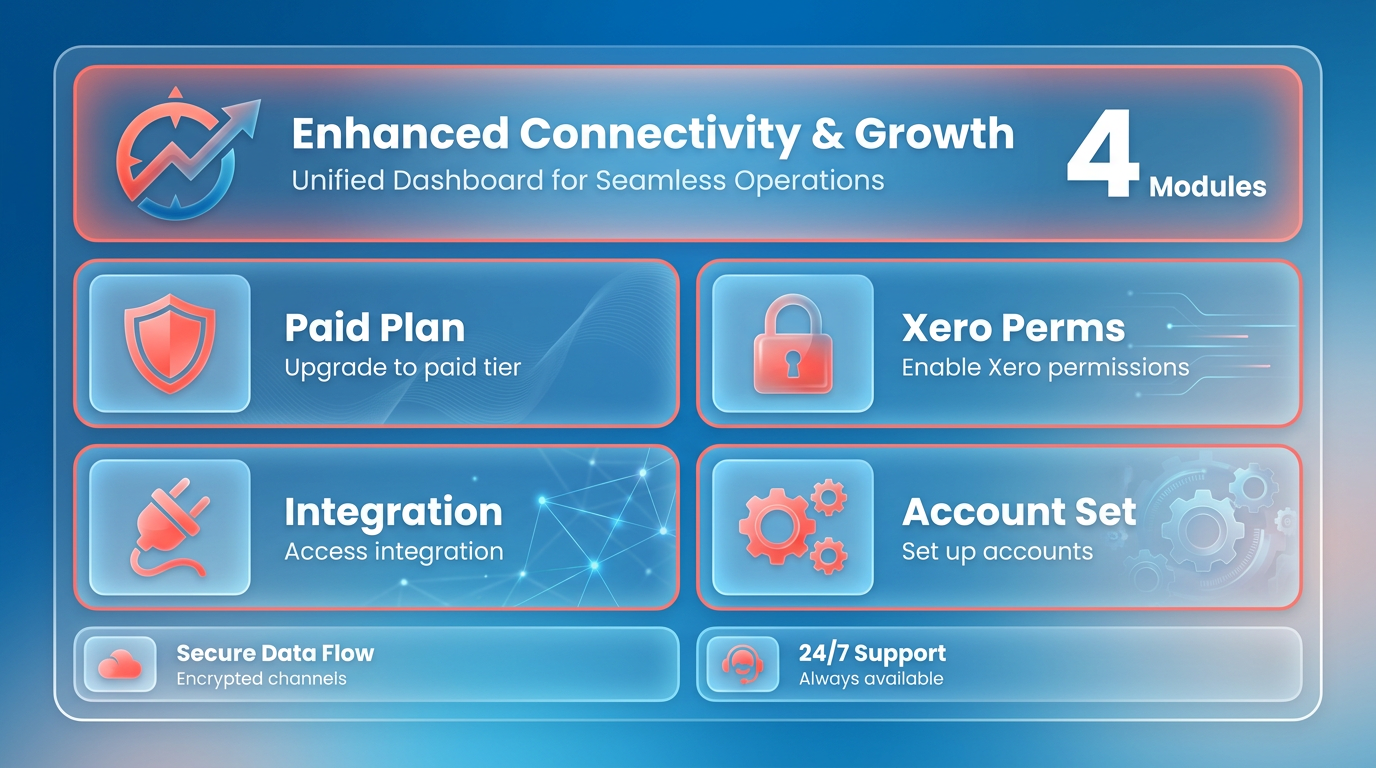
Before starting, ensure your organization meets these requirements to avoid delays. The Blixo-Xero integration requires specific account permissions and setup steps that differ from standard free-tier features. As mentioned in the Why Xero Accounts Payable Matters section, streamlining AP processes is critical for reducing costs and accelerating cash flow, making proper preparation essential.
- Paid Blixo Plan: The integration is exclusive to paid plans. Free plans lack access to Xero activation and advanced sync features. Upgrade to a paid tier to enable full functionality.
- Active Xero Account: Your Xero instance must be set up with defined accounts payable and receivable categories. Refer to Xero’s documentation for setting up AR/AP accounts if needed.
- Blixo Customer Support Access: Paid plans include direct support channels. Contact via chat or email to initiate integration setup..
Activating the Xero Integration
Activation is a manual process handled by Blixo’s support team. This step ensures your configuration aligns with Xero’s data structure and compliance requirements. Building on concepts from the Configuring Blixo for Xero Accounts Payable section, the integration requires precise alignment between platforms to enable two-way transaction flow.
- Submit Activation Request: Reach out to Blixo Customer Support with your Xero instance details. Support will verify your plan and enable the integration.
- Confirm Integration Status: After activation, check your Blixo dashboard for the Xero integration tile. A green status confirms successful setup..
Configuring Sync Settings and Entity Mapping
Proper configuration ensures seamless data flow between systems. Misconfigurations can lead to incomplete or delayed updates, affecting AP workflows. Building on concepts from the Configuring Blixo for Xero Accounts Payable section, define sync direction and entity mapping to ensure bidirectional compatibility.
- Define Sync Direction: Set up real-time posting from Blixo to Xero for invoices and payments. Enable hourly updates from Xero to Blixo for bidirectional data flow.
- Map Entities in the Sync Table: Align Blixo’s customer, invoice, and payment records with corresponding Xero entities. For example, map “Customer A” in Blixo to “Customer A Ltd.” in Xero.
- Review Synced Data Types: Ensure all required entities (invoices, credit notes, payments) are included. Adjust settings to exclude non-essential data if needed.
Configuring Blixo for Xero Accounts Payable
Configuring Blixo for Xero Accounts Payable requires activating a two-way sync to ensure transactions flow seamlessly between platforms. The integration supports real-time posting from Blixo to Xero and scheduled hourly updates from Xero to Blixo. Below is a structured checklist to guide setup, troubleshooting, and monitoring.
What Steps Are Needed to Activate the Integration?
To use Blixo with Xero, businesses must first activate the integration through Blixo Customer Support. This feature is exclusive to paid plans, so verify your subscription status before initiating setup, as outlined in the Prerequisites and Setup section.
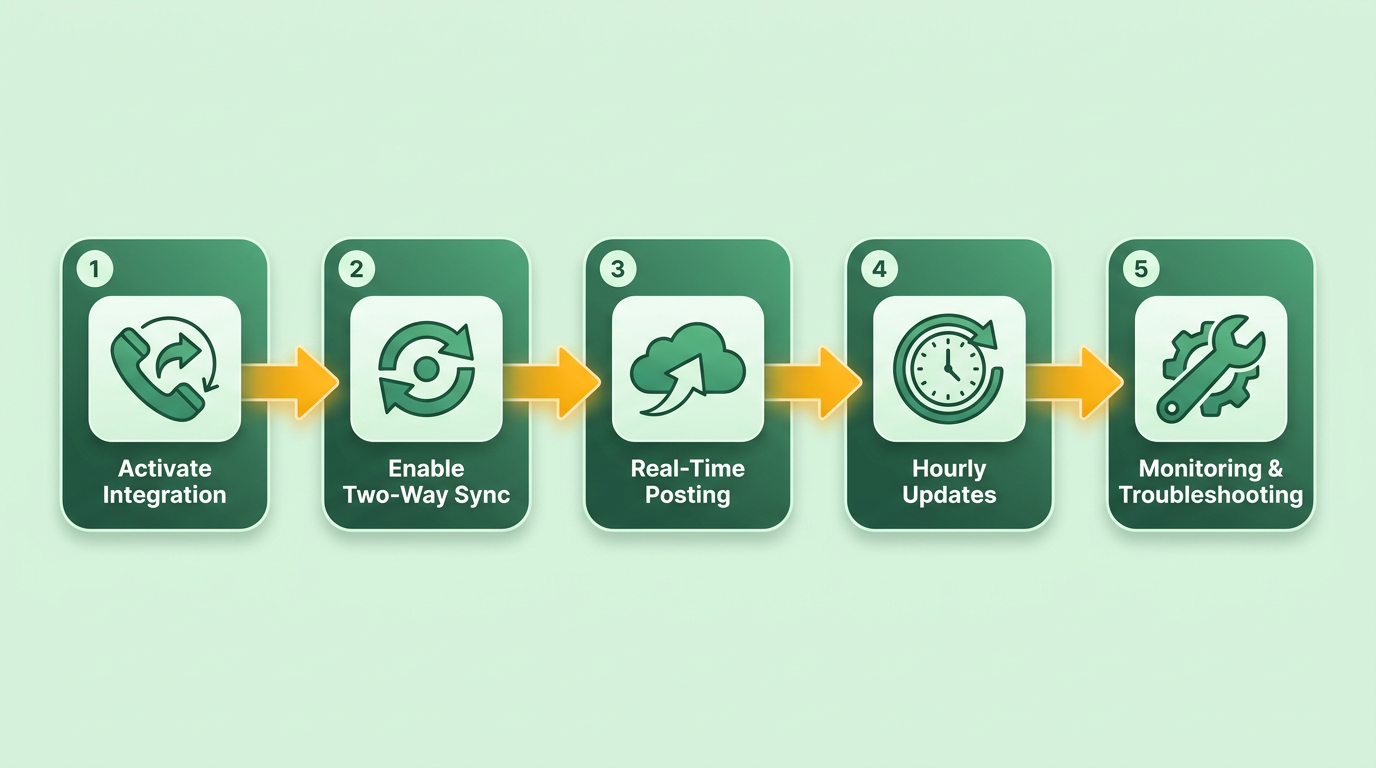
- Contact Blixo support to enable the Xero integration. Without activation, no data sync is possible, even if Xero is connected to your account.
- Verify Xero credentials during setup. Blixo requires access to your Xero organization to map accounts, contacts, and tax codes correctly, as detailed in the Prerequisites and Setup section.
- Confirm data sync scope. The integration supports Customers, Invoices, Credit Notes, Payments, and Foreign Currency Payments-ensure these align with your accounting needs..
How to Configure Real-Time Posting and Hourly Syncing
Real-time posting ensures Blixo transactions (like invoices or payments) appear instantly in Xero. Xero-to-Blixo updates occur hourly to reflect changes in the accounting system.
- Enable real-time posting in Blixo settings. This allows transactions created in Blixo (e.g., invoice generation) to write directly to Xero without delay.
- Schedule hourly data fetching from Xero. Blixo reads new or updated data (e.g., payments made in Xero) every hour to keep records aligned.
- Use the “Sync Now” button for manual updates. If you need immediate synchronization (e.g., after a critical payment), trigger a full sync manually..
How to Monitor and Troubleshoot Sync Status
Regular monitoring ensures the integration runs smoothly. Blixo’s accounting sync page provides visibility into sync history and errors.
- Check the accounting sync page. This dashboard shows the status of the last sync, any failed transactions, and timestamps for real-time/hourly updates.
- Review failed sync logs. If an invoice fails to post to Xero, the log will indicate whether the issue is a missing contact, invalid tax code, or connectivity error.
- Re-sync problematic transactions. Select individual failed items and click “Retry” to resolve minor sync errors without re-syncing the entire dataset..
Common Sync Issues and Solutions
Sync failures often stem from configuration gaps or data mismaps. Address these proactively:
- Ensure Xero contacts exist in Blixo. If a customer is missing in Xero, Blixo cannot post invoices. Create or map contacts during setup.
- Validate tax code alignment. Mismatched tax codes between platforms can block invoice posting-review mappings in Blixo’s integration settings.
- Check internet connectivity. Both platforms require stable internet to communicate; firewall restrictions may block sync attempts..
Why Is Hourly Syncing Sufficient for Most Workflows?
Xero-to-Blixo updates occur every hour to balance efficiency and timeliness. For most businesses, this interval ensures data stays current without overwhelming system resources. Real-time posting covers one-way writes from Blixo to Xero, where immediacy is critical (e.g., processing customer payments).
- Accept a 1-hour delay for Xero-to-Blixo updates. If you need instant visibility into Xero changes, use the “Sync Now” button as needed, as explained in the Conclusion and Next Steps section.
- Avoid overloading the sync process. Hourly updates prevent excessive API calls, maintaining performance for both platforms..
What If Sync Errors Persist?
If troubleshooting steps fail to resolve issues, escalate to Blixo support with detailed logs. Common root causes include:
- Invalid currency formats in Xero invoices.
- Expired API credentials-re-authenticate your Xero connection.
- Rate limiting from Xero due to high sync frequency.
Blixo’s support team can reconfigure mappings or adjust sync intervals for specific use cases. For businesses requiring tighter integration, consider upgrading to a premium plan for advanced sync options, as highlighted in the Why Xero Accounts Payable Matters section.
By following this checklist, you ensure seamless Accounts Payable management between Blixo and Xero, minimizing manual data entry and reducing errors. Always verify sync status after critical transactions and use the “Sync Now” feature for urgent updates.
Importing Legacy Data and Troubleshooting
How to Import Legacy AP Data into Blixo
Importing historical accounts payable data into Blixo ensures a seamless transition to automated workflows. Begin by cleaning your legacy data to remove duplicates, outdated vendor records, and incomplete invoice details. This step is critical to avoid sync errors later, as outlined in the Prerequisites and Setup section. Next, map your invoice fields (e.g., vendor names, invoice numbers, dates, and amounts) to Xero’s database using Blixo’s data import tools. For detailed configuration steps on field mapping, refer to the Configuring Blixo for Xero Accounts Payable section. The Blixo SaaS service supports bulk uploads via CSV or Excel files, streamlining the process for large datasets. After mapping, run a test import to verify that data aligns correctly between systems. For example, a mid-sized logistics firm reduced reconciliation time by 200+ hours annually after ensuring clean, mapped data before full integration.
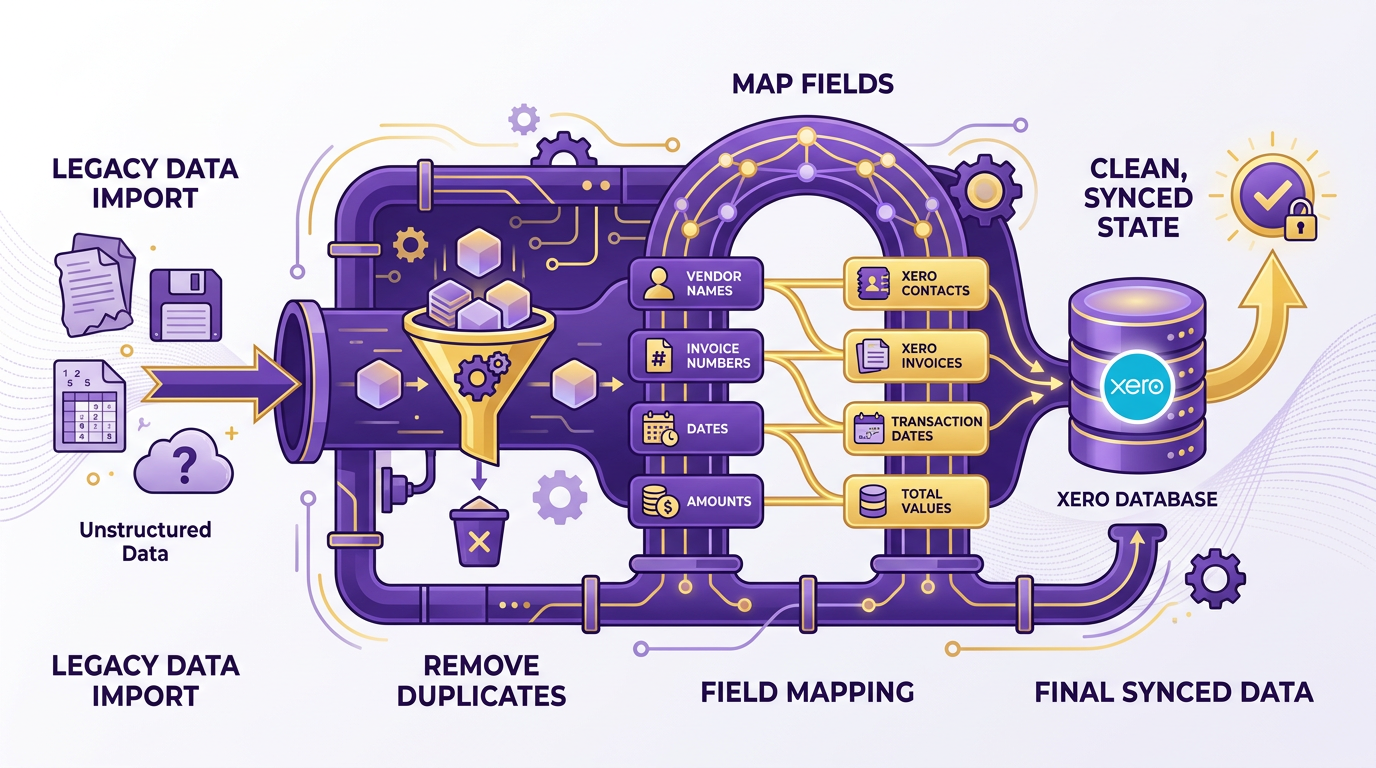
- Cleanse legacy data: Remove duplicates and outdated entries to prevent sync errors.
- Map invoice fields to Xero: Use Blixo’s templates to align data structures.
- Validate with a test import: Confirm accuracy before full deployment.
Common Sync Issues and How to Resolve Them
Bidirectional sync between Blixo and Xero occasionally encounters mismatches due to formatting inconsistencies or timing delays. For example, a healthcare provider initially faced 35% missed-payment risks because vendor codes in Xero didn’t match Blixo’s records. To resolve this:
- Check for formatting errors: Ensure numeric fields (e.g., invoice amounts) lack symbols like “$” or commas.
- Re-sync manually: Use Blixo’s “Force Sync” feature to refresh connections if data appears outdated.
- Review audit trails: Blixo logs sync attempts, highlighting mismatches or failed transactions. For an overview of why accurate AP sync matters, see the Why Xero Accounts Payable Matters section.
Example: Resolving a Sync Discrepancy
A user reported a $500 invoice appearing in Xero but missing in Blixo. The root cause: a time zone difference caused a 12-hour delay in the sync. By adjusting the sync schedule to align with both platforms’ time zones and enabling “Real-Time Sync” in Blixo’s settings, the issue was resolved within 24 hours.
- Fix formatting mismatches: Clean data before import to avoid sync failures.
- Use audit trails: Identify sync errors through Blixo’s detailed logs.
- Adjust sync timing: Align schedules to prevent time zone conflicts.
Best Practices for Maintaining Data Integrity
To ensure long-term accuracy, adopt these strategies:
- Run weekly KPI checks: Monitor metrics like processing time (<3.1 days), error rates (<3%), and touchless payment rates (>85%).
- Test AI accuracy monthly: Blixo’s OCR and machine learning models should maintain ≥97% accuracy in invoice classification.
- Enable exception alerts: Set up notifications for duplicates, mismatches, or unapproved payments.
For instance, a retail chain reduced regional payment delays by 20% by automating multi-currency checks and using Blixo’s exception alerts to catch errors in real time. Additionally, review integration settings quarterly to adapt to new vendors, products, or compliance rules.
- Track KPIs weekly: Use Blixo’s dashboards to spot trends and bottlenecks.
- Validate AI performance: Ensure models stay accurate as data evolves.
- Update integration rules: Adjust sync parameters to match business growth.
By following these steps, teams can minimize disruptions and maintain alignment between Blixo and Xero, ensuring a smooth transition from legacy systems to fully automated AP workflows. For detailed guidance, refer to the Blixo Blog’s checklist.
Conclusion and Next Steps
The Blixo-Xero integration streamlines accounts payable by enabling two-way data sync, hourly updates, and real-time transaction posting. This setup reduces manual work, cuts errors by 70% (via OCR), and slashes processing time from 45 days to 3.1 days. By automating invoice verification, payments, and reconciliation, businesses save 200+ hours annually and reduce costs per invoice from $29.83 to $2.18.
Next Steps for Implementation and Optimization
To use Blixo’s full potential with Xero, follow these actionable steps:
Activate and Configure the Integration
- Contact Blixo Customer Support to activate the integration. It’s only available on paid plans, as outlined in the Prerequisites and Setup section.
- Map data fields in Xero (e.g., vendor names, invoice numbers) to ensure seamless sync with Blixo.
- Enable real-time posting for Blixo transactions to Xero and set hourly updates for Xero-to-Blixo data.
Automate Key Processes
- Set up three-way matching (PO, goods receipt, invoice) to reduce disputes by 65%.
- Configure approval workflows to enforce segregation of duties and cut fraud risk by 70%.
- Use AI-powered OCR to automate invoice data entry and reduce manual errors.
Monitor and Refine
- Track KPIs like DPO, DSO, and dispute resolution rates using Xero’s dashboards.
- Audit monthly for discrepancies and refine automation rules based on exception reports.
- Train finance teams on role-based permissions and reporting tools to maximize adoption.
Example: Implementing Blixo for a Retail Business
A retail SMB with $5.6M in AP volume automated 12.5% of its vendors using Blixo and Xero. By syncing invoice data hourly and enabling real-time payments, the business:
- Reduced processing time by 60%.
- Captured 2% early-payment discounts, saving $112,000 annually.
- Cut manual reconciliation hours from 120 to 20 per month. Building on concepts from the Configuring Blixo for Xero Accounts Payable section, this example demonstrates how real-time sync enhances operational efficiency.
Future Developments and Resources
Blixo continues to enhance its Xero integration with features like multi-currency support and advanced fraud detection. As emphasized in the Why Xero Accounts Payable Matters section, these improvements directly address pain points like cost reduction and error prevention. For step-by-step guidance, explore the Blixo blog or schedule a demo with their support team. Stay updated on new releases via their official documentation.
By prioritizing automation, security, and continuous improvement, Xero users can transform AP from a cost center into a strategic asset. Start with a workflow audit, connect Blixo, and watch your efficiency metrics climb.
Frequently Asked Questions
1. How much time does Blixo save compared to manual Xero AP processes?
Blixo reduces invoice processing time by 81% through automation, saving companies over 200 hours annually for 1,000 monthly invoices. Manual processes waste significant hours on reconciliation and error correction.
2. What are the average cost savings per invoice with Blixo automation?
Automated Xero AP with Blixo costs $2.00 per invoice versus $29.83 manually, saving $278,000 yearly for 10,000 invoices. This cuts per-invoice costs by 80% compared to traditional methods.
3. Which industries benefit most from Blixo’s Xero integration?
Healthcare, retail, and professional services see top results. A healthcare provider reduced missed-payment risk by 35%, while a retail chain cut payment delays by 20% using multi-currency support.
4. How does Blixo reduce missed-payment penalties?
Blixo automates 98% of Xero payments, cutting missed-payment risk by 35% through real-time reconciliation. This prevents 35% of businesses from facing penalties linked to manual errors.
5. What is the ROI of switching to Blixo for Xero AP?
Businesses save 81% in processing time and 80% in costs with Blixo. A company handling 10,000 invoices saves $278,000 annually while accelerating cash flow and reducing penalties.
6. Does Blixo support multi-currency payments for Xero users?
Yes, Blixo’s Xero integration includes multi-currency support. A retail chain reduced regional payment delays by 20% using this feature for international transactions.
7. How does Blixo compare to manual AP in error rates?
Blixo eliminates 98% of manual errors, which cause $1.3 trillion in annual penalties for U.S. firms. Automation reduces human mistakes that 35% of businesses face with traditional Xero AP.