

AR CSV Integration for Sage Intacct: A Step-by-Step Cash Application Setup for 2026

Quick Answers
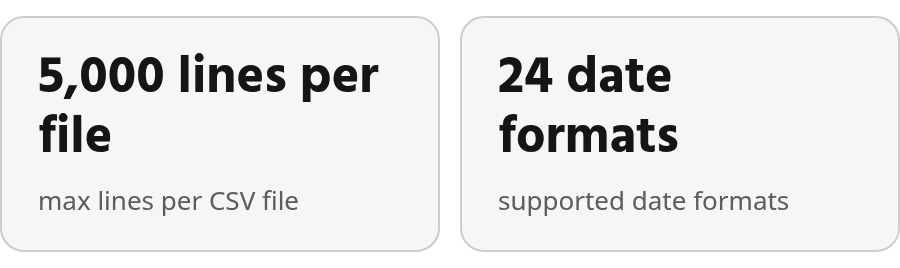
- CSV payment imports accept only cash, printed check, and record transfer. Volume limits are 1,000 invoices per payment and 5,000 lines per file.
- Sage Intacct has no bulk reversal for imported payments. Deleting a bad batch requires a designated user to contact Support.
- Payment templates are a versioned dependency. Download a current copy from the Company Setup Checklist; old templates can fail after releases.
- Imported payments post directly to the General Ledger. Without Post permissions, AR invoices come in as drafts only.
The Short Version
In short: Sage Intacct’s AR CSV import batches customer payments, but the documentation sets hard limits on methods, volume, and posting. Get these constraints right before the first upload and you avoid most reconciliation pain.
Here’s what the Sage Intacct payment import documentation says:
| Element | Documented behavior |
|---|---|
| Supported payment methods | Cash, printed check, record transfer |
| Excluded payment methods | Online ACH, online credit card |
| File volume limit | 1,000 invoices per payment; 5,000 lines per file |
| Posting behavior | Payments post directly to the General Ledger on import |
| Draft fallback | Without Post permissions, AR invoices import as drafts only |
| Template freshness | Templates can change after releases; use a current copy from the Company Setup Checklist |
| Bulk reversal | Unavailable; deletion requires contacting Support via a designated user |
| Supported credit types | Adjustments, negative invoices, invoice credits |
| Excluded credit types | Advances, overpayment credit transaction types; line-level payments also excluded |
| Reference number rule | Duplicate invoice or adjustment numbers cause import failure |
Where the constraints point your pre-import controls
Use the table as a guardrail. Run one payment before a full batch. Keep the Excel file open until the import succeeds, because closing it early can reformat data silently. Sage Intacct accepts 24 date formats and falls back to auto-detection if your selection fails. Pick the format your bank exports natively.
The template has a “Do Not Import” column. Put row numbers there for rows that might fail. The error file references those row numbers, so you can locate problems quickly.
Overpayments have their own requirement. If the payment amount exceeds the invoice or adjustment it applies to, the overpayment balance and overpayment location become required fields. Missing either one rejects the row. The credit-type exclusion above is a separate overpayment credit transaction type, so confirm which rule applies to your scenario before batching.
Credit-type exclusions need attention before month-end. Advances, overpayment credit transaction types, and line-level payments don’t flow through CSV import. If your reconciliation process depends on them, plan a manual step.
Why Manual Cash Application Starts Before the Import
Most finance teams learn this too late: the payment import template isn’t reusable. Intacct’s documentation says to download a fresh template because the file can change after releases. An old template can fail even when the data hasn’t changed, so re-download the current copy and retry before you edit chunks of data.
That detail changes the data hygiene conversation. A template is a versioned dependency, not a static file you configure once and archive. Treat it like a permanent artifact, or clean spreadsheets can still fail.
CSV import constraints that catch teams off guard
Not every payment method type belongs in a CSV import. Public materials suggest certain automated payment channels may need a separate handling path instead of dropping into the standard batch. For SaaS and subscription businesses that collect mostly through automated ACH, that’s an architectural choice, not a footnote. If a payment type isn’t supported, confirm the separate path before your batch goes in.
Credit types add another layer. Whether advances, overpayments, or line-level payment scenarios process cleanly through CSV is worth verifying against current Sage Intacct documentation before you build the workflow around it. Screen for those transaction types before the upload queue. If your payment mix hits these limits often, it’s worth understanding when CSV import trade-offs should push you toward a contract-aware sync.
The asymmetry between uploading and undoing
This is where data hygiene gets sharp. The documentation states that bulk reversal is unavailable for imported payments. A bad batch gets in and self-serve remediation is limited. No one-click undo. How corrections work in practice should be confirmed before a high-volume batch runs.
Preparing & Mapping Your CSV Files
The hard part of AR CSV integration setup isn’t the template structure. It’s what you put into it. Date format, dimension naming, and post permissions all need deliberate choices before you upload.
Intacct supports multiple date format sequences. Day-month-year, month-day-year, year-month-day. Different separators. Pick one and stay consistent across the file. A date format that shifts mid-file is a reliable way to create errors that surface later in your books.
Dimension names and field values
Each column in the template carries a description row that explains what it accepts. That description row is your primary guide. Wrong format or an incorrect accepted value will generate an upload error. Teams that skip the descriptions often discover mid-import that a field wanted a code, not a name, or a specific keyword rather than freeform text.
Follow the header descriptions. Don’t change the header titles. Intacct’s documentation is direct: titles correlate to fields in Intacct, and incorrect titles cause upload errors. Download the current template from the Company Setup Checklist rather than reusing a saved copy. Templates change after releases, and an outdated one can fail regardless of how carefully you fill in the values.
Who needs Post permissions before you upload?
For AR adjustments, the user running the import needs Adjustments: List, View, Edit, Add, and Post permissions to post transactions on import. Without Post, transactions save as drafts and don’t hit the General Ledger until someone posts them manually. Know which state your process requires before the upload, not after.
Running the Import & Automating Cash Application
The step most teams skip decides whether a bad batch costs ten minutes or a support ticket. Sage Intacct’s documentation is plain: bulk reversal is unavailable. If imported customer payments are wrong, a designated support user contacts Support to delete them. That constraint moves every control before the upload, not after it.
Here’s a simple runbook for the import and follow-up checks.
The file is all-or-nothing, so prove one row first
When upload errors appear during an AR CSV import, Intacct rejects the entire CSV file rather than the offending rows. One malformed value can sink every good line in the batch. The documented workaround is the “Do Not Import” column with row numbers. The error file hands back the original row reference and you know exactly where to edit.
Run a test import of one payment before the full batch. Correct the data while it’s still a spreadsheet. Verify that amount received equals amount to apply, and that any overpayment carries both an overpayment amount and an overpayment location.
Two more constraints belong on your checklist. Payments import only against unique invoice or adjustment numbers, so duplicate reference numbers fail the whole file. Leave the file open in Excel until the import reports success; closing it early allows Excel to reformat data without warning.
What the post-import control checklist needs to cover
Common Questions
1. Our payments mostly arrive through online ACH and online credit card. Can we still use CSV import for those?
Not through this path. The payment import documentation lists only cash, printed check, and record transfer as supported methods, so automated ACH and card payments need a separate handling path before you build a workflow around CSV. That gap matters most for subscription businesses with mostly automated payments.
2. My payment exceeds the invoice amount. Do I put the overpayment in the CSV?
A payment exceeding its invoice needs the overpayment balance and overpayment location fields, or the row is rejected. The separate excluded credit type is an overpayment credit transaction type. If you’re unsure which one applies, confirm with a single-row upload.
3. The import reported success, but our posted General Ledger balance looks short. Why?
Drafts. Without Post permission the import still runs, but transactions sit outside the General Ledger until someone posts them deliberately. A reconciliation that checks only posted balances misses them entirely, so verify draft status before you treat the gap as a real variance.
4. A file that imported cleanly last month now fails with no data changes. What should I check first?
The template, not the rows. Intacct updates templates alongside product releases, and an older copy can fail regardless of how carefully the values are filled in. Re-download a fresh copy from the Company Setup Checklist and retry the identical data before you start editing values.