

Sync Recurring Invoices to QuickBooks Without Manual Journal Entries

Key Takeaways
- Your QuickBooks Online recurring invoice template is the landing zone for synced subscription charges. Get it right once, or fix the same mistake across hundreds of transactions.
- Native QuickBooks recurring invoices post only as sales receipts, which limits payment options and separates paid from unpaid invoices.
- One misconfigured template field repeats across every transaction it touches, which can create months of revenue recognition cleanup.
- For billing with mixed invoice states, usage tiers, and audit tracking, an API-based sync beats set-and-forget automation.
- Name templates to match your invoice series exactly, so
SUB-2026-Monthlylines up with your billing system’s numbering. - You need an active QuickBooks Online subscription plus the new QBO experience to reach the form and recurring controls.
- Consistent naming between templates and billing output makes later reconciliation possible.
Build the template right, or fix it a hundred times
The template you build in QuickBooks Online is the landing zone for every subscription invoice you sync. Get it right once, and each future charge maps cleanly. Get it wrong, and you spend months untangling revenue recognition errors. This bites hardest for subscription billing solutions pushing high invoice volumes, where one misconfigured field repeats across hundreds of transactions.
Start with the honest constraint. QuickBooks native recurring invoices post only as sales receipts, which limits your payment options and keeps paid and unpaid invoices in separate places. For simple, uniform charges, that’s fine. For SaaS billing with mixed states, usage tiers, and audit tracking, the template becomes the anchor for an API-based sync rather than a set-and-forget automation.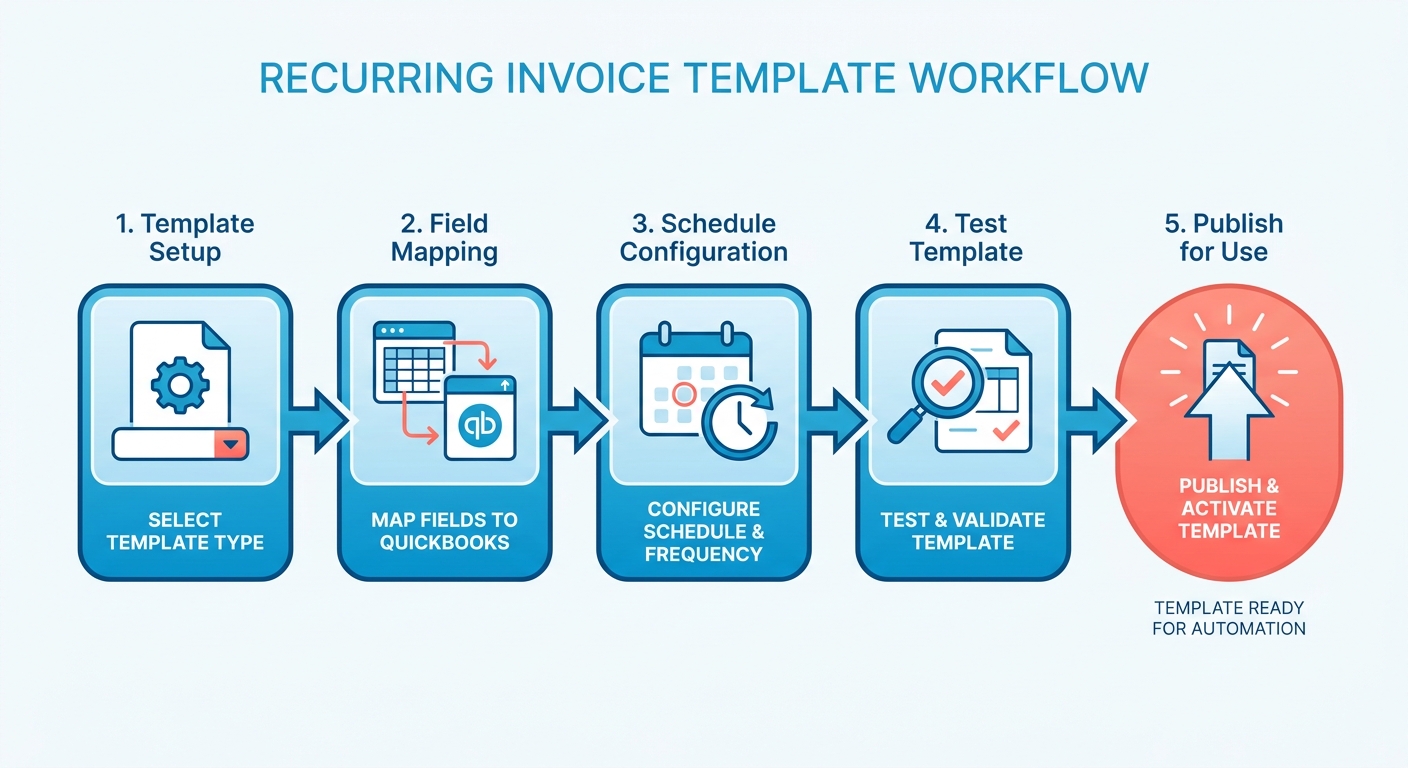
Building the template, step by step
You create a custom invoice style, flag it as recurring, then map the exact fields your sync will populate. You need an active QuickBooks Online subscription and the new QBO experience to reach these controls.
Start in the Gear menu. Go to Custom Form Styles, select New Style, then Invoice. Name it to match your invoice series exactly, so a template like SUB-2026-Monthly lines up with the numbering your billing system produces. This naming discipline makes later reconciliation possible.
Next, open the invoice, choose Make Recurring, and pick your frequency: monthly, quarterly, or annual. The QuickBooks Team put it plainly: “The recurring feature is for invoices with the same transaction information.” That’s the constraint. Uniform charges fit; variable ones need the API layer.
Then map your required fields. Set Customer, Item/Service, Quantity, Rate, and Tax. Add a custom field for Subscription ID. This single field ties each QBO invoice back to your billing platform for per-transaction reconciliation, so don’t skip it.
Set default payment terms. Use Net 30 for standard clients or Net 0 for autopay accounts, and enable Automatically send later. Add a Notes line that carries your payment link. That one addition cuts down on separate dunning emails, because the pay option travels with the invoice.
Test the template before it goes live
Run a Preview & Test with a dummy customer before you connect anything. Confirm totals, taxes, and the Subscription ID all render correctly. Then record the template ID. You need it for the API sync, and losing it means rebuilding the mapping.
| Step | Tool / Action | Time (manual vs synced) | Data Flow | Typical Errors & Fixes |
|---|---|---|---|---|
| Create style | Gear → Custom Form Styles | 5 min / one-time | Billing → QBO | Name mismatch → align to invoice series |
| Set recurring | Make Recurring → frequency | 3 min / one-time | Billing → QBO | Wrong interval → edit future only |
| Map fields | Add Subscription ID field | 4 min / one-time | Billing → QBO | Missing ID → reconciliation breaks |
| Test | Preview & Test, dummy customer | 3 min / one-time | Sample sync | Tax off → check item settings |
| Record ID | Copy template ID | 1 min / one-time | Feeds API | Lost ID → remap required |
What the automation actually saves you
Manual per-invoice setup runs about 15 minutes each. Synced, that drops to roughly 5 minutes of oversight. For a business handling 100 invoices a month, that reclaims around 200 hours a year. Sources report a 30% cut in billing time and a 25% lift in on-time payments once recurring templates and autopay are live.
Difficulty: Intermediate. You’ll want a QBO account, an API token, and comfort with custom fields. Our take: the template isn’t the automation, it’s the contract the automation depends on. Watch the sync too, because recurring payments can deposit to the bank while quietly failing to create the invoice, which drags manual entry right back in.
Connecting Blixo to QuickBooks: API-based integration basics
An API-based connection is the only path to audit-ready sync when you’re pushing SaaS invoice volumes into QuickBooks. QuickBooks Online can’t bulk-convert imported invoices to recurring, and its native recurring transactions have structural limits that restrict payment workflows. For subscription billing solutions running hundreds of monthly charges, manual per-invoice setup falls apart fast.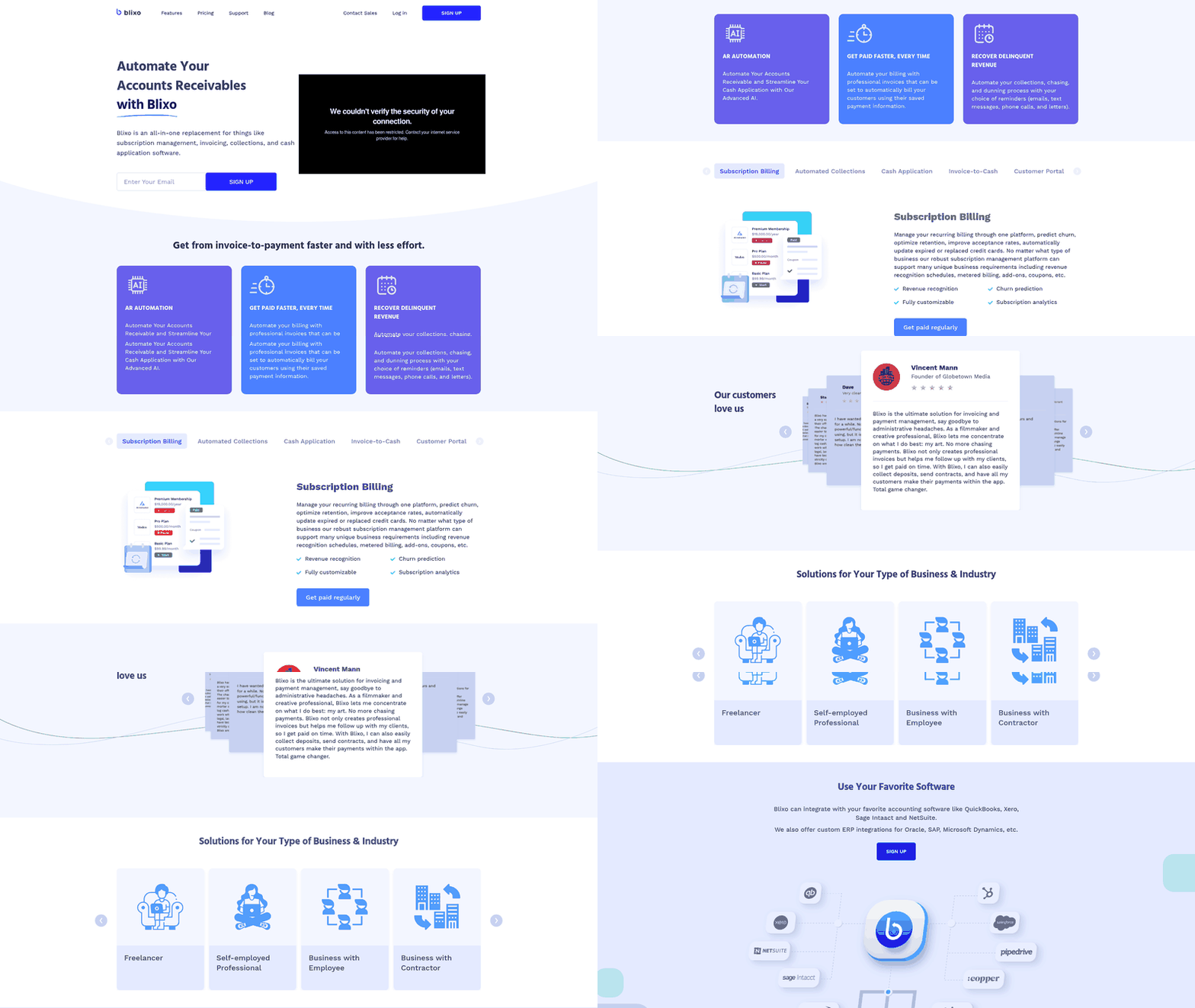
So an API-based connection to Intuit’s REST API beats leaning on QBO’s built-in automation. It’s not a convenience feature. It’s the difference between per-transaction accuracy and a pile of journal entries your finance team untangles at quarter close.
Setting up the Intuit Developer app
Create an app in the Intuit Developer portal to get your credentials. You’ll receive a Client ID, a Client Secret, and you’ll set a Redirect URI that Intuit calls back after login.
These three values anchor the whole connection. The Redirect URI has to match exactly what your integration expects, or the OAuth handshake fails silently. Set it once, store the secret somewhere safe, and never hardcode it into client-side code.
For recurring invoice sync, request two scopes: com.intuit.quickbooks.accounting for the invoice objects and com.intuit.quickbooks.payment for payment status. Skip broader scopes you don’t need.
What the OAuth 2.0 flow looks like
QuickBooks uses the OAuth 2.0 Authorization Code flow. Your user logs in, approves access, and Intuit returns an authorization code. You exchange that code for an access token and a refresh token.
The access token is short-lived. The refresh token lasts longer, but here’s the catch teams often miss: you need to refresh it on a schedule, roughly every 60 days, or the connection dies quietly. Automate the refresh. Don’t wait for a failed sync to remind you.
Once authenticated, each invoice’s JSON payload maps onto QBO’s Invoice object. Line items, customer references, tax codes, and due dates all translate to their QuickBooks equivalents, so nothing lands in the wrong field.
How two-way sync stays accurate
Webhooks keep both systems honest. You subscribe to QBO event notifications, and QuickBooks pings your endpoint when an invoice changes state, like paid or voided. That callback updates the record without polling.
Error handling is where sync jobs live or die. Three patterns matter:
- 429 (rate limit): back off and retry with a delay rather than hammering the API.
- 400 (field validation): catch the bad field, log it, and surface it instead of dropping the invoice.
- Idempotency keys: attach a unique key to each create request so a retry never posts a duplicate invoice.
That last one is non-negotiable for recurring billing. Without idempotency, a network hiccup on a retry doubles your revenue entries.
If you’d rather not touch code, no-code connectors and CSV bulk-import tools can move recurring invoices too. The tradeoff is real. Bulk CSV upload handles mass volume but gives you no real-time state, so paid and voided changes won’t flow back. For live, self-correcting sync, the API route wins. Blixo integrates with accounting software like QuickBooks, Xero, Sage Intacct, and NetSuite so your recurring invoices, payments, and reconciliation stay in sync automatically.
Wiring autopay so no one touches a journal entry
Autopay clears manual journal entries when the payment captures the moment a recurring invoice generates, so QuickBooks posts the matching entry on its own. Set this up and cash and ledger move together, never on separate timelines. For subscription billing solutions pushing hundreds of monthly charges, that sync is the whole game.
Here’s the mechanism. Enable QuickBooks Payments to link a bank account and activate ACH plus credit-card processing. Then turn on auto-apply payments to open invoices. When a charge clears, QBO creates a Payment transaction that offsets the invoice balance on its own. No CPA touches a journal entry. Automating the record-to-report process is a widely cited industry goal, and payment-to-ledger matching is one of the easiest wins in that bucket.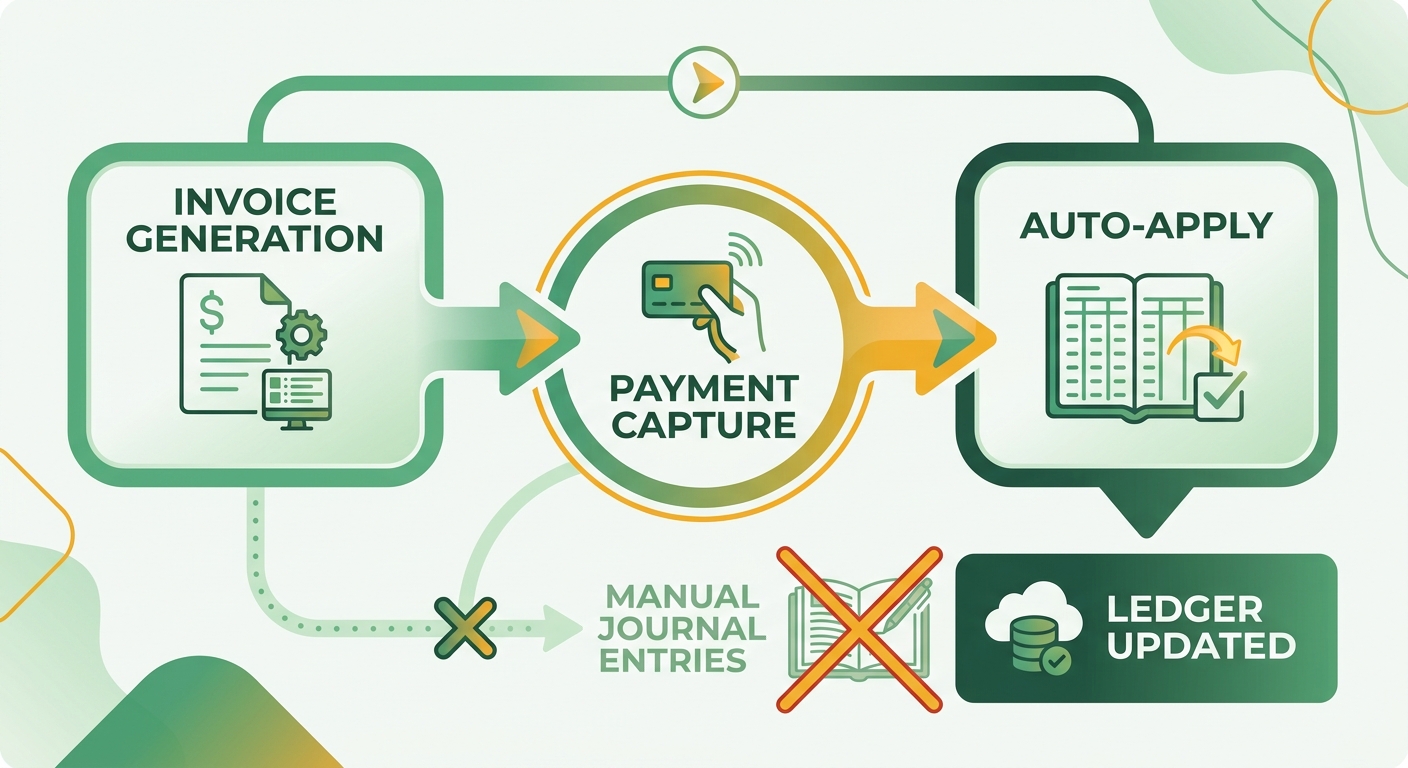
Wiring autopay to each recurring invoice
Configure the sync to send a stored payment token with every invoice payload. That token tells QuickBooks Payments which card or ACH method to charge the instant the invoice posts. The payment clears, the Payment transaction fires, the invoice balance zeroes out.
Blixo auto-bills customers using their preferred saved payment method, so each recurring charge maps to the right method and the right revenue line. That distinction matters for SaaS accounts with multiple plans or entities under one customer. It keeps the ledger audit-ready instead of approximately correct, and Blixo’s matching engine reconciles those payments to invoices with high accuracy.
To confirm the flow is actually running, pull QBO’s Transaction List by Date and filter for auto-applied payments. This is your monthly proof that autopay is doing its job. If the count of auto-applied payments doesn’t match your invoice volume, something broke, and you catch it before quarter close.
What happens when a payment fails
A failed charge should never leave your ledger guessing. Blixo automates collections and dunning with your choice of reminders: emails, text messages, phone calls, and letters. The QBO invoice stays marked Open. No premature Payment posts, no phantom revenue, no journal entry to reverse later.
This is where the “no manual entries” promise quietly breaks for a lot of teams. When payment processing and invoice generation fall out of alignment, cash can pile up in your bank account with no corresponding ledger entries. Reconciliation isn’t a one-time setup; it’s a running check. Reviewing your auto-applied transactions regularly is how you spot a silent break instead of walking into a reconciliation panic.
One more caveat worth stating plainly. QuickBooks locks a payment once it’s processed. You can suspend or edit future occurrences, but a charge that already fired can’t be modified. So the sync layer has to catch errors before the charge goes out, not after. That’s the argument for validating the payload upstream rather than trusting cleanup downstream.
For teams outgrowing native recurring transactions, moving this logic into a proper cloud accounting sync is what takes manual entries toward zero. Automated workflows refine over time, so autopay and reconciliation run as one continuous loop rather than two disconnected steps.
Managing, editing, and pausing recurring invoice syncs
Day-to-day edits are where sync pipelines quietly break. The fix is knowing exactly what an edit touches. When you change a recurring template in QuickBooks Online, the change applies to future occurrences only. Invoices already synced stay exactly as they were. This is the single most important rule for subscription billing operations running high invoice volumes, because it means a mid-cycle price change never rewrites history.
That behavior cuts both ways. QuickBooks lets you modify, suspend, and track recurring payments through its management interface, but historical transactions stay unchangeable. So catch errors in your sync layer before the invoice hits QBO, and you head off downstream discrepancies.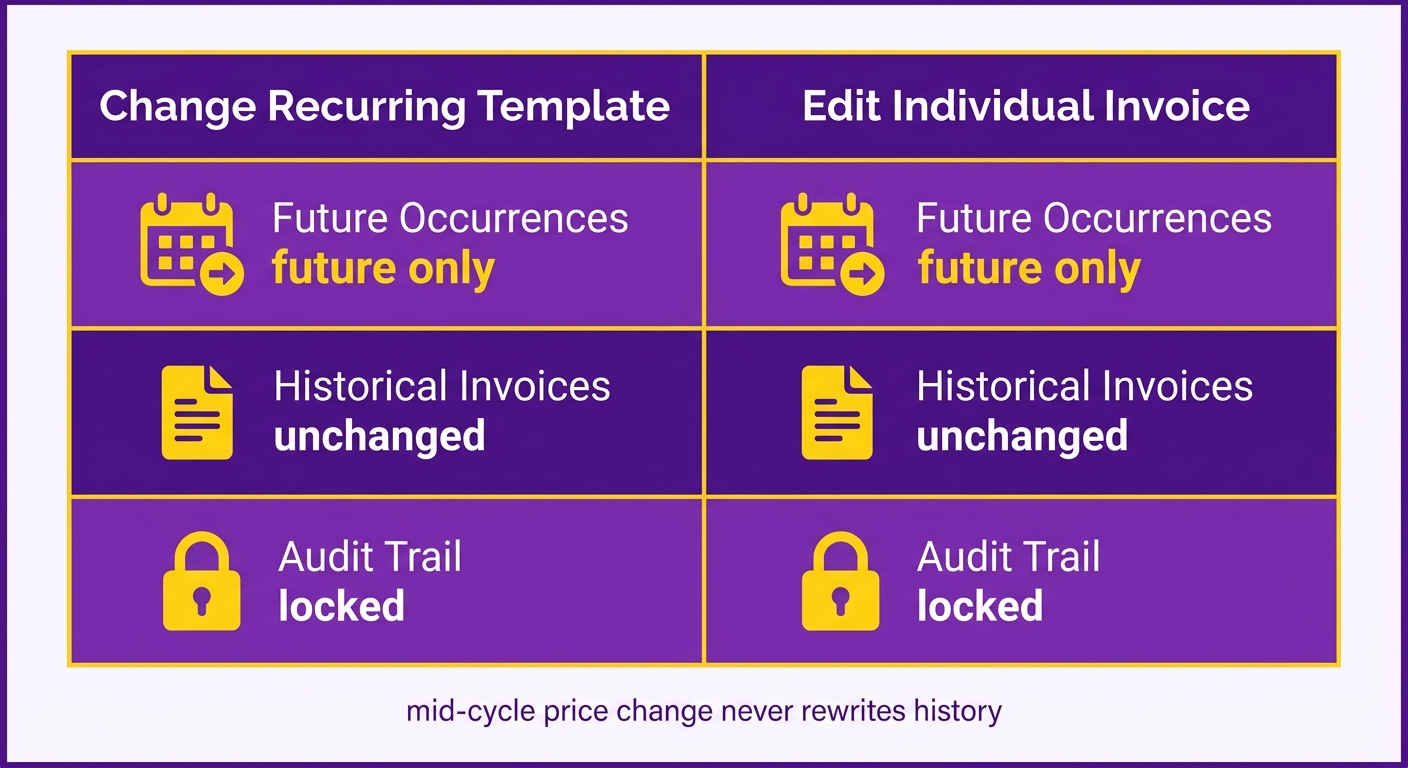
Pausing a subscription without breaking the pipeline
Pause Billing stops new invoices from generating while leaving every existing invoice untouched. Flip the toggle in Blixo and the recurring rule goes dormant. QBO creates nothing new. Paid and unpaid invoices already in the ledger stay exactly where they are. Nothing gets deleted, nothing gets rewritten.
This mirrors how QuickBooks handles suspension natively, where suspending payments allows temporary halts in billing. The difference for SaaS teams is that pausing at the sync layer stops the charge before any transaction is initiated. That’s the gap that matters. If you catch a misconfigured amount after the payment clears, your only fix is a manual correction, which is exactly the journal-entry work you set out to eliminate.
Catch a misconfigured recurring invoice before it generates and the charge never reaches QBO, never processes. Proactive billing controls are built to prevent delinquencies and increase transparency, so the errors you’d otherwise chase after the fact get headed off earlier. No refund, no correcting entry, no awkward client call.
Running bulk pauses and starts across many subscriptions
For teams managing dozens of active subscriptions, one-at-a-time toggling doesn’t scale. Blixo’s subscription management platform lets you manage recurring billing for many unique business requirements from one place, so pausing and starting subscriptions stays centralized rather than scattered. This matters because QuickBooks Online lacks native bulk-management for external recurring schedules. Bulk control has to live in the sync layer.
Keep a changelog alongside those bulk actions. Track template IDs and field mappings, and name templates so anyone can read the history at a glance. A convention like 2024_Q1_Subscription_Template ties a mapping change to a quarter and a purpose, not a mystery edit six months later.
What keeps edits audit-ready
QBO’s Audit Log records what changed in the ledger, giving you a timestamped trail of ledger-level changes. Pair that with Blixo’s aging reports and task management tools, which help collectors follow up on delinquent or past-due accounts. Read together, they let you trace changes and keep follow-up accountable.
Before touching anything in production, run this checklist:
- Duplicate the template so the original stays intact as a fallback.
- Test the copy in a sandbox to confirm field mappings still map cleanly.
- Notify your finance lead before the change goes live.
Skip the sandbox step only for cosmetic edits like a label change. For anything touching amounts, tax, or mappings, test first. That’s the discipline that keeps automation honest.
Best practices, common pitfalls, and troubleshooting
Most sync failures trace back to three things: duplicate payloads, mismatched settings, and silent sync breaks. Catch these before a charge fires and you keep the audit trail clean. Catch them after and you’re back to manual cleanup, which is exactly what audit-ready subscription billing solutions are supposed to prevent.
The hardest failures aren’t the loud ones. Sometimes a payment gateway processes a transaction successfully but fails to trigger the matching invoice in your accounting software. Lean on automation without a secondary reconciliation check and you silently reintroduce manual entry. You think the sync is running, but finance finds orphaned deposits at quarter close.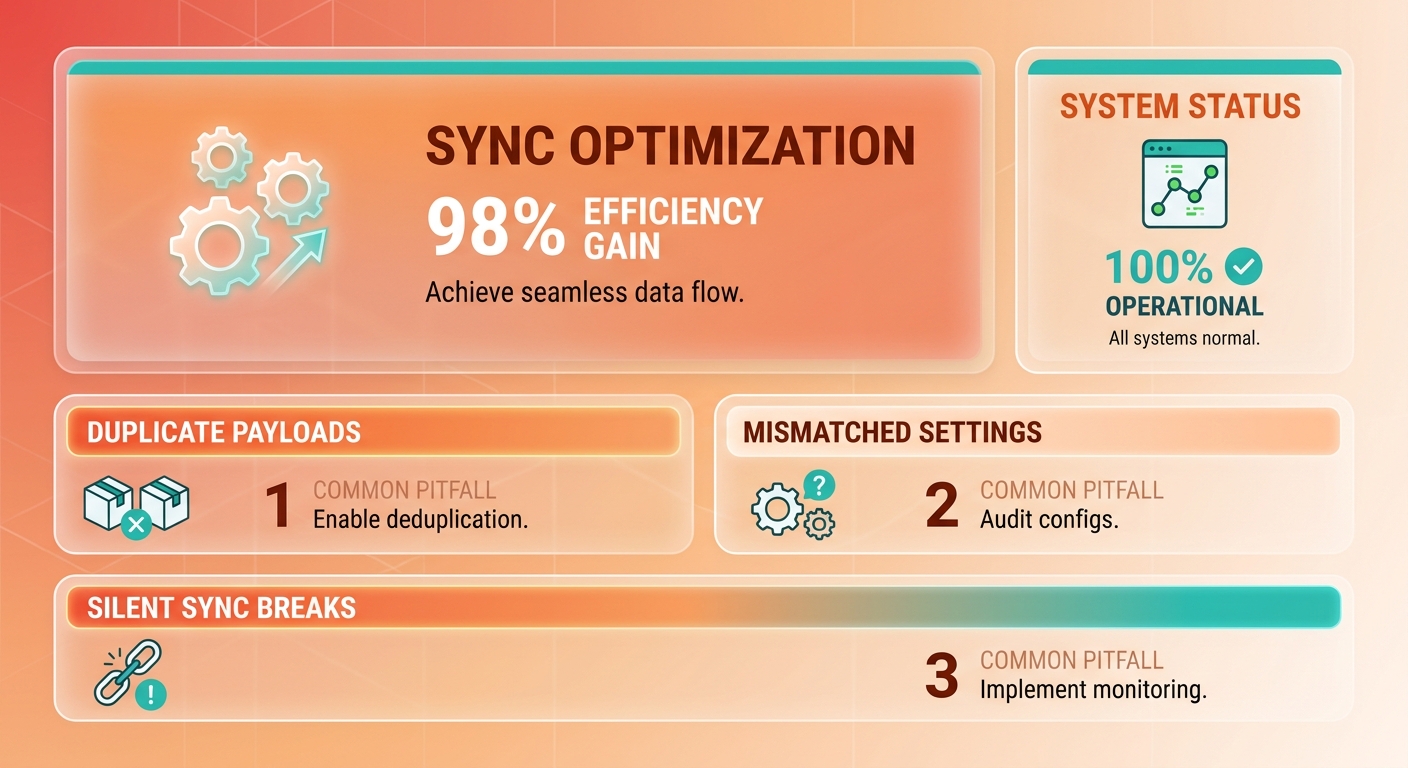
Fixing the most common sync errors
Duplicate invoice number: fires when a network retry sends the same charge twice without a unique marker. Fix it by giving your API requests unique transaction identifiers, so any repeated transmission reads as a retry rather than a new transaction.
Invalid tax code: happens when your billing tax settings don’t map to a tax code in the QBO chart of accounts. Standardize the codes in both systems so every rate has a matching entry. A tax code that exists on one side and not the other breaks the whole payload, not just the tax line.
Rate-limit rejection: QuickBooks Online caps API calls at 500 per five minutes. Push past it and requests bounce. Build exponential back-off into custom scripts, or lean on your connector’s built-in throttling. Retry after a growing delay rather than hammering the endpoint.
What stops data drift between systems
Data drift is when a customer record changes on one side and not the other. Update a billing address or payment terms in your billing system, skip the push to QBO, and the two master lists quietly diverge. Invoices then sync against stale data.
Run a nightly sync job to reconcile the master customer list. This catches drift before it compounds. Pair it with a monthly Unmatched Payments report in QuickBooks to surface orphaned transactions, the cash that landed with no matching invoice.
Because finalized transactions can’t be altered directly in the accounting ledger, continuous reconciliation is what keeps you clean. Catch discrepancies early and you skip the complex correcting entries later.
How to recover a failed batch
Recovery workflow: re-run a failed batch using your billing tool’s Retry action, or check your automation tool’s Task History to replay the failed step. Because your integration tracks unique transaction IDs, a retry won’t double-post. That’s the safety net that makes re-running safe.
Future-proofing: Intuit deprecates API versions on a schedule. A sync that works today can break when a version sunsets. Monitor deprecation notices and run a quarterly integration health review. Check auth token refresh, tax code mappings, and the reconciliation reports in one pass.
Skip the quarterly review only if your volume is tiny and static. For any SaaS pushing high transaction volumes, that health check is what keeps the no-manual-journal-entry promise honest. Automated reconciliation tools help hold this cadence, keeping payments aligned with invoices instead of piling up as manual cleanup.
Frequently Asked Questions
1. Can I convert my existing imported invoices in QuickBooks into recurring ones?
No, QuickBooks Online lacks a native feature to convert standard imported invoices into recurring templates in bulk. To do this, you must establish the recurring rules within your billing platform or sync layer, such as Blixo, before pushing the transactions to QuickBooks.
2. Why do QuickBooks native recurring invoices cause payment processing problems?
QuickBooks native recurring templates default to generating sales receipts immediately upon creation. This workflow bypasses the standard invoice-to-payment lifecycle, making it difficult to manage unpaid balances, offer flexible payment terms, or handle complex usage-based billing tiers without external API integration.
3. What happens to invoices already synced when I edit a recurring template?
Changes made to a template in QuickBooks Online only affect transactions generated after the edit. Historical invoices and payments already recorded in your ledger remain unchanged, preserving your past financial records but requiring manual adjustments if you need to correct a previously processed transaction.
4. How can I tell if my autopay sync silently stopped working?
You can verify your sync by comparing processed payments against the volume of generated invoices in your accounting reports. If bank deposits appear without corresponding invoice records, your payment gateway integration may have disconnected. Regular reconciliation audits help catch that early.
5. What is an idempotency key and why does it matter for recurring billing?
It is an API safety mechanism that prevents duplicate transactions. When your billing system retries a failed connection, this unique identifier tells QuickBooks that the request has already been sent, ensuring the transaction is processed exactly once even if the network connection drops mid-transmission.
6. How often does the QuickBooks connection need a token refresh?
While short-term access tokens expire quickly, the long-term refresh tokens used to maintain your API connection typically expire after two months. To prevent unexpected sync interruptions, your integration should automate the token renewal process in the background before this expiration window closes.
7. What are QuickBooks Online’s API rate limits and how do I avoid rejections?
Intuit enforces a threshold of 500 requests every five minutes per company file. To avoid hitting this limit during high-volume billing runs, your integration should queue requests and space them out dynamically, using retry delays to handle any temporary rate-limit responses gracefully.