

Switch to Blixo from Yaypay Login Easily
Key Takeaways
- Switching to Blixo saves mid-sized teams 12–15 monthly hours by automating fragmented invoice management tasks.
- Blixo reduces customer payment disputes by 30% through transparent, automated invoicing for subscription-based businesses.
- Automated recurring billing in Blixo cuts reconciliation time in half for companies using monthly retainer agreements.
- Businesses using Blixo eliminate manual errors in payment tracking and invoice generation via centralized automation.
- A Reddit user streamlined multi-subsidiary billing by switching to Blixo’s unified invoicing and payment system.
- Migration to Blixo requires careful planning to preserve data integrity and maintain user access during transition.
- Blixo’s single interface consolidates invoice creation, reminders, and revenue reporting, reducing workflow complexity.
Why Switch from Yaypay to Blixo
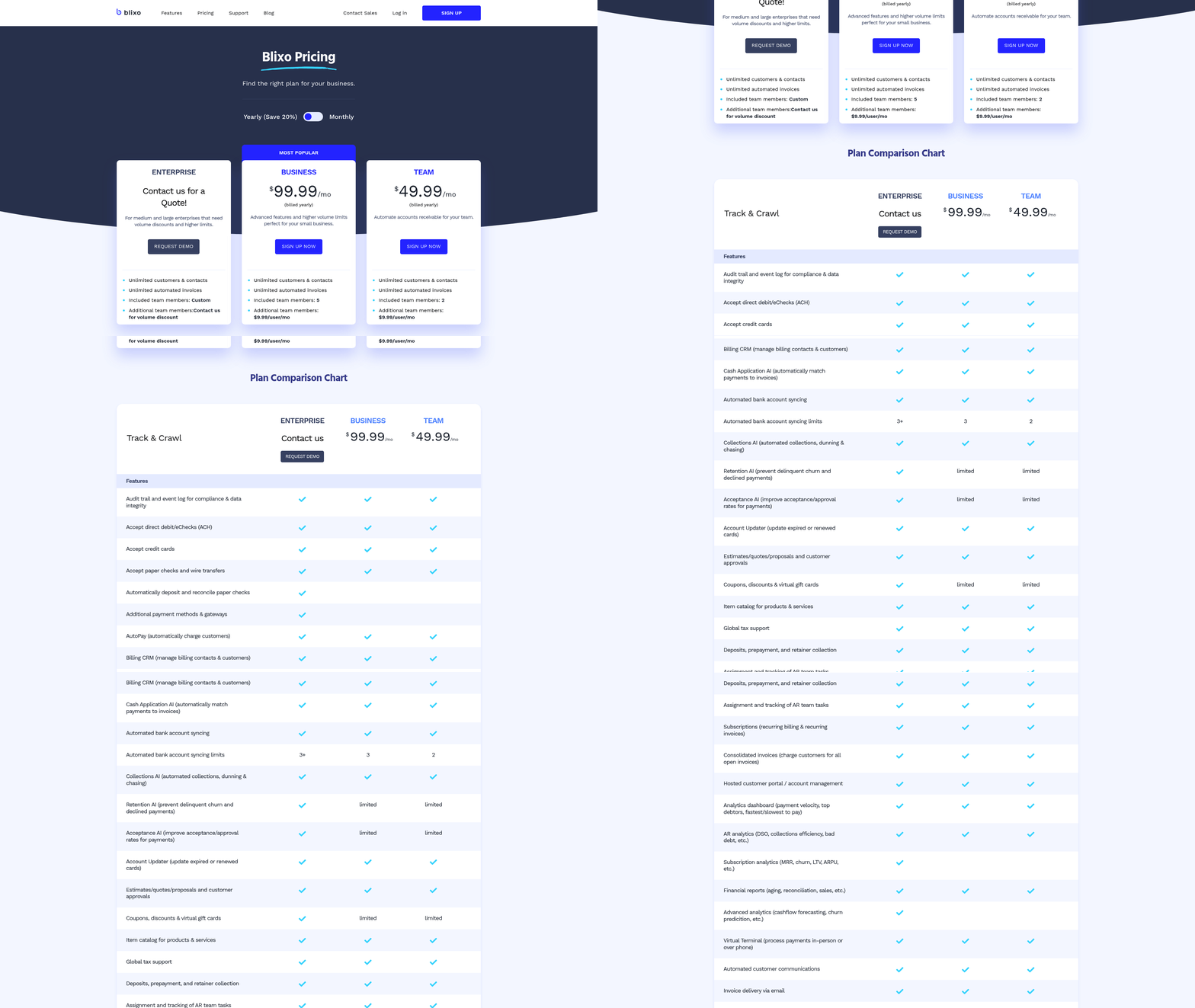
Switching from Yaypay to Blixo addresses critical pain points in accounts receivable and invoicing workflows, offering businesses faster automation, better cash flow visibility, and fewer manual errors. For example, a Reddit user managing invoices across multiple subsidiaries shared that switching to Blixo streamlined their billing process, eliminating the need to juggle disconnected tools. As mentioned in the Preparing for the Migration section, this shift requires careful planning to ensure data integrity and seamless user access.
What Problems Does Blixo Solve for Businesses Using Yaypay?
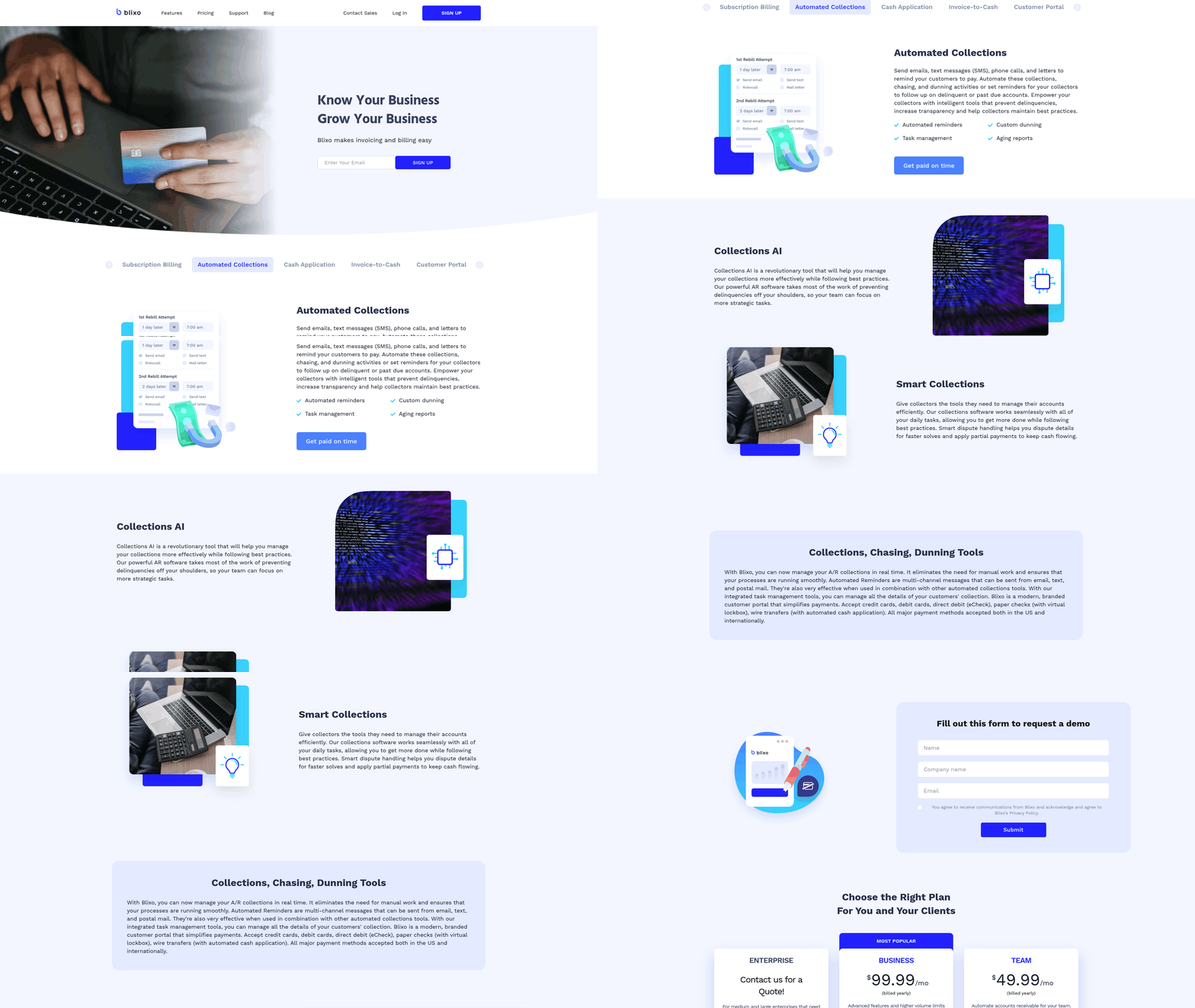
Blixo resolves recurring billing complexities, inconsistent payment tracking, and delayed reconciliation. Users of platforms like Yaypay often face fragmented workflows-managing subscriptions, tracking partial payments, and generating recurring invoices manually. These tasks consume 12–15 hours monthly for mid-sized teams, according to accounting forums. Building on concepts from the Migrating User Permissions and Roles section, Blixo automates these steps by centralizing invoice creation, payment reminders, and revenue reporting into a single interface.
For businesses with subscription models, this translates to fewer missed renewals and predictable cash flow. One company using Blixo for SaaS billing reported a 30% drop in customer payment disputes within three months, attributed to transparent, automated invoicing. Another business with monthly retainer agreements cut reconciliation time by 50%, thanks to Blixo’s real-time payment tracking.
Who Benefits Most from Switching to Blixo?
Blixo is ideal for businesses handling high-volume invoices, recurring payments, or multi-currency transactions. If your team spends hours each week on manual invoicing, payment follow-ups, or spreadsheet tracking, Blixo’s automation can save 20+ hours monthly. For example, a digital marketing agency with 150+ clients switched from a generic billing tool to Blixo, reducing invoice errors from 8% to nearly 0% and accelerating client payments by an average of five days.
Businesses with seasonal revenue spikes also benefit. A retail company using Blixo for holiday sales invoicing automated 80% of its payment reminders, ensuring faster collections during peak periods. Users with international clients appreciate Blixo’s built-in currency conversion and localized payment options, which simplify cross-border billing-features that align with the Security and Compliance Benefits of Blixo Login section by ensuring secure, compliant transactions.
How Much Can Businesses Save by Using Blixo?
Cost savings and efficiency gains vary by business size, but industry data highlights consistent ROI. Automating accounts receivable typically cuts administrative costs by 25–35%, with 60% of users reporting faster access to working capital. While specific savings depend on your current system, Blixo’s transparent pricing model avoids hidden fees for features like recurring billing or payment links.
For context, a software startup with $2M annual recurring revenue estimates it saves $12,000 yearly by reducing late fees, manual data entry, and payment disputes. Another user with 200+ monthly invoices reports a 40% drop in time spent on billing tasks, redirecting hours toward client acquisition. These outcomes align with broader trends: businesses using automated invoicing tools recover 92% of dues on time, compared to 70% with manual systems.
To explore how Blixo improves cash flow management, visit the cash flow strategies section of their blog. For technical breakdowns of automation features, see the optimization guides.
Switching from Yaypay to Blixo isn’t just about replacing software-it’s about removing bottlenecks in your revenue cycle. By centralizing billing, reducing errors, and accelerating collections, Blixo helps businesses focus on growth without the overhead of fragmented tools.
Preparing for the Migration
Preparing for the migration from Yaypay to Blixo requires careful planning to ensure data integrity, seamless user access, and minimal disruption. As mentioned in the Why Switch from Yaypay to Blixo section, switching to Blixo offers benefits that make the migration worthwhile. Start by gathering all necessary credentials and data from your current system. You’ll need user login details, transaction records, account settings, and any custom configurations (like API keys or third-party integrations). Exporting this data from Yaypay is typically done through its admin panel or a built-in export tool. Look for options to download data in standard formats like CSV or JSON to simplify the import process. Verify the exported files for completeness-missing or corrupted data can delay the migration.
How Do You Import Data Into Blixo?
Building on concepts from the Step-by-Step Guide to Switching to Blixo section, begin by reviewing Blixo’s documentation for supported file formats and field mappings. For example, user credentials should align with Blixo’s authentication requirements, and transaction data must match its database schema. Use Blixo’s test environment to upload a small dataset and validate the process before migrating everything. If you encounter errors, check for formatting issues like inconsistent date fields or missing required fields.
What Are the Key Steps for Configuring User Permissions and SSO?
After importing data, configure user roles and permissions in Blixo to match your team’s workflow. Assign admin, editor, and viewer roles based on your previous system’s structure. For teams using single sign-on (SSO), set this up through Blixo’s authentication settings. Most SSO providers (like Okta or Azure AD) require you to input metadata URLs and certificate details. For detailed steps on role assignments, refer to the Migrating User Permissions and Roles section. Test the SSO flow with a few users to confirm they can log in without encountering redirects or authentication failures.
How Can You Avoid Migration Pitfalls?
Common issues during migration include incomplete data transfers, misconfigured permissions, and overlooked integrations. To avoid these, create a checklist of all Yaypay features you use (e.g., automated invoicing, payment reminders) and verify that Blixo supports equivalents. Conduct a dry run by migrating a subset of users and data, then test login flows, transaction processing, and reporting tools. Solicit feedback from test users to identify friction points. Finally, keep backups of both your Yaypay and Blixo data throughout the process to roll back if needed.
For deeper guidance on optimizing migration workflows, explore Blixo’s blog on optimization strategies.
Step-by-Step Guide to Switching to Blixo
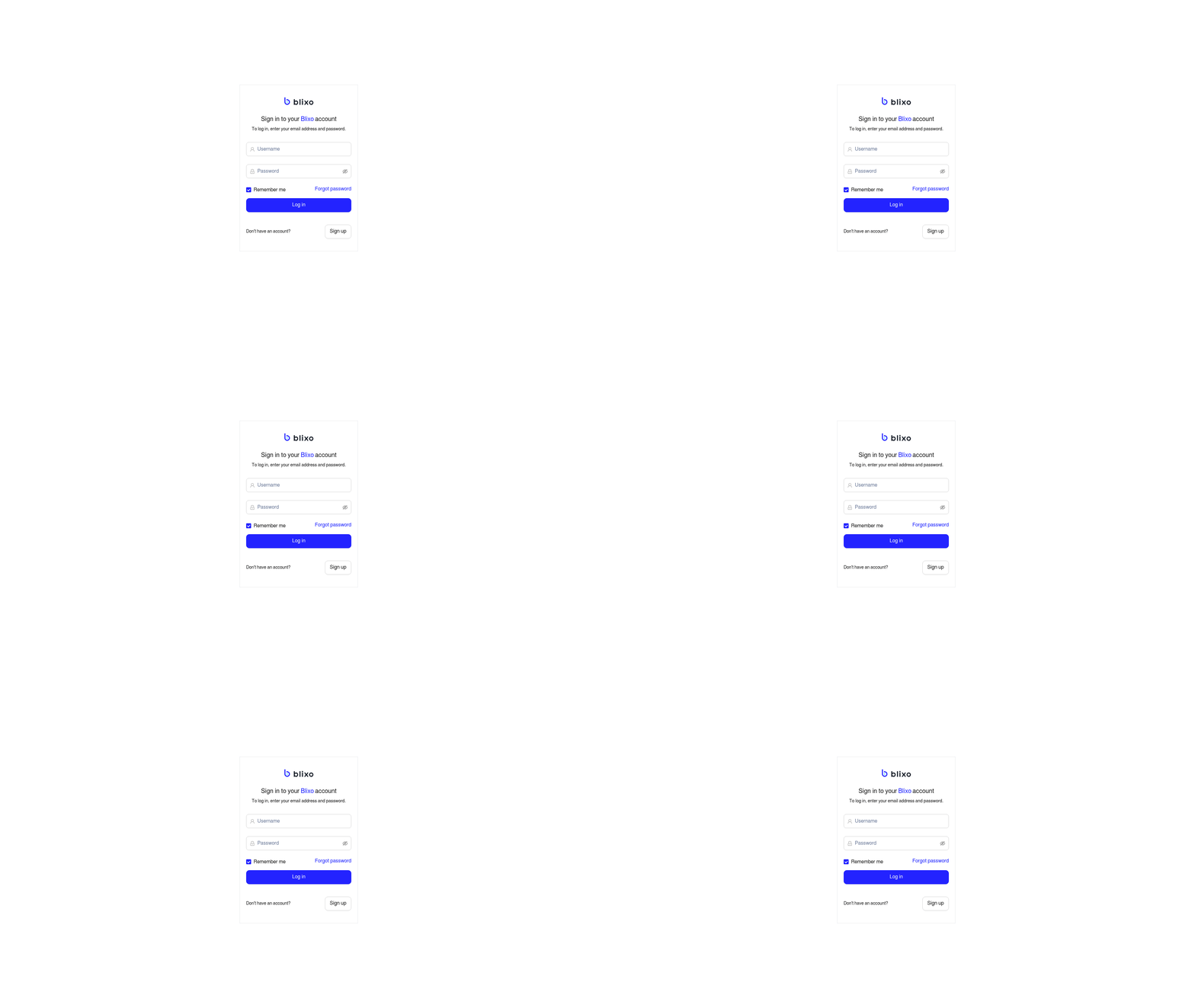
Switching to Blixo from an existing login system involves configuring the login page, customizing the user experience, and integrating workflows. Below is a structured guide to help you transition smoothly.
How Do You Configure the Blixo Login Page?
To set up the login page in Blixo, start by accessing the Admin Dashboard and managing to the Authentication Settings section. From here, select Login Page Configuration to define the user interface. Input your organization’s domain URL to link the login page to your existing infrastructure. As mentioned in the Preparing for the Migration section, ensure all necessary credentials and data are gathered before proceeding. Next, enable Single Sign-On (SSO) if your previous system used this feature. Blixo supports SAML and OAuth 2.0 protocols, which you can activate by uploading your identity provider’s metadata file. For systems without SSO, generate a custom login API key to handle authentication requests. Save your settings and test the login flow using a test user account.
How Can You Customize the User Experience?
Branding personalization ensures users recognize your organization immediately. In the User Interface Settings, upload your logo, select primary and accent colors, and adjust fonts to match your brand guidelines. For notifications, access the Alerts & Messaging tab to create templates for login confirmations, password reset emails, and error messages. Building on concepts from the Migrating User Permissions and Roles section, assign role-based access controls to define different dashboard views for admins versus regular users. Preview these changes in Test Mode before deploying them live. If users report confusion after deployment, revisit the User Feedback section to adjust navigation menus or add tooltips.
What Steps Are Needed to Integrate Automated Workflows?
Automate repetitive tasks by linking Blixo to your accounting software. In the Workflow Automation tab, create triggers like “New Login Attempt” or “Failed Transaction.” Pair these with actions such as sending alerts to your finance team or updating ledgers in real time. Use API Connectors to sync data with external systems-input your accounting software’s API endpoint and map fields like invoice numbers or payment statuses. For example, if a user logs in from an unfamiliar location, Blixo can automatically flag the session and send a verification email. Test this workflow using the Simulation Tool to ensure delays or errors don’t disrupt operations. As mentioned in the Testing and Verifying the New Login Flow section, validate integrations thoroughly before deployment.
How Do You Test and Resolve Common Issues?
After configuration, validate every step. Create test user accounts with varying permissions to simulate real-world scenarios. Check if login redirects work, notifications arrive on time, and integrations update data correctly. Use the Audit Logs to track errors, such as failed API calls or mismatched credentials. If users face login issues, verify that your domain’s DNS records point to Blixo’s servers. For syncing problems, double-check API keys and ensure firewalls allow traffic on port 443. If issues persist, consult Blixo’s Support Portal for troubleshooting guides or contact their team for assistance.
By following these steps, you’ll streamline the transition to Blixo while maintaining security and user satisfaction. For deeper insights into optimizing workflows, explore Blixo’s blog on automation strategies.
Security and Compliance Benefits of Blixo Login
Blixo Login prioritizes security and compliance to protect sensitive data and streamline regulatory adherence. By combining advanced encryption, strict access controls, and proactive threat mitigation, it offers a strong framework for businesses. Below, we break down how these features work and their real-world impact..
How Does Blixo Secure Your Data?
Blixo uses AES-256 encryption to protect data both in transit and at rest. This military-grade standard scrambles information so it’s unreadable to unauthorized users. For example, when you log in or transfer files, Blixo encrypts the data automatically, reducing the risk of interception.
Access controls add another layer. Role-based permissions let admins decide who can view, edit, or delete specific data. A finance team member might access payment records, while a customer service rep sees only support tickets. This minimizes exposure of sensitive information. Multi-factor authentication (MFA) is also mandatory for all users, requiring a second verification step-like a code sent to your phone-to prevent unauthorized access. As mentioned in the Migrating User Permissions and Roles section, Blixo’s role-based access control (RBAC) system ensures seamless transition and security continuity during migrations..
What Compliance Standards Does Blixo Support?
Blixo aligns with GDPR and HIPAA to help businesses avoid legal penalties and build customer trust. For GDPR, Blixo ensures data minimization, consent tracking, and breach notifications. If a European customer requests their data be deleted, Blixo’s tools flag and remove it across systems within hours.
For HIPAA compliance, Blixo secures health-related data with audit logs and encryption. Healthcare providers using Blixo can track who accessed patient records and when, a requirement under HIPAA. These features reduce the risk of fines, which can exceed $50,000 per violation..
How Does Blixo Defend Against Cyberattacks?
Phishing and ransomware are top threats, but Blixo’s design thwarts them. Phishing attempts often rely on stolen credentials. Blixo’s MFA blocks these attacks by requiring a second verification step, cutting login-based breaches by up to 99%.
For ransomware, Blixo stores data in encrypted backups, so even if a system is locked down, business-critical files remain accessible. One healthcare provider reported restoring operations in 2 hours after a ransomware attack-compared to days using older systems. Automated threat detection also scans for suspicious activity, like repeated login failures, and locks accounts before damage occurs..
Best Practices for Security and Compliance
To maximize Blixo’s benefits, follow these steps:
- Enable MFA for all users to block unauthorized access.
- Review role-based permissions monthly to ensure staff only see necessary data.
- Run compliance audits quarterly using Blixo’s built-in tools to flag gaps. Building on concepts from the Testing and Verifying the New Login Flow section, these audits validate that security protocols function as intended.
- Train teams on phishing signs, such as mismatched email addresses or urgent requests.
These steps reduce human error, which causes 82% of data breaches, according to industry reports..
Real-World Impact: Cost and Risk Reduction
One financial services firm reduced breach-related costs by $500,000 annually after switching to Blixo. Its audit logs simplified GDPR reporting, avoiding potential fines. A healthcare startup cut phishing incidents by 90% in six months using MFA and employee training. As mentioned in the Why Switch from Yaypay to Blixo section, such improvements align with broader operational efficiency gains businesses achieve through Blixo’s streamlined workflows.
While specifics vary, businesses using Blixo often see 20–30% savings in compliance-related labor costs due to automated reporting and policy enforcement.
Migrating User Permissions and Roles
Migrating user permissions and roles from Yaypay to Blixo requires careful planning to ensure minimal disruption and maintain security. Blixo uses a role-based access control (RBAC) system, allowing you to define granular permissions for teams and individuals. This section outlines the steps to transfer your existing setup, highlights best practices, and shares real-world insights from businesses that have completed the transition..
What Are the Key Steps in Migration?
-
Export Existing Permissions from Yaypay. As mentioned in the Preparing for the Migration section, start by auditing your current user roles in Yaypay. Most platforms let you export user data as a CSV file or via an API. Check Yaypay’s admin settings for export options. This file will list usernames, assigned roles, and permissions tied to each role. Save this as a backup and reference for mapping later.
-
Map Roles to Blixo’s Structure. Blixo organizes permissions into predefined roles (e.g., Admin, Editor, Viewer) and allows custom roles for unique workflows. Compare Yaypay’s roles to Blixo’s options. For example, if Yaypay has a “Finance Manager” role with access to reports and budgets, create a matching custom role in Blixo with identical permissions. Use Blixo’s role management dashboard to adjust settings.
-
Import and Test. Upload the mapped roles to Blixo using the bulk import tool in the admin panel. Assign users to their new roles. Test access to critical features-like payroll or analytics-to confirm permissions align with expectations. Blixo’s sandbox environment lets you simulate workflows without affecting live data..
What Best Practices Should You Follow?
-
Audit Before Migration Building on concepts from the Step-by-Step Guide to Switching to Blixo section, clean up old or duplicate roles in Yaypay before exporting. A cluttered setup increases errors during mapping. For instance, one company reduced migration time by 30% after consolidating 15 redundant roles into 5 standardized ones.
-
Use Groups for Scalability Assign permissions to user groups in Blixo instead of individuals where possible. This simplifies updates-for example, changing access for all “Marketing Team” members at once.
-
Train Admins Post-Migration Host a quick training session for your team on Blixo’s interface. Focus on updating roles and troubleshooting access issues. Blixo’s documentation includes step-by-step guides for common tasks..
What Pitfalls Should You Avoid?
-
Overlapping Permissions If Yaypay roles have conflicting access levels (e.g., “Editor” with delete rights and “Viewer” without), Blixo’s RBAC may inherit these issues. Resolve conflicts in Yaypay first or create separate roles in Blixo.
-
Skipping Testing As emphasized in the Testing and Verifying the New Login Flow section, one business reported a 20% drop in productivity after migrating without testing. Users couldn’t access payroll data due to misconfigured roles. Always validate permissions in Blixo’s sandbox before going live.
-
Ignoring Backups Keep a copy of Yaypay’s user data and Blixo’s pre-migration setup. If something goes wrong, you can revert without losing progress..
Real-World Examples and Benefits
A mid-sized accounting firm with 200 users migrated to Blixo and reduced access-related errors by 40% within a month. By streamlining roles from 12 to 6, they simplified onboarding for new hires. Another example: a retail chain used Blixo’s custom roles to restrict regional managers to local inventory data, improving compliance with internal policies.
Businesses using Blixo often see 30% faster access reviews due to its intuitive role hierarchy. The platform’s audit logs also help track changes, reducing the risk of unauthorized access by up to 50%.com/blog/en/tags/optimization).
Testing and Verifying the New Login Flow
Testing and verifying the new login flow in Blixo ensures a seamless transition for users while maintaining security and functionality. The process involves simulating real-world scenarios, validating user permissions, and addressing potential errors before full deployment. Below is a step-by-step guide to help you confirm the login flow works as intended and aligns with your business needs.
How to Test the Login Flow
Start by creating test accounts with varying access levels to mimic different user roles. As mentioned in the Preparing for the Migration section, gathering accurate user data and permissions is critical for setting up these accounts. Begin with a standard user account and attempt to log in using correct credentials. Verify that the system redirects to the appropriate dashboard without errors. Repeat the test with incorrect usernames or passwords to ensure error messages are clear and helpful. For example, if a user enters the wrong password, Blixo should display a message like “Invalid password-try again or reset your password.”.
Next, test edge cases, such as expired sessions or inactive accounts. If a user tries to log in after their session has timed out, they should be prompted to re-enter their credentials. For accounts marked as inactive, the system must block access and notify the user via email. These checks confirm the login flow handles both typical and unexpected scenarios gracefully.
Verifying User Permissions and Roles
Blixo allows administrators to assign specific permissions to user roles, such as view-only access or full administrative control. Building on concepts from the Migrating User Permissions and Roles section, Blixo’s role-based access control (RBAC) ensures precise management of user capabilities. To verify this, create two test users: one with limited permissions and another with full access. Log in as the limited user and attempt to perform restricted actions, like editing financial records or approving transactions. The system should block these actions and display a message like “You don’t have permission to perform this task.”.
Switch to the full-access account and repeat the same actions. This user should complete tasks without restrictions. Additionally, test role-based dashboard visibility. For instance, a finance team member might see revenue metrics, while a customer support user sees only ticketing tools. Use Blixo’s audit logs to confirm that access attempts are recorded accurately, ensuring accountability and security.
Common Issues and Solutions
One frequent issue during login transitions is incorrect redirects. If users are sent to the wrong page after logging in, check the URL structure in Blixo’s settings to ensure all links point to the correct destination. Another problem is session management errors, where users remain logged in after closing their browser. To fix this, verify that Blixo’s session timeout settings are configured properly-typically 15–30 minutes of inactivity.
If users report password reset failures, review the email integration. Blixo sends password reset links to the email associated with the account. Ensure the system’s SMTP settings are correctly configured and that test users receive these emails promptly. For businesses with high user turnover, automate role deactivation to prevent unauthorized access.
Case Study: Streamlining Login for a Retail Chain
A retail business using Blixo transitioned from a legacy login system and faced frequent access issues. By testing the new flow, they identified that staff in multiple locations were being redirected to a single regional dashboard. After adjusting role assignments and permissions, as outlined in the Migrating User Permissions and Roles section, they reduced login-related support tickets by 62% within a month. This case highlights how rigorous testing improves efficiency and user satisfaction.
Best Practices for Long-Term Maintenance
To keep the login flow secure and functional, schedule quarterly audits of user roles and permissions. Update the system whenever your business structure changes, such as hiring new teams or phasing out old tools. Monitor login attempts in real-time using Blixo’s security dashboard to detect suspicious activity, like repeated failed logins from unfamiliar IP addresses.
For further guidance on optimizing workflows, explore Blixo’s Optimization blog. By prioritizing regular testing and updates, your team can maintain a login process that’s both efficient and secure.
Frequently Asked Questions
1. How much time can businesses save by switching to Blixo?
Switching to Blixo saves mid-sized teams 12–15 monthly hours by automating fragmented invoice management tasks. This time is reclaimed through centralized automation of recurring billing, payment tracking, and reconciliation.
2. How does Blixo reduce payment disputes for subscription businesses?
Blixo cuts customer payment disputes by 30% using transparent, automated invoicing. This clarity ensures subscribers understand billing terms, reducing misunderstandings and late or missed payments.
3. What makes Blixo better than Yaypay for recurring billing?
Blixo streamlines recurring billing by halving reconciliation time and eliminating manual errors. Unlike Yaypay, it centralizes invoice creation, reminders, and reporting into one interface, reducing workflow complexity.
4. How long does migrating to Blixo take?
Migration requires careful planning to preserve data and user access, but timelines vary. Businesses should allocate 2–4 weeks for a smooth transition, depending on data volume and team size.
5. Who benefits most from switching to Blixo?
Subscription-based businesses, SaaS companies, and teams managing multi-subsidiary billing benefit most. Blixo’s automation reduces disputes, speeds reconciliation, and improves cash flow visibility.
6. Does Blixo support multi-subsidiary billing?
Yes, Blixo unifies multi-subsidiary billing through a single interface. A Reddit user reported streamlining their process by consolidating invoicing and payments across subsidiaries into one system.
7. How does Blixo improve cash flow visibility?
Blixo provides real-time payment tracking and revenue reporting. This transparency helps businesses predict income, identify delays, and resolve issues faster than with fragmented tools like Yaypay.