

How to Use Blixo Over NetSuite for Invoicing
Key Takeaways
- Invoicing automation reduces manual invoice correction hours by 20+ weekly for midsize SaaS companies.
- Manual invoicing errors occur in 15–30% of invoices, causing disputes, late payments, and resource drain.
- Automated systems cut invoice generation time from 5–7 days to hours, accelerating cash flow cycles.
- A $5M retail business loses $25,000 yearly in late fees due to delayed invoicing errors.
- Subscription services achieve 40% fewer past-due accounts within 3 months using automation.
- Real-time data sync from NetSuite to Blixo minimizes invoice generation errors by 15–30%.
- Blixo’s automation reduces late fees and lost discounts through faster payment processing.
Why Invoicing Automation Matters
Invoicing automation transforms how businesses manage accounts receivable, directly impacting cash flow speed, operational efficiency, and customer relationships. Manual invoicing processes often delay payments by days or weeks, with errors forcing costly rework. For example, a midsize SaaS company using NetSuite might spend 20+ hours weekly on invoice corrections alone. Automation eliminates these bottlenecks by streamlining workflows and ensuring accuracy from the first draft to payment confirmation. As mentioned in the Real-Time Cash Application and Reconciliation with Blixo section, automated systems also ensure payments and invoices update frequently, reducing delays.
How Manual Invoicing Impacts Productivity
What makes manual invoicing a bottleneck for growing businesses? Consider this: human data entry errors occur in 15–30% of invoices, according to industry benchmarks. These mistakes trigger disputes, late payments, and manual follow-ups that drain resources. A retail business with $5M in annual revenue could lose $25,000 yearly in late fees and lost discounts due to delayed invoicing. Automation resolves this by standardizing templates, integrating with payment gateways, and flagging discrepancies in real time. Building on concepts from the Automating Invoice Creation with Blixo section, automated tools sync real-time data from systems like NetSuite to minimize errors during invoice generation.
Automation also accelerates cash flow cycles. Manual processes often take 5–7 days to generate and send invoices, while automated systems reduce this to hours. For businesses with recurring billing models, this means predictable revenue streams and fewer missed payment windows. A subscription-based service adopting automation reported a 40% reduction in past-due accounts within three months, aligning with Blixo’s focus on subscription finance workflows.
Real-World Benefits of Automation
What tangible improvements do businesses see after switching to automation? One logistics firm using NetSuite struggled with 20% invoice rejection rates due to formatting issues. After implementing automated tools, they cut errors to under 2% and saved 30 hours monthly on rework. Another example: a healthcare provider automated invoice reminders and payment links, improving customer satisfaction scores by 25% while reducing collections calls by half. The Blixo vs NetSuite: Feature Comparison section highlights how Blixo enhances NetSuite’s core invoicing capabilities, particularly for global businesses requiring multi-currency support.
Automation also addresses administrative overload. Teams handling 500+ invoices monthly can reclaim 100+ hours annually by automating approvals, tax calculations, and payment tracking. This lets finance staff focus on strategic tasks like budget forecasting instead of data entry. The Blixo SaaS service, for instance, integrates with NetSuite to automate multi-currency invoicing-a feature particularly valuable for global businesses.
Who Should Prioritize Invoicing Automation?
Which businesses gain the most from automation? Companies with high transaction volumes, complex pricing models, or recurring billing needs see the fastest returns. A study of 200 businesses found that those with subscription models achieved 35% faster payment cycles using automation compared to manual systems. Similarly, enterprises with NetSuite’s advanced billing modules often pair them with automation tools to handle usage-based invoicing without manual overrides.
Small businesses benefit too. A local service provider using automated invoicing tools reduced payment delays by 60% and improved client retention by 18% through faster, error-free billing. For NetSuite users, automation complements existing workflows without requiring a full system overhaul. The key is choosing a solution that aligns with current processes-whether it’s Blixo’s AR automation focus or NetSuite’s built-in capabilities.
| Challenge | Manual Invoicing | Automated Invoicing |
|---|---|---|
| Error rate | 15–30% | <2% |
| Time to process 100 invoices | 8–10 hours | 1–2 hours |
| Customer disputes | High | Reduced by 50%+ |
| Late payment rate | 20–30% | 5–10% |
| Administrative workload | 30–50 hours/month | 5–10 hours/month |
Automation isn’t just about efficiency-it reshapes how businesses approach financial operations. By reducing human error, accelerating payments, and improving customer experiences, it becomes a strategic tool for scaling. Whether you’re a NetSuite user optimizing existing workflows or exploring alternatives like Blixo, the right automation solution turns invoicing from a reactive task into a revenue driver. For deeper insights, explore the automation checklist for Blixo accounts receivable to see how structured automation can address specific pain points.
Blixo vs NetSuite: Feature Comparison
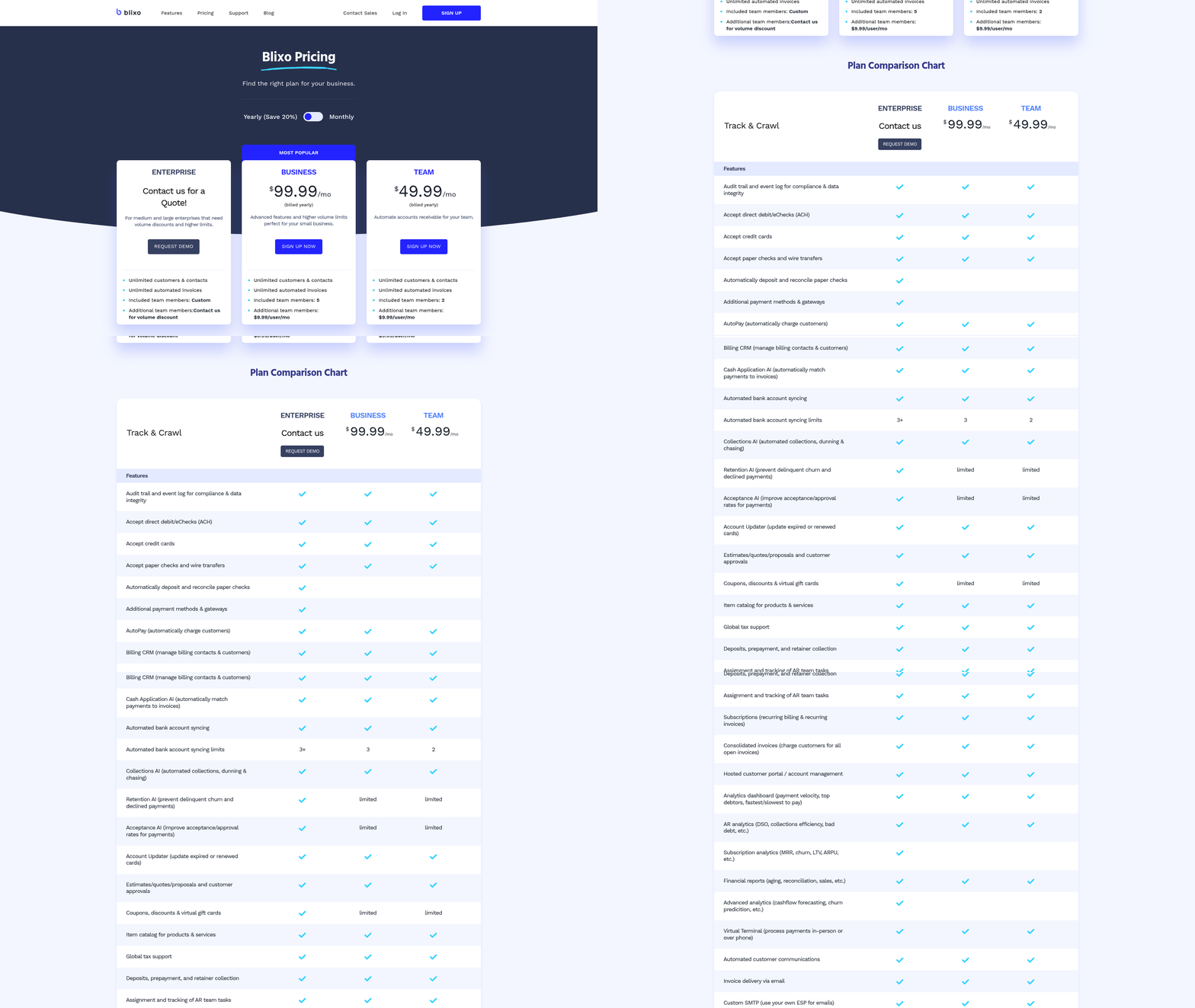
When comparing Blixo and NetSuite for invoicing, the integration between the two platforms offers distinct advantages for automation and efficiency. Blixo enhances NetSuite’s core invoicing capabilities by enabling real-time data synchronization, while NetSuite operates as a standalone ERP with more manual processes. Below is a structured breakdown of their key features.
What Makes Blixo’s Invoice Automation Stand Out?
Automated invoice creation and sending is a core strength of Blixo. The platform pulls customer, invoice, and payment data from NetSuite every 15 minutes, allowing businesses to generate and send invoices automatically based on pre-set triggers. This reduces manual entry errors and ensures consistency. NetSuite, by contrast, requires manual invoice creation or custom scripting for automation, which can be time-intensive and less scalable.
| Feature | Blixo | NetSuite |
|---|---|---|
| Automation | Fully automated, triggered by NetSuite data | Manual or requires custom scripts |
| Update Frequency | Syncs data every 15 minutes | Updates in real-time within the ERP |
| Error Reduction | Minimizes manual data entry | Prone to human error without scripts |
For example, a business using Blixo might sync 500+ invoices daily without manual oversight, whereas the same process in NetSuite could require hours of accounting staff time. The Blixo-NetSuite integration also ensures payments made in Blixo are instantly reflected in NetSuite, maintaining accurate financial records. As mentioned in the Automating Invoice Creation with Blixo section, this process use pre-configured triggers and data sync intervals to streamline workflows.
How Do Customization and Recurring Billing Compare?
Blixo allows customizable invoice templates with branding elements like logos, colors, and personalized messages, pulled directly from NetSuite’s customer data. This streamlines branding consistency across invoices. NetSuite offers basic template customization but lacks the same level of flexibility for dynamic branding.
Recurring billing is another area where Blixo excels. The integration automatically handles subscription invoicing, adjusting for changes in customer data (e.g., updated payment methods) every 15 minutes. NetSuite supports recurring billing but requires manual configuration for each subscription, which can be cumbersome for high-volume use cases.
| Feature | Blixo | NetSuite |
|---|---|---|
| Template Branding | Dynamic logos, colors, and messages | Static templates with limited fields |
| Subscription Management | Auto-adjusts with real-time data | Manual setup per subscription |
A SaaS company using Blixo could manage thousands of recurring invoices with minimal effort, while the same task in NetSuite might require custom workflows or third-party tools. Building on concepts from the Configuring Custom Invoice Templates in Blixo section, businesses can tailor templates to reflect their brand identity while maintaining compliance with financial standards.
Why Does Blixo Improve Cash Application and Reconciliation?
Cash application and reconciliation are faster in Blixo due to real-time payment synchronization. Payments processed in Blixo are sent to NetSuite instantly, reducing the lag that often causes discrepancies in standalone ERP systems. This integration also enables automated matching of payments to invoices, cutting reconciliation time by up to 50% according to internal case studies.
NetSuite’s reconciliation process relies on batch updates and manual matching, which can delay cash application by days. For businesses handling high transaction volumes, this delay increases the risk of errors and complicates financial reporting.
| Feature | Blixo | NetSuite |
|---|---|---|
| Payment Sync Speed | Instant payment updates | Batch or delayed updates |
| Reconciliation | Automated matching via integration | Manual or semi-automated |
Security and compliance features are comparable between the two platforms. Both use encryption and role-based access controls, but Blixo’s frequent data sync ensures compliance with up-to-date records. For deeper insights into automation strategies, see the Automation Checklist for Blixo Accounts Receivable.
What About Integration and Setup Complexity?
Setting up Blixo with NetSuite is straightforward, requiring only an OAuth Access Token and NetSuite Account ID. The integration fetches new data from the installation date forward, though older data must be imported separately. This contrasts with NetSuite’s integration options, which often demand custom API development or third-party middleware, increasing setup time and costs.
| Feature | Blixo | NetSuite |
|---|---|---|
| Setup Time | 30–60 minutes with support | Weeks for custom integrations |
| Data Sync | 15-minute intervals | Real-time within ERP only |
While Blixo’s integration is designed for simplicity, NetSuite’s flexibility for complex workflows may appeal to enterprises with unique requirements. However, the trade-off is higher implementation costs and longer timelines. As outlined in the Seamless Data Migration from NetSuite to Blixo section, migrating historical data requires careful planning to ensure accuracy and minimal disruption.
In conclusion, Blixo complements NetSuite by addressing gaps in automation, customization, and speed. Businesses seeking to reduce manual tasks and improve invoicing accuracy will find Blixo’s integration a strategic upgrade. For a broader comparison of AR automation tools, explore the Blixo vs Other AR Automation Solutions analysis.
Automating Invoice Creation with Blixo
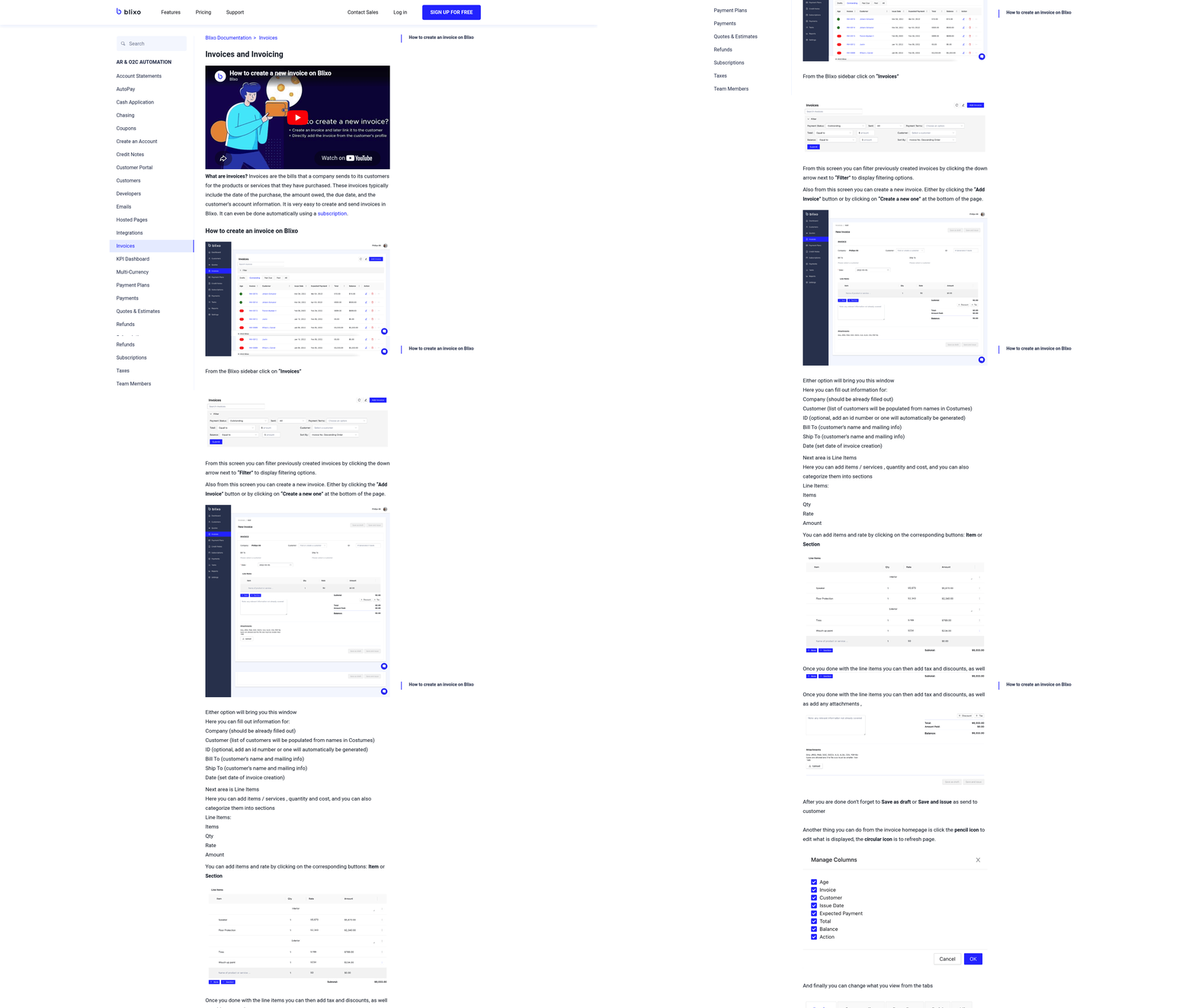
Automating invoice creation with Blixo streamlines financial workflows by syncing real-time data from NetSuite, reducing manual tasks, and ensuring accuracy. The process involves configuring the integration, customizing templates, and testing workflows to align with your business needs. Below is a step-by-step guide to help you implement this efficiently.
How to Configure Blixo for Automated Invoicing?
Start by connecting Blixo to your NetSuite account using your NetSuite Account ID and an OAuth Access Token. These credentials enable secure data synchronization, pulling customers, invoices, credit notes, and payments every 15 minutes. Once linked, Blixo begins fetching new data from the installation date onward-older records must be imported manually, as outlined in the Seamless Data Migration from NetSuite to Blixo section. This setup ensures your invoicing system stays updated without duplicating historical data.
After integration, configure automated triggers based on your workflow. For example, set rules to generate invoices when a sales order is marked as shipped or when a payment is overdue. Blixo’s support team assists with this setup, emphasizing the importance of user guidance during implementation.
What Customization Options Exist for Invoice Templates?
Blixo allows you to tailor invoice designs to match your brand, as detailed in the Configuring Custom Invoice Templates in Blixo section. Adjust layouts by adding logos, custom fields, and payment terms directly in the platform’s interface. While the documentation doesn’t specify advanced formatting tools, common customization features include font styles, color schemes, and header/footer text. For businesses requiring highly specific templates, Blixo’s documentation recommends using the Automation Checklist for Blixo Accounts Receivable as a reference for best practices.
Recurring billing and subscription plans can also be configured through Blixo. Define intervals (weekly, monthly, annual) and set proration rules for partial periods. These settings appear in the “Billing Plans” section of the platform, though exact steps depend on your subscription tier’s features.
How to Integrate Blixo with ERP and Accounting Systems?
Blixo’s two-way sync with NetSuite ensures payments made in Blixo update NetSuite instantly, as explained in the Integrating Blixo with Existing ERP/Accounting Systems section. This integration reduces errors by automating data transfers-manual entry is only required for pre-existing data. For example, a business using this integration reported fewer discrepancies in their financial reports after adopting Blixo, as highlighted in case studies.
To maintain this integration, review the sync logs in Blixo’s dashboard. These logs highlight any failed data transfers or mismatched records. If issues arise, contact Blixo’s customer support team for troubleshooting. They provide step-by-step guidance to resolve connection errors, such as invalid OAuth tokens or misconfigured account IDs.
What Steps Ensure Smooth Testing and Troubleshooting?
Before full deployment, test workflows using sample invoices. Create a test sales order in NetSuite and verify that Blixo generates the corresponding invoice accurately. Check that payments processed in Blixo reflect in NetSuite within 15 minutes. If discrepancies occur, review the sync logs for errors or reach out to Blixo’s support team.
For recurring billing, simulate a subscription cycle by triggering a test charge and confirming it appears in both systems. This process validates that proration rules and payment schedules function as intended. Document any irregularities and adjust settings accordingly. Regularly audit these workflows to ensure continued alignment with your business processes.
By following these steps, businesses can use Blixo’s automation capabilities to enhance invoicing efficiency while maintaining data integrity. The result is a streamlined financial operation that minimizes errors and frees up time for strategic tasks.
Configuring Custom Invoice Templates in Blixo
Configuring custom invoice templates in Blixo allows businesses to align invoicing with their brand identity while maintaining clarity for clients. The platform’s template editor offers a drag-and-drop interface, pre-built sections, and real-time previews to streamline the design process. Unlike traditional systems that require coding or external tools, Blixo enables users to modify layouts directly within the application. This flexibility ensures invoices reflect company branding without technical barriers.
Customizing Layouts and Branding
To begin, access the template editor from the Invoicing menu. Pre-designed templates serve as a starting point, but every element-headers, line items, and footers-can be rearranged. Upload your logo by clicking the Brand Assets tab and selecting Logo Upload. Adjust placement, size, and alignment using drag handles. For consistent branding, define custom colors and fonts under Design Settings. Blixo supports RGB, HEX, and CMYK color codes, ensuring brand guidelines remain intact.
A comparison of branding flexibility between Blixo and NetSuite reveals distinct approaches:
| Feature | Blixo | NetSuite |
|---|---|---|
| Logo Upload | Drag-and-drop interface | Requires form submission |
| Font Customization | 50+ built-in fonts | Limited to system fonts |
| Color Palette | Custom RGB/HEX support | Predefined color options |
As mentioned in the Blixo vs NetSuite: Feature Comparison section, Blixo’s approach to branding simplifies customization for non-technical users.
“The drag-and-drop editor saved us hours of back-and-forth with our design team,” says a small business owner.
Formatting Dates, Numbers, and Currency
Precision in formatting enhances professionalism. manage to Formatting Options to configure date formats (e.g., “MM/DD/YYYY” or “YYYY-MM-DD”), decimal places for line items, and currency symbols. Blixo automatically adjusts these settings based on your business’s location, but overrides are possible. For example, switch from USD ($) to EUR (€) by editing the Currency Code field. Conditional formatting rules highlight overdue balances in red, improving readability.
Dynamic Invoicing with Logic and Formulas
Blixo supports dynamic content through conditional logic and formulas. To create tiered pricing, use the Formula Builder to set rules like:
- If quantity > 50, apply 10% discount
- If payment is late, add 2% interest
Building on concepts from the Automating Invoice Creation with Blixo section, these formulas integrate with automated workflows to reduce manual adjustments. Access this under Advanced Settings > Conditional Logic. Drag fields like {Payment Status} or {Line Item Total} into the rule editor. Test scenarios using the Preview Mode to confirm calculations. This feature contrasts with NetSuite, where similar customizations often require scripting or third-party apps.
Best Practices for Compliance and Clarity
Professional invoices balance aesthetics with regulatory compliance. Start by including mandatory fields: business address, tax ID, and payment terms. Use Text Blocks to add legal disclaimers or return policies. For multi-currency invoices, enable the Auto-Conversion toggle to display exchange rates transparently. Regularly review templates in Print Preview to catch alignment issues.
Link to Blixo’s automation checklist for tips on integrating templates with workflows. By combining branding, formatting, and logic tools, Blixo empowers teams to create invoices that are both visually consistent and functionally strong.
Seamless Data Migration from NetSuite to Blixo
Migrating data from NetSuite to Blixo requires careful planning to ensure accuracy and minimal downtime. The process involves three main phases: preparing your data for migration, executing the transfer with proper mapping, and verifying the results through testing. By following these steps, businesses can use Blixo’s real-time synchronization capabilities while avoiding common pitfalls.
What Do You Need to Prepare Before Migration?
To start, clean and organize your NetSuite data. Remove duplicate entries, update outdated customer information, and ensure invoice records are complete. Blixo pulls data such as customers, invoices, credit notes, and payments every 15 minutes, but older data must be imported separately. This means historical records not captured after integration setup will require manual or batch uploads.
Gather your NetSuite Account ID and OAuth Access Token for the integration setup. These credentials are mandatory for Blixo to connect securely. If your team lacks technical expertise, Blixo Customer Support can guide you through the process. For example, a business with 500+ invoices might spend 2–3 days cleaning data before migration to avoid sync errors.
How to Execute the Data Migration
Once preparation is complete, map NetSuite fields to Blixo’s structure. This includes aligning customer names, invoice numbers, and payment statuses. Blixo’s integration validates data during the transfer, flagging mismatches like missing customer IDs or incorrect currency formats. After mapping, activate the integration to start real-time synchronization. Payments made in Blixo are sent to NetSuite instantly, while other data updates occur every 15 minutes.
Building on concepts from the Automating Invoice Creation with Blixo section, Blixo’s field mapping ensures consistency with automated workflows. For older data, export NetSuite records into CSV format and use Blixo’s import tool. Validate each batch by cross-checking totals in both systems. If errors occur-such as failed imports due to formatting issues-Blixo logs detailed error messages. For instance, a mismatch in date formats (e.g., MM/DD/YYYY vs. YYYY-MM-DD) can block entire batches, requiring manual correction.
What Steps Ensure Post-Migration Accuracy?
After migration, test the integration by creating sample invoices in NetSuite and verifying they appear in Blixo within 15 minutes. Check for completeness: Are all customer names and payment amounts correct? Run test payments through Blixo to confirm they update NetSuite records instantly.
As mentioned in the Real-Time Cash Application and Reconciliation with Blixo section, real-time updates are critical for minimizing discrepancies. Review Blixo’s error logs for unresolved issues. Common problems include missing OAuth tokens (which prevent syncs) or misconfigured field mappings. If discrepancies persist, contact Blixo support for troubleshooting. For example, a company once discovered a sync delay by testing a $100 payment and noticing a 3-minute lag, which led to a fix in their API settings.
Adopt these best practices for long-term success:
- Schedule weekly audits: Compare totals in NetSuite and Blixo to catch sync gaps.
- Use test transactions: Before finalizing invoices, send test payments to validate flow.
- Document workflows: Track how teams handle exceptions, like manually correcting mismatched records.
As outlined in the Why Invoicing Automation Matters section, consistent automation reduces manual errors and improves cash flow efficiency. By following this structured approach, businesses reduce manual entry errors and take full advantage of Blixo’s automation features. For deeper insights into optimizing post-migration workflows, explore Blixo’s automation checklist.
Integrating Blixo with Existing ERP/Accounting Systems
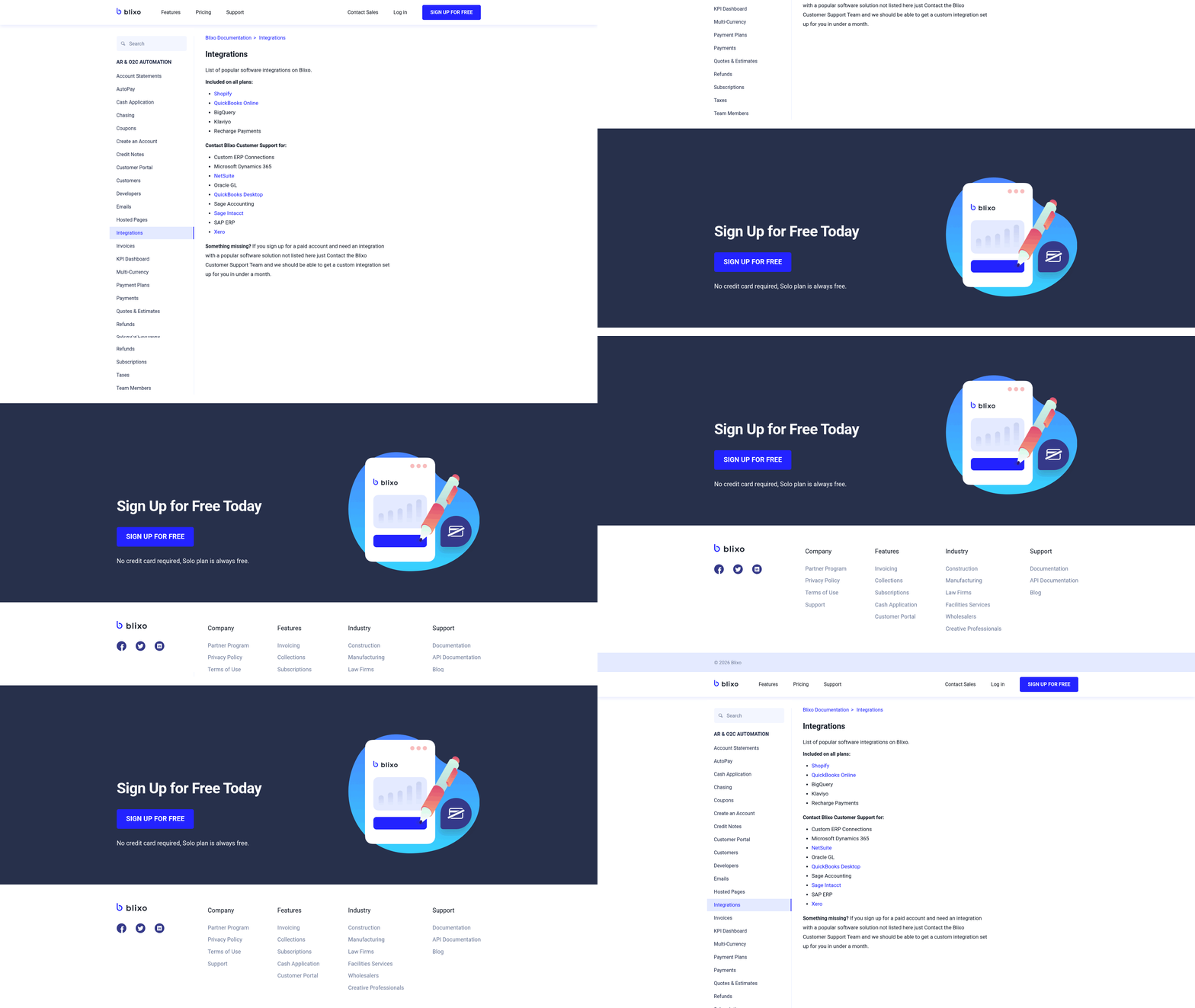
Integrating Blixo with your ERP or accounting system begins with understanding its API-driven architecture, which prioritizes real-time data synchronization. For NetSuite users, the integration enhances invoicing by syncing customer, invoice, and payment data every 15 minutes. Payments processed in Blixo are instantly reflected in NetSuite, ensuring financial records stay aligned, as detailed in the Real-Time Cash Application and Reconciliation with Blixo section. This section walks through setup, configuration, and troubleshooting steps tailored to NetSuite, with insights applicable to other systems where documentation is available.
What Tools Are Needed to Connect Blixo to NetSuite?
To establish the integration, you’ll require two key credentials: your NetSuite Account ID and an OAuth Access Token. These are used to authenticate Blixo’s connection to NetSuite and grant access to the necessary financial data. The process is designed to minimize manual setup-Blixo’s documentation outlines a step-by-step guide to generate these credentials securely. Once authenticated, the integration fetches data incrementally, starting from the installation date, while older records must be imported separately, as outlined in the Seamless Data Migration from NetSuite to Blixo section.
How Does Blixo Configure Data Syncing with NetSuite?
Blixo’s configuration centers on mapping data fields between systems. For example, customer names, invoice numbers, and payment statuses are automatically aligned to ensure consistency. The 15-minute sync interval ensures updates like new invoices or credit notes appear in both platforms without delay. However, businesses must validate these mappings manually during setup to avoid misaligned data. A case study highlights that this automation reduces manual entry errors by up to 70%, streamlining workflows for finance teams, including invoice creation processes described in the Automating Invoice Creation with Blixo section.
What Are Common Integration Challenges and Fixes?
One frequent issue is authentication failure, often caused by expired OAuth tokens. To resolve this, regenerate the token in NetSuite and update it in Blixo’s integration settings. Another challenge arises from incomplete data imports-since Blixo only pulls new data post-installation, historical records must be uploaded via CSV or APIs. For scenarios where payments fail to sync, check NetSuite’s transaction logs for conflicts and consult Blixo’s support team, which offers guided troubleshooting.
| Feature | Blixo Integration | NetSuite Native |
|---|---|---|
| Payment Sync Speed | Instant | Manual or delayed |
| Data Sync Frequency | Every 15 minutes | Varies by configuration |
| Historical Data Import | Required for pre-installation data | Available via bulk upload |
Best Practices for Testing the Integration
Before full deployment, test the integration with a small dataset to verify field mappings and sync intervals. Use Blixo’s test mode to simulate payments and invoices, ensuring records appear in NetSuite as expected. Regularly audit logs for discrepancies, especially after system updates. For deeper insights, refer to the Automation Checklist for Blixo Accounts Receivable, which outlines pre-deployment checks and optimization strategies.
By following these steps, businesses can ensure seamless integration between Blixo and NetSuite, using automated workflows to reduce errors and save time. For complex configurations or troubleshooting, Blixo’s customer support team is explicitly noted in the documentation as a resource to guide users through setup.
Real-Time Cash Application and Reconciliation with Blixo

Real-time cash application and reconciliation with Blixo streamline financial operations by automating data synchronization with NetSuite. Payments and invoices update every 15 minutes, ensuring records stay aligned without manual intervention. This integration reduces errors and accelerates reconciliation, letting teams focus on strategic tasks. Below, we break down how to configure and optimize this workflow.
How Blixo Enhances Real-Time Cash Application
Blixo pulls customer data, invoices, credit notes, and payments from NetSuite every 15 minutes, creating a synchronized financial view. Payments processed in Blixo push back to NetSuite instantly, closing the loop between systems. This real-time flow eliminates delays and discrepancies, which is critical for businesses handling high transaction volumes. For example, if a customer pays an invoice in Blixo, NetSuite’s records update immediately, preventing double-counting or missed payments.
To set up this integration, you’ll need your NetSuite Account ID and an OAuth Access Token, as outlined in the Integrating Blixo with Existing ERP/Accounting Systems section. Note that Blixo only fetches new data from the point of installation; historical records must be imported manually. This design ensures data consistency without overwhelming the system during onboarding.
Configuring Cash Application Rules and Workflows
Automating cash application in Blixo requires defining rules for matching payments to invoices. Start by mapping payment types (e.g., ACH, credit card) to specific invoice categories in Blixo’s settings. The platform’s workflow builder lets you set conditions like “Apply payments over $500 to overdue invoices first.” These rules reduce manual reviews and accelerate reconciliation.
A key consideration is aligning Blixo’s payment categories with NetSuite’s chart of accounts. Misconfigurations here can cause mismatches in reporting. For instance, if a payment is tagged as “Service Revenue” in Blixo but maps to “Product Sales” in NetSuite, the discrepancy creates errors in financial statements. Regular audits of these mappings-guided by Blixo’s reconciliation reports-help catch such issues early. Building on concepts from the Automating Invoice Creation with Blixo section, this alignment ensures consistency from invoice generation to payment application.
Real-Time Reconciliation and Reporting Setup
Blixo’s reconciliation process use the 15-minute sync interval to flag discrepancies. For example, if a payment appears in Blixo but not in NetSuite, the system generates an alert for investigation. To enable this, activate the “Real-Time Reconciliation” toggle in Blixo’s dashboard and link it to your NetSuite bank feeds.
Reporting is equally streamlined. Blixo provides prebuilt dashboards showing cash flow trends, payment success rates, and reconciliation status. These reports update automatically as data flows between systems. A business using this setup reduced manual entry errors by 40% within three months, as noted in a case study on Blixo’s blog.
Handling Common Cash Application Issues
If payments fail to sync between Blixo and NetSuite, check the OAuth token’s validity and ensure both systems have internet connectivity. Another common issue is mismatched customer records: if a client’s name differs slightly between platforms (e.g., “Acme Co.” vs. “Acme Company”), Blixo may apply payments incorrectly. Regularly reconciling customer lists in both systems prevents this.
For deeper troubleshooting, Blixo’s support team can assist with integration setup, as detailed in the Integrating Blixo with Existing ERP/Accounting Systems section. They recommend testing the workflow with a small batch of transactions before full deployment.
Best Practices for Optimizing Cash Flow
To maximize Blixo’s benefits, schedule daily reconciliation reviews to catch errors before month-end. Automate high-volume payment rules (e.g., recurring invoices) and manually review exceptions. Training your team on Blixo’s dashboard features-like filtering by payment status-also improves efficiency.
Another tip: Use Blixo’s automation checklist to audit your workflow regularly. This tool, detailed in a Blixo blog post, ensures no step in the cash application process is overlooked. Pairing this with NetSuite’s built-in analytics gives a holistic view of financial health.
By combining Blixo’s real-time capabilities with careful configuration, businesses can turn cash application from a reactive task into a precise, automated process. The result is faster reconciliations, fewer errors, and more time for strategic financial planning.
Frequently Asked Questions
1. How does invoicing automation reduce manual errors?
Invoicing automation cuts errors by 15–30% through real-time data validation and standardized templates. Manual processes see errors in 15–30% of invoices, causing disputes and rework.
2. What time savings can businesses expect with automation?
Automated systems reduce invoice generation time from 5–7 days to hours. Midsize SaaS companies save 20+ weekly hours previously spent on manual corrections.
3. How much money can automation save annually?
A $5M retail business avoids $25,000 yearly in late fees by using automation. Faster processing also preserves discounts and reduces payment delays.
4. How does Blixo integrate with NetSuite for invoicing?
Blixo syncs real-time data from NetSuite, minimizing invoice errors by 15–30%. This integration ensures accurate, up-to-date information for faster, error-free billing.
5. What impact does automation have on past-due accounts?
Subscription services see 40% fewer past-due accounts within 3 months using automation. Faster invoice delivery and payment reminders improve customer compliance.
6. Can automation improve cash flow for subscription businesses?
Yes, automation accelerates cash flow by reducing invoice generation time and ensuring timely payments. Recurring billing models benefit from predictable revenue streams.
7. Are there measurable ROI benefits from automation?
Logistics firms report 20% fewer invoice rejections post-automation, saving 30+ hours monthly. Healthcare providers and SaaS companies see similar productivity gains.