

How to Set Up Automatic Invoicing With Blixo for Recurring Billing
Key Takeaways
- Blixo automates the whole recurring billing loop, invoicing, payments, and cash application, which cuts manual errors and gets cash in faster.
- Setup is three steps: turn on AutoPay, build recurring invoice templates, and set the AI cash-application rules.
- AutoPay handles ACH, credit cards, and direct debit, so recurring charges run without anyone touching them.
- Recurring templates let you lock in billing schedules, amounts, and customer groups once and forget about them.
- The AI cash-application engine matches payments to invoices in real time, which is where most of the reconciliation headache disappears.
- Real-time dashboards show pending, paid, and failed payments at a glance.
- How hard setup feels mostly comes down to your payment gateway. The guided workflow handles the rest.
Quick Summary
What automatic invoicing with Blixo actually does
It runs the boring parts of recurring billing for you — generating invoices, processing payments, and applying cash to the right accounts without manual touch. The pieces that matter: AutoPay for ACH, credit cards, and direct debit; recurring invoice templates; and AI cash application that matches payments to invoices as they land. Fewer errors, faster cash, and no chasing customers for updates.
How long setup takes
Quick, mostly. The real variable is your payment-gateway integration. The workflow:
- Enable AutoPay – Add the payment methods you want (ACH, credit cards, direct debit).
- Create recurring templates – Set billing schedules, amounts, and which customer groups get them.
- Connect cash application – Link your bank accounts and configure the AI matching rules that auto-apply payments to invoices.
The payment-setup steps are straightforward. Connecting bank feeds takes a few extra clicks, but the platform walks you through it.
Why it matters for cash flow
You get paid faster and spend less time managing invoices and collections. What you get:
- Predictable revenue – Invoices go out on schedule, even when customers forget to pay.
- Fewer disputes – Payments auto-apply to the right invoices, so reconciliation friction drops.
- Real-time insight – Dashboards show pending, paid, and failed payments instantly.
Most valuable if you invoice multiple clients monthly or run subscription revenue. For one-off invoices, a simpler tool is probably fine.
Why bother automating invoicing at all
Automatic invoicing isn’t just convenience. It’s a cash-flow decision. The cash-application piece at the core of Blixo matches payments to invoices instantly, which kills the delay and the manual reconciliation. This is exactly where most automation tools quit: they generate the bills, then leave you scrambling to figure out which payment covered which invoice. Blixo closes that gap.
What manual invoicing actually costs you
Manual processes eat hours every month. Picture the spreadsheet work — matching checks, ACH transfers, and credit card payments to the right client, invoice, and account. One slip, like misapplying a payment or missing a recurring charge, and cash flow stalls for days or weeks.
A small SaaS company with 100 monthly subscribers might burn 10+ hours a month on invoicing alone. Add late fees, customer follow-ups, and accounting corrections, and it becomes a real drag on productivity.
How instant cash application changes the math
When a customer pays, Blixo updates their account, allocates the funds to the right invoice, and adjusts your cash flow forecast in real time. That’s not just automation, it’s a control system. One business reported cutting reconciliation time by 70% and dropping payment errors to near zero. Faster working capital, fewer late fees.
Who gets the most out of it
Any business with recurring clients benefits, but two groups see the most:
- Small businesses with thin accounting staff. Automating cash application means fewer bookkeeping hours and fewer late fees from missed payments.
- Enterprises with messy billing cycles. A company with thousands of subscribers across multiple payment methods needs the integration so nothing slips through.
The time savings track with that. Businesses on Blixo often pull back 10–20 hours a month from invoicing into core work. For context, a typical accounting team spends roughly 30% of its time on payment reconciliation. Automate that step and you’ve freed up close to a full-time role.
If you want the details on the payment side, here’s how to set up automatic invoice payment with Blixo.
Setting up automatic invoice generation
Pricing and subscription plans first
Start by laying out your pricing in Blixo’s billing dashboard. Define your recurring intervals (monthly, quarterly, annual) and subscription tiers for different customer groups. A SaaS business might run “Basic,” “Pro,” and “Enterprise” tiers, each with its own features and price. Assign each tier a payment method (ACH, credit card, or direct debit) and link it to your gateway. Now invoices generate automatically when someone subscribes, with the right amount and schedule already loaded.
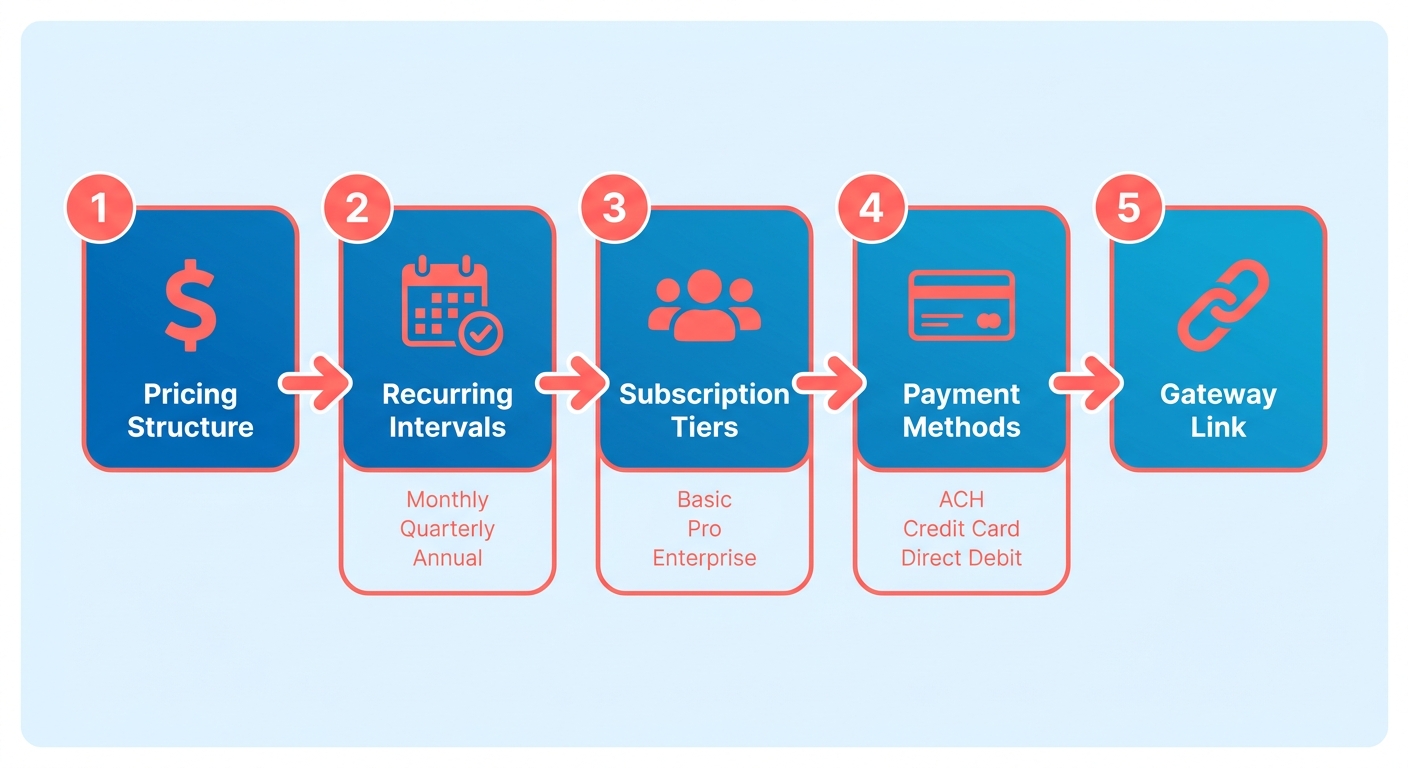
Cash application ties straight into these plans by matching incoming payments to the correct tier. No manual reconciliation — payments apply to invoices in real time and your dashboard updates instantly. Blixo’s setup docs cover the specifics of linking payment methods.
Setting the actual schedule
Once pricing is defined, go to the invoice scheduling tool. Pick a subscription plan and set a billing cycle start date. Blixo generates and sends invoices on that schedule. Choose “monthly” and it creates an invoice the same day each month until the subscription ends.
The settings that matter:
- Invoice templates: Use a pre-built template or upload your own.
- Payment due dates: Days after generation, like net-15 or net-30.
- AutoPay triggers: Turn on automatic charges for customers who’ve preauthorized ACH or credit card payments.
Payments apply instantly through the AI matching system, which updates your accounting records as they clear.
Wiring it into your CRM
Blixo syncs with Salesforce and HubSpot to keep customer data and billing records aligned. In the integration settings, map CRM fields (customer name, email) to Blixo’s invoice fields. When a lead converts in your CRM, their subscription data flows into Blixo and triggers an invoice.
The sync also updates cash flow metrics on its own. If a CRM note flags a customer as a churn risk, Blixo can prioritize reminders or flag the account for follow-up. Your team never enters customer info twice, and payments still land on the right invoices without supervision.
Pair recurring automation with CRM sync and billing turns into something closer to a revenue forecast than a chore.
Managing recurring invoices and payments
Watching invoices and payment status
Blixo gives you one dashboard for every recurring invoice and its payment status in real time. Color-coded alerts for overdue invoices, automatic payment confirmations, and a reconciliation log showing which payment hit which invoice.
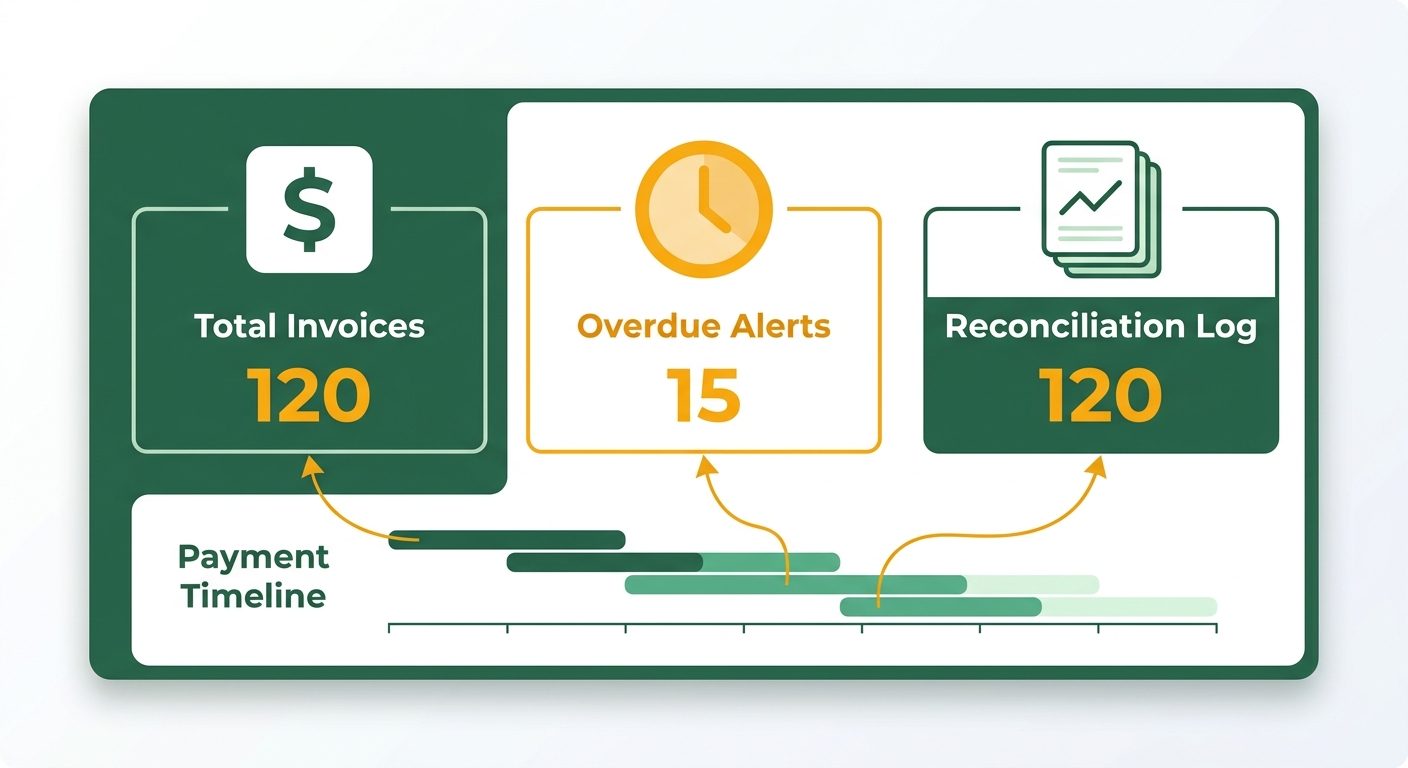
To stay on top of it:
- Open the Billing Overview section.
- Filter invoices by status (“Paid,” “Pending,” “Failed”) or by customer tier.
- Use the Payment Timeline graph to line up cash flow against subscription schedules.
No more cross-referencing spreadsheets to figure out what cleared and when.
When payments fail
Most failures come from outdated card details or temporary bank holds. Blixo flags them instantly, but a little proactive work keeps disruption low:
- Failed AutoPay: Check the Failed Payments tab for error codes like “Insufficient Funds” or “Expired Card.” Blixo sends customers an automated alert with a link to update their billing info.
- Partial Payments: If a payment covers only part of an invoice, the engine marks the rest as “Unapplied” until you resolve it. Handle these in the Unapplied Funds section.
- Retry Logic: Set retry schedules (say, 3 attempts over 7 days) in Payment Settings. Blixo uses exponential backoff so it doesn’t hammer the gateway.
For repeat offenders, audit the customer record for bad payment details and prompt an update by email.
Letting customers fix their own billing info
Payment details change constantly. Blixo cuts down the manual updates by letting customers self-serve:
- Enable the Customer Portal in account settings.
- Customers edit card expiration dates, ACH routing info, or billing addresses themselves.
- The cash application system syncs those changes to future invoices automatically.
For bulk changes, like after a bank merger, export your client list, edit the CSV, and re-import. Records stay current without breaking recurring billing.
Reading the payment data
Blixo’s reporting turns raw payment data into something you can act on:
- Revenue Forecasting: The Cash Flow Projection dashboard predicts incoming payments from active subscriptions and historical churn.
- Payment Success Rate: Track “ACH Failure Rate” or “Credit Card Decline Rate” to spot trends, like seasonal spikes in bank rejections.
- Customer Tier Breakdown: Compare revenue by plan (“Standard” vs. “All-Access” for a digital media publisher) to test whether your pricing works.
Use these to refine your billing strategy, like moving a high-churn segment from annual to monthly invoicing. Because every step ties back to cash application, monitoring and troubleshooting stay aligned with how payments actually match to invoices. That’s what shortens the close-to-cash cycle.
More on payment reporting in Blixo’s blog.
Connecting Blixo to your accounting and ERP systems
Picking a compatible system
Blixo integrates with the major accounting and ERP platforms — QuickBooks, Xero, NetSuite. They support bidirectional data flow, so cash application stays automated across platforms. When a recurring payment clears in Blixo, the linked ERP updates accounts receivable in real time. No manual entry, fewer reconciliation delays.
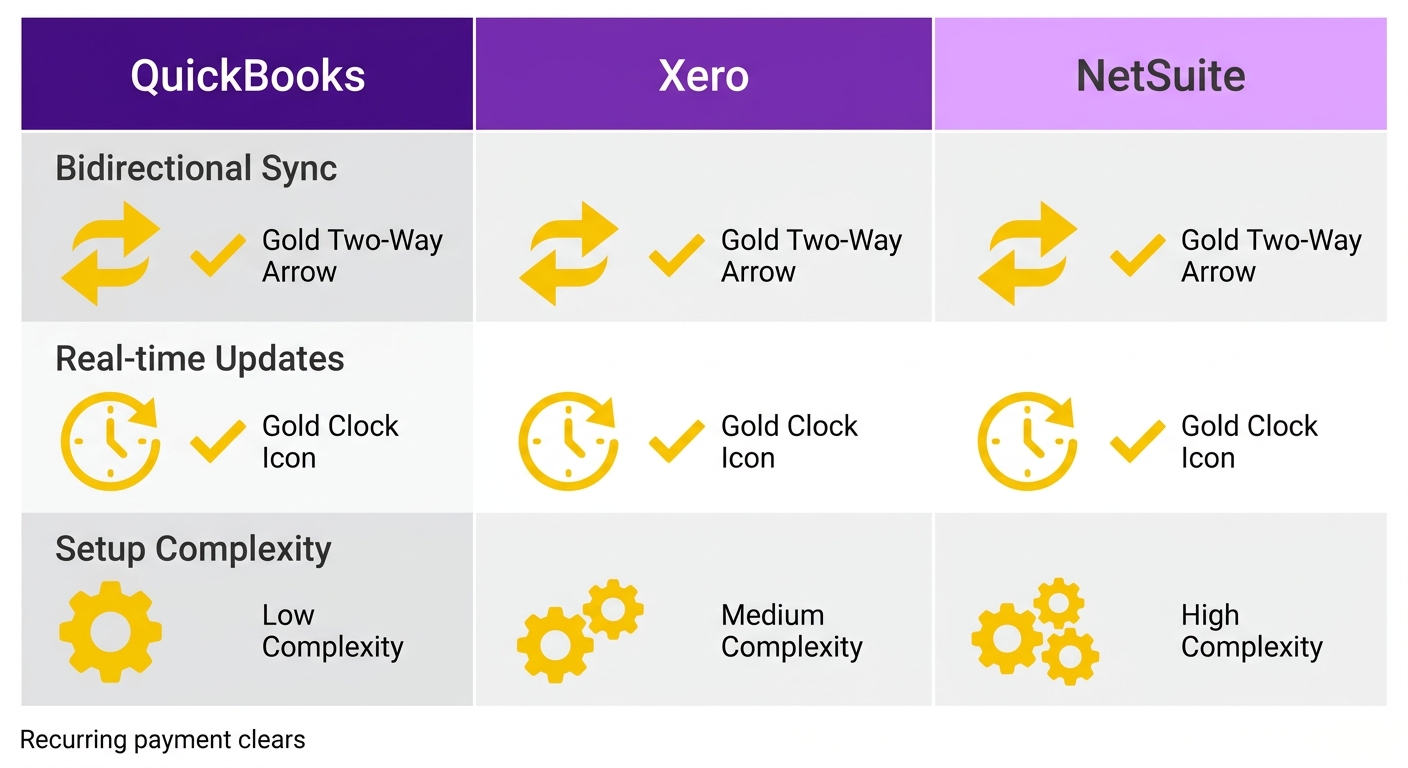
First, confirm your accounting software supports API integrations. Most modern systems do. Older on-premise setups may need middleware or custom work. Blixo’s integration guide lists compatibility per platform.
Setting up the integration
Link your payment processor (Stripe, PayPal) to Blixo’s dashboard first. That connection enables recurring billing and makes payments trigger data syncs. Then go to Account Settings and pick your accounting system from the integration menu.
For example:
- Create a Blixo account and invite team members with role-specific permissions.
- Map payment methods to the right ERP accounts. A credit card payment for a SaaS subscription might sync to “Revenue: Digital Subscriptions” in QuickBooks.
- Enable auto-reconciliation so Blixo matches payments to invoices using metadata like transaction IDs or customer codes.
Then run a test transaction. Blixo’s logs show sync status, so you can confirm data flows before going live.
When syncs break
Mismatched account codes and delayed payment confirmations are the usual culprits. If an ACH payment doesn’t update your ERP ledger, check that Blixo’s cash-application rules line up with your chart of accounts.
A few things to try:
- Review reconciliation logs: Blixo flags mismatches, like a payment applied to the wrong tier.
- Validate API keys: Expired or wrong credentials block syncs. Regenerate them in your ERP’s developer portal.
- Adjust sync frequency: Some systems update hourly, others need a manual trigger. Set intervals that fit your cash flow.
A “Failed: Invalid Currency Code” alert usually means your ERP expects USD but Blixo is sending EUR. Fix the currency settings in both.
Why cash application is the part that matters
Most guides stop at invoice generation. But cash-application automation is where recurring billing actually goes hands-off. Payments auto-apply to the right accounts, and cash flow updates propagate across systems. Businesses on integrated setups report cutting month-end closing time by up to 40%.
Building custom automation with the Blixo API
What the API is good for
The Blixo API is built around cash-application workflows — linking payment data straight to accounting systems, CRMs, or internal tools. It can trigger invoice generation, track payment status in real time, and sync reconciliation logs across platforms. Less manual work matching payments to invoices, because the API handles the cash application itself.
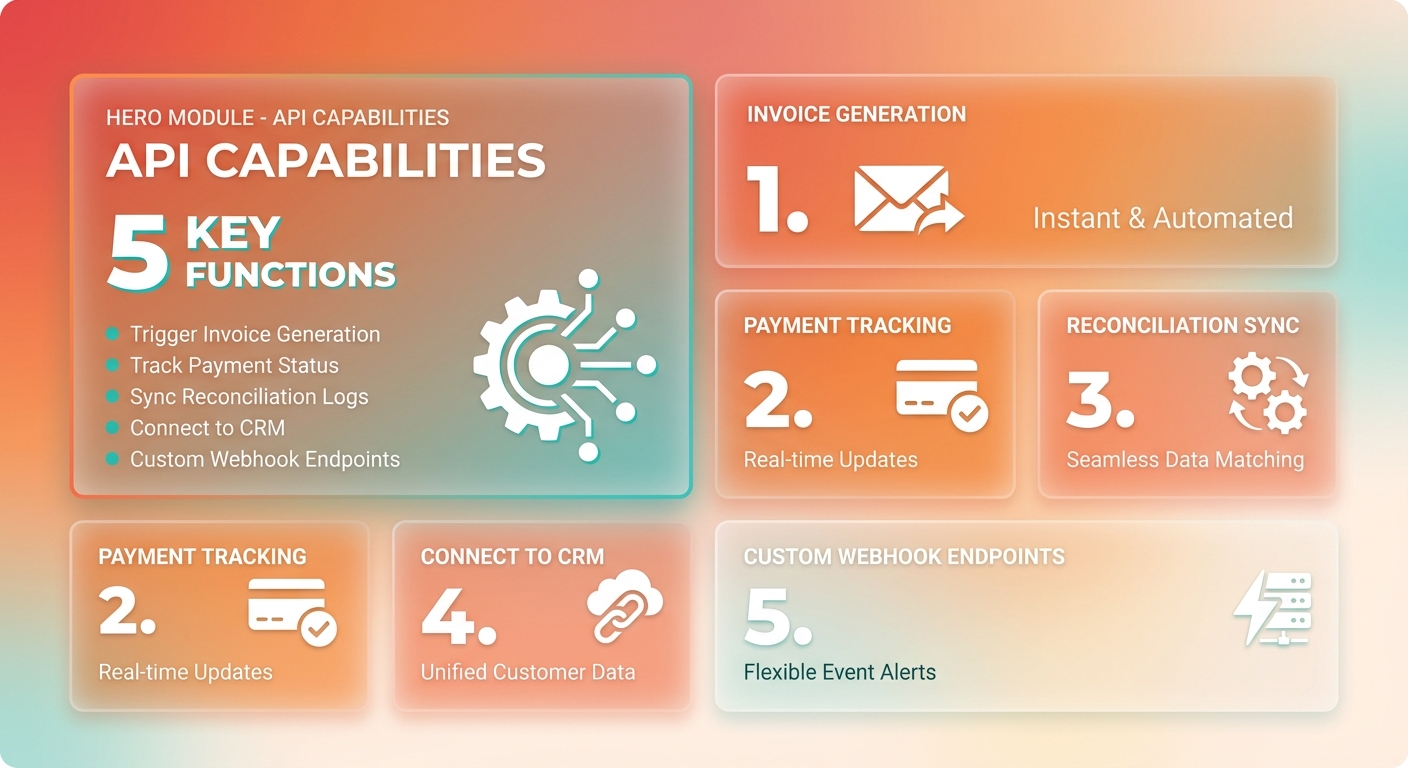
Start by defining what you actually want automated. If your CRM should update customer accounts when a recurring payment succeeds, the API can push that confirmation data straight in. No more silos between billing and customer management.
A real use case
Sync Blixo with an internal fulfillment system to automate provisioning. When a recurring invoice is paid, the API fires a webhook to your provisioning platform, which instantly activates the user’s access or updates their account. Your ops team delivers without waiting on manual billing confirmation.
Another one: an internal cash flow dashboard. The API pushes real-time payment data to a custom tool so finance can visualize revenue and forecast liquidity. Every transaction updates the financial models instantly.
API keys and authentication
Generate an API key in your Blixo dashboard under Developer Tools. Pick sandbox or live depending on whether you’re testing. Most integrations use OAuth 2.0, so you’ll need client ID and secret pairs.
For custom scripts, keep those credentials in environment variables — never in the code itself. Test auth with a simple GET to the /invoices endpoint. If it returns invoice data, you’re good. For deeper automation, use webhooks for event-driven updates like payment success or failure, instead of polling the API over and over.
Common API problems
If payments aren’t auto-applying, check for mismatched invoice IDs between Blixo and your accounting system. The API needs the correct reference numbers to sync. For failed calls, read the error codes: a 400 Bad Request usually means bad parameters, a 401 Unauthorized means expired or wrong API keys.
Use Blixo’s logging tools to trace failed webhooks. If a CRM isn’t updating after a payment, confirm the webhook URL is active and not blocked by a firewall. Keep those links healthy and your cash-application workflows stay uninterrupted.
Best practices and troubleshooting
Three things to get right up front
For cash application to work cleanly in Blixo, nail three things: validate your payment gateway config, standardize invoice metadata, and turn on real-time reconciliation logs. Misconfigured gateways and inconsistent invoice IDs are what cause payment mismatches. If your ACH processor doesn’t have proper webhook settings, Blixo can’t auto-apply payments. Use the Billing Dashboard to check gateway health and test flows in sandbox mode before you go live.
Standardize invoice numbering by appending customer IDs or tiers (INV-CLIENT123-MONTHLY). It removes ambiguity when payments show up out of order. And enable the Reconciliation Log to track how each payment matched — you’ll want it for auditing and debugging later.
Fixing cash application issues
Failures and mismatches usually come from three places: gateway errors, data mismatches, or timing conflicts. Start with your gateway’s status page. Outages or rate limits there break auto-applications. If invoices show “Paid” but no funds arrive, compare the Payment Timeline against your bank’s ACH schedule. Some banks delay batch settlements, which creates temporary gaps.
For mismatches, use the Invoice vs. Payment Report to find where the link failed. Common fixes:
- Manual Overrides: If a customer pays by check instead of ACH, apply it with the “Match to Invoice” tool.
- Rule Adjustments: Loosen amount tolerances for partial payments.
- Gateway Sync: Re-sync your gateway’s API credentials to refresh tokenized payment data.
Tuning Blixo for efficiency
Tune your recurring billing rules to fit your cash flow. Stagger billing cycles so you’re not processing every payment on the same day, which can overwhelm gateways and delay cash application. Use Partial Payment Handling to auto-apply funds to the oldest invoice first, so stale unpaid invoices don’t pile up on your dashboards.
Turn on Smart Retry Logic for failures. Instead of retrying right away, space retries at 72-hour intervals — that gives customers time to deposit funds. Pair it with an automatic email or SMS reminder. Advanced users can script the Blixo API to flag odd patterns, like a sudden drop in recurring revenue.
Keeping up with new features
Skim the Blixo Blog monthly for cash-application updates. Recent ones include better AI for partial payment matching and multi-currency auto-reconciliation. Run the Integration Health Checker quarterly to make sure your accounting syncs (QuickBooks, NetSuite) stay clean. It flags deprecated API versions and mismatched tax codes before they hit your cash flow tracking. Stay current and the billing system stays hands-off and accurate.
Frequently Asked Questions
1. How does Blixo handle multiple failed payment attempts for recurring invoices?
Blixo manages failed payments through customizable dunning cycles. When a transaction fails, the system can automatically notify the customer via email with a secure link to update their billing details, while placing a temporary hold on the account if necessary. You can adjust the frequency of these notifications and set grace periods directly within your billing preferences.
2. Can I set up different billing schedules for specific customer groups?
Yes, Blixo allows you to define unique billing intervals (monthly, quarterly, annual) and customer tiers. A commercial landscaping service might bill its “Weekly Maintenance” clients on a monthly cycle, while billing “Seasonal Cleanup” clients on a quarterly basis, with distinct payment methods assigned to each group.
3. How does Blixo integrate with QuickBooks for accounting?
Blixo syncs with QuickBooks via API, automatically updating accounts receivable and applying payments to the correct invoices. The integration maps transaction metadata directly to your chart of accounts, ensuring that tax codes, discounts, and processing fees are recorded accurately without manual data entry.
4. What if a customer updates their payment method after initial setup?
When a customer updates their payment method, the changes are securely tokenized to maintain PCI compliance. The updated credentials immediately become the default for the next scheduled billing cycle, preventing any interruption in service or manual intervention from your billing team.
5. How does Blixo’s AI cash application reduce reconciliation errors?
Blixo’s AI analyzes transaction metadata, such as bank transfer descriptions, customer names, and partial payment amounts, to find the correct matching invoice. By automating this pattern recognition, the system eliminates the common human errors associated with manual spreadsheet matching and ensures your ledger remains perfectly balanced.
6. Can I customize invoice templates for different subscription tiers?
Yes, Blixo lets you upload or design custom invoice templates. You can assign specific templates to different service agreements—such as using a streamlined layout for “Retainer” clients and a detailed, itemized layout for “Project-Based” clients—ensuring branding consistency while automating invoice generation.
7. What support is available for developers using the Blixo API?
Blixo provides detailed API documentation, sandbox testing environments, and webhook examples. For complex integrations, their support team offers troubleshooting guides and logs to resolve sync issues, such as mismatched invoice IDs or authentication errors.