

How to Automate QuickBooks Recurring Payments and Reconcile Books with Blixo

Key Takeaways
- Blixo matches incoming payments to QuickBooks invoices automatically, using AI cash application instead of someone eyeballing a bank feed at month-end.
- It handles partial payments and one-deposit-covering-many-invoices cases. QuickBooks Autopay can’t, because Autopay only fires on full-payment invoices.
- Connecting to QuickBooks Online is a guided setup. Most finance teams get through it without pulling in IT.
- The businesses that benefit most run variable pricing or high invoice volume, where manual matching breaks down fast.
- Real-time matching gives you a cleaner read on settled cash than reconciling bank feeds by hand after the fact.
- For a handful of one-off invoices, manual is fine. For recurring subscription billing, it stops scaling.
- Because the integration runs through a direct API, every ledger update leaves an audit trail.
Quick Summary
This is a practical walkthrough of moving from manual reconciliation to automated cash application with Blixo and QuickBooks Online. Setup, security, and the things that break — and how to fix them.
What automated matching actually does to your recurring payments
Manual reconciliation has one core problem: you’re always looking backward. You wait for the bank statement, then match deposits to invoices after the money already moved.
Automated matching flips that. The system keeps your billing gateway and your accounting ledger in sync continuously, scanning incoming transaction data as it lands instead of batching it for end-of-month. Your ledger reflects actual bank deposits in close to real time, so the balance sheet stays current through the whole billing cycle rather than snapping into focus once a month.
What makes Blixo’s matching different
The engine reads transaction metadata and weighs several signals at once, customer identifiers, payment dates, outstanding balances, to decide where a payment belongs. That’s what lets it handle the messy cases: tiered pricing adjustments, mid-cycle upgrades, the kind of thing that quietly derails a rules-based accounting system. Standard tools assume one payment equals one clean invoice. Real subscription billing rarely cooperates.
When manual tracking stops being worth it
Manual works until the admin overhead starts eating into actual growth. The signs it’s time to switch:
- Frequent billing changes. Plans shift mid-month, and every shift means recalculating and re-touching invoices by hand.
- Volume outpacing staff. When monthly transactions grow faster than your accounting team can clear them, financial reporting backs up.
- Payment friction. Rigid rules block customers from paying flexibly, and the workarounds land back on your desk.
Catch these early. Manual data-entry errors tend to surface at the worst time — in front of a customer, or the day you’re trying to close the books.
How much setup this actually takes
- API authorization. Authenticate your credentials through a secure portal to establish the connection between platforms.
- Data mapping. The system maps your existing customer profiles, chart of accounts, and tax codes so data flows consistently.
- Workflow configuration. Set payment rules to match your business policies, and configure notifications for failed transactions.
Nothing here requires a long downtime. It’s a connection between your billing engine and your ledger, configured once.
Why this is worth automating at all
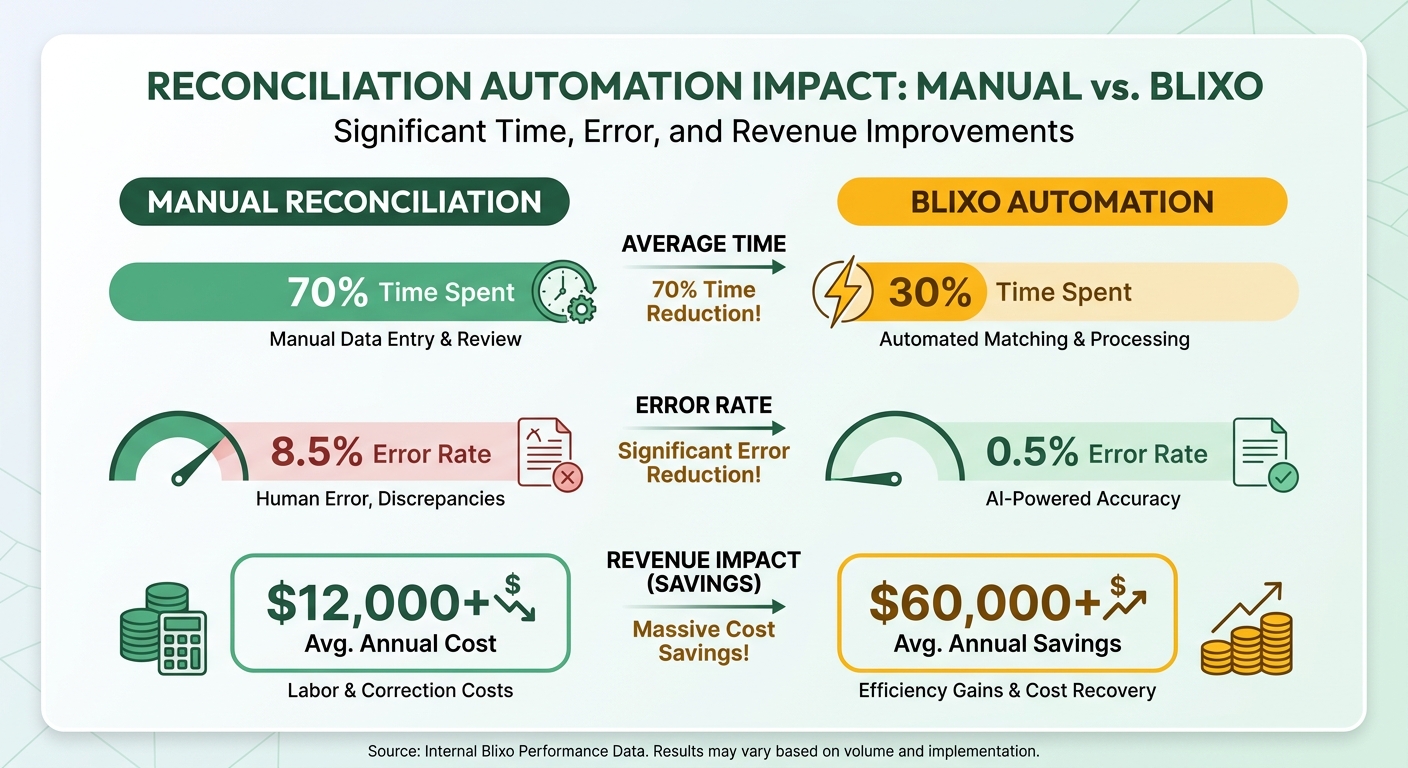
Automating recurring payments in QuickBooks isn’t a convenience play. It’s about not flying blind on your own cash position. Traditional workflows lag, so finance teams are often making calls on stale numbers. Automated matching cuts reconciliation time by up to 70% in the cases Blixo cites, which means books close faster and leadership is working from settled cash instead of a projection that’s a few weeks old.
Where standard QuickBooks Autopay runs out of road
Autopay covers basic recurring payments and does it fine — within limits. Invoices have to stay under $5,000, and it only supports full-payment autopay. Change the invoice amount and Autopay switches itself off, so you’re back to restarting the setup. One business running native Autopay reported a 30% drop in late payments, which is real. But that same setup struggles the moment billing amounts vary or invoices overlap. Blixo’s matching holds up through those edge cases, which is where revenue usually slips through unnoticed.
Who gets the most out of it
Small and mid-sized subscription businesses, mostly. These are the companies running hundreds of recurring invoices, cross-referencing bank feeds and fixing mismatches by hand. A small shop with monthly service contracts can burn 10+ hours a week on reconciliation alone. With a continuous sync handling the matching, that drops to minutes, and the staff time goes to collections or analysis instead of data entry.
Larger enterprises benefit too, especially global ones where currency swings and delayed payments make manual tracking even hairier.
Why real-time beats scheduled Autopay
Scheduled Autopay runs payments a few days before the due date, but it can’t react to anything. A customer swaps their payment method or disputes an invoice, and the scheduled charge just fails, leaving you a manual cleanup. Blixo evaluates transaction context as payments come in and flags likely mismatches before they hit the ledger. Fewer surprise declines, fewer billing errors landing on the customer. For a subscription business where the relationship is the product, that precision is the edge.
The honest version: it turns reconciliation from a recurring chore into something that mostly runs itself. You get a clearer view of revenue and less overhead, without bending your billing to fit a rigid tool.
Setting up QuickBooks for recurring payments
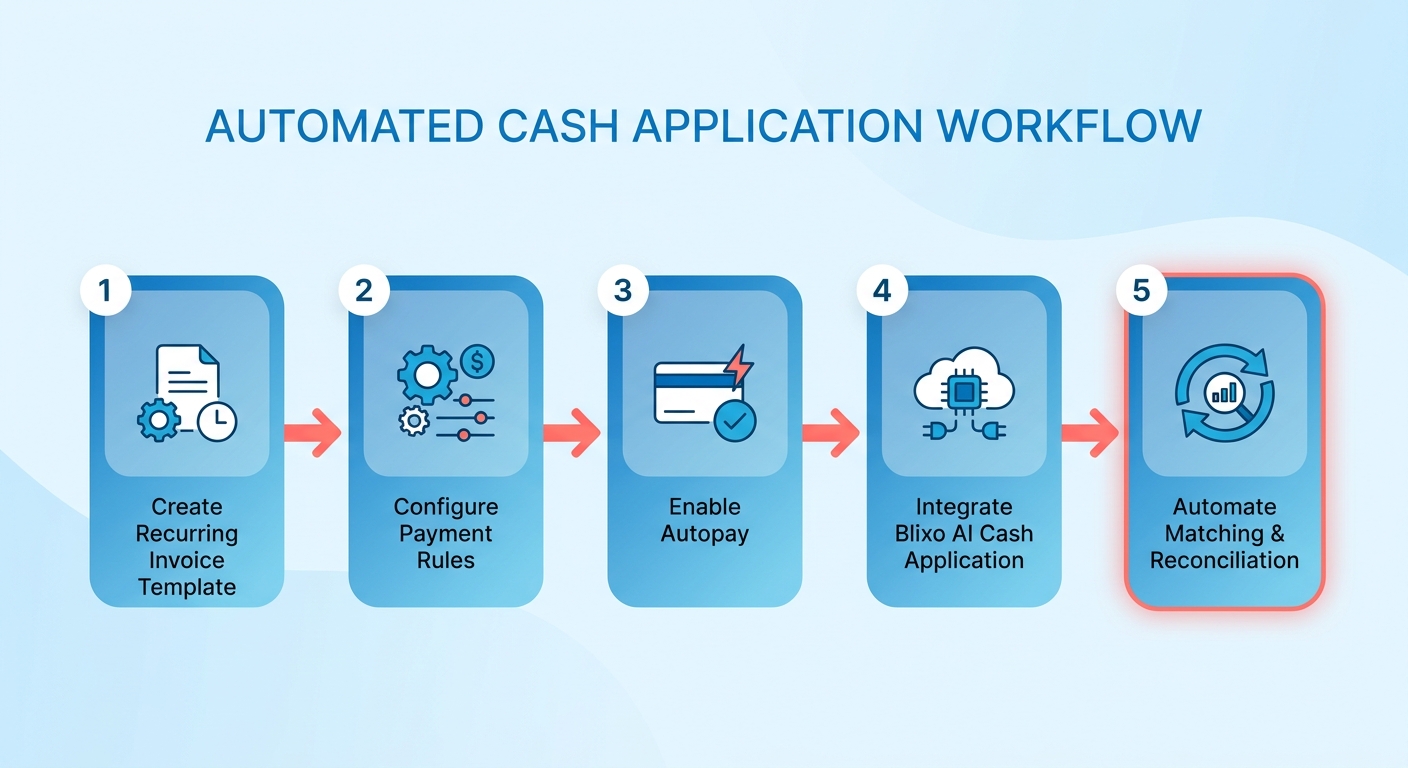
Three pieces: recurring invoice templates, Autopay, and the integration that handles reconciliation downstream. Build them in that order.
Creating a recurring invoice template
Start with a template for invoices that repeat. In QuickBooks Online, go to the Invoicing menu, select Recurring Transactions, and choose New Template. Add client info, line items, and payment terms, then set the frequency — daily, weekly, monthly, or yearly. Save it, and QuickBooks generates invoices on that schedule. For subscription billing, this is what keeps things consistent and off your manual to-do list.
Enabling Autopay
Autopay lets customers pay recurring invoices automatically, with a few requirements. The invoice has to sit under the threshold limits mentioned earlier, and the customer needs an Intuit account. From the Client Center, pick a client, click Autopay, and toggle it on. Confirm the payment method, then have the customer approve it in their Intuit account. Payments run three days before the due date, or immediately if the due date is closer than that. It cuts late payments — but it won’t touch daily recurring invoices, which QuickBooks doesn’t support for Autopay.
Connecting Blixo for reconciliation
Once QuickBooks is configured, link it to Blixo’s cash application engine and define your automation rules in the Blixo dashboard. From there, incoming transactions update ledger balances on their own. Say a customer pays $150 against a $200 invoice — Blixo records the partial amount and updates the remaining balance in QuickBooks without anyone touching it. When something looks off, the transaction logs record every ledger update and payment deviation, so you can trace exactly what happened.
Practices worth keeping
Audit your recurring templates regularly so pricing and terms don’t drift. If your subscription tiers move around, update templates quarterly. When you bring Blixo online, test the automation rules on a small batch of invoices before going wide. If Autopay fails for a customer, check their Intuit account first — usually it’s an outdated payment method or insufficient funds. Blixo also flags unusual payment patterns, which buys you time to look before reconciliation runs. Teams that follow this tend to see manual errors drop by around 40%.
Security and compliance for automated payments
How Blixo protects payment data
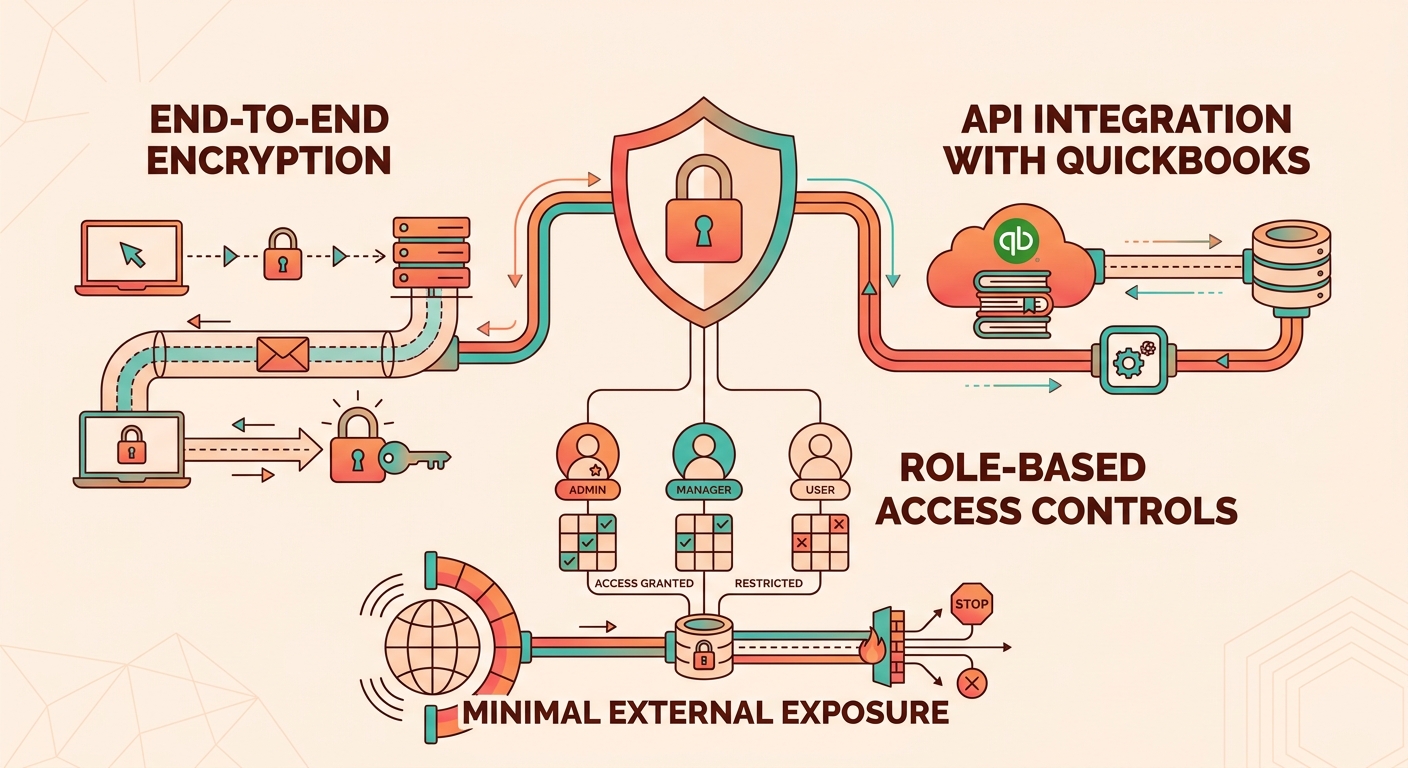
Payment data gets end-to-end encryption in transit and at rest, covering card numbers and account details. Direct secure connections keep that data off external networks, which shrinks the attack surface. Access controls and role-based permissions limit who can see or change payment configurations, so only the right people handle financial data. Regular security audits and penetration testing back all of it up, in line with what’s expected of financial software.
What PCI compliance requires here
Automated payment systems have to meet PCI DSS — secure network, cardholder data protection, access monitoring. For recurring payments specifically, that means tokenization: sensitive card data gets swapped for non-sensitive tokens in storage, so raw card numbers never sit in your database. Blixo hands card processing off to certified third-party gateways, which keeps most of the raw-data handling out of your own systems. That narrows your audit scope and lowers the noncompliance risk.
Staying compliant day to day
Turn on multi-factor authentication for anyone with payment access, and enable logging so every payment action is recorded. Review reconciliation reports regularly to catch anomalies — mismatched transactions, changes nobody authorized. Because the system updates ledger entries automatically, double-check that your matching rules line up with QuickBooks’ billing terms, or you risk misclassifying revenue. And revisit integration settings yearly to stay current with privacy regulations like GDPR or CCPA, depending on who your customers are.
The point of building security into the workflow is that it takes manual effort out of the compliance-heavy parts while keeping records audit-ready.
Troubleshooting automated recurring payments
Resolving payment mismatches
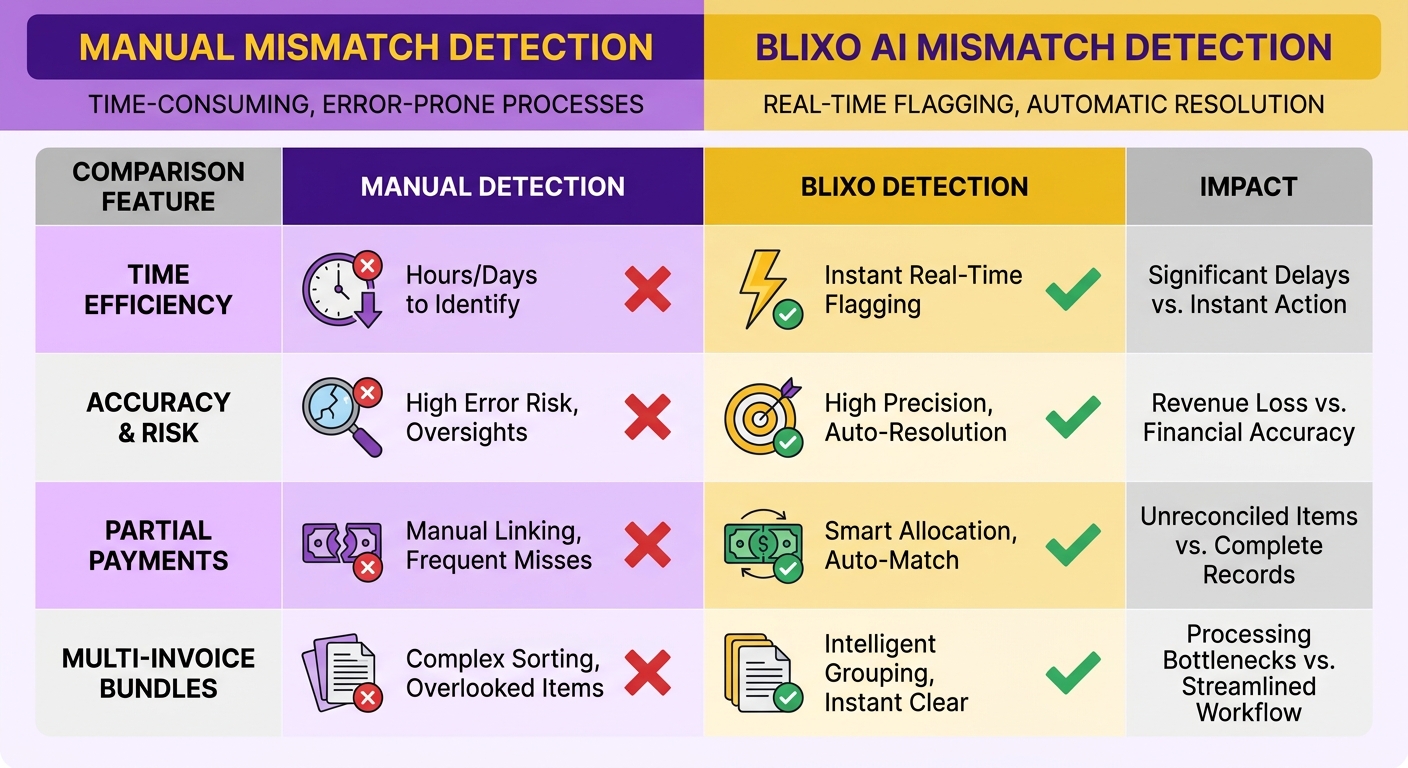
When a recurring payment won’t reconcile against an invoice, the system flags it automatically by cross-referencing transaction metadata — customer names, amounts, due dates. No sifting through bank feeds. If a payment doesn’t match any single open invoice, the engine looks at outstanding balances and suggests the most likely allocation.
Start at the reconciliation dashboard, which surfaces flagged transactions. Click a mismatched item, review the suggested match, and confirm or adjust. The system learns from your corrections and gets sharper over time. For the genuinely tangled cases, support can step in and trace the payment path through the system logs to untangle the billing logic.
Integration errors
These usually trace back to outdated credentials or mismatched data fields between QuickBooks and your payment processor. The sync is built to run continuously, but a failed data pull can still interrupt the flow. A built-in health check tool scans for connectivity problems and fixes most of them without a developer.
If an error sticks around, the support portal walks you through verifying credentials and refreshing data mappings. When a recurring template in QuickBooks isn’t updating, the tool prompts you to resynchronize it, so billing-schedule and customer-detail changes actually propagate. Automated tests run in the background to catch integration drift before it becomes downtime.
Preventing failures before they happen
Prevention does most of the work. Proactive alerts warn you about expired payment methods or missed invoices before they turn into failed transactions. If a customer’s card is about to expire, the system sends a heads-up to update it.
A few habits that help:
- Watch the payment health score, which rolls up on-time payments and reconciliation accuracy. A dip is your signal to look closer.
- Use the sandbox to test new recurring payment rules before they go live — simulate tiered pricing changes or upgrades without putting real revenue at risk.
- Enable detailed logging so you can trace an error to its root, whether that’s a misconfigured invoice or a processor delay.
Pair the automated tooling with these and subscription businesses cut manual troubleshooting by up to 80%. Steadier cash flow, fewer reconciliation delays.
Frequently Asked Questions
1. How does Blixo handle partial payments that QuickBooks Autopay cannot process?
The platform processes underpayments by updating the outstanding balance on the specific invoice within QuickBooks. It then generates a notification for the customer showing the remaining amount due, ensuring the ledger remains accurate without requiring manual adjustments or disabling the recurring schedule.
2. What steps are required to integrate Blixo with QuickBooks Online?
Users authorize the connection through QuickBooks’ secure app store, granting permissions for data synchronization. Once authorized, the system verifies the connection by running a test sync of active customer accounts and open invoices to ensure data fields align correctly.
3. Can Blixo reconcile multi-invoice transactions in a single payment?
Yes. The system uses customizable allocation rules, such as applying funds to the oldest outstanding invoice first (FIFO) or distributing them proportionally across all open invoices associated with that customer profile.
4. How does Blixo improve revenue forecasting accuracy?
By eliminating the time lag between payment receipt and ledger reconciliation, finance teams gain immediate visibility into settled cash. This removes the guesswork associated with pending bank deposits, allowing for more precise cash flow projections.
5. What security measures does Blixo use for payment data?
The platform isolates sensitive cardholder data by routing transactions directly through secure, certified payment gateways. This ensures that raw credit card numbers are never stored on internal servers, minimizing security risks.
6. How does Blixo resolve payment mismatches automatically?
The matching engine compares transaction metadata against open invoices. If a discrepancy occurs, the system places the transaction in a pending queue and presents a recommended match for user confirmation, updating its matching algorithms based on the final selection.
7. What limitations does QuickBooks Autopay have compared to Blixo?
QuickBooks Autopay is designed for static, predictable billing and automatically deactivates if invoice amounts change or if the schedule is set to daily. Blixo provides the flexibility needed to handle fluctuating subscription tiers and custom billing cycles without service interruptions.