

How to Catch Failed QuickBooks Recurring Payments, Retry, and Dun Them

Key Takeaways
- Most failed recurring charges are recoverable. Retry and dunning inside 48 hours pulls back 60–75% of them.
- Credit card declines are your biggest bucket (about 40% of failures) and the one that actually needs a human to email the customer.
- ACH errors (about 30%) usually just need patience. Retry after 1–3 days and most sort themselves out.
- Plugin misconfigurations (about 20%) are the ugly ones. Webhook reissues, API fixes, real technical work.
- A two-step retry schedule at 24h and 72h, paired with automated notifications, cut failed payments by 58% in practice.
- Customer outreach to update a card lands around 62% of the time, but it costs you 15–20 minutes per case.
- Blind manual retries in QuickBooks work about 35% of the time. Cheap at 5–10 minutes, but don’t lean on them.
The short version
Managing QuickBooks Online recurring payments isn’t a set-it-and-forget-it job. If you bill subscriptions through QuickBooks, charges will fail. Expired cards, stale payment info, integration errors. The businesses that recover this revenue are the ones running structured retries and dunning workflows before the money quietly disappears.
Triage failures by cause, not by date
QuickBooks throws a notification banner on the Home page when a recurring charge fails, but don’t trust the banner to catch everything. Check manually. Then sort failures by root cause, because the fix is different for each:
- Credit card declines are usually expired cards or frozen accounts. No amount of retrying fixes that. Somebody has to contact the customer.
- ACH errors are often just settlement delays or routing hiccups. Wait a couple days and retry.
- Subscription plugin misconfigurations are a broken handshake between your storefront and your accounting software. Technical fix required.
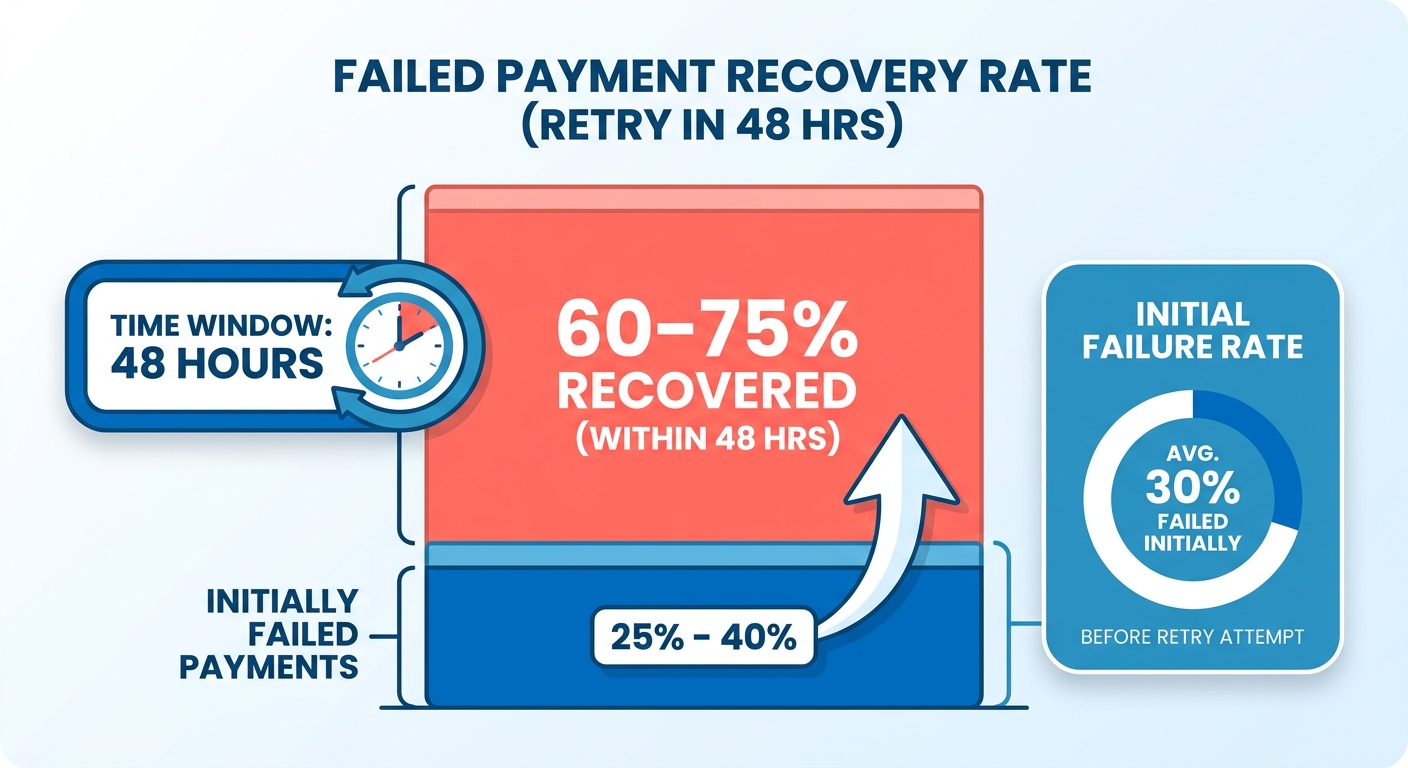
The rule I use: retry transient errors immediately (network blips, timing conflicts), but delay retries for permanent errors (expired cards) until the customer actually does something. A multi-day gap between attempts gives people time to update their billing and keeps you from racking up gateway fees on charges that were never going to clear.
What recovery actually costs you
| Task | Time Required | Difficulty | Success Rate |
|---|---|---|---|
| Manual retry in QuickBooks | 5–10 mins/case | Low | 35% |
| Customer outreach for updates | 15–20 mins/case | Medium | 62% |
| Plugin/webhook fixes | 1–2 hrs/case | High | 85%+ |
If you’re running 100+ active subscriptions, block 1–2 hours a week to work through the Credit Card Processing Errors page. That alone can cut payment disputes by 40%. ACH failures are lower priority. Roughly 70% of them clear on their own without you touching anything.
The trap is treating all failures the same. Automate retries for the transient stuff, and spend your actual human time on high-value customer conversations. QuickBooks’ native retry system is rigid, though. If you want custom retry schedules or dunning messages, you’ll need to bolt on a third-party tool like Blixo’s automated collections workflows.
Why a failed charge is worse than it looks
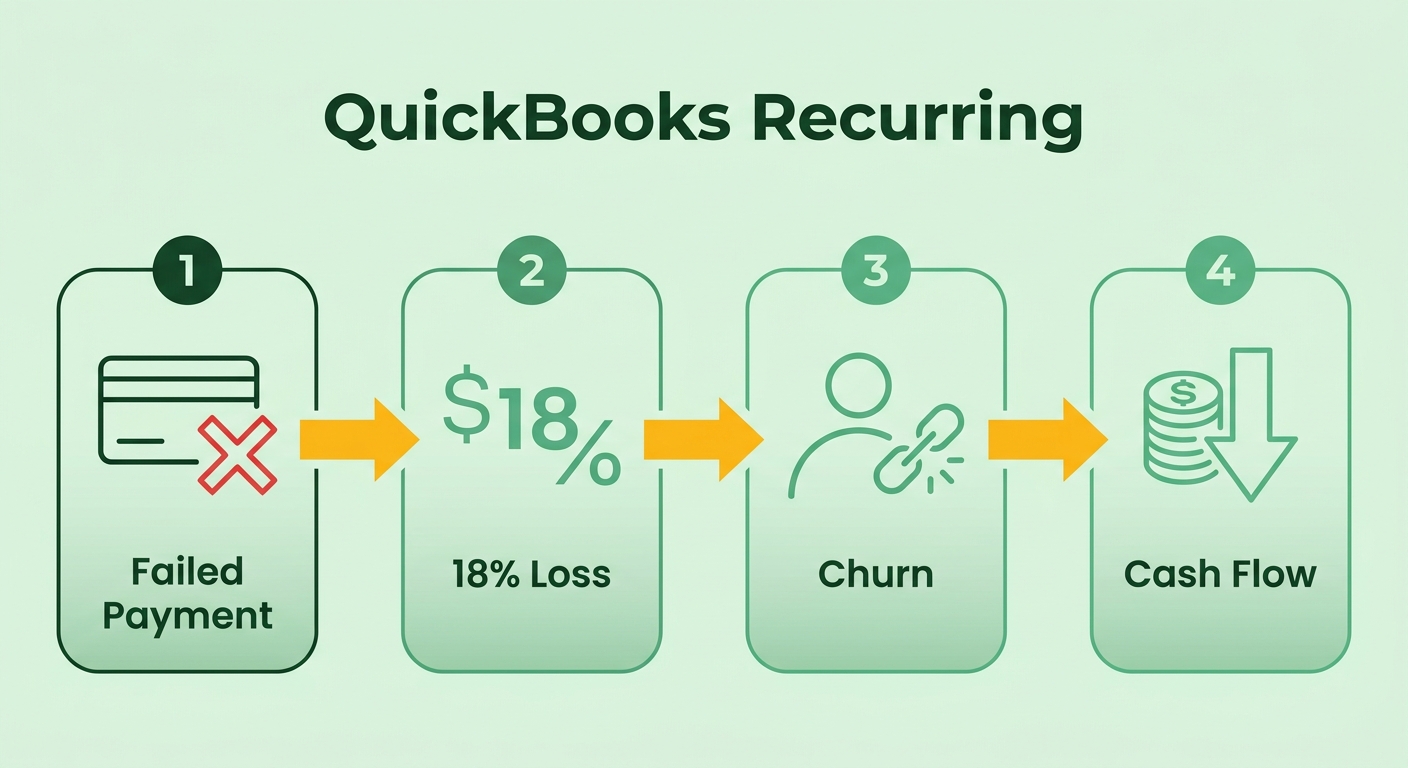
A failed recurring payment isn’t just a missing deposit. It’s a cash flow gap and a trust problem at the same time. When automated billing breaks, from an expired card, an integration fault, or a misconfigured plan, you lose revenue and you start bleeding customers who never even knew there was a problem.
The failure modes are boring and predictable: outdated payment methods, third-party integration flaws, config errors in the subscription plans themselves. Expired cards without automated retries or clear outreach just vanish into dead ends. A misconfigured webhook between a membership plugin and QuickBooks silently drops renewals, and you don’t notice until churn spikes. One business hit a 22% churn jump before they traced it back to a broken integration.
The operational tax you don’t see on the invoice
Every failed payment costs more than the payment. Someone has to chase the update, reprocess the invoice, or manage a service disruption for a customer who’s now annoyed. For a business on thin margins, even a 10% failure rate erodes profit over time. Setting up recurring payments is the easy part. Automating retries and dunning is where the money actually gets recovered.
The usual suspects
Beyond expired cards, a big chunk of declines come from incorrect billing addresses or insufficient funds. Together those account for roughly 35% of recurring declines. Integration mismatches, like mismatched subscription tiers or outdated API endpoints, add another 25%. In one case a routine software update quietly scrambled billing schedules and delayed renewals until the workflows got recalibrated. Which is why audits of your plans and third-party tools aren’t optional busywork.
What “ignore it” actually costs
An e-learning platform sat on failed ACH payments for weeks, assuming customers would fix themselves. They didn’t. A 20% jump in inactive accounts and $15,000 in unrecoverable losses later, they finally added retry logic and automated email reminders. QuickBooks’ own guidance is to retry inside 48 hours and communicate clearly about updates. For subscription businesses where retention is the whole game, that’s not best practice. It’s survival.
The flip side is real too. A retail chain running recurring ACH for bulk orders cut late fees by 50% just by tightening their retry cadence and updating customer notifications. Subscriptions, retainers, membership dues, doesn’t matter. The tooling to automate most of this exists. It only helps if you use it before the next charge slips through.
How to actually retry a failed charge
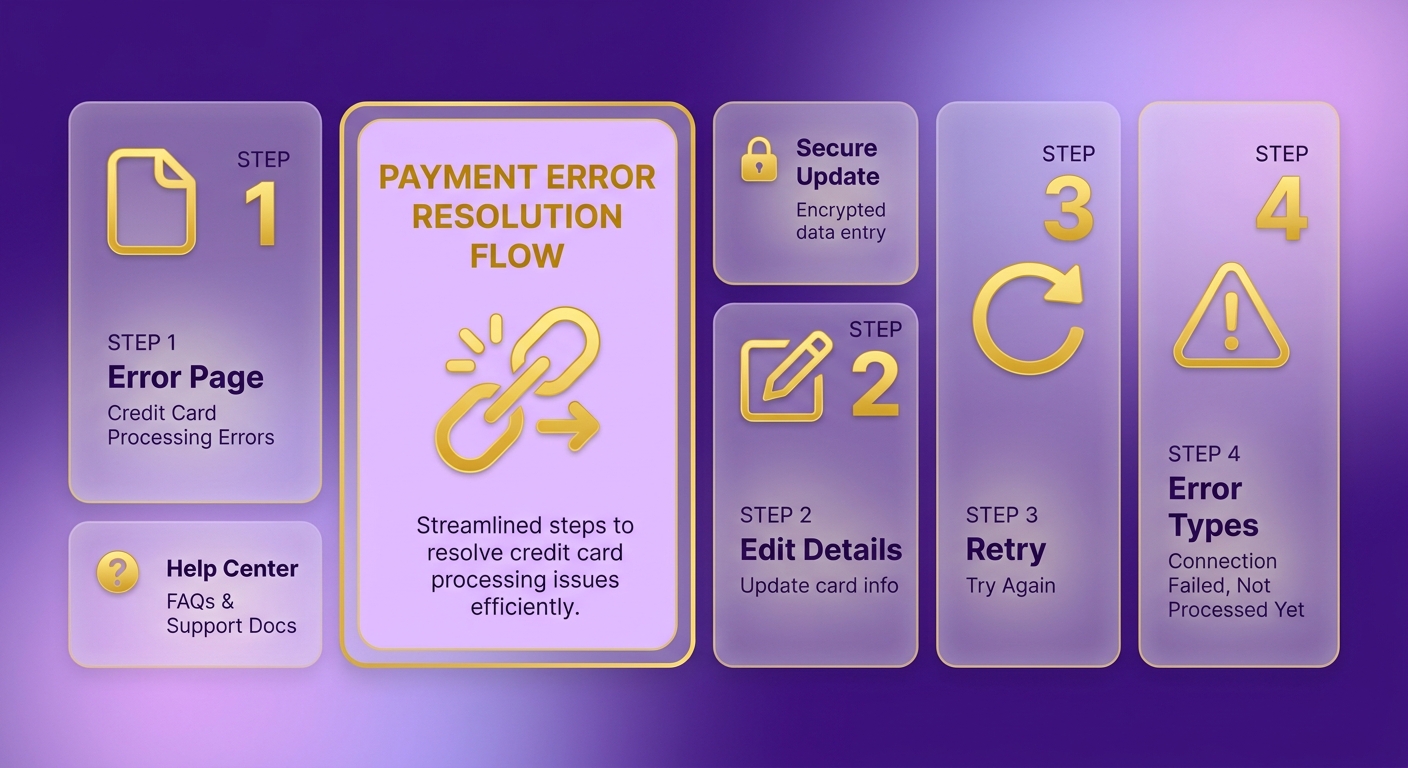
Start at the Credit Card Processing Errors page. It lists every transaction that couldn’t process, usually the same ones flagged by that Home page banner. From here you can edit stale payment details or hit “Try Again” to resubmit. Error types like “Connection Failed” or “Not Processed Yet” show up here and tell you whether you’re dealing with an expired card, bad ACH details, or an integration problem.
Retrying without deleting anything
You don’t need to nuke and recreate a failed transaction. Get to the Credit Card Processing Errors page from the banner or the menu, pick the failed transaction, and choose “Try Again” to resubmit. This works for temporary stuff, brief processor outages, timing conflicts. If it fails again, read the error. “Connection Failed” usually means a gateway misconfiguration. “Not Processed Yet” often just means wait 24–48 hours and try again.
When you have to edit the payment info
Expired cards and wrong bank details won’t fix themselves with a retry. Open the failed transaction, click “Edit”, and update the payment method or banking info. For recurring templates, go to Sales > Recurring Transactions and fix the payment details on the original setup. QuickBooks pushes those changes to future cycles automatically. One habit worth keeping: cross-reference failed payments against customer profiles in the Transaction List under Sales > Customers before you retry, so you’re not resubmitting against data that’s still wrong.
Timing your retries
Match the retry to the failure type. Expired card? Send the customer a notification to update before you retry. ACH error? Verify the routing number and account details first. Don’t immediately retry a hard decline like insufficient funds. Those need actual customer outreach, not another automated swing. QuickBooks’ own workflow is simple enough: retry once inside 24–72 hours, then follow up with the customer if the second attempt whiffs. And audit your recurring templates now and then so a stale setting isn’t quietly manufacturing failures.
Immediate retries for the temporary errors, proactive updates for the persistent ones. Do both and you’ll recover most failed transactions without wrecking cash flow or annoying customers.
Prevention: keep the data current before it breaks
Outdated payment methods, expired cards, wrong bank details. These are the leading causes of failed recurring charges, and they’re all preventable. QuickBooks flags issues with dashboard alerts, but alerts are reactive by nature. The businesses that stay ahead are the ones keeping records current before a charge fails. If a customer’s banking details lapse or a subscription plan misconfigures its renewal terms, the payment fails. Full stop. The Credit Card Processing Errors page lets you review failures and update payment methods directly, which fixes the immediate problem and prevents the repeat.
The maintenance routine
QuickBooks logs failed transactions with error codes right in the customer profile or the recurring transactions list. From there:
- Edit stale payment details, like expiring cards or wrong ACH info.
- Review recurring templates so subscription terms still match the customer agreement.
- Update the billing address and cardholder name to match the bank’s records exactly.
Regular profile audits matter just as much. A consulting firm running monthly retainers got hit with a string of failures because corporate cards on file had expired with no alert firing. They fixed it by setting up an automated email that prompts clients to update billing 30 days before card expiration. Boring, effective, and it stopped the bleeding.
Let tools do the checking
Manual updates are reactive by definition, and humans miss things. Some platforms offer two-step verification for major changes like updating a bank account. QuickBooks handles retry logic for failed charges, but pairing it with external tools lets you enforce stricter validation, checking for expiration dates or insufficient funds before a charge even goes out.
The preventive checklist
- Schedule reviews: use QuickBooks’ dashboard alerts to flag inactive or outdated accounts.
- Communicate early: email or call customers before their payment details expire, not after.
- Audit integrations: make sure third-party subscription plugins actually sync with QuickBooks so you don’t end up with data silos.
Bake these into your workflow and you get fewer failed payments and a more predictable revenue stream. That’s the whole payoff.
When to stop troubleshooting and call support
Some problems don’t yield to standard troubleshooting. Recurring failures tied to integration errors, misconfigured billing cycles, or third-party service disruptions are where QuickBooks support earns its keep. Before you reach out, gather the specifics: which recurring payments, what error messages, what you’ve already tried. That documentation is the difference between a fast resolution and a 40-minute game of twenty questions.
Prep before you contact them
Support needs concrete detail to move fast. Bring:
- Exact error messages (“Transaction not processed”, “Invalid payment method”)
- Dates and amounts of the failed payments
- Screenshots of the affected transactions or error pages
- Steps already attempted (retries, updated payment details)
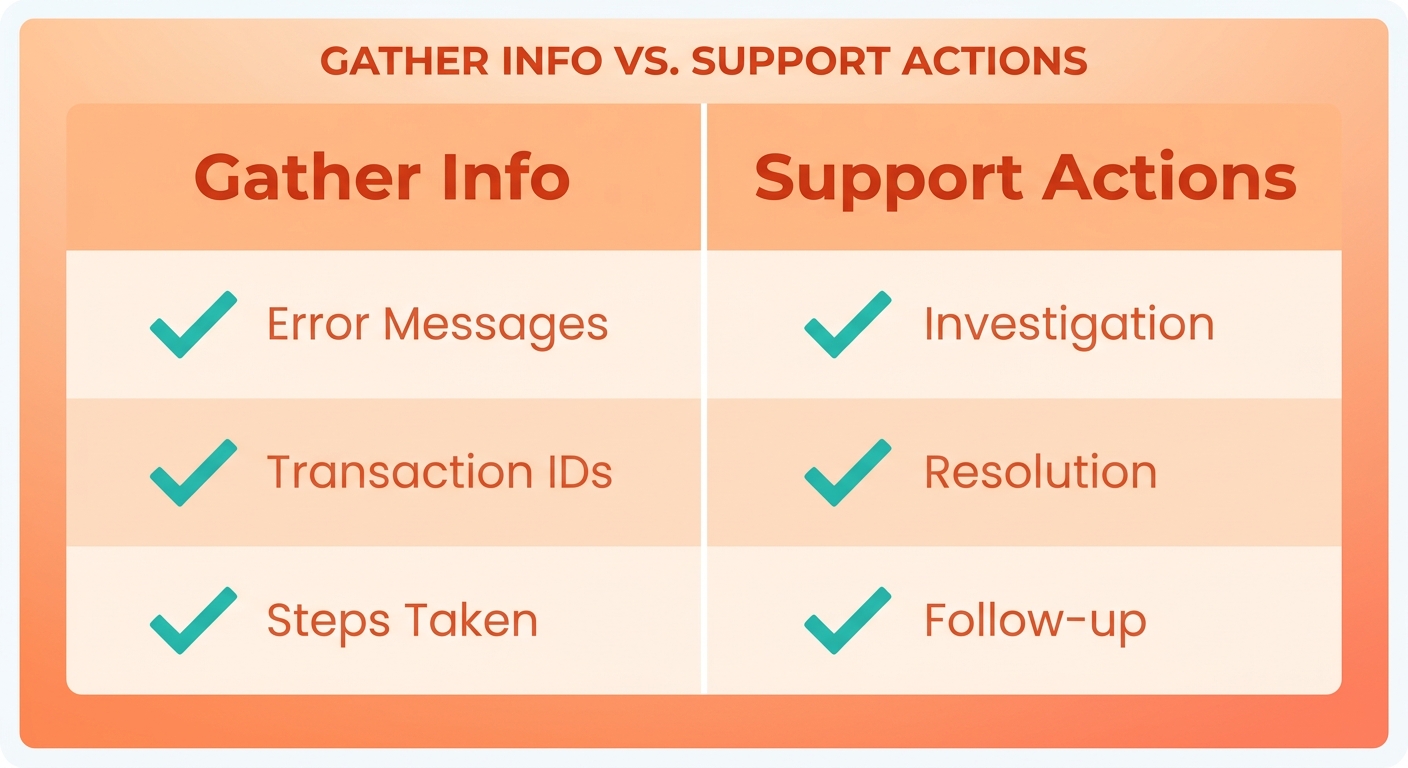
If recurring ACH keeps failing on bad routing numbers, bring the transaction history and customer communication logs to show it’s a pattern, not a one-off. Agents use that to trace whether the fault is in QuickBooks, your config, or a third-party gateway.
What support can actually fix
The problems worth escalating usually come from:
- Misconfigured subscription plans (wrong billing intervals)
- Third-party integration conflicts (payment gateway timeouts)
- System-level errors (server outages hitting payment processing)
Expired-card failures are common here. QuickBooks flags them, but its automated retry logic won’t always update payment methods across every linked account. Support can manually adjust billing profiles or reconfigure dunning to automate the fix going forward.
Catch it before it becomes a support ticket
Automated tools can flag issues before they blow up. A dashboard that surfaces unusual patterns, like a sudden spike in ACH errors, lets you fix config gaps before you ever open a ticket. One business used automated alerts to catch a misconfigured tax setting causing recurring overcharges, then handed it to QuickBooks support, who resolved it in under 24 hours.
To reach support, go to the Help menu in QuickBooks Online, click “Contact Us,” and pick “Billing & Payments.” For urgent issues, use chat or the dedicated support line. Reference your case number every time so you’re not re-explaining the whole story if a second agent picks it up. Good documentation plus proactive monitoring closes these problems faster and keeps the revenue gaps small.
Frequently Asked Questions
1. How do I decide between retrying a payment immediately or waiting for customer updates?
Retry immediately for transient errors like temporary network glitches or processor timeouts. For permanent errors, such as expired cards or closed accounts, hold off on retrying until you have contacted the customer to update their billing details, as immediate retries on hard declines will continue to fail.
2. What’s the best way to handle recurring ACH errors that persist after retries?
Verify the routing and account numbers with your customer to ensure no typos exist. Because many ACH declines stem from temporary settlement delays, waiting a few business days often allows the transaction to clear on a subsequent attempt without further manual intervention.
3. Can third-party tools automate parts of the failed payment recovery process?
Yes, specialized billing platforms can automate retry schedules, send customized dunning emails, and validate payment details before processing. These integrations bridge the gap between your storefront plugins and QuickBooks, handling complex billing logic automatically.
4. How often should I audit my subscription plugins to prevent recurring payment failures?
It is best practice to audit your subscription plugins monthly, particularly after software updates. Verifying that webhooks are active and testing the integration flow ensures that renewal signals are successfully transmitted to QuickBooks without silent failures.
5. What’s the most time-efficient strategy for managing failed payments with a large customer base?
Focus on automating low-effort retries for temporary errors first. For high-value accounts or persistent failures, set aside a dedicated weekly block to review your processing error logs and conduct direct customer outreach to secure updated payment methods.
6. Are there limitations to QuickBooks’ retry system that I should be aware of?
QuickBooks Online has a relatively rigid retry system that does not support custom retry intervals or automated, multi-stage dunning emails. To implement advanced retry cadences or personalized customer notifications, you will need to integrate a dedicated subscription management tool.
7. How can I prioritize which failed payments to address first?
Begin by addressing credit card declines and ACH errors, as these represent the vast majority of failed transactions. Address technical integration or plugin issues next, and always focus your manual recovery efforts on high-value accounts first to protect your cash flow.