

Automated Invoice Scanning Checklist for Blixo Users

Key Takeaways
- Automate invoice scanning to cut manual errors by 40-60%, saving mid-sized firms $15,000 annually.
- Reduce accounting time by 50% through automation, allowing staff to focus on strategic projects.
- Speed up reconciliation by 38% with automated workflows, avoiding payment delays and vendor strain.
- Cut audit preparation effort by 23% using consistent, AI-validated invoice data.
- Eliminate spreadsheet dependency, as 80% of firms still rely on fragmented tools for invoicing.
- Reallocate 25% of saved time to high-value tasks after automating repetitive invoice processing.
- Prevent 2-3% annual revenue loss from manual invoicing errors by standardizing data capture.
Why Automated Invoice Scanning Matters
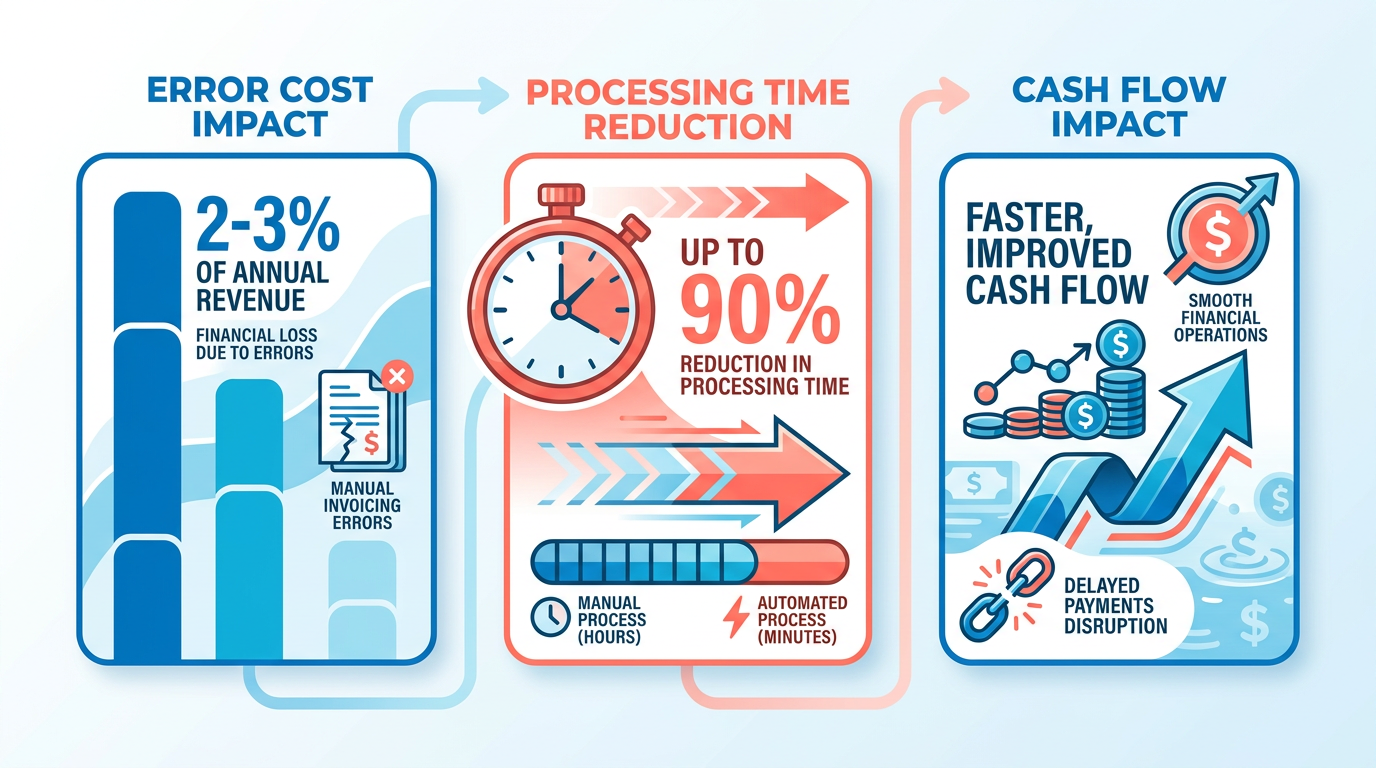
Automated invoice scanning reduces errors, cuts processing time, and prevents costly delays-critical for businesses handling high-volume transactions. Manual invoicing errors can cost companies 2-3% of annual revenue, while delayed payments disrupt cash flow and strain vendor relationships. By automating this process, Blixo users gain accuracy, speed, and visibility into their financial workflows. Below, we break down why this matters for your team.
How Manual Invoicing Slows You Down
Manual processes create bottlenecks, with reconciliation taking 38% longer and audit prep requiring 23% more effort without automation. For businesses handling hundreds of invoices monthly, this translates to wasted hours and increased risk of human error.
- Reduce error rates by 40-60% using AI-driven validation. Manual data entry mistakes-like transposed numbers or mismatched line items-cost mid-sized firms an average of $15,000 annually in corrections. As mentioned in the Pre-Scanning Checklist for Blixo Users section, identifying invoice formats upfront helps minimize such errors by ensuring consistent data capture.
- Save 50% of accounting time by eliminating repetitive tasks. One company reallocated staff to strategic projects after automating invoice processing, boosting productivity by 25%.
- Avoid spreadsheet dependency. Eighty percent of firms still rely on fragmented tools, leading to missed insights and inefficient workflows.
Real-World Impact of Delays
Late payments trigger late fees, damaged vendor trust, and cash flow gaps. A mid-sized firm improved cash flow by 30% after implementing automated reminders and payment tracking, while another cut invoice processing time from 48 hours to 4 hours using OCR technology. Building on concepts from the Automated Invoice Scanning and Upload to Blixo section, OCR integration ensures rapid and accurate processing by matching vendor records against incoming payments.
- Prevent late fees and penalties. Automated systems flag due dates and send instant alerts, reducing the risk of missed deadlines by 90%.
- Cut administrative overhead by 35%. One firm reallocated staff from data entry to client-facing roles, improving team morale and service quality.
- Speed up reconciliation. OCR technology matches transactions in seconds, reducing manual review time by 70% and flagging discrepancies for quick resolution.
Who Benefits Most from Automation
Automation delivers value across departments, but certain teams see immediate ROI.
- Accounting and finance teams. Those spending 20+ hours weekly on invoice processing gain back 10+ hours monthly, enabling deeper financial analysis.
- Procurement managers. Real-time visibility into vendor payments reduces disputes by 60%, as seen in a case study where one firm improved vendor satisfaction scores by 40%.
- Business owners. Automated workflows cut administrative costs by 35%, with one business owner noting, “We reinvested savings into scaling our operations.”
Key Features to Maximize Impact
Use Blixo’s tools to address common pain points:
- AI-powered data validation ensures 98% accuracy in extracting invoice details, minimizing rework. As outlined in the Post-Scanning Validation and Reconciliation section, this feature aligns with structured validation processes to maintain compliance.
- OCR integration matches vendor records against incoming payments, reducing reconciliation time by 70%.
- Customizable alerts notify teams of discrepancies or due dates, preventing late fees and payment delays.
By automating invoice scanning, businesses eliminate the guesswork of manual workflows. Teams regain time, reduce errors, and focus on strategic growth. Start with high-volume invoice processes to see measurable improvements in efficiency and financial control.
Pre-Scanning Checklist for Blixo Users
-
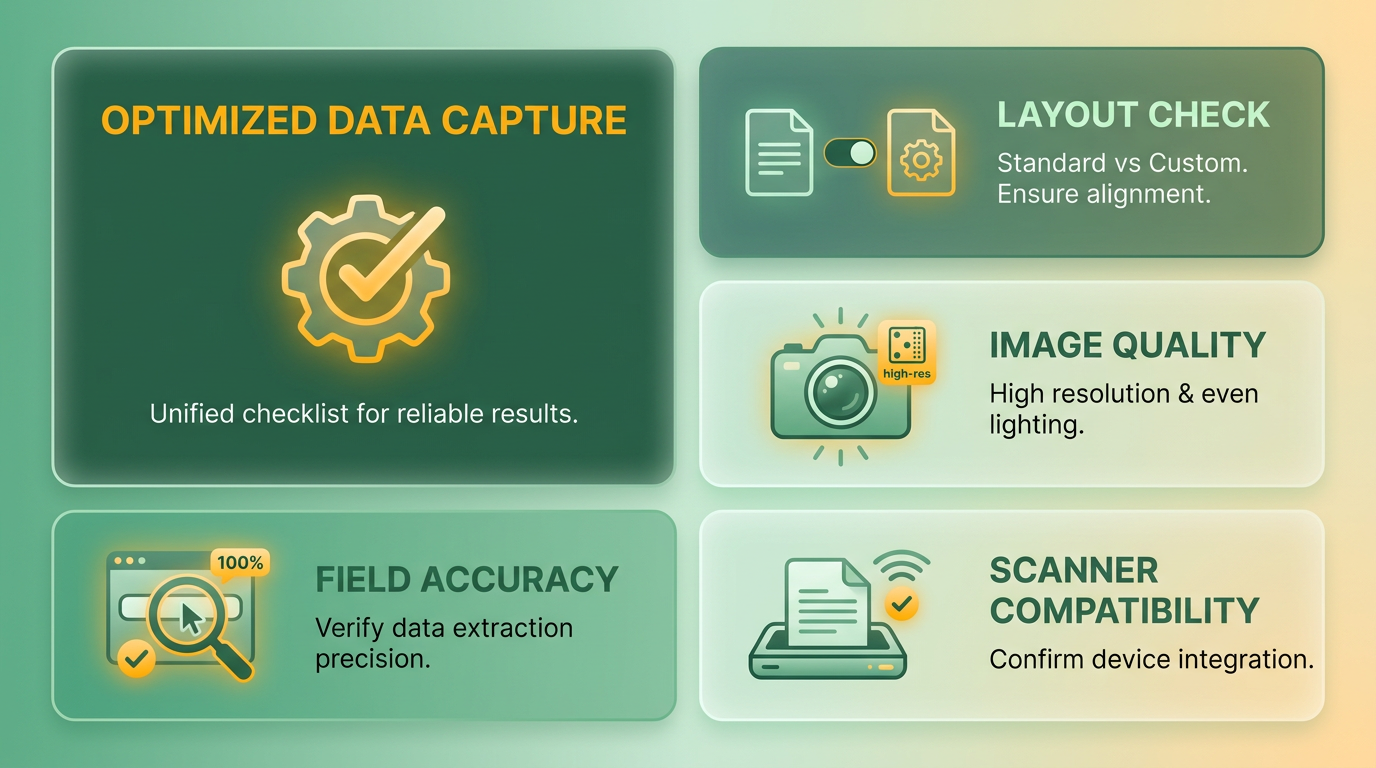
Check for standard vs. custom layouts. Standard templates simplify setup, while custom designs may require manual configuration for fields like vendor addresses or item descriptions. As mentioned in the Automated Invoice Scanning and Upload to Blixo section, custom formats often require additional steps during the scanning workflow to maintain accuracy.
-
Adjust resolution and lighting. For physical scans, ensure images are at least 300 DPI with neutral lighting to prevent blurred text. Building on concepts from the Why Automated Invoice Scanning Matters section, clear images reduce errors that could delay payments or complicate reconciliation.
-
Link accounting software. Connect Blixo to your ERP or accounting system (e.g., QuickBooks, SAP) to automate data sync and reduce manual entry. This step aligns with the automation principles discussed in the Why Automated Invoice Scanning Matters section.
-
Configure alerts for anomalies. Set thresholds for unusually high line-item costs or missing signatures to flag exceptions for review. These rules complement the validation processes described in the Post-Scanning Validation and Reconciliation section.
-
Train staff on error resolution. Equip users to handle OCR failures by editing extracted data directly within Blixo’s interface. This training reinforces the accuracy improvements highlighted in the Post-Scanning Validation and Reconciliation section.
Automated Invoice Scanning and Upload to Blixo
Automated invoice scanning and upload to Blixo streamline accounts payable workflows by reducing manual data entry and accelerating payment processing. The process begins with scanning physical invoices using a compatible scanner or uploading digital copies directly to Blixo’s SaaS service. Once uploaded, Blixo use optical character recognition (OCR) to extract key fields like vendor names, invoice numbers, dates, and amounts. This data is then automatically synced with your accounting software, eliminating the need for manual input. Below is a structured checklist to ensure seamless integration and operation.
How Does the Automated Upload Process Work?
Start by preparing invoices for scanning. Use high-resolution scans or clear digital images to ensure OCR accuracy. Blixo supports common file formats like PDF, JPEG, and PNG, and integrates with cloud storage services for bulk uploads.
- Scan or upload invoices to Blixo: Connect your scanner or drag-and-drop files into the Blixo dashboard. As mentioned in the Pre-Scanning Checklist for Blixo Users section, identifying common invoice formats ensures compatibility with Blixo’s OCR technology.
- Verify OCR extraction: Review auto-populated data fields for accuracy before finalizing upload. Building on concepts from the Post-Scanning Validation and Reconciliation section, verifying OCR results aligns with structured validation processes to ensure accuracy.
- Sync with accounting software: Confirm that extracted data aligns with your chart of accounts and payment schedules.
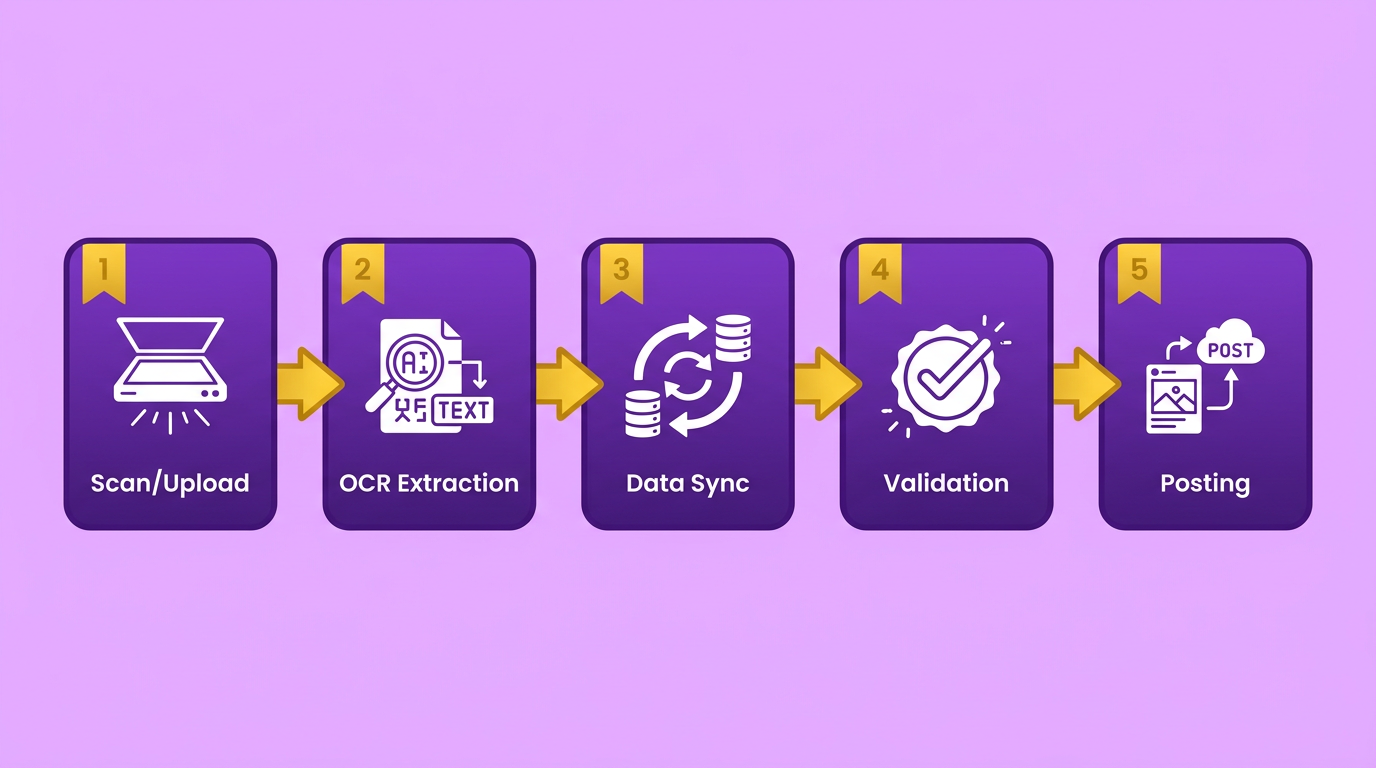
Blixo’s system automatically categorizes invoices based on predefined rules, such as vendor type or department, ensuring they’re routed correctly for approval. This step minimizes delays and ensures compliance with internal workflows.
What Happens During Invoice-Payment Matching?
After invoices are uploaded, Blixo matches them to corresponding payments using automated reconciliation tools. This process relies on matching invoice numbers, amounts, and vendor details against payment records.
- Enable automated matching: Set up rules in Blixo to align invoices with bank feeds or payment gateways.
- Resolve discrepancies: Flagged mismatches (e.g., partial payments or duplicate invoices) require manual review. Blixo highlights these for quick correction.
- Generate reconciliation reports: Use Blixo’s dashboards to track matched and unmatched items in real time. Building on concepts from the Post-Scanning Validation and Reconciliation section, Blixo’s dashboards use structured validation processes to track matched and unmatched items.
This feature saves time by reducing the need for manual cross-checking. For example, if a payment is made for $500 but the invoice states $550, Blixo alerts you to the discrepancy, preventing overpayments.
How to Handle Errors and Reconcile Data?
Errors are inevitable in invoice processing, but Blixo’s tools simplify troubleshooting. Start by auditing the OCR extraction process for typos or formatting issues.
- Review error logs: Blixo logs failed uploads or mismatched invoices for analysis.
- Re-upload corrected files: If an invoice scan is blurry, resubmit a clearer version through the platform.
- Use reconciliation workflows: Assign unresolved items to specific team members for resolution via Blixo’s task manager.
For data privacy, Blixo encrypts all uploaded files and complies with standards like GDPR and SOC 2. Access controls ensure only authorized users can view sensitive invoice details. Regularly audit permissions and update encryption protocols to maintain compliance.
What Privacy and Compliance Features Are Critical?
Data security is non-negotiable when handling financial documents. Blixo employs end-to-end encryption for data in transit and at rest, ensuring no unauthorized access occurs during uploads or storage.
- Enable multi-factor authentication: Protect user accounts from breaches.
- Assign role-based permissions: Limit access to sensitive invoice data.
- Schedule compliance audits: Use Blixo’s audit trail to demonstrate adherence to regulations during audits.
By following these steps, businesses can automate invoice workflows while maintaining control over data integrity and security. Blixo’s focus on transparency and user-friendly design ensures that even teams new to automation can adopt the system efficiently.
Post-Scanning Validation and Reconciliation
Automated invoice scanning reduces errors by 40-60% through real-time validation, but post-scanning steps ensure accuracy and compliance. This section outlines Blixo’s structured process for validating scanned data, resolving discrepancies, and maintaining performance.
How Does Data Validation Work?
Blixo’s validation rules automatically cross-check scanned invoice data against predefined criteria. For example, the system verifies that invoice numbers match purchase orders, amounts align with contracts, and vendor details are consistent. These rules act as a first line of defense, flagging mismatches before they reach your accounting team.
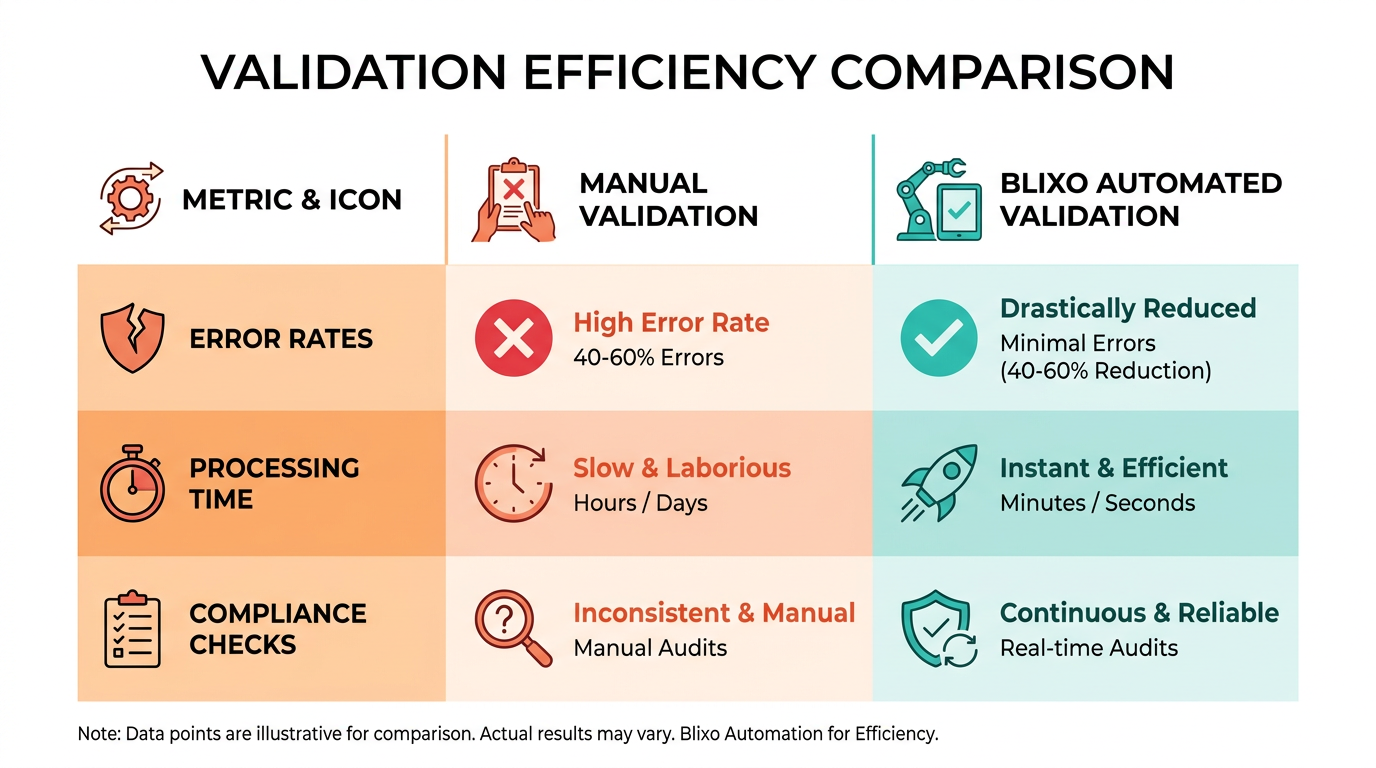
- Validate invoice totals: Ensure line-item sums match the total amount. Discrepancies here often signal scanning errors or data entry mistakes.
- Check date consistency: Confirm invoice dates fall within expected ranges (e.g., no future-dated invoices).
- Match vendor codes: Cross-reference scanned vendor names with your database to prevent misclassified payments.
As mentioned in the Pre-Scanning Checklist for Blixo Users section, identifying invoice formats is critical for validation. Failing to standardize formats before scanning can lead to mismatches during cross-referencing.
A mid-sized firm reduced invoice processing time from 48 hours to 4 hours by enforcing these rules, as reported in Blixo’s technical documentation.
What Happens When Errors Occur?
Even with automation, errors like OCR misreads or formatting issues require manual review. Blixo’s error-handling workflow ensures these exceptions are resolved efficiently.
Error Handling Workflow
- Automatic flagging: The system isolates problematic invoices and highlights specific issues (e.g., “Amount field missing”).
- Assign to reviewer: Errors are routed to designated users via task alerts.
- Resolve or rescan: Reviewers either correct the data manually or trigger a rescan of the document.
For example, if an OCR tool misreads “$450.00” as “$4500.00,” the validation rule flags the outlier. Manual review then corrects the value, preventing payment errors.
- Prioritize critical errors: Flag issues that block reconciliation (e.g., missing tax codes) first.
- Track resolution time: Monitor how long errors stay in your system to identify recurring bottlenecks.
How Do You Monitor Scanning Accuracy?
Regular performance checks ensure Blixo’s automation adapts to new document types and formatting challenges.
Key Performance Metrics to Track
- Accuracy rate: Measure how often scanned data matches source documents. A 98%+ accuracy rate is typical for well-configured systems.
- Processing time: Compare how long validation takes across teams or invoice types.
- Error frequency: Track recurring issues (e.g., “Address field misreads”) to refine validation rules.
Building on concepts from the Scaling Automated Invoice Scanning for High Volume section, organizations handling large volumes should prioritize metrics like error frequency to optimize validation rules dynamically.
One company improved cash flow by 30% after analyzing these metrics and optimizing their scanning templates, as noted in Blixo’s case study on invoice automation.
Troubleshooting Common Issues
- OCR misreads: Poor image quality or non-standard fonts can distort text. Rescan documents at higher resolution or adjust OCR settings.
- Formatting mismatches: Invoices with handwritten notes or irregular layouts may bypass validation. Use Blixo’s template customization tools to handle these edge cases.
- Data field omissions: If fields like “Payment Terms” are missing, update your validation rules to require them.
As discussed in the Automated Invoice Scanning and Upload to Blixo section, ensuring high-resolution scans reduces OCR errors significantly.
A firm cut administrative overhead by 35% after addressing formatting issues in their invoice templates, according to Blixo’s workflow automation guide.
Final Checks for Validation and Reconciliation
Before finalizing invoices, ensure all validation steps are complete. Blixo’s reconciliation tools match validated invoices to vendor records, purchase orders, and accounting entries automatically.
- Run daily reconciliation reports: Identify unmatched transactions and resolve them before month-end close.
- Audit a random sample: Manually verify 5-10% of processed invoices monthly to catch systemic issues.
- Update validation rules quarterly: Adjust rules based on new invoice formats or vendor requirements.
By combining automated validation with structured error resolution, Blixo users reduce reconciliation time by up to 38% compared to manual processes. For further guidance, explore Blixo’s documentation on workflow automation.
Scaling Automated Invoice Scanning for High Volume
High-volume scanning demands rigorous validation to prevent errors from compounding. Start by implementing automated data integrity checks that cross-reference scanned fields against predefined formats. For example, Blixo’s validation engine flags inconsistencies like mismatched invoice numbers or incorrect vendor codes in real time. As mentioned in the Post-Scanning Validation and Reconciliation section, these checks align with Blixo’s structured validation processes to ensure accuracy.
- Set up rule-based validation for critical fields (e.g., amounts, dates) to catch typos or formatting issues
- Enable OCR confidence thresholds to reject low-quality scans before processing
- Use batch reconciliation reports to identify patterns of recurring errors across thousands of invoices
These checks reduce manual review time by up to 70%, as seen in one company’s workflow after integrating Blixo’s validation suite..
Should You Prioritize Parallel Processing or Batch Scheduling?
Parallel processing splits large batches into smaller threads, while batch scheduling groups similar invoices (e.g., by vendor or region) for bulk processing. Building on concepts from the Pre-Scanning Checklist for Blixo Users section, categorizing invoices by format and vendor upfront enhances batch efficiency. For Blixo users, hybrid models often deliver the best results.
- Configure parallel processing for urgent, high-priority invoices
- Schedule overnight batch jobs for routine, low-urgency documents
- Monitor API rate limits to prevent system overload during peak hours
A mid-sized retail chain reduced processing time from 8 hours to 90 minutes by optimizing batch sizes and using Blixo’s cloud-based scaling..
What Infrastructure Changes Should You Plan For?
Start by assessing your current workload and projecting growth. Cloud-based solutions like Blixo allow dynamic scaling, but you’ll still need to optimize storage and compute resources. As noted in the Automated Invoice Scanning and Upload to Blixo section, integrating scalable infrastructure from the initial setup phase ensures smoother transitions to high-volume workflows.
- Use cloud auto-scaling to handle sudden spikes in invoice submissions
- Implement distributed storage for scanned files to avoid single points of failure
- Set up real-time monitoring dashboards to track processing delays
One manufacturing company scaled from 5,000 to 50,000 monthly invoices by adopting Blixo’s serverless architecture, avoiding costly on-premise upgrades.
Conclusion and Next Steps
Automated invoice scanning with Blixo transforms accounting workflows by reducing errors, saving time, and improving accuracy. Below is a structured summary of key actions and resources to ensure a smooth implementation.
What Are the Core Benefits of Automation?
Automating invoice scanning eliminates manual data entry, cuts processing time by up to 90%, and reduces errors by 40–60% through real-time validation. As mentioned in the Post-Scanning Validation and Reconciliation section, this validation process ensures accuracy and compliance. For example, one mid-sized firm reduced invoice processing from 48 hours to 4 hours using Blixo’s OCR technology. Prioritizing automation for high-volume tasks like accounts payable ensures immediate efficiency gains while freeing teams to focus on strategic work.
What Steps Should You Take to Implement Blixo?
Start by aligning your team’s goals with Blixo’s capabilities, then follow this checklist:
- Audit current workflows to identify bottlenecks. Focus on tasks taking over 10 hours weekly, such as invoice reconciliation or payment tracking.
- Enable OCR integration to automate data extraction from invoices. Building on concepts from the Automated Invoice Scanning and Upload to Blixo section, Blixo’s AI matches transactions in seconds, flagging discrepancies for review.
- Train staff on workflow automation tools. Workflow management software centralizes task assignments, deadlines, and communications, reducing delays.
- Monitor performance metrics monthly. Track error rates, processing time, and team feedback to refine automation strategies.
For deeper insights into setup best practices, explore Blixo’s guide on automating accounting workflows.
How Can You Stay Updated on Future Improvements?
Automation technology evolves rapidly, and Blixo prioritizes features like predictive analytics and enhanced reconciliation algorithms. To stay ahead:
- Review Blixo’s technical roadmap for upcoming OCR enhancements.
- Join webinars on AI-driven invoice processing to learn about new features.
- Subscribe to Blixo’s newsletter for updates on integrations with accounting software like QuickBooks or Xero.
What Resources Support Long-Term Success?
Beyond implementation, use these tools:
- Blixo’s support portal offers tutorials on customizing workflows.
- Community forums share tips from users who reduced administrative overhead by 35% through automation. Building on the Pre-Scanning Checklist for Blixo Users section, identifying invoice formats early helps in customizing workflows effectively.
- Case studies like this one demonstrate how firms improved cash flow by 30% using automated reminders.
By combining Blixo’s automation tools with strategic planning, teams can achieve lasting efficiency gains. Start small-automate one high-impact task, then scale-ensuring measurable results at every stage.
Frequently Asked Questions
1. How does automated invoice scanning reduce errors in accounting processes?
Automated invoice scanning reduces errors by 40-60% using AI-driven validation. This cuts mid-sized firms’ manual correction costs by $15,000 annually, preventing issues like transposed numbers or mismatched line items.
2. What time savings does automation provide for accounting teams?
Automation saves 50% of accounting time by eliminating repetitive tasks. One company reallocated staff to strategic projects, boosting productivity by 25% after implementation.
3. How quickly can automated systems speed up invoice reconciliation?
Automated workflows accelerate reconciliation by 38%, avoiding payment delays. For example, a firm reduced processing time from 48 hours to 4 hours using OCR technology.
4. Can automated invoice scanning eliminate spreadsheet dependency?
Yes, 80% of firms still use fragmented tools for invoicing. Automation eliminates this dependency by centralizing data, improving visibility and reducing inefficiencies.
5. What financial impact do manual invoicing errors have?
Manual errors cost companies 2-3% of annual revenue. Standardizing data capture with automation prevents this loss and ensures consistent, accurate financial records.
6. How does automation improve audit preparation efficiency?
Automated systems cut audit prep effort by 23% through consistent, AI-validated data. This reduces manual verification and ensures compliance-ready records for auditors.
7. What strategic benefits arise from automating invoice processing?
Automating repetitive tasks frees 25% of saved time for high-value work, such as financial analysis and vendor relationship management, boosting overall business agility.