

Automatic Invoice Payment Checklist for Blixo Users
Key Takeaways
- Automate invoice payments to slash 83% of processing costs and reduce 40% of payment delays, achieving 327% ROI over three years.
- Cut manual invoice errors by 90% using automation, preventing disputes and late fees from 15–30% error-prone invoices.
- Accelerate cash flow by reducing Days Sales Outstanding by up to 20 days with intelligent invoice matching systems.
- Save 30% of labor hours on reconciliation by streamlining workflows through automated invoice validation.
- Subscription-based businesses can boost revenue by 30% with automated recurring billing tools.
- Automated reminders and integrations reduce payment delays, improving cash flow efficiency.
- Real-time payment tracking minimizes vendor friction in complex supply chains.
Why Automatic Invoice Payment Matters
Automatic invoice payment systems are a critical tool for businesses aiming to streamline operations and boost financial performance. Industry data reveals that 83% of invoice processing costs can be slashed with automation, while 40% of payment delays vanish when manual workflows are replaced. These numbers highlight why 327% ROI is achievable over three years with cloud-based automation-translating to faster cash flow, fewer errors, and better customer relationships. For businesses handling high-volume invoicing, the stakes are clear: manual systems risk costly mistakes (15–30% of invoices have errors) and late payments that strain vendor relationships.
What Challenges Does Automation Solve?
Automation tackles three major pain points: manual errors, payment delays, and operational inefficiencies. For example, Blixo’s intelligent matching engine reduces Days Sales Outstanding (DSO) by up to 20 days, ensuring payments clear faster. Manual data entry errors, which cause disputes and late fees, drop by 90% with automated systems. Teams also save time-tasks that once took hours are completed in minutes, freeing staff to focus on strategic growth.
- Eliminate manual errors: Automating invoice matching and validation cuts disputes caused by mismatched payments.
- Accelerate payments: Automated reminders and integrations reduce delays, improving cash flow.
- Reduce operational costs: Cut labor hours spent on reconciliation by 30% with streamlined workflows.
Who Benefits Most from Automation?
While all businesses gain from automation, certain industries see transformative results. Subscription-based models, for instance, thrive on automated billing: one company using Blixo’s tools saw a 30% revenue boost by offering flexible recurring plans. Similarly, businesses with complex supply chains benefit from real-time payment tracking, which minimizes vendor friction. SMEs, in particular, gain a competitive edge-automating invoicing can save $500,000 annually in processing costs for mid-sized firms.
- Subscription businesses: Automate recurring payments and customer self-service to retain 25% more clients. Building on concepts from the Configuring Recurring Invoices and Automated Collections section, this approach ensures consistent revenue and customer satisfaction.
- High-volume invoicers: Reduce Days Sales Outstanding by 20 days with cloud-based AR automation.
- Growing SMEs: Save $500K+ yearly by cutting manual processing errors and delays.
Real-World Impact: A Case Study Example
Consider a business that implemented Blixo’s automated invoicing tools. By enabling customer portals and automated payment schedules, they reduced manual work by 83% and increased on-time payments by 40%. The result? A 30% revenue increase in six months from improved billing efficiency and customer satisfaction. This mirrors industry trends: companies using automated AR software report 327% ROI over three years, thanks to faster collections and fewer disputes.
“Automating your subscriptions and invoicing allows you to focus on growing your business rather than getting bogged down in paperwork.” Blixo Team
For businesses grappling with late fees, manual errors, or cash flow gaps, automation isn’t just a convenience-it’s a financial lifeline. As mentioned in the Setting Up Automatic Invoice Payment in Blixo section, integrating tools like Blixo’s subscription management and cloud AR software aligns your operations with industry leaders who prioritize precision, speed, and scalability. The next step? Auditing your current workflows to identify automation opportunities.
Setting Up Automatic Invoice Payment in Blixo
What Should You Verify Before Starting?
Before configuring automatic invoice payments, ensure your Blixo account is fully set up to support automation. This includes having the necessary subscription management features enabled, billing preferences configured, and user permissions assigned. Skipping these steps can lead to errors in payment processing or missed invoices.
- Confirm subscription management is active. Without this, recurring billing and automated invoicing won’t function.
- Set your default billing currency and timezone. Mismatches here can cause confusion for customers and payment delays.
- Assign admin permissions for payment settings. Only users with the right access can configure payment gateways and bank feeds..
How Do You Configure Payment Terms and Invoice Templates?
Clear payment terms and professional invoice templates improve customer compliance and reduce disputes. Blixo lets you define due dates, late fees, and payment instructions, ensuring consistency across all invoices.
- Set payment due dates (e.g., Net 15, Net 30). Explicit terms help customers prioritize payments and reduce late fees for your business.
- Design invoice templates with payment method details. Include fields for credit card, ACH, or digital wallet options to simplify customer payments.
- Enable recurring invoice templates for subscriptions. Building on concepts from the Configuring Recurring Invoices and Automated Collections section, this ensures consistent billing cycles for ongoing services.
Example: A SaaS business using Blixo configured monthly recurring invoices with Net 30 terms. By adding clear payment instructions, they reduced late payments by 40%..
How Do You Enable Automatic Payment Capture?
Once your templates and terms are ready, activate Blixo’s automatic payment capture feature. This ensures invoices are processed immediately after generation, minimizing the risk of missed or delayed payments.
- Turn on auto-capture for new invoices. This setting processes payments as soon as an invoice is sent, accelerating cash flow.
- Set up payment success/failure notifications. Real-time alerts help you address failed transactions quickly, improving customer service.
- Test with a sample invoice. Send a test payment to verify that the workflow works before fully launching automation.
“Automating your subscriptions and invoicing allows you to focus on growing your business rather than getting bogged down in paperwork.” – Blixo Team.
How Do You Configure Payment Gateways and Bank Feeds?
Blixo supports integration with payment gateways and direct bank feeds to handle transactions securely. This setup ensures customers can pay via their preferred method while keeping your financial records updated in real time.
- Connect a payment gateway (e.g., Stripe, PayPal). This enables credit card and digital wallet payments for global customers.
- Link your business bank account for ACH payments. Direct bank transfers are cost-effective and widely used in B2B transactions.
- Map payment methods to invoice templates. Assign specific gateways or bank feeds to different invoice types for organized tracking.
Tip: As outlined in the Troubleshooting Common Payment Issues section, always verify gateway and bank feed connections with a small test transaction before processing live payments..
What Does a Successful Setup Look Like?
A business offering online courses used Blixo to automate payments for monthly subscriptions. Here’s how they did it:
- Enabled subscription management (As mentioned in the What Should You Verify Before Starting section) to handle recurring billing.
- Set payment terms to Net 15 and designed templates with credit card and ACH options.
- Connected Stripe for card payments and a bank feed for ACH.
- Activated auto-capture to process payments instantly.
Result: The business reduced manual payment processing time by 70% and improved on-time payment rates by 50%.
By following these steps, you can replicate this success while ensuring compliance, efficiency, and customer satisfaction.
Configuring Recurring Invoices and Automated Collections
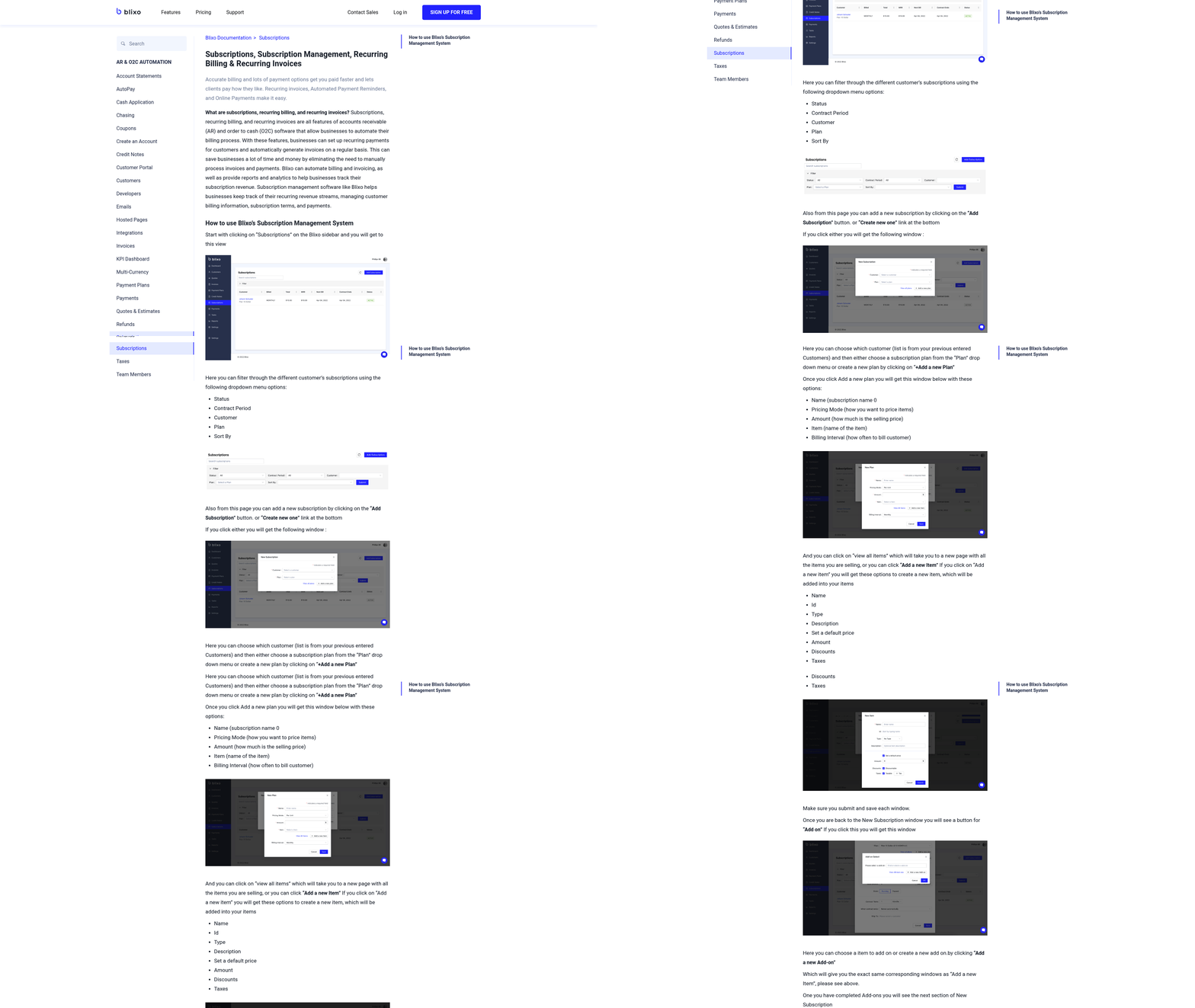
Configuring recurring invoices and automated collections in Blixo ensures consistent revenue streams and reduces manual follow-ups. By automating these workflows, businesses can maintain financial stability while improving customer satisfaction. Below is a structured checklist to guide you through the setup process.
What Steps Are Required to Set Up Recurring Invoices?
Start by defining billing cycles and payment terms that align with your business model. For example, choose monthly, quarterly, or annual intervals and specify due dates. Next, link these invoices to customer accounts in Blixo, ensuring their payment methods are up to date. As mentioned in the Setting Up Automatic Invoice Payment in Blixo section, verifying payment details is critical for seamless automation. Finally, enable auto-renewal settings to prevent service gaps. A company using Blixo’s subscription management software reported a 30% increase in revenue by offering diverse recurring plans, proving structured automation drives growth.
- Define billing cycles: Select intervals (e.g., monthly, yearly) and set grace periods.
- Assign invoices to customers: Match recurring charges to active accounts with verified payment details.
- Enable auto-renewal: Prevent service interruptions by automating renewal triggers.
How Do You Automate Dunning and Collection Alerts?
Dunning management-retrieving failed payments-requires proactive alerts and retry logic. In Blixo, configure dunning workflows to send automated reminders at intervals (e.g., 24 hours, 7 days). Pair this with collection alerts for overdue invoices, which notify your team via email or in-app notifications. Building on concepts from the Monitoring Payment Status and Reconciling Payments section, tracking invoice status helps identify delinquencies early. A business improved customer retention by 25% after implementing these alerts, ensuring timely follow-ups.
- Set dunning retry rules: Automate retries for failed payments after 1–3 attempts.
- Customize alert thresholds: Trigger notifications for invoices past due by 7, 15, or 30 days.
- Integrate with communication tools: Sync alerts to Slack or email for team visibility.
Why Should You Customize Invoice Templates?
Custom templates reinforce brand identity and reduce payment delays. In Blixo, edit templates to include logos, payment instructions, and late fees. Clear, professional invoices improve customer trust, a key factor in reducing errors and boosting payment rates. For example, a SaaS provider saw fewer disputes after adding payment links and support contact details to their invoices.
- Add branding elements: Upload logos and use company colors for consistency.
- Include payment links: Simplify payments with embedded links to Blixo’s checkout.
- Outline terms clearly: Specify late fees, due dates, and refund policies.
What Best Practices Should You Follow for Automated Collections?
Regularly review your setup to ensure accuracy. Test recurring invoice triggers with a small group of customers before full rollout. Monitor dunning metrics in Blixo’s dashboard to identify trends, like high failure rates for certain payment methods. As outlined in the Troubleshooting Common Payment Issues section, stress-testing workflows helps mitigate unexpected errors. The Blixo Team advises: “Automating your subscriptions and invoicing allows you to focus on growing your business rather than getting bogged down in paperwork.”.
- Audit payment methods: Update customer records to reflect changed card details.
- Simulate payment failures: Stress-test dunning workflows with test transactions.
- Analyze collection reports: Use Blixo’s analytics to refine retry schedules and reduce losses.
By following this checklist, businesses can streamline revenue operations and minimize manual intervention. Start with a single customer segment to validate your setup before scaling. For example, a fitness platform successfully automated $50/month membership fees by configuring dunning retries and sending renewal confirmations via email. Over six months, this setup reduced late payments by 40% and cut administrative workloads in half.
Monitoring Payment Status and Reconciling Payments
- Set up automated alerts for failed or delayed payments. These notifications reduce the risk of overlooked issues, as outlined in the Setting Up Automatic Invoice Payment in Blixo section.
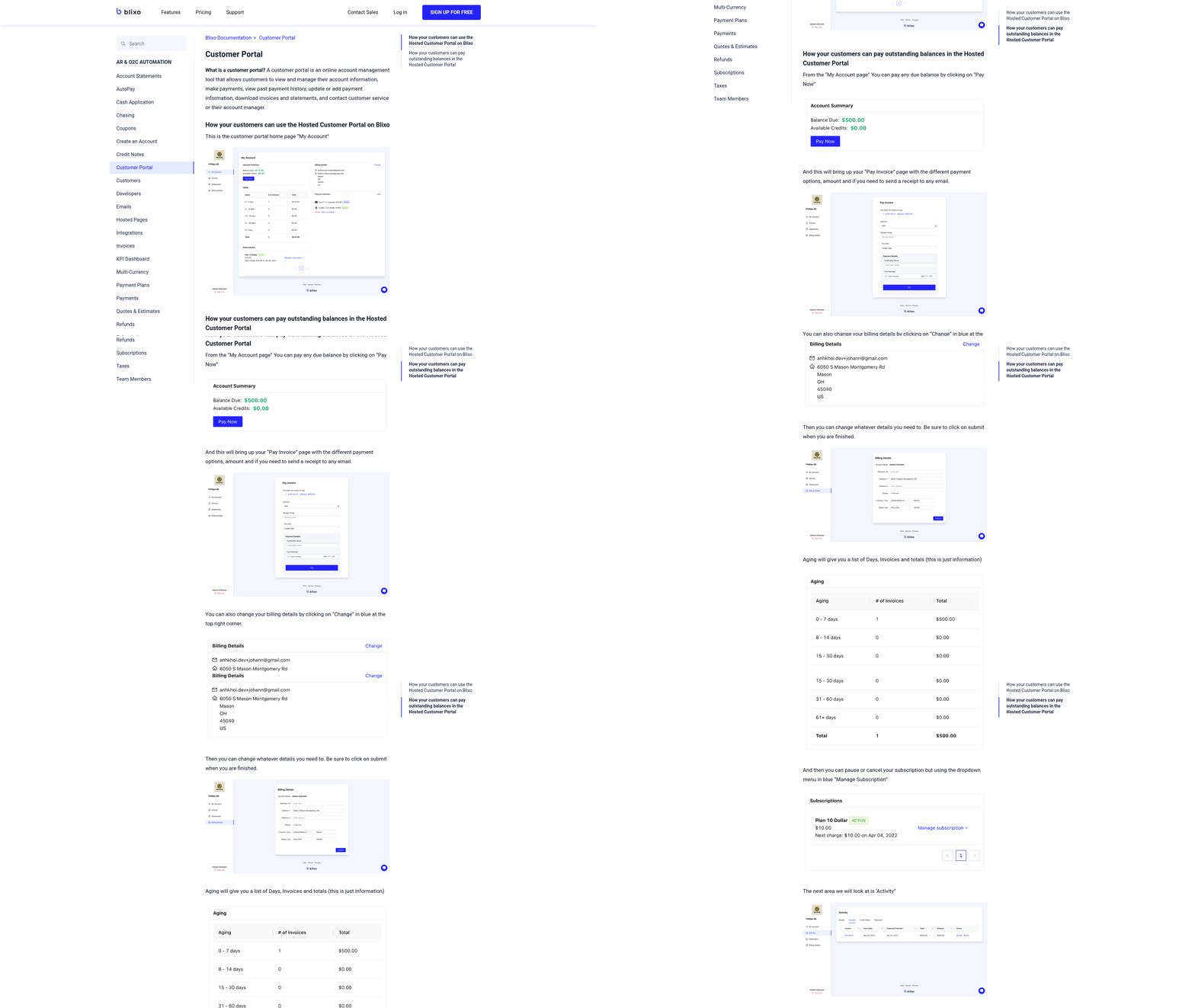
Consider a scenario where a $500 invoice appears in Blixo as “Processed” but is absent from your bank feed. A delay in processing might explain this, as discussed in the Troubleshooting Common Payment Issues section.
- Check for duplicate transactions
- Compare Blixo’s payment log with your bank’s records. If the same invoice appears twice, cancel the redundant charge. This aligns with best practices from the Reviewing and Adjusting Payment Settings section.
Troubleshooting Common Payment Issues
-
Verify API credentials. Incorrect or expired API keys prevent communication between Blixo and your payment provider. As mentioned in the Reviewing and Adjusting Payment Settings section, regenerating keys in your Blixo dashboard and updating them in your payment gateway settings ensures alignment with current configurations.
-
Review gateway-specific error codes. Blixo logs detailed error codes (e.g.,
AUTH_FAILED,TIMEOUT). Building on concepts from the Monitoring Payment Status and Reconciling Payments section, matching these codes to your payment provider’s documentation provides tailored fixes while maintaining visibility into transaction health. -
Update cardholder data automatically. Enable Blixo’s Automatic Billing Updater to refresh expiring cards, preventing 30%+ of recurring payment failures. Building on concepts from the Setting Up Automatic Invoice Payment in Blixo section, this feature aligns with automation strategies to minimize manual interventions.
Reviewing and Adjusting Payment Settings
Reviewing and adjusting payment settings in Blixo ensures your automated invoice payments run smoothly while aligning with your business needs. Start by evaluating your current configurations to identify gaps or inefficiencies. Below are structured steps to guide you through the process..
What Should You Review in Your Payment Settings?
Your payment settings directly impact cash flow, customer satisfaction, and operational efficiency. Begin by auditing these core components to ensure they reflect your business goals and customer expectations.
- Check payment terms (e.g., net 30, net 15) to confirm they align with your industry standards and financial goals. As mentioned in the Setting Up Automatic Invoice Payment in Blixo section, initial configurations should already reflect baseline terms that align with your automation strategy.
- Review invoice templates for clarity, branding consistency, and inclusion of critical payment details like due dates and late fees.
- Verify payment gateway integrations for compatibility with your preferred processors and support for required currencies. Building on concepts from the Troubleshooting Common Payment Issues section, ensure integrations avoid common gateway errors like authentication failures.
- Assess bank feed configurations to ensure accurate transaction tracking and reconciliation..
How to Adjust Payment Terms and Invoice Templates
Tweaking payment terms and invoice designs can streamline collections and reduce disputes. Use Blixo’s tools to align these settings with your workflows.
- Adjust payment terms using Blixo’s settings menu. For example, shortening terms from net 30 to net 15 can accelerate cash flow but may require clearer communication to clients.
- Customize invoice templates to include payment method options, late fee policies, and links to customer billing portals. The Customer Billing Portal changes blog highlights how portals improve payment transparency.
- Test templates with a small group of clients before full rollout to catch errors or confusion..
How to Optimize Payment Gateway and Bank Feed Settings
Misconfigured gateways or bank feeds can delay payments or cause reconciliation errors. Follow these steps to refine these settings:
- Update payment gateway settings to support recurring payments, failed payment retries, and real-time notifications. The Automatic Billing Updater blog explains how automated updates reduce failed transactions.
- Map bank feeds correctly in Blixo to match transaction categories (e.g., income, expenses) for accurate reporting.
- Enable fraud detection tools in your gateway to flag suspicious transactions before they process..
Example of a Successful Payment Setting Adjustment
A small e-commerce business using Blixo noticed a 15% increase in late payments. By adjusting their payment terms from net 45 to net 30 and adding a 2% late fee to invoices, they reduced overdue balances by 25% within two months. They also updated their invoice templates to include a “Pay Now” button, cutting average payment processing time by half. Refer to the Monitoring Payment Status and Reconciling Payments section for guidance on tracking metrics like Days Sales Outstanding (DSO) to measure such adjustments..
Best Practices for Payment Setting Optimization
Consistency and testing are key to maintaining efficient payment workflows.
- Audit settings quarterly: Payment terms, gateway fees, and customer preferences evolve. Regular reviews prevent outdated configurations from causing friction.
- Align with customer expectations: For example, B2B clients may prefer net 45 terms, while retail customers might expect net 10.
- Test changes in a sandbox: Use Blixo’s test environment to verify updates to payment terms or gateway settings before applying them live.
- Monitor performance metrics: Track Days Sales Outstanding (DSO) and payment success rates in Blixo’s dashboard to identify areas for improvement.
By systematically reviewing and adjusting these settings, you ensure payments are processed faster, disputes are minimized, and customer trust is maintained. Always refer to Blixo’s documentation for step-by-step guidance on specific tools or configurations.
Frequently Asked Questions
1. What ROI can businesses expect from automating invoice payments?
Automating invoice payments can deliver a 327% ROI over three years by reducing processing costs and payment delays. This includes slashing 83% of invoice processing costs and cutting 40% of payment delays, leading to faster cash flow and fewer errors.
2. How much can automation reduce manual invoice errors?
Automation reduces manual invoice errors by 90%, preventing disputes and late fees from 15–30% of error-prone invoices. This improves accuracy and ensures smoother vendor relationships through precise invoice matching and validation.
3. What revenue benefits do subscription businesses gain from automation?
Subscription businesses can boost revenue by 30% using automated recurring billing tools. These tools streamline customer self-service and flexible payment plans, enhancing retention and operational efficiency.
4. How much time does automation save on reconciliation tasks?
Automation saves 30% of labor hours on reconciliation by streamlining workflows. Automated invoice validation reduces manual tasks, allowing teams to focus on strategic growth instead of time-consuming data entry.
5. By how much do payment delays decrease with automation?
Automation reduces payment delays by 40% through automated reminders and integrations. This accelerates cash flow and improves efficiency by ensuring timely payments without manual oversight.
6. What cash flow improvements does invoice automation provide?
Invoice automation can cut Days Sales Outstanding (DSO) by up to 20 days. Intelligent matching systems speed up payment processing, enhancing cash flow efficiency and reducing the time between invoicing and receipt.
7. How much can mid-sized firms save annually with automation?
Mid-sized firms can save $500,000 annually by automating invoicing. Automation slashes processing costs by 83%, reducing manual errors and late fees while improving vendor relationships through consistent, timely payments.