

5 Places QuickBooks Recurring Payments Stall, and What Closes Each Gap

Key Takeaways
- Recurring payments turn unpredictable invoicing into automated cash flow. For subscription SMBs, that means a revenue base you can actually plan around.
- QuickBooks Online lets you schedule charges daily, weekly, monthly, or annually, and bundle a one-time setup or onboarding fee into the first transaction.
- SaaS companies, membership platforms, and retainer agencies get the biggest lift from automated recurring billing.
- A small SaaS shop billing 200 customers monthly saves roughly a full-time job’s worth of work by automating those charges.
- QuickBooks supports the payment methods subscription businesses need: credit card, ACH, and mobile options like Apple Pay.
- One stalled renewal quietly breaks the whole cash flow model when you’re charging the same customers on repeat.
- Automated billing cuts missed charges and kills the manual invoicing that eats team hours every cycle.
What recurring payments actually fix for you
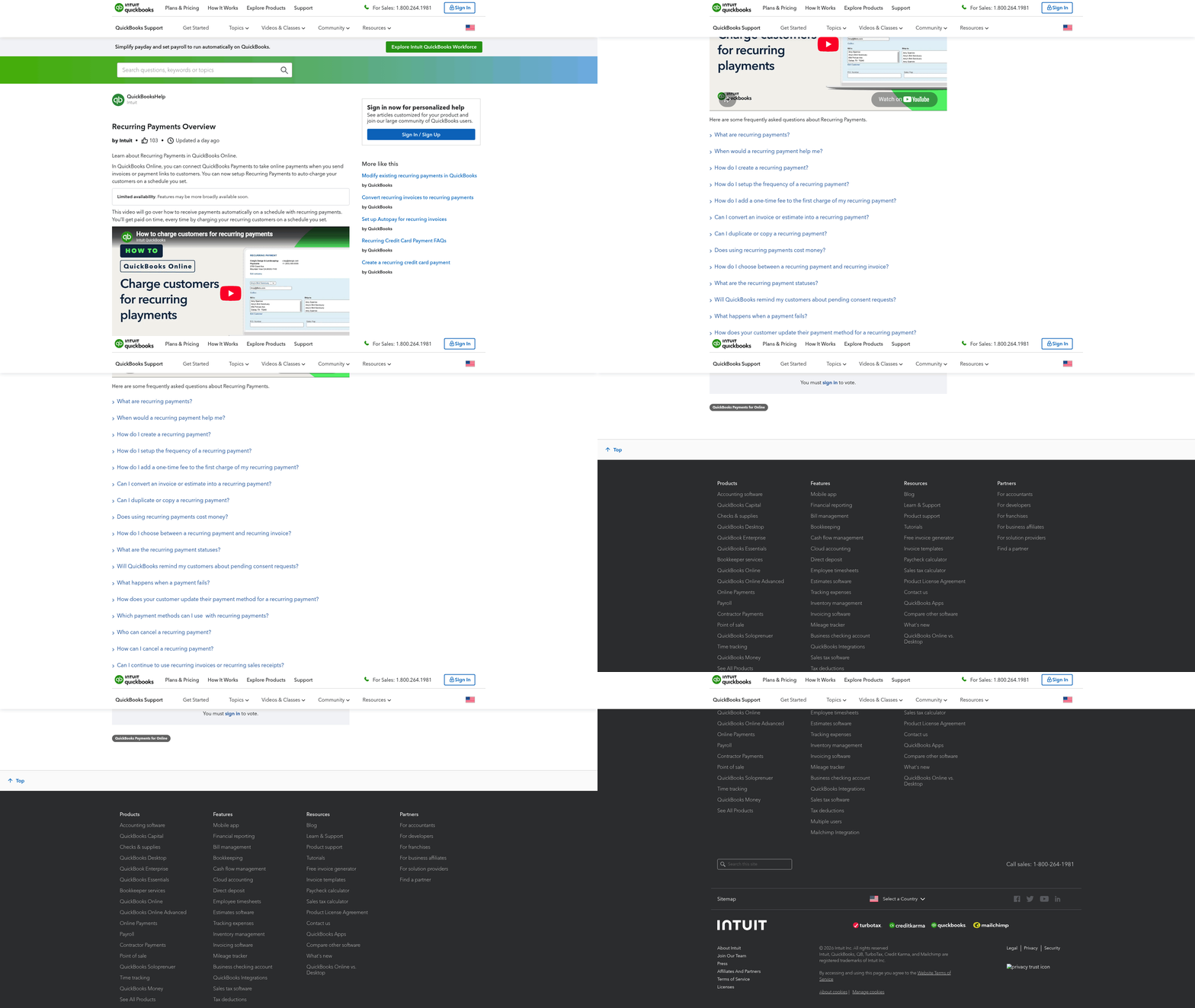
For subscription SMBs, reliability is the line between chasing every renewal by hand and knowing the money lands on schedule. Set up QuickBooks Online recurring payments, and you replace the constant cycle of drafting and sending individual invoices with a structured billing process.
The payoff is simple. Payments arrive on time, and you spend less energy tracking down late accounts. QuickBooks gives you flexible scheduling to match your billing cycles, and you can fold initial admin costs straight into the first charge.
Who gets the biggest lift
Businesses running a continuous service model gain the most. When you rely on repeating customer relationships, you need a dependable way to process transactions without starting from scratch every month. When those transactions pause, the financial predictability you’re building on disappears.
Take a growing business managing hundreds of active accounts. Drafting, sending, and tracking individual invoices for every client burns hours that could go to product or customer service. Automating that workflow keeps operations lean and keeps retainer agencies, fitness centers, and digital platforms on steady revenue.
QuickBooks integrates with various payment gateways to accept major cards, bank transfers, and digital wallets. To use any of it, you first need an active Merchant Services Account to handle the processing backend.
Where the automation quietly breaks
Automation falls apart when payments fail silently. That’s the gap that hurts subscription SMBs most. QuickBooks users have reported recurring sales receipt payments failing with no notification, no alert, no error message.
That silence drags you back into manual work. Users describe checking each transaction by hand to confirm it processed, which defeats the entire point. One reported a client’s scheduled payments failing repeatedly without warning, and the discrepancies only surfaced after the fact.
Consent expiry adds another stall point. Customers have to approve recurring payments within 30 days, or the request expires. Miss that window and the payment never runs. Expired or invalid cards cause the same quiet failure, and nobody gets flagged.
What each gap actually costs you
Here’s a plain look at where subscription revenue stalls and how hard each issue is to catch on your own.
| Payment Scenario | What Stalls | Who It Hits Hardest | Setup Effort | Detection Difficulty |
|---|---|---|---|---|
| New recurring schedule | Consent expires after 30 days | New subscribers onboarding | 15–20 min per customer | Low |
| Card-based renewal | Expired or invalid card | Long-term subscribers | Minimal after setup | Medium |
| Silent processing failure | No alert on failed charge | Any recurring biller | None | High |
| Payment matching | Charge shows “Processed Outside of QuickBooks” | Multi-customer SaaS | None | High |
| ACH recurring charge | Bank detail changes | Enterprise clients on retainer | 10–15 min per setup | Medium |
The two high-difficulty rows are the real threat. Reconciliation breaks when payments show as “Processed Outside of QuickBooks” with no customer identification attached. Users have fought this for three straight months, unable to match deposits to the right accounts.
That’s where automated collections and clean cash application earn their keep. Instead of manually verifying every charge and chasing mismatched deposits, you get failed-payment alerts and automatic matching that keep the books accurate. Catch a stalled renewal the day it fails, not weeks later, and you protect both cash flow and the customer relationship.
The “limited availability” fine print
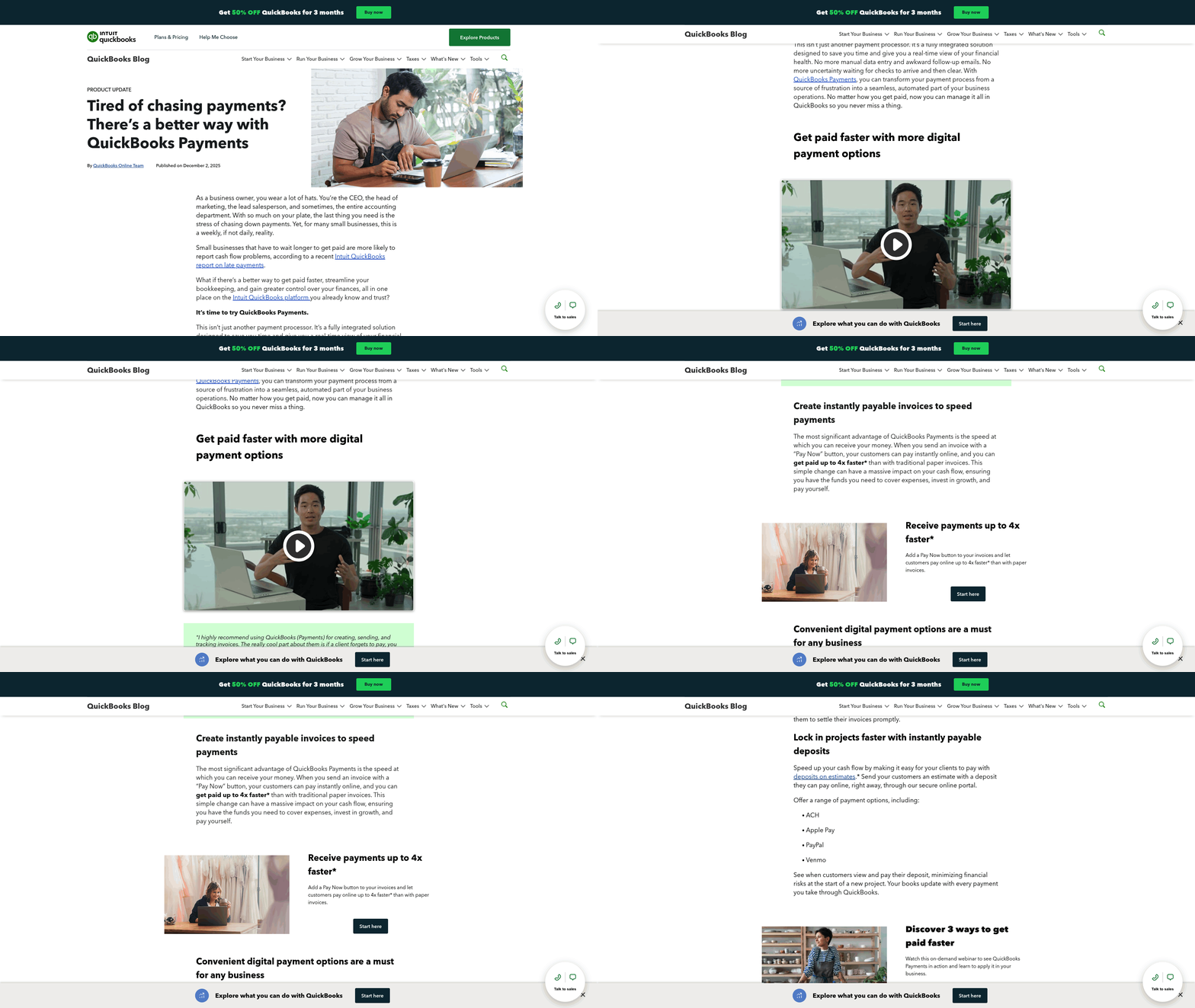
QuickBooks Online recurring payments come with constraints growing businesses hit fast. The big ones: authorization windows that lapse, and templates that stop firing consistently over time. If you bill a large roster on staggered schedules, these limits demand constant manual oversight.
The root problem is the strict window for securing customer authorization. If the customer doesn’t approve the billing agreement in time, you restart the setup from scratch. On top of that, sync issues can halt active templates after the first transaction, turning an “automated” process into a manual tracking chore.
Why recurring payments stop after the first cycle
Templates often halt after the first run because of sync errors between the billing engine and the general ledger. QuickBooks runs the first transaction fine, then fails to generate the next invoice or sales receipt. There’s no warning when a sync fails, so the gap sits unnoticed until you manually audit accounts receivable.
Worse, templates can show “Active” in the dashboard while posting nothing. Some accounts bill correctly, others get skipped entirely. Without alerts, finding the missed cycles means cross-referencing bank deposits against your active customer list. That overhead cancels out the efficiency you automated for in the first place.
The workarounds inside QuickBooks
Standard workarounds mean close monitoring of active templates. You manually audit each profile’s schedule, start date, and status. You track pending authorizations and send follow-ups before the approval window closes. Some businesses segment customers across different billing dates to isolate processing errors.
These steps help, but they don’t scale. Managing separate billing groups and chasing missing authorizations for hundreds of accounts becomes its own full-time headache. And even with segmented schedules, silent sync failures still happen.
Troubleshooting also means logging into the Merchant Service Center to dig through discrepancies. Verifying account details before you create a template helps, but it won’t stop future breaks from updated bank routing numbers or replaced cards.
Closing the gap at scale
To fix this at volume, businesses bring in dedicated subscription management tools. They manage payment retries, flag expiring authorizations before they bite, and link incoming deposits to the right customer accounts automatically. That kills the manual work of matching unidentifiable deposits to open invoices.
Wire the payment gateway directly to your accounting software and every transaction gets recorded and reconciled without a human touching it. For high-volume billing, the smart move is not leaning on basic templates alone. Segment your base, monitor authorization statuses, and add an automated notification layer so disruptions get caught and fixed the moment they surface.
Consent expires in 30 days, then the schedule vanishes
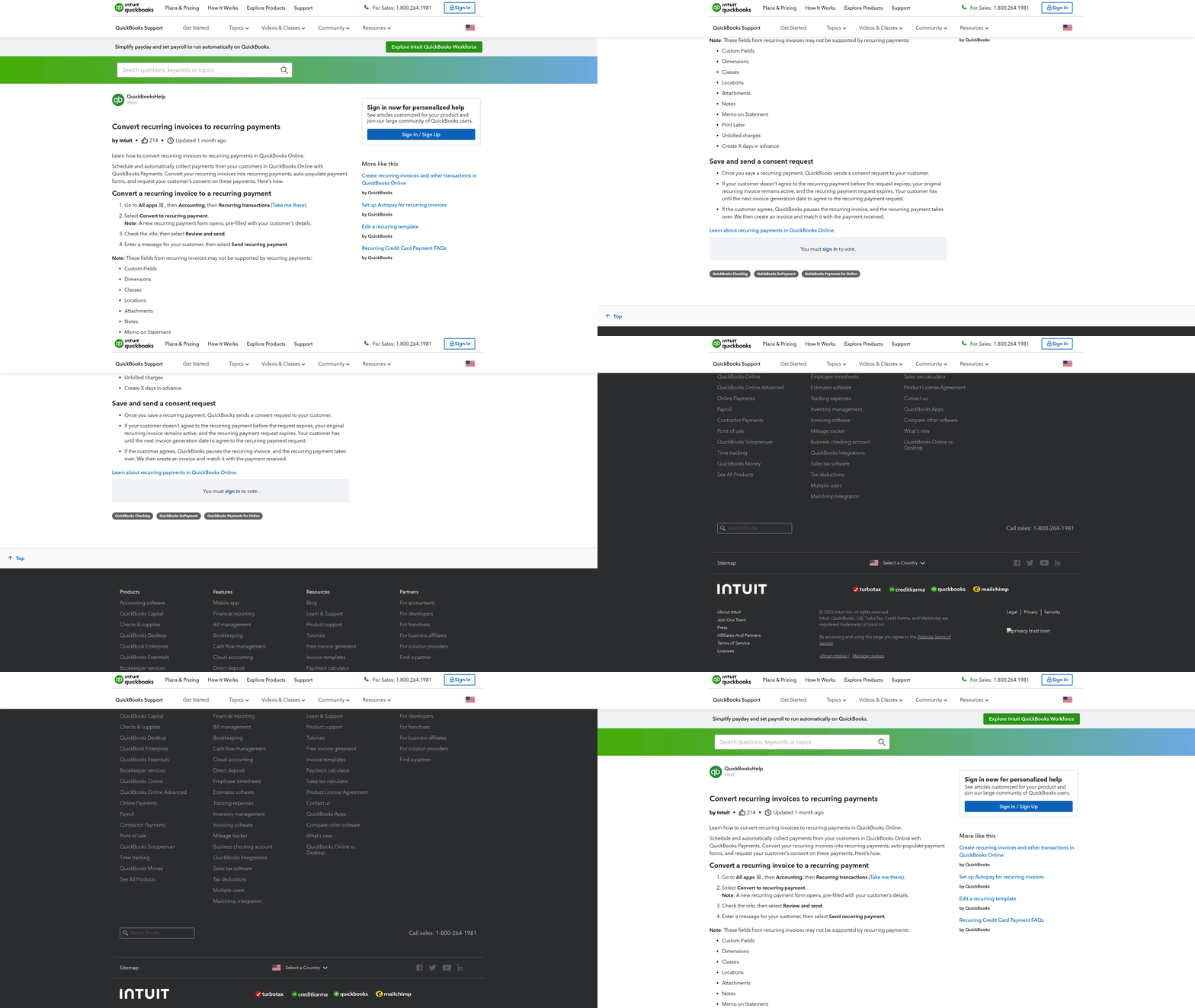
Consent expiration is a real hurdle when onboarding new clients. QuickBooks makes customers formally authorize recurring charges inside a strict window. Miss it, and the pending schedule cancels itself before the first charge runs.
It works off an automated email invitation asking the customer to review and approve the billing terms. No digital signature, no legal basis to charge. For businesses adding several accounts a week, this time limit can stall new revenue before it starts.
Why consent expiration breaks billing
The system is built to protect consumers, so QuickBooks blocks any scheduled charge that lacks active confirmation. If the authorization request gets overlooked or buried in spam, the window closes and the schedule deletes itself. No built-in retry.
That hits sales momentum directly. You can close several new contracts, but if some clients never complete the online authorization, those accounts sit unbilled. Now your team is manually following up, which defeats the point of an automated onboarding flow.
And authorization isn’t one-and-done. If a customer changes banking details or switches payment methods, the existing agreement can go invalid, and you need a fresh authorization cycle to resume billing.
Keeping customer consent alive
High completion rates come from proactive communication and clear expectations during the sale. Give customers clear instructions at the point of sale so they approve right away, before the request expires.
A few practices close the gap:
- Send the consent request early. Kick off authorization the moment the contract is signed to use the full approval window.
- Build a follow-up sequence. Gentle reminders keep the request from getting lost in an inbox.
- State the terms plainly. Spell out billing frequency, amounts, and withdrawal dates. Clarity builds trust and speeds approval.
- Watch for account changes. Track upcoming card expirations and prompt customers to update before the next billing date.
A retainer-based consulting agency onboarding fifteen new clients a month makes the point. Rely on a single automated email with no follow-up, and several agreements lapse to simple oversight. Add a two-step reminder sequence before the window closes, and nearly everyone completes setup.
Where automation closes the consent gap
Tracking pending authorizations by hand gets impractical as the client list grows. Automation tools handle the follow-up: scheduled reminders, flags on accounts near their deadline, and prompts to update billing profiles before a payment misses.
Once authorized, these systems match every completed transaction to the right open invoice in your ledger. That kills the manual bookkeeping and gives you real-time visibility into cash flow.
One payment method per customer is a single point of failure
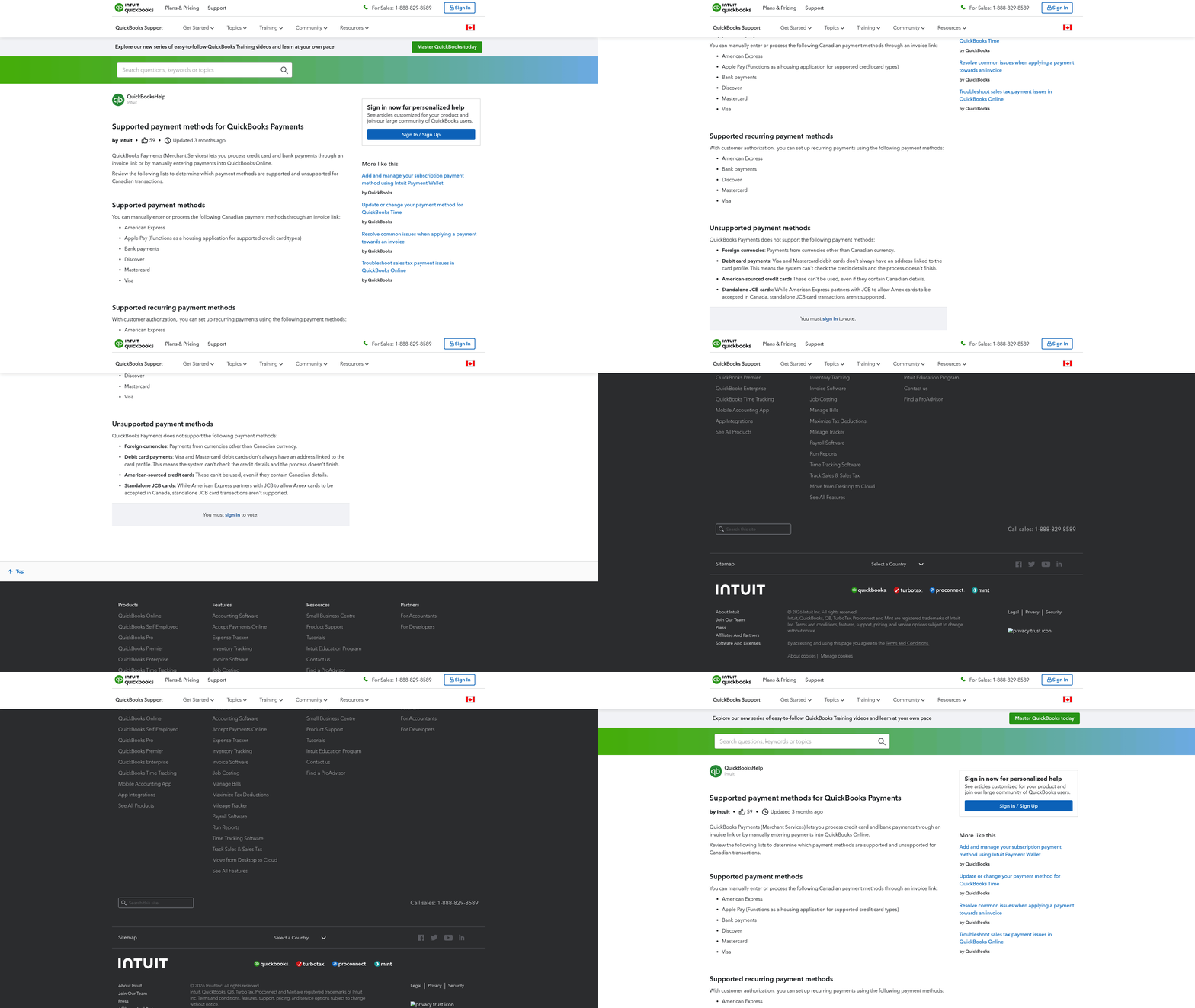
The payment options you offer drive your transaction success rates. QuickBooks Online supports multiple channels, but each carries its own risk. Rely on a single method per customer, and any hiccup on that one channel takes the whole charge down.
This is a common source of revenue leakage. When a primary method goes invalid, the transaction fails, and the system may not alert you right away. So accounting teams end up combing transaction logs by hand to find failed charges.
How payment restrictions break billing
Payment method restrictions are the limits on which payment types a customer can use, and they decide whether an automated charge clears.
The most common break is an expired or invalid card. One user’s recurring transactions stopped cold because a client’s card expired. Update the info and the schedule resumes, but that gap only closed after someone spotted the failure by hand.
ACH carries a different risk. Bank mandates get revoked or accounts close, and the charge bounces with no retry logic behind it. If a customer’s only method fails, you’ve got no fallback to catch the payment before the cycle ends.
Why offer more than one payment option
Payment redundancy protects recurring revenue. When a primary card declines, a backup method on file lets the system try a second charge. That prevents service interruptions and cuts down on manual collections outreach.
Give customers a real choice at signup. Some prefer cards for the rewards, others prefer ACH for lower fees on large recurring amounts. Supporting both cuts your failure rate and matches how subscribers actually want to pay.
Set expectations early too. Ask customers to keep payment details current, and send reminders before a known expiration date instead of after the charge already failed.
What closes the payment method gap
The gap closes when your billing system handles multiple methods automatically and retries failed charges on its own. That means storing more than one method per customer, catching a failure the moment it happens, and switching to a backup before the cycle lapses.
Automated collections do that work. Instead of checking each transaction for silent failures, the system flags the failed method, prompts the customer to update it, and reprocesses against a backup. Automated cash application then matches the recovered payment to the right invoice, so the books stay clean without hand-keying.
Run the math. A software subscription business bills 300 customers monthly. At a 2% card failure rate, that’s six stalled subscriptions every month. With a backup method and automatic retry, most recover the same day instead of becoming a support ticket.
Build the fallback in before you scale. The bigger your roster gets, the more a single-method setup costs you in silent failures and manual cleanup.
Configuring templates by hand, and everything that can drift
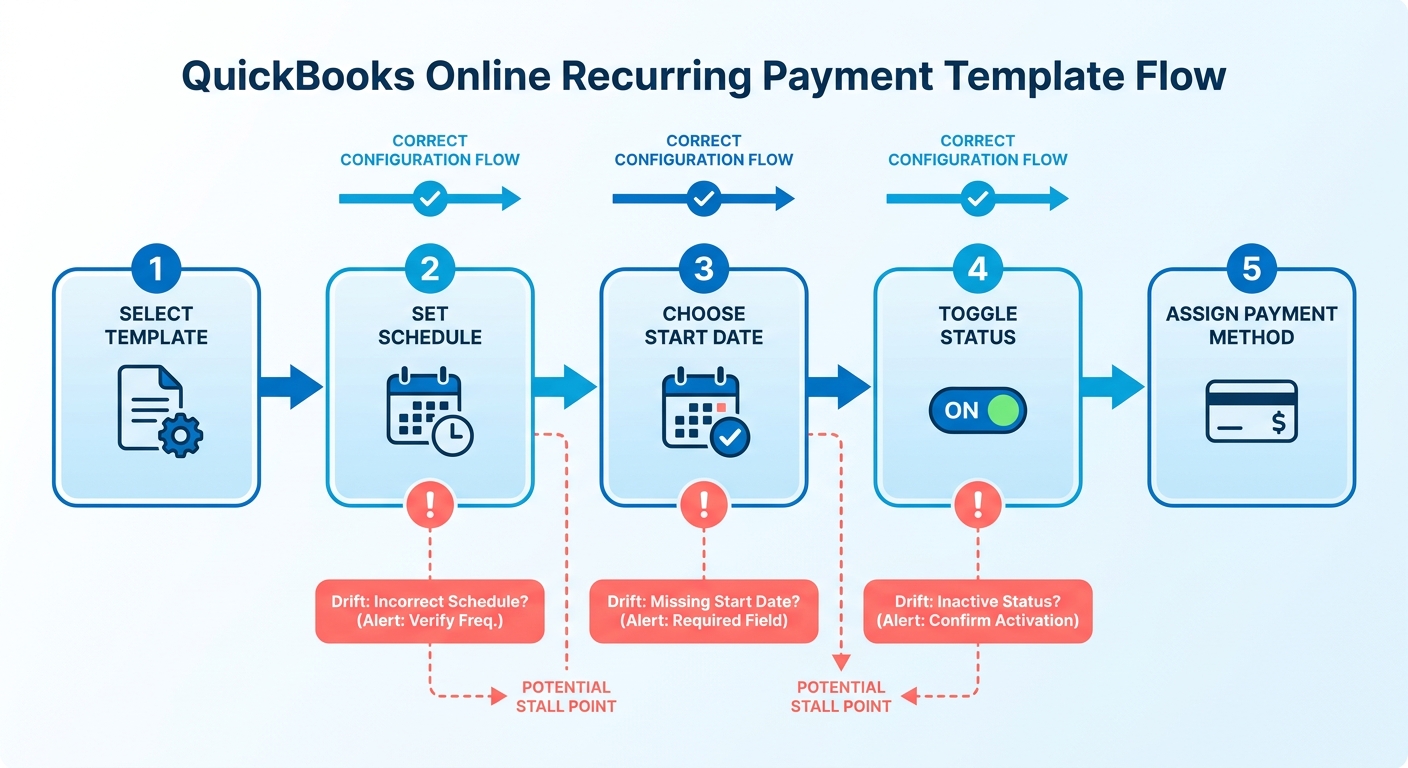
Configuring recurring payment settings by hand in QuickBooks Online is where subscription billing quietly breaks. Every template needs a correct schedule, start date, status, and payment method before a single charge fires. For an SMB juggling hundreds of subscribers on different cycles, that’s a lot of small settings that all have to stay right at the same time.
The problem: QuickBooks Online doesn’t alert you when a template’s config drifts or fails to run. A profile can show active while generating nothing. That silent failure forces accounting teams to recreate missing invoices by hand, which delays billing and leaves revenue unrecognized.
Why manual template config is so fragile
Manual configuration fails because a recurring template only runs when several conditions line up perfectly. It has to be set to Scheduled, not paused. It can’t have passed its end date or hit its maximum occurrences. Miss any one, and the charge silently never happens.
Timing adds another wrinkle. Scheduled transactions run before 9 AM PST, so a wrong start date can push back an entire billing cycle. Tax or rate changes can break active templates too. Update a local tax rate, and the existing template may fail to calculate the correct total, which means rebuilding it from scratch to apply the new rules.
The catch with rebuilding: you have to delete the old template first, or you get duplicate charges. That’s a manual, error-prone step no growing subscription roster should depend on.
How to streamline recurring payment settings
Streamline by cutting the number of settings a human touches per subscriber. Use standardized templates for each plan tier so schedule, frequency, and payment terms stay consistent. Review templates on a set cadence, and check status, start date, and expiration before each billing run instead of after a customer complains.
A few habits keep manual setups from stalling:
- Set a template audit schedule. Regularly verify active profiles are configured right and haven’t hit their preset limits.
- Manage account updates ahead of time. Watch for planned service upgrades or billing address changes and adjust templates before the next run.
- Handle template updates carefully. When you change pricing or terms, deactivate the old profiles immediately after creating the new ones to keep records clean.
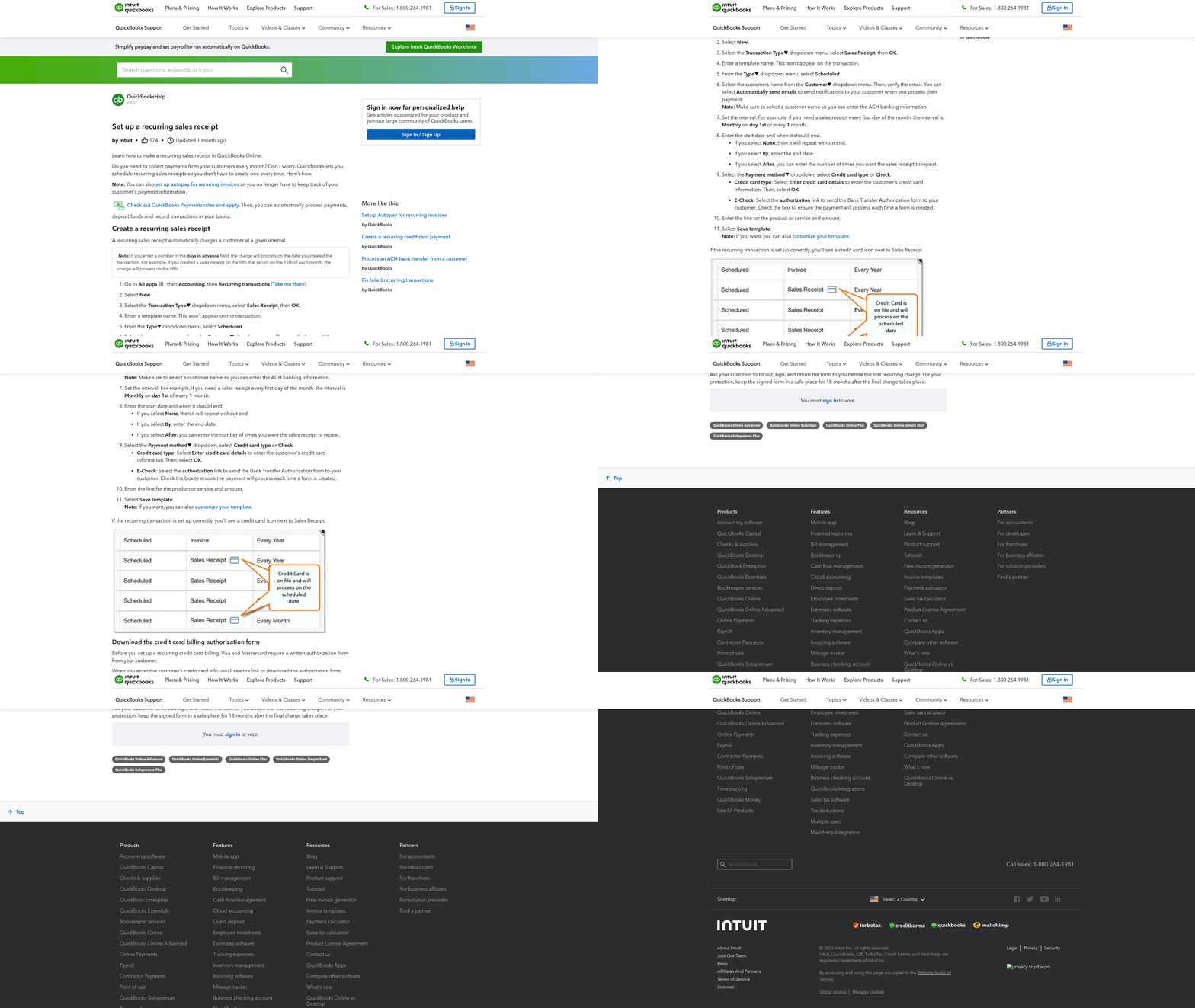
You’ll find and edit these under the Settings menu in the Lists section. It works, but it scales badly. Every plan change, price update, or card swap turns into a manual edit somewhere.
Where automated config closes the gap
Automated systems drop the manual template management by adjusting to account changes on the fly. Instead of editing individual profiles, an integrated billing platform updates customer records when billing details change and logs every transaction correctly in your accounting software.
That keeps your financial records accurate and current, and it takes real time off your accounting team’s plate on data entry and reconciliation.
Closing the gaps in QuickBooks recurring payments
We’ve walked through five places QuickBooks Online recurring payments stall: expiring consent, payment method restrictions, manual template drift, first-cycle sync failures, and silent processing errors. Every one shares a root cause. QuickBooks automates the charge but not the follow-up when something breaks.
Closing these gaps means adding a layer that catches failures the moment they happen and applies payments back to the right invoice automatically. That’s the difference between an automation you trust and one you babysit every month.
How to stop recurring payments from failing silently
Real-time monitoring plus retry logic. To stop missing revenue, you need immediate visibility when a transaction doesn’t process. An automated system detects a failed attempt, kicks off a retry sequence, and notifies the customer to fix the issue before the cycle ends.
Start by verifying your own configs. Make sure active profiles are set up right, have valid payment methods attached, and aren’t restricted by preset expiration dates or transaction limits. That clears the simple processing issues.
Those manual checks work for a handful of subscribers. They fall apart at scale. Bill hundreds of customers on staggered cycles and you need automated dunning that chases failed payments for you.
What fixes the reconciliation gap
Automated reconciliation links deposits directly to outstanding invoices. The hard part for most businesses is deposits that show up in the bank feed with no customer detail attached. That mystery can cost hours of research just to figure out which account to credit.
An intelligent matching engine solves it. It pulls payment data from your bank and processor, then matches each deposit to the correct invoice at the item level. No more staring at a mystery deposit and guessing which subscriber it belongs to.
This is where a dedicated AR service closes the loop. Blixo automates collections and cash application together, so a failed recurring charge gets chased, retried, and reconciled without your team touching a spreadsheet.
What businesses that closed these gaps do differently
They stop treating recurring billing as “set it and forget it.” Instead, they build in three habits that keep cash moving.
- Offer payment flexibility. A secondary channel can process the charge when the primary method fails, without interrupting service.
- Automate authorization follow-ups. Scheduled reminders secure approvals before the setup window closes.
- Reconcile in real time. Match deposits daily instead of at month-end so you catch discrepancies immediately.
The pattern is clear. QuickBooks handles the charge; you need automation on top for the failures, the retries, and the matching. Subscription SMBs that add that layer stop finding lost revenue in their books and start planning around cash that actually shows up on schedule.
Frequently Asked Questions
1. Can I set up recurring payments in QuickBooks without an active Merchant Services Account?
No, you must have an active QuickBooks Merchant Services Account to process recurring payments. This account acts as the processing engine for your automated transactions. Without it, the system cannot authorize or execute scheduled charges, regardless of the payment methods your customers prefer.
2. What time do scheduled QuickBooks recurring transactions actually run?
Scheduled transactions are processed early in the morning on their set start date, typically before 9 AM Pacific Time. Because of this specific processing window, any errors in the start date can delay the transaction by a full billing cycle. It is important to double-check your scheduling inputs to ensure payments align with your cash flow expectations.
3. Why do I get duplicate charges when fixing a broken recurring template?
Duplicate charges occur when multiple active templates exist for the same customer. If you need to update a billing profile due to pricing or policy changes, you must fully deactivate or remove the original template before saving the new one. Failing to do so will cause both schedules to run, resulting in double-billing.
4. Does ACH have automatic retry logic when a payment bounces?
QuickBooks does not include automatic retry logic for failed ACH transactions. If a bank transfer is declined due to insufficient funds or account changes, the transaction simply fails for that cycle. To recover these funds, you must manually re-initiate the charge or use an external system that supports automated dunning and retry schedules.
5. How can a customer fix a recurring payment that stopped due to an expired card?
The customer must provide updated billing information to resume automated charges. When a card expires, the scheduled transaction will fail, and the system will halt further attempts. Once the customer enters their new card details and saves the changes, the active template will resume processing on the next scheduled date.
6. Where do I find and edit recurring payment templates in QuickBooks Online?
You can access your templates by navigating to the Settings menu and selecting “Recurring Transactions” under the Lists column. This dashboard allows you to review, edit, or pause your active billing profiles. Regular reviews of this list help ensure that your templates remain active and are configured with the correct billing intervals.
7. How does Blixo differ from standard QuickBooks recurring billing?
Blixo enhances standard billing by automating the recovery and reconciliation processes that QuickBooks leaves manual. It actively manages failed payments through automated retry schedules and customer notifications. Additionally, its reconciliation engine automatically matches bank deposits to open invoices, eliminating the manual effort required to identify and clear outstanding balances.