

Automate Invoicing with QuickBooks AP Automation

Key Takeaways
- Automate invoicing to reduce manual processing costs from $15 per invoice to just a few dollars.
- Cut invoice processing time from 10 days to a few days using QuickBooks AP automation.
- Eliminate 30% of payment errors by adopting automated three-way matching and data entry.
- Save 52% of AP teams’ weekly work hours (over 10 hours) with automated invoice workflows.
- Prevent vendor relationship strain by avoiding manual errors like mismatched payment terms.
- Free up 50% of bookkeepers’ time by reducing manual invoice entry, per 2024 studies.
- Improve cash flow and scalability by resolving bottlenecks in manual invoicing processes.
Why Automating Invoicing with QuickBooks AP Automation Matters
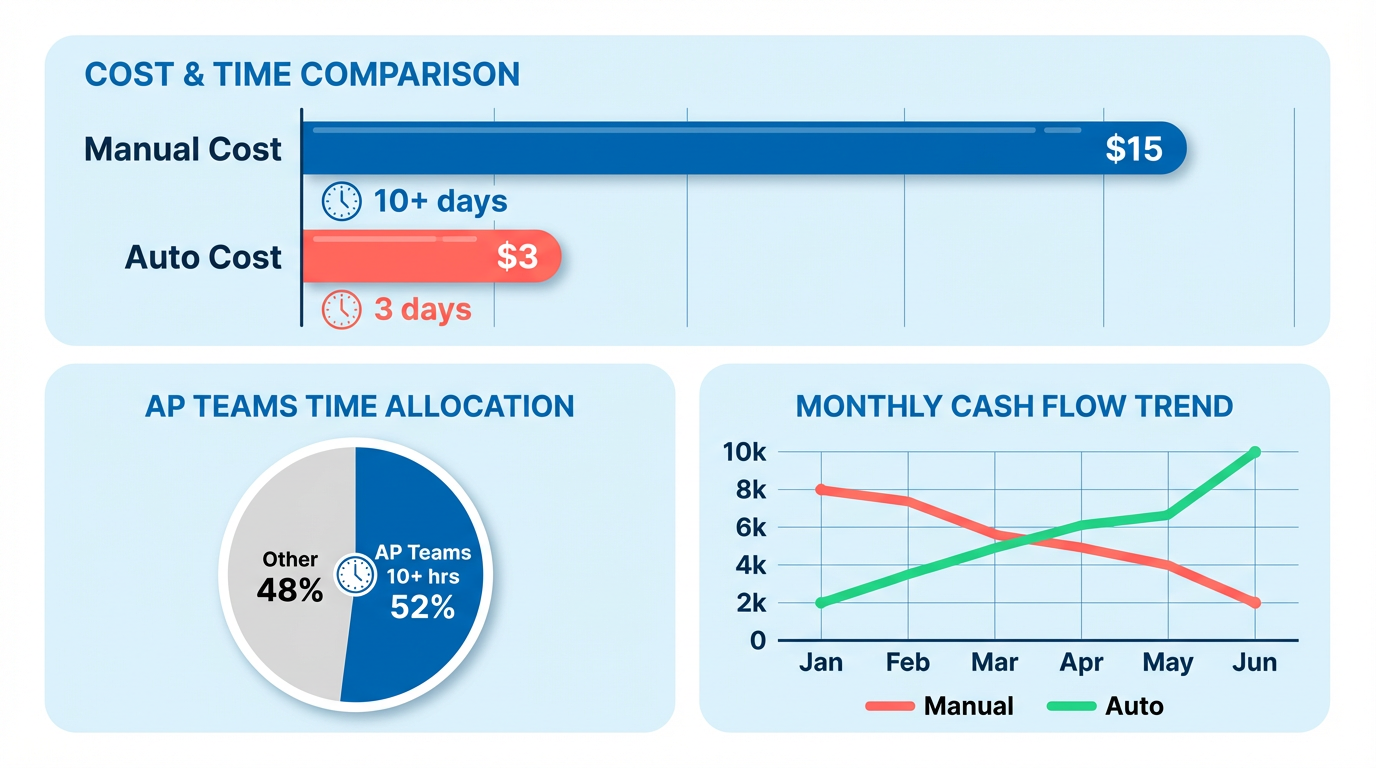
Automating invoicing with QuickBooks AP automation is critical for businesses aiming to eliminate inefficiencies, reduce errors, and streamline financial workflows. Manual processes are inherently slow and prone to mistakes, with 52% of AP teams spending over 10 hours weekly on invoice processing alone. Manual invoice processing costs up to $15 per invoice and takes over 10 days, whereas automation reduces this to just a few dollars and days. These inefficiencies directly impact cash flow, vendor relationships, and operational scalability. As mentioned in the Understanding QuickBooks AP Automation Capabilities section, the system reduces manual effort through features like automated data entry and three-way matching, which are central to resolving these issues.
What Are the Risks of Manual Invoicing?
Manual invoicing creates bottlenecks that cost businesses time and money. For example, one company reported a 30% reduction in payment errors after adopting QuickBooks AP Automation, highlighting how automation improves accuracy. Manual data entry errors-such as mismatched vendor details or incorrect payment terms-can lead to delayed payments, late fees, and strained supplier relationships. A 2024 study revealed that 75% of bookkeepers spend half their time on manual invoice entry, leaving little room for strategic financial planning. Building on concepts from the Choosing the Right AP Automation Platform for QuickBooks section, selecting a platform that minimizes manual entry is essential to avoid these pitfalls.
How Do Delayed Payments Harm Businesses?
Late payments disrupt vendor trust and increase operational costs. A small business that implemented QuickBooks AP Automation reduced invoice processing time by 50%, ensuring timely payments and stronger vendor partnerships. Conversely, delayed payments can trigger penalties, higher interest rates, and damaged credit ratings. For businesses handling 100+ invoices monthly, even a one-day delay can cascade into hundreds of dollars in avoidable fees. Automation ensures consistent, on-time payments while maintaining audit-ready records, a functionality detailed in the Seamless API Integration: Connecting AP Automation to QuickBooks section.
What Challenges Does AP Automation Solve?
QuickBooks AP automation addresses three core challenges:
- Time Consumption: Automating data entry via OCR technology slashes processing time. One business cut month-end close tasks by 8 hours weekly by syncing invoices directly into QuickBooks.
- Error Reduction: Automated three-way matching (purchase order, receipt, and invoice) prevents overpayments and fraud. A mid-sized company saw a 68% productivity boost after adopting this feature.
- Scalability: Manual workflows struggle as invoice volume grows. Automation adapts seamlessly, supporting multi-currency transactions and global payments without added complexity. As discussed in the Scaling AP Automation as Your Company Grows section, scalable systems like QuickBooks handle increased transaction volumes without compromising accuracy.
Who Benefits Most from This Automation?
Small to mid-sized businesses using QuickBooks-especially those with high invoice volumes or remote teams-gain the most value. For example, a fast-growing startup reduced late payment issues by 48% using QuickBooks Bill Pay, which automates bill creation and approvals. Similarly, companies with complex vendor networks benefit from real-time syncing of GL accounts and purchase orders. Even businesses with limited AP staff can maintain compliance and accuracy through automated workflows. The Implementing QuickBooks AP Automation for Invoicing section outlines key steps to ensure successful adoption for these use cases.
By automating invoicing, businesses free finance teams from repetitive tasks to focus on strategic planning. The result is faster payments, fewer errors, and a more agile financial operation-key advantages in competitive markets.
Understanding QuickBooks AP Automation Capabilities
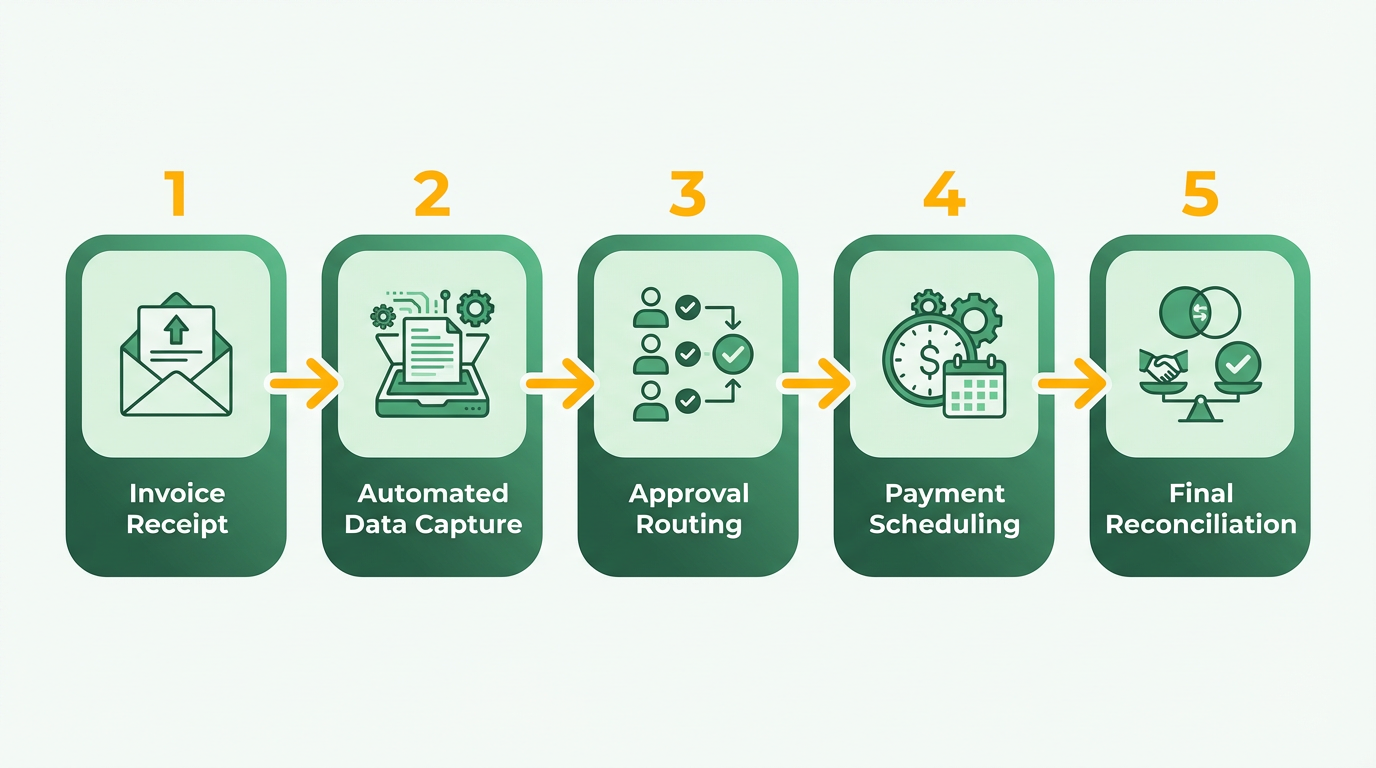
QuickBooks AP automation transforms accounts payable workflows by streamlining invoice processing, payment scheduling, and reconciliation. The system reduces manual effort through features like automated data capture, approval routing, and multi-currency support. By integrating advanced tools, businesses can process invoices 2–5 times faster than manual methods while minimizing errors. Let’s break down how this works step by step.
How Does the AP Automation Workflow Function?
QuickBooks AP automation follows a structured workflow: invoice capture, validation, approval, and payment. Invoices can be uploaded in formats like PDF or JPEG, and optical character recognition (OCR) extracts key details such as vendor names, amounts, and due dates. Three-way matching ensures invoices align with purchase orders and receiving reports before approval, a feature As mentioned in the Choosing the Right AP Automation Platform for QuickBooks section, advanced platforms often emphasize strong three-way matching capabilities. Once validated, invoices move to a “For review” tab for final checks. Payments are then scheduled via ACH, check, or credit card, with reconciliation handled automatically. This reduces processing time by up to 50%, as seen in small businesses adopting the system.
What Features Enable Automated Invoicing and Payments?
QuickBooks automates invoicing by linking vendor data directly to bills, eliminating manual entry. For example, if a vendor sends an invoice via QuickBooks, the system pre-fills details like payment terms and tax codes. Users can batch-process payments and set recurring schedules, ensuring timely vendor payments. AI-powered tools, such as those in third-party integrations, further enhance accuracy by flagging discrepancies in invoice line items. Building on concepts from the Seamless API Integration: Connecting AP Automation to QuickBooks section, real-time sync with external systems enhances these checks. One mid-sized company reported a 30% drop in payment errors after enabling these automated checks. Additionally, multi-currency support allows businesses to handle international invoices seamlessly, with exchange rates updated in real time.
How Does Integration Improve Existing Accounting Systems?
QuickBooks AP automation works with native tools and third-party apps to expand functionality. For instance, two-way syncing with external systems ensures invoices processed in automation platforms update directly in QuickBooks’ ledger. This integration reduces manual data entry by 80% in some cases, as seen with construction firms using advanced automation solutions. Users can assign roles for invoice approvals, ensuring compliance with internal controls. While QuickBooks Online offers broader automation features, desktop versions require third-party tools for advanced workflows like two-way matching or multi-entity management. As mentioned in the Choosing the Right AP Automation Platform for QuickBooks section, selecting a platform that supports these workflows is critical for businesses with complex needs.
What Security and Compliance Features Are Available?
Security is a priority in AP automation. QuickBooks includes fraud detection tools like role-based access controls, preventing unauthorized payments. Automated workflows reduce human error in sensitive tasks like 1099 filings, which are critical for tax compliance. For businesses handling international payments, real-time fraud alerts flag suspicious transactions. A healthcare provider using automation solutions noted a 40% reduction in compliance-related audit issues. Additionally, audit trails track every invoice step, from receipt to payment, ensuring transparency for auditors.
Can Workflows Be Customized for Different Business Sizes?
Yes, QuickBooks AP automation adapts to business needs. Small businesses benefit from basic features like automatic bill creation, while larger firms use custom approval chains and multi-entity invoicing. For example, a company with multiple legal entities might use classes or locations in QuickBooks to split invoices accurately. Third-party platforms offer advanced options like AI-driven invoice routing, which learns from past approvals to speed up future processes. Building on concepts from the Scaling AP Automation as Your Company Grows section, scalable solutions are essential for handling high-volume transactions. One hospitality group automated 600,000+ invoices yearly using a scalable solution, cutting month-end close times by 8 hours. Customization ensures teams only interact with relevant workflows, reducing administrative overhead.
By using these capabilities, businesses can turn AP from a reactive task into a strategic process. Whether managing a few invoices monthly or thousands, automation ensures accuracy, compliance, and scalability.
Choosing the Right AP Automation Platform for QuickBooks
When selecting an AP automation platform for QuickBooks, prioritize integration capabilities, scalability, and user feedback to ensure alignment with your business needs. A platform must sync seamlessly with QuickBooks Online or Desktop, automate workflows like invoice capture and payment scheduling, and scale with your company’s growth. Below, we break down key considerations and how to evaluate options effectively.
What Features Should You Look for in an AP Automation Platform?
A reliable AP automation solution should streamline invoice processing, reduce manual data entry, and integrate with all QuickBooks versions (Simple Start, Essentials, Plus, Advanced). As mentioned in the Understanding QuickBooks AP Automation Capabilities section, platforms that sync vendor data, GL accounts, and purchase orders in real time can eliminate errors and save up to 80% of manual work. Scalability is critical: as your business grows, the platform should handle increasing invoice volumes and complex workflows, such as 2- or 3-way PO matching.
How Do User Reviews and Case Studies Inform Your Decision?
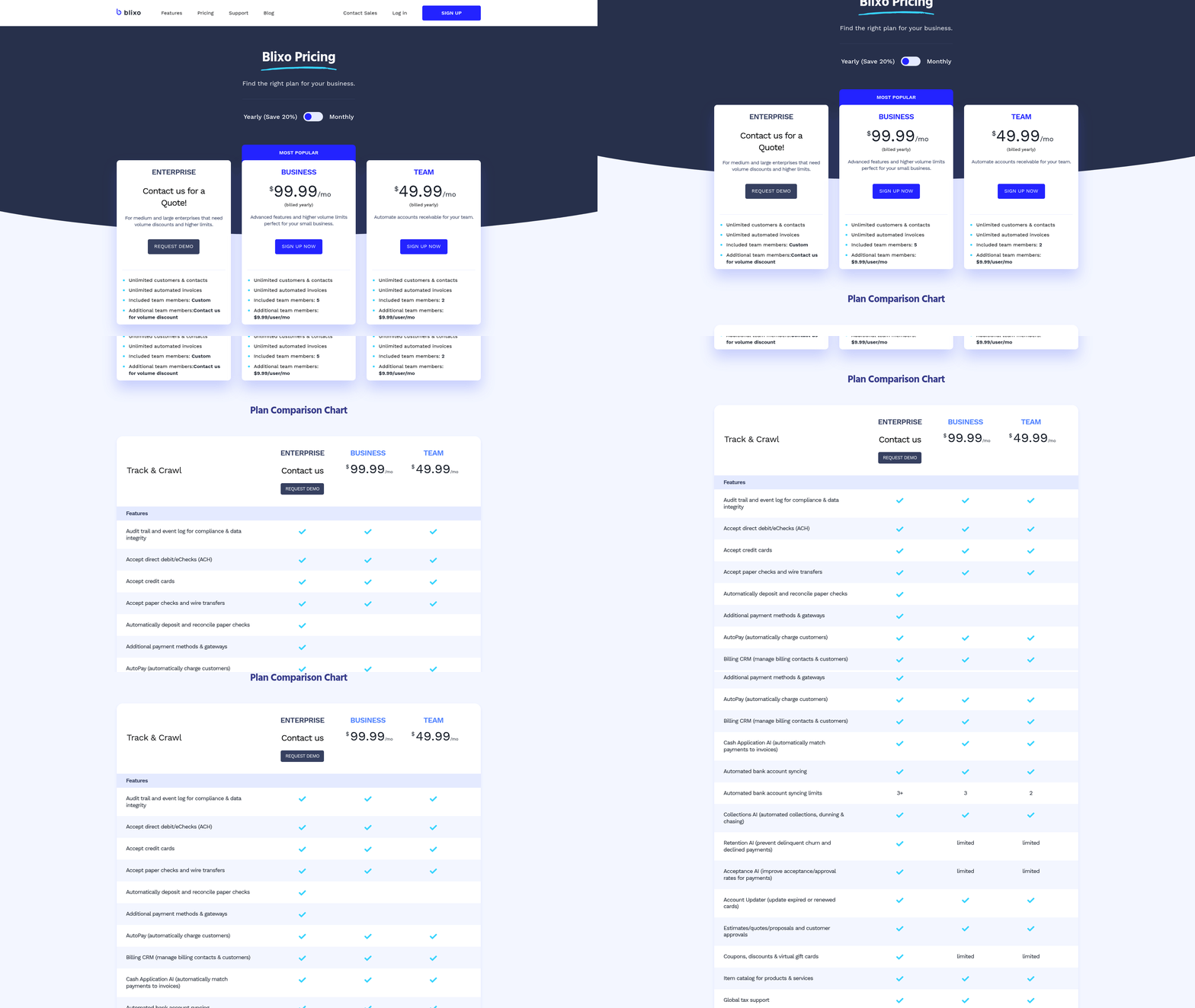
User feedback provides insight into a platform’s reliability and performance. Building on concepts from the Seamless API Integration: Connecting AP Automation to QuickBooks section, platforms that offer transparent pricing and rapid deployment often receive high marks. Blixo, for example, stands out for its clear cost structure and ability to eliminate manual tasks without disrupting existing QuickBooks processes. In contrast, generic providers may hide fees or require extensive setup, leading to delays and budget overruns.
Why Is Cost and ROI Analysis Essential?
While upfront costs matter, prioritize long-term savings from reduced errors, faster payments, and labor efficiency. A 2023 case study found that AP automation can cut payment errors by 30% and reduce processing time by 50%. Blixo’s pricing model aligns with these benefits by offering predictable costs and measurable ROI. For instance, businesses using Blixo often report saving millions of hours annually by automating repetitive tasks like data entry and invoice coding. Compare this to generic solutions, which may require ongoing fees for updates or additional user licenses.
Final Considerations
After evaluating features, reviews, and costs, validate the platform’s compatibility with your QuickBooks version and team size. As outlined in the Scaling AP Automation as Your Company Grows section, platforms that support multi-entity accounting or direct payment processing (e.g., ACH or virtual cards) offer flexibility for growing businesses. Always test a solution’s workflow automation capabilities-such as AI-powered invoice routing or real-time reconciliation-to ensure it matches your operational needs. Blixo’s focus on native integration and rapid deployment makes it a strong choice for businesses seeking efficiency without overhauling existing systems.
Implementing QuickBooks AP Automation for Invoicing
Implementing QuickBooks AP automation for invoicing starts with a clear understanding of prerequisites and a structured setup process. Before diving into configuration, ensure your QuickBooks account is compatible-AP Automation is available in QuickBooks Online Simple Start, Essentials, Plus, and Advanced plans. Verify that all invoices to be processed are in supported formats (PDF, JPEG, JPG, GIF, PNG) and that vendor details are already entered into your QuickBooks system. This foundational step prevents delays during automation.
What Should You Check Before Implementation?
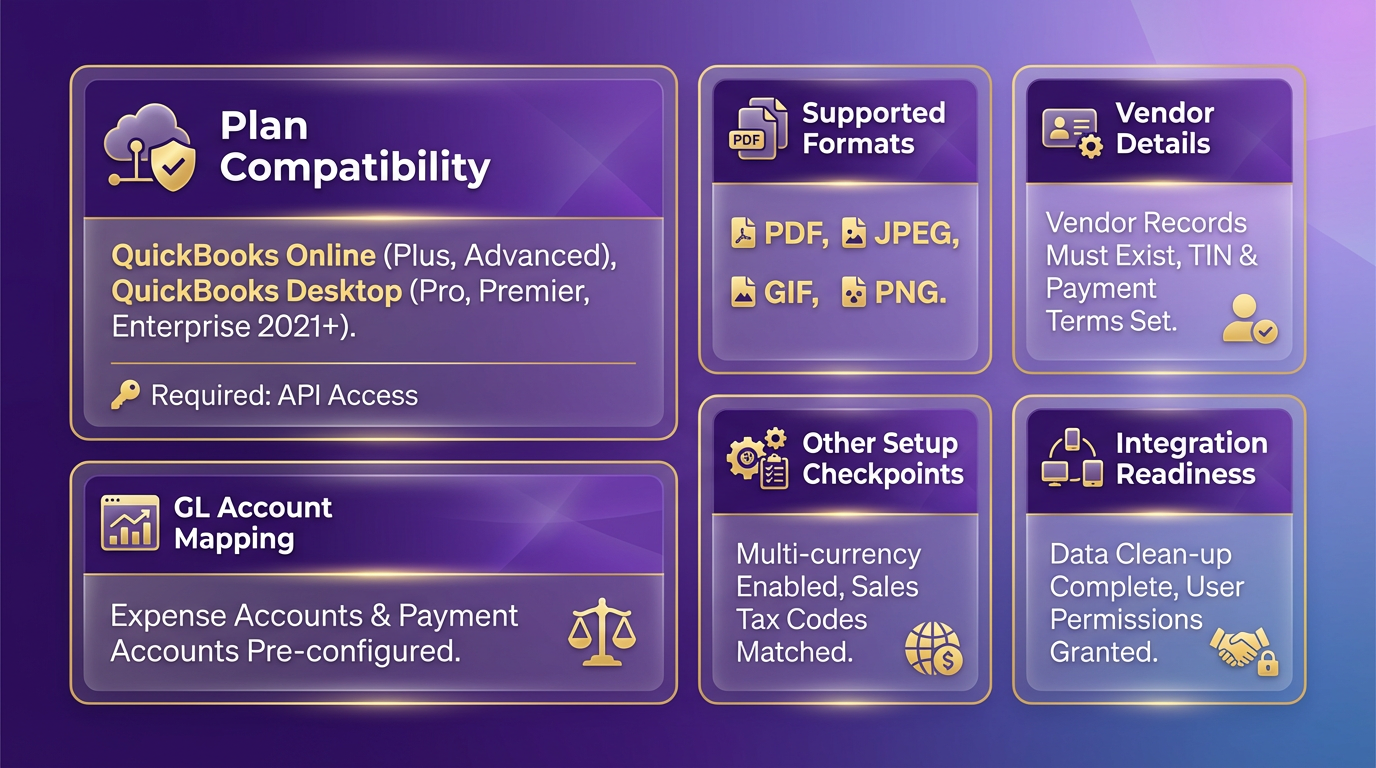
Begin by reviewing your team’s access levels. Users managing AP workflows must have permissions to upload bills, review pending invoices, and schedule payments. Check for duplicate vendor entries or incomplete data in your QuickBooks vendor list, as these can cause errors during automation. Also, confirm that your internet connection is stable-AP Automation relies on cloud-based processing, and interruptions may affect performance. A small business case study from Intuit shows that addressing these issues upfront reduced invoice processing time by 50% after implementation.
How Do You Configure AP Automation in QuickBooks?
-
Enable AP Automation: Log into QuickBooks Online and manage to the Accounting menu. Select Vendors and ensure all vendor profiles are complete. Next, go to Settings > Account and Settings > Advanced, and toggle on the AP Automation feature. This step activates the For Review tab, where pending bills will appear for approval. As mentioned in the Understanding QuickBooks AP Automation Capabilities section, this feature streamlines invoice processing and payment scheduling by automating data extraction and workflow assignments.
-
Upload and Categorize Invoices: Use the For Review tab to upload invoices directly from your computer. QuickBooks automatically extracts vendor details and invoice data from supported file types. For multi-step workflows, assign approvers by clicking Assign under each invoice. This clarifies responsibility and ensures accountability at each stage of the approval process.
-
Schedule Payments: Once invoices are approved, review the Bills to Pay section. Select invoices, choose a payment date, and link payments to the appropriate bank account. QuickBooks allows you to schedule ACH or check payments in bulk, ensuring timely vendor payments. For hybrid teams, consider setting reminders for approvers to avoid bottlenecks.
How Can You Test Your AP Automation Workflow?
After configuration, simulate the entire process with test invoices to identify gaps. Upload a sample invoice, assign it for review, and track its journey through approval to payment scheduling. Check for discrepancies in data extraction-QuickBooks’ system may occasionally misread handwritten fields or low-quality scans. If errors arise, revisit the source invoice format or manually correct entries in the For Review tab. Test edge cases, such as invoices with missing tax codes or multi-currency transactions, to ensure your setup handles them gracefully.
What Training and Support Resources Are Available?
QuickBooks offers built-in tutorials and a Help Center accessible via the app’s menu. These resources explain how to upload invoices, assign approvals, and reconcile payments. For teams, conduct a live walkthrough using a demo account to familiarize users with the For Review tab and payment scheduling tools. Intuit’s blog on improving vendor payments includes a step-by-step guide for training sessions. If issues arise, use the QuickBooks Community forum to connect with other users or contact ProAdvisor support for personalized help.
What Pitfalls Should You Avoid?
One common mistake is skipping the test phase. For example, a business that rushed to automate without testing encountered delays because their vendor list had inconsistent naming conventions. Always validate data accuracy before full deployment. Another pitfall is neglecting to set clear approval rules-without defined permissions, workflows may stall. Regularly audit the For Review tab to ensure no invoices are overlooked. Lastly, avoid uploading non-supported file types; QuickBooks cannot process scans in formats like TIFF or raw image files without conversion.
By following these steps, businesses can streamline invoicing, reduce manual errors, and gain better control over their AP processes. QuickBooks’ AP Automation, when implemented carefully, delivers measurable efficiency gains, as seen in the 50% faster processing time reported by one small business. Use the For Review tab as your central hub for managing automation, and revisit your setup quarterly to adapt to changing vendor or team needs, as outlined in the Monitoring and Optimizing Invoicing Automation with QuickBooks AP Automation section.
Seamless API Integration: Connecting AP Automation to QuickBooks
Seamless API integration between AP automation platforms and QuickBooks eliminates manual data entry, speeds up invoice processing, and ensures real-time financial visibility. By syncing vendor records, GL accounts, and payment data automatically, businesses reduce errors and save time. For example, one provider’s platform cuts manual entry time by 83%, while AI-driven tools like “Billy” streamline routing and approvals. Below is a step-by-step guide to implementing this integration, along with technical requirements, troubleshooting tips, and security best practices.
What Are the Key Benefits of API Integration?
API integration bridges AP automation tools and QuickBooks, enabling two-way data flow. This reduces manual tasks like invoice entry, which can consume 75% of a bookkeeper’s time. Automated syncing ensures vendors, purchase orders, and GL accounts stay updated in real time. Multi-currency support and direct payment capabilities further simplify workflows for global businesses. The result is faster approvals, fewer errors, and improved financial control.
What Technical Requirements Enable API Integration?
To connect an AP automation platform with QuickBooks, you’ll need:
- API access credentials: Most platforms require an API key or OAuth token for secure authentication.
- Data mapping configuration: Align fields like vendor names, GL codes, and invoice numbers between systems.
- Real-time sync intervals: Some platforms update data every 2 hours, while others push payment records every 5 minutes.
- Multi-currency and PO matching support: For businesses handling international invoices or validating against purchase orders.
Ensure both systems support the same QuickBooks version (Online or Desktop) and maintain HTTPS encryption for secure data transfer. As mentioned in the Implementing QuickBooks AP Automation for Invoicing section, verifying system compatibility is a critical prerequisite for successful integration.
How Do You Set Up API Integration Step by Step?
-
Enable API access in QuickBooks: Log into your QuickBooks account, manage to the API settings, and generate a token with read/write permissions for vendors, invoices, and payments.
-
Configure the AP automation platform: Input the API credentials into the AP tool’s integration settings. Select data categories to sync, such as vendors, GL accounts, and invoice statuses.
-
Map data fields: Assign corresponding fields between systems. For instance, match “Vendor ID” in QuickBooks to “Supplier Code” in the AP tool.
-
Test the integration: Run a dry sync with sample data to verify that invoices, payments, and vendor updates flow correctly. Check for errors like mismatched field types.
-
Monitor and optimize: Use built-in logs to track sync activity. Adjust settings if delays occur-some platforms allow customizing sync frequency.
Building on concepts from the Choosing the Right AP Automation Platform for QuickBooks section, selecting a platform with flexible sync intervals and strong data mapping tools is essential for seamless implementation.
How Can You Troubleshoot Common API Integration Issues?
- Authentication failures: Double-check API keys for typos and ensure they have full access rights.
- Data sync delays: If invoices aren’t appearing in QuickBooks, confirm the sync interval (e.g., 2-hour delay for some platforms).
- Field mapping errors: Recheck field assignments in both systems. A mismatched “Tax Code” field can cause invoice rejections.
- Payment processing errors: Verify that the AP tool supports the payment types used (e.g., ACH, checks) and that routing numbers are correctly entered.
Most platforms provide support teams to assist with setup. One business reported resolving sync issues within 60 seconds via their customer success team.
What Security Practices Should You Prioritize?
Secure API integration requires:
- Role-based access: Limit API keys to users who need them. Avoid using admin-level credentials for routine syncs.
- Encrypted connections: Always use HTTPS for API calls. Some platforms offer additional encryption for sensitive payment data.
- Regular audits: Review API logs for unusual activity. Rotate keys every 90 days to minimize risks from compromised tokens.
- Data validation: Ensure the AP tool validates all incoming data to prevent malicious entries from corrupting QuickBooks records.
Unlike generic providers, Blixo offers transparent pricing and end-to-end encryption, aligning with industry security standards. As highlighted in the Choosing the Right AP Automation Platform for QuickBooks section, prioritizing security features during platform selection is critical for protecting financial data.
By following these steps and best practices, businesses can achieve a seamless AP automation workflow with QuickBooks. The result is faster processing, fewer manual errors, and a streamlined financial operations strategy.
Monitoring and Optimizing Invoicing Automation with QuickBooks AP Automation
Monitoring and optimizing invoicing automation with QuickBooks AP Automation ensures your system runs efficiently and adapts to evolving business needs. By tracking the right metrics, using built-in tools, and refining workflows, you can maximize savings and minimize errors. Below, we break down actionable strategies to evaluate and enhance your automation performance.
What KPIs Should You Track for Invoicing Automation?
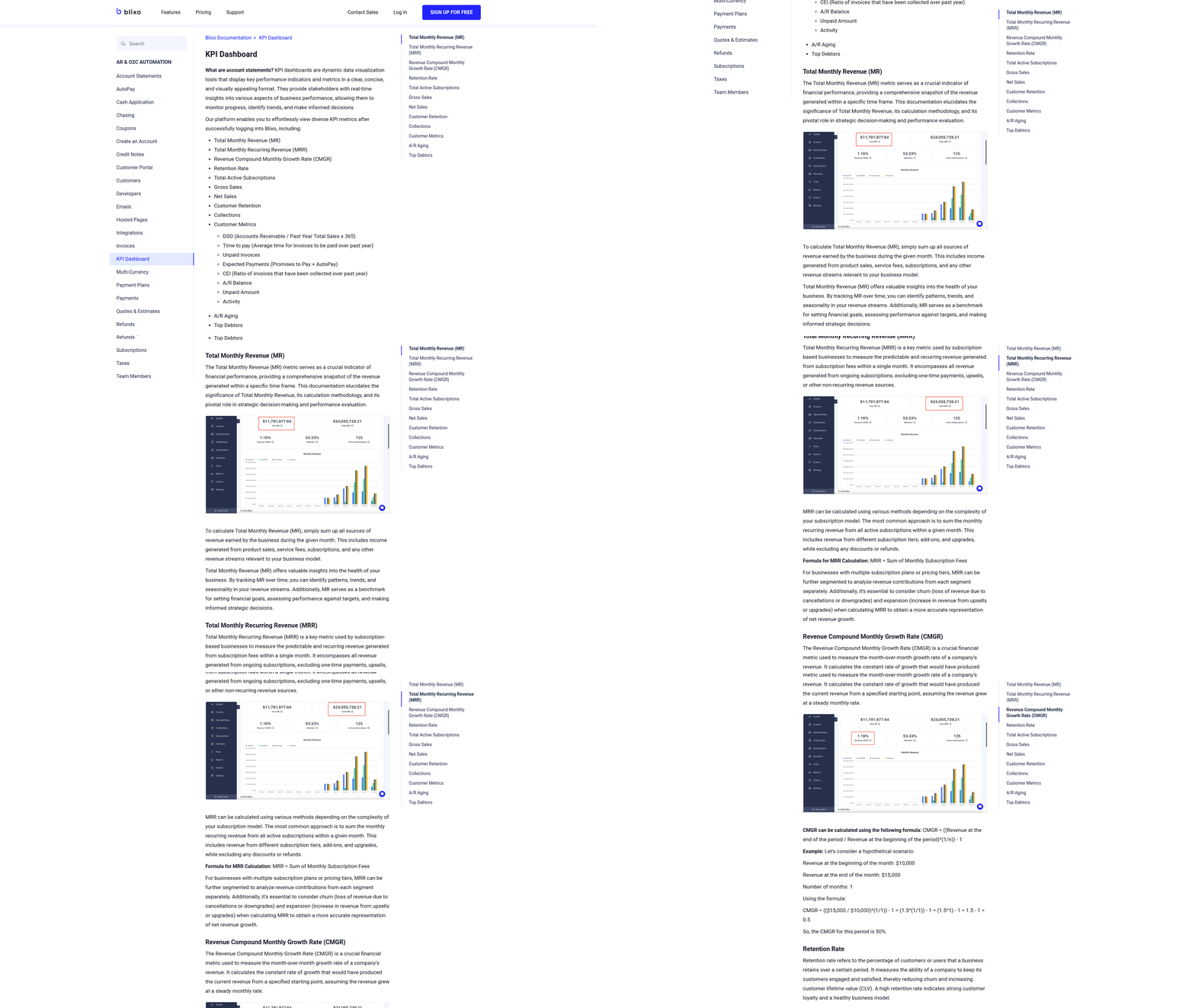
Key performance indicators (KPIs) help quantify the success of your automation. Focus on processing time, error rates, payment accuracy, and fraud risk reduction. For example, if manual data entry errors drop by 80% after automation, this KPI validates the system’s effectiveness. Another critical metric is supplier payment speed-faster payments improve vendor relationships and may enable early-discount opportunities.
To measure these, use built-in QuickBooks reports and dashboard features. AvidXchange’s integration with QuickBooks syncs invoice data in real time, allowing you to monitor metrics like invoice-to-payment cycle time and approval delays. As mentioned in the Seamless API Integration: Connecting AP Automation to QuickBooks section, real-time data synchronization is critical for accurate performance tracking. If your team notices a spike in rejected payments, investigate whether the issue stems from incorrect vendor details or misclassified invoices.
How Do You Monitor Automation Performance?
QuickBooks AP Automation tools include end-to-end cloud platforms with analytics dashboards. These tools automatically sync general ledger codes, vendor lists, and payment history, ensuring data consistency. For instance, AvidXchange’s API integration with QuickBooks Online flags discrepancies instantly, reducing manual reconciliations. Building on concepts from the Choosing the Right AP Automation Platform for QuickBooks section, selecting a platform with strong integration capabilities ensures seamless data flow.
use user activity logs to identify workflow bottlenecks. If approvers frequently delay invoices, consider adjusting approval rules or adding reminders. Blixo’s SaaS service, for example, offers granular visibility into each step of the process, from invoice receipt to payment execution. Unlike generic providers, Blixo’s transparent reporting highlights areas where automation falters, such as mismatched purchase orders or missing documentation.
How Can You Optimize AP Workflows for Better Efficiency?
Optimization starts with refining workflow rules. Set permissions to automate low-risk invoices while requiring manual review for high-value or complex transactions. AvidXchange’s solution lets you enforce business rules, such as requiring dual approvals for invoices over $5,000. This reduces fraud risk while streamlining routine payments.
Another strategy is to train users on automation best practices. As outlined in the Implementing QuickBooks AP Automation for Invoicing section, proper training ensures users understand how to configure and interact with the system. For example, Maria Angotti, a Certified ProAdvisor, notes that efficient workflows lead to happier clients. Her team uses AvidXchange’s unlimited user access to conduct regular training sessions, ensuring everyone understands how to use the system effectively. If errors persist, audit the training materials and adjust onboarding processes.
What Challenges Should You Watch For?
Common hurdles include integration delays and user resistance. AvidXchange’s implementation typically takes 45 days, but delays can occur if your team lacks training or resists change. To address this, create a feedback loop where users report issues directly to your AP manager. For example, if employees struggle with the approval workflow, simplify steps or add tooltips within the interface.
Another challenge is data silos. If your AP system doesn’t sync with other financial tools, manual data entry becomes inevitable. Blixo’s cloud-based solution avoids this by connecting seamlessly with QuickBooks, ensuring all teams access the same up-to-date information. As emphasized in the Seamless API Integration: Connecting AP Automation to QuickBooks section, integration is key to eliminating data silos and reducing manual work.
How Can You Build a Continuous Improvement Cycle?
Treat automation optimization as an ongoing process. Schedule monthly reviews to assess KPIs and gather feedback from accounts payable staff. Use A/B testing to compare workflows-such as testing automated vs. manual approvals for specific invoice types. For example, one company saved 50% of its AP team’s time by shifting 70% of invoice approvals to automated rules.
use supplier feedback to refine your system. If vendors complain about delayed payments, check whether the automation misclassifies their invoices. Blixo’s SaaS service allows you to create custom rules for specific suppliers, ensuring their payments process faster. Regular audits of these rules keep your system aligned with business goals. As discussed in the Scaling AP Automation as Your Company Grows section, iterative adjustments are essential for maintaining efficiency as transaction volumes increase.
By combining real-time analytics, user training, and iterative adjustments, you can turn QuickBooks AP Automation into a dynamic tool that evolves with your business. Stay proactive, and you’ll enable long-term savings and operational excellence.
Scaling AP Automation as Your Company Grows
Scaling AP automation ensures your financial processes keep pace with business growth, avoiding bottlenecks as transaction volumes rise. A scalable system adapts to increased invoice processing, user demands, and regulatory complexity without manual intervention. Let’s explore how to future-proof your QuickBooks AP setup while maintaining efficiency.
Why Is Scalability Critical for AP Automation?
Scalability prevents AP workflows from becoming a liability as your business grows. Manual processes or outdated automation tools struggle with higher invoice volumes, leading to delays and errors. For example, QuickBooks Advanced supports only 25 users, but third-party integrations eliminate this restriction, as highlighted in the Choosing the Right AP Automation Platform for QuickBooks section. Scalable automation handles 600,000+ invoices annually, reducing manual work by 80% while maintaining accuracy.
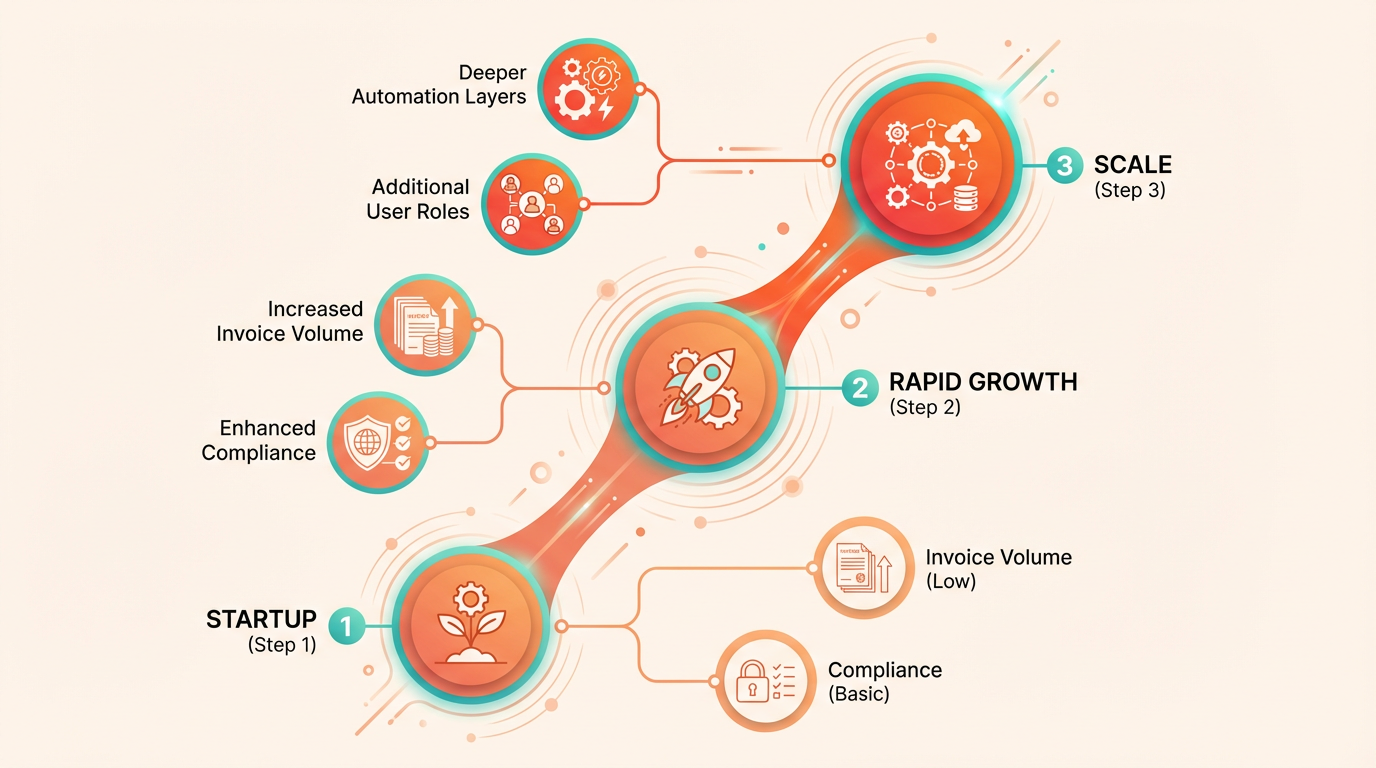
A third-party AP automation solution ensures your system evolves with your needs. Features like AI-driven invoice validation and multi-currency reconciliation grow alongside your business. Unlike generic providers, Blixo offers transparent pricing and tools tailored to expanding teams.
How Can You Adapt AP Automation to Business Growth?
Start by integrating automation that supports unlimited users and transactions. For instance, cloud-based platforms allow seamless collaboration across teams, even in hybrid work environments. Automated workflows batch-process payments, reconcile transactions, and enforce compliance rules-tasks that become unmanageable manually as complexity increases. APIs enable seamless updates and integrations, as covered in the Seamless API Integration: Connecting AP Automation to QuickBooks section.
Adopt AI/ML technologies to future-proof against fraud and errors. These tools learn from historical data to flag discrepancies, such as duplicate invoices or mismatched purchase orders. One company automated its AP process, cutting month-end close time by 8 hours and boosting productivity by 68%. Regularly audit your automation setup to align with new regulatory requirements or business models.
What Features Enable Expanded AP Automation?
Look for solutions with flexible approval workflows and multi-currency support. These features are part of the core capabilities outlined in the Understanding QuickBooks AP Automation Capabilities section. They simplify global payments and cross-departmental approvals as your team expands. A KPMG-certified tax engine ensures compliance with regional tax codes, reducing the risk of penalties.
Unlimited user access is another key factor. Some platforms let you assign role-specific permissions, ensuring security while streamlining collaboration. For example, a third-party provider’s two-way sync with QuickBooks reduced manual data entry by 90% for a mid-sized business. Prioritize tools that integrate with your existing ERP systems and support payment types like ACH, virtual cards, and checks.
How Do You Future-Proof AP Automation?
Future-proofing means choosing a platform that evolves with technology. APIs enable seamless updates and integrations, ensuring compatibility with new QuickBooks versions or emerging financial tools. Cloud-based solutions offer automatic updates, so you never lag behind in features like real-time analytics or blockchain-based audit trails.
Stay ahead by adopting predictive analytics. These tools forecast cash flow needs and identify cost-saving opportunities in vendor contracts. One business used automation to shift 60% of its AP team’s time to strategic tasks, improving operational agility. Always evaluate your automation stack annually to align with growth goals and industry trends.
“When we’re able to work efficiently, our clients are happier,” says Maria Angotti, a certified accounting advisor, highlighting how streamlined AP workflows directly impact customer satisfaction.
By prioritizing scalability, your AP automation becomes a strategic asset, not just a cost-saving tool. Whether you’re handling 100 or 10,000 invoices monthly, the right system adapts to your pace, ensuring compliance, speed, and accuracy. Explore how to reduce DSO for deeper insights on optimizing cash flow alongside automation.
Frequently Asked Questions
1. How much can AP automation reduce invoice processing costs?
AP automation reduces costs from $15 per invoice to just a few dollars. This significant saving stems from eliminating manual data entry and streamlining workflows.
2. How long does invoice processing take with QuickBooks AP automation?
Processing time drops from 10 days to a few days. Automated workflows and three-way matching eliminate delays caused by manual verification steps.
3. What percentage of payment errors does automation eliminate?
Automation reduces payment errors by 30%. Features like three-way matching ensure accuracy in vendor details, amounts, and purchase orders.
4. How much time do AP teams save weekly with automation?
Teams save 52% of their weekly work hours, over 10 hours. Automated workflows handle data entry, approvals, and matching, freeing staff for strategic tasks.
5. Can automation prevent vendor relationship issues?
Yes, automation avoids 30% of errors causing strained vendor relationships. Accurate payment terms and timely processing maintain trust with suppliers.
6. How does automation improve bookkeepers’ efficiency?
Bookkeepers save 50% of their time by reducing manual invoice entry. This allows focus on financial planning and analysis instead of repetitive data entry.
7. What impact does automation have on cash flow?
Automation resolves bottlenecks, improving cash flow by ensuring timely payments and reducing late fees. Businesses gain better control over financial operations and scalability.